AI features
Audience: anyone who wants an assistant that can read and edit the open program · about 12 minutes · Prerequisites: the Theia IDE (browser or desktop) and, for a useful assistant, Ollama with at least one model pulled.
What it is
struktJS includes an AI chat assistant in the Theia IDE, in both the browser and the desktop build. It is built on Theia's own AI chat framework and is designed for local models served by Ollama. The assistant is one chat agent named struktJS. It works through a fixed set of tools: it can read the open program, the language's concepts, the check results and the generator output, and, only after you approve, it can edit the program or run it.
What is not included: no cloud provider (OpenAI, Anthropic and so on) is bundled, so there are no API keys to configure
and nothing is sent anywhere until you configure a remote model server yourself. The standalone webview preview
(npm run dev) has no assistant, because the chat lives in the Theia shell.
Open the chat
The chat panel is the AI Chat view. Use View > Tool Windows > AI Chat to show or hide it. It also opens
by default on the right side of the window once a project is active. Inside the panel, Ctrl/Cmd+Shift+L returns to the
chat's home screen and Ctrl/Cmd+Alt+L lists your earlier chats (both are Theia's own shortcuts and only work while the
chat view has focus).
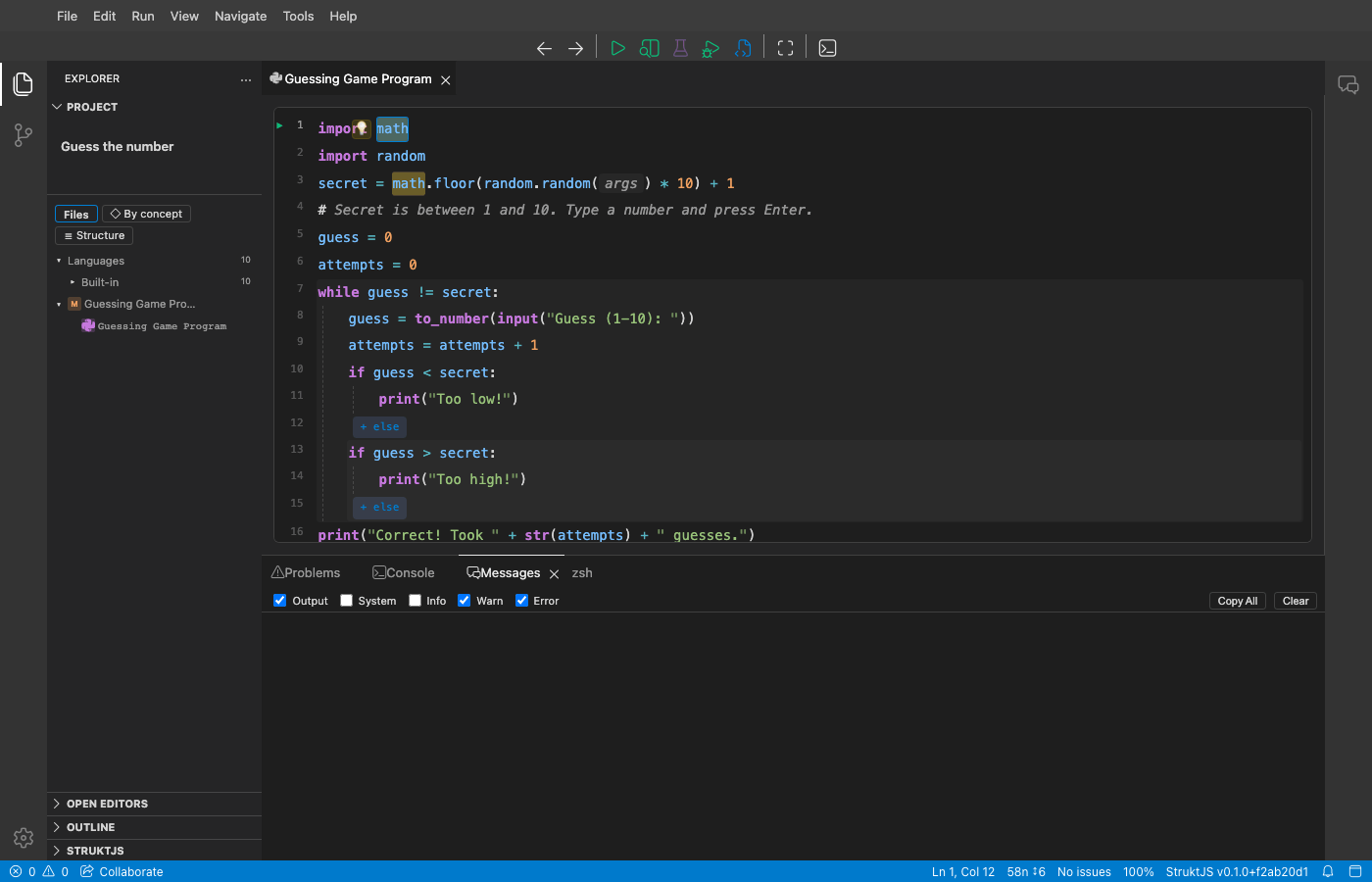
You do not need to type @StruktJS: the struktJS agent is the default for every message. (You can still change the
default agent with the ai-features.chat.defaultChatAgent preference.)
Set up a local model
- Install and start Ollama, then pull a model that supports tool calling, for example one from the Qwen, Llama or Mistral families.
- Start struktJS. At startup it asks the Ollama daemon (default
http://localhost:11434) which models are installed, registers them, and picks one for the struktJS agent. - Open the AI Chat view and send a message.
If you pulled a model after struktJS started, restart the IDE (or set the model list by hand, below) so it is discovered.
How the default model is chosen, in order:
- If you set
ai-features.ollama.ollamaModels, only those models are used and nothing is auto-discovered. - Models whose name contains
embed,embedding,rerankerorrerankare ignored when an alternative exists. - Among the rest, struktJS prefers a name containing
llama3,qwen(including the coder variants),mistral,nemo,command-r,firefunctionorhermes; otherwise it takes the first model. - If you have already chosen a model for the agent in Theia's AI configuration view and it is still installed, your choice is kept. If that model disappears, struktJS re-picks instead of leaving the agent broken.
The same mapping is applied to Theia's own helper agents that name and summarise chats, so they do not fail looking for a cloud model that is not there.
If Ollama is not running, the assistant simply has no model to talk to and the chat reports that no ready language model could be found; the rest of the IDE is unaffected. See Troubleshooting.
Slash commands
Type / in the chat input to see the shortcuts. Each one expands into a prompt that tells the model which tools to use.
| Command | What it does | Argument |
|---|---|---|
/explain |
Reads the program and explains in plain language what it does, organised by its main parts | optional topic to focus on |
/fix |
Finds errors with the checker and the type checker, applies a fix, then re-checks to confirm the problem is gone | optional description of the problem |
/generate |
Runs the language's generator and shows the output | none |
/typecheck |
Runs the type checker and reports its errors and warnings, or says there are none | none |
/concepts |
Lists the concepts available in the active language, grouped sensibly with a one-line description each | none |
/run |
Runs the program and shows its output; on failure it also reads the checks and type errors to explain why | none |
What the assistant can do
The agent acts only through these tools. Tools marked "asks first" show a confirmation in the chat and wait for you.
| Tool | Purpose | Confirmation |
|---|---|---|
struktjs_get_concepts |
Lists the active language's concepts | none |
struktjs_get_model |
Reads the open program | none |
struktjs_get_editor_context |
Reads editor state: open documents, the active language, the cursor's position, the program outline, and undo, selection and collaboration state | none |
struktjs_query_model |
Lists nodes matching a concept and/or a name (read-only) | none |
struktjs_get_checks |
Reads the checker's results | none |
struktjs_run_typecheck |
Reads the type system's results | none |
struktjs_run_generator |
Runs the language's generator | none |
struktjs_apply_code |
Replaces the whole program from surface-syntax text | asks first |
struktjs_create_node |
Adds one node to a slot of an existing node | asks first |
struktjs_insert_child |
Inserts a node at a position in a list slot | asks first |
struktjs_delete_node |
Deletes a node | asks first |
struktjs_rename_node |
Renames a variable or function declaration everywhere it is used in the open model (no cross-model cascade) | asks first |
struktjs_set_slot |
Sets a single slot to a plain value (text, number or true/false) | asks first |
struktjs_run_program |
Runs the program | asks first |
struktjs_search_web |
Searches the web | asks first |
The small targeted tools (create, insert, delete, rename, set_slot) exist so the model can make a bounded
change without rewriting everything. The whole-program struktjs_apply_code is for writing something new or doing a bulk
rewrite. Asking a small local model to regenerate a whole program for one rename tends to drop unrelated code, which is
why a rename has its own tool.
Safety nets for edits.
- Each targeted edit is validated (the target must exist and the operation must be legal for that concept's slots).
- After an edit, the checker runs again. If the edit introduced a check issue that was not there before, it is rolled back automatically.
- An accepted AI edit is a single undo step, so one Undo (
Ctrl/Cmd+Z) reverts it.
Tolerating small models. Small local models sometimes write a tool call as plain text instead of making the call. struktJS recovers such calls where it can, and after it has seen this twice in a row in a session it switches that session to a stricter JSON protocol. If a model pastes code into the chat instead of applying it, the agent points that out.
Time limits. The tools that talk to the editor wait a few seconds for it to answer (3 seconds for a whole-program apply, 5 seconds for a targeted edit, about 6 seconds for run and generate output). The model's own thinking time is not limited by struktJS. If a tool reports it timed out, the editor was busy or no document was open; try again.
Preferences
The assistant is configured through Theia's own preferences, shown in File > Preferences > Settings; struktJS does not add AI settings of its own.
| Option | What it does | Default | Gotcha |
|---|---|---|---|
ai-features.ollama.ollamaHost |
Address of the Ollama server | http://localhost:11434 |
Pointing it at a remote machine sends your prompts and program text there |
ai-features.ollama.ollamaModels |
Fixed list of model names to use | empty (auto-discover) | When non-empty, auto-discovery is off; changing it re-validates the agent's model immediately |
ai-features.chat.defaultToolConfirmation |
Confirmation mode for tools with no entry of their own | always_allow (set by the struktJS app) |
Read tools run without asking |
ai-features.chat.toolConfirmation |
Per-tool mode, by tool name | the eight "asks first" tools above are set to confirm |
You can loosen or tighten any single tool; keep struktjs_run_program, the edit tools and web search on confirm |
ai-features.chat.defaultChatAgent |
Which agent answers when you do not name one | struktJS | Only change it if you add another agent |
Model discovery asks Ollama for its model list with a very short timeout (a fraction of a second) so that startup is
never delayed. If Ollama is slow to answer at the instant the IDE starts, the models are not discovered; reload the
window after Ollama is fully up, or list the models in ollamaModels.
You can also change which model the agent uses in Theia's AI configuration view.
What data leaves your machine
| What | Where it goes | When |
|---|---|---|
| Your chat messages, plus whatever the tools return (program text, check results, generator output, program output) | The model server you configured. With Ollama on localhost, nowhere off your machine. If you point ollamaHost at a remote server, it goes there |
Every chat turn |
| Your search query | DuckDuckGo (lite.duckduckgo.com), sent from the IDE backend |
Only if you approve a struktjs_search_web call |
| Search results | Returned to the model, wrapped and labelled as untrusted data so instructions inside web pages are not followed | After a search |
struktJS itself sends nothing to an AI service unless you configure a remote Ollama host (or add another Theia AI provider yourself). Theia manages chat sessions itself; struktJS does not upload them. Do not put secrets into chats or program text if you use a remote model server.
Warning
A model can only act through the tools above, but struktjs_run_program runs the program you have open, and
programs can do anything their language allows. Keep the confirmation prompts on for it, and read what the assistant
proposes before approving. Web search results are untrusted text. See Security and privacy.
Limits to expect
- A model is only as good as its size. Small local models can misread a request, so review proposed edits before you approve them and rely on Undo.
- The assistant sees the program that is open in the editor. With no document open, tools answer that there is no active document.
- Everything the assistant does is an ordinary edit of your model; it is saved and versioned like your own edits.
Related
- Security and privacy
- Troubleshooting: the AI chat
- Type checking and Problems and checks: what
/typecheckand/fixread - AI internals: the capability registry, structured-edit validation and the repair loop