Completion menu
Audience: everyone who edits models · ~7 min read · Prerequisites: Editor basics, Entering code
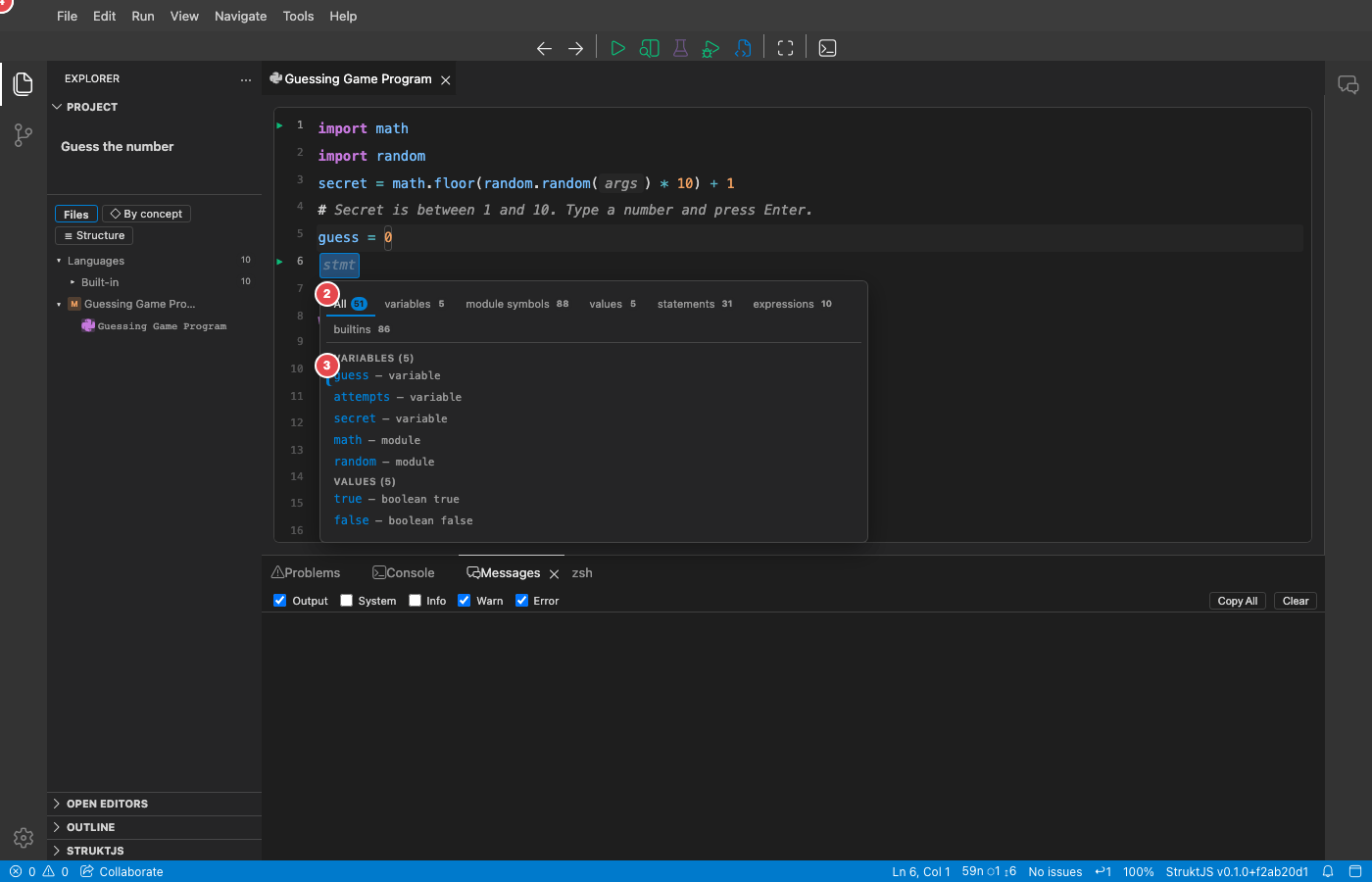
What it is
The completion menu is the popup that lists everything that can legally go into the cell you are in: variables in scope, concepts (the building blocks a language defines), literal values, and so on.
It opens with Ctrl+Space. With Ghost text (on by default, preference ghostText) typing a letter into an empty cell does not open it: when exactly one candidate continues what you typed, its remainder shows greyed after the cursor and Right arrow or Enter accepts it; Ctrl+Space shows the full menu. A name you type in full is taken as it is, even when a longer name could still follow (y beside yy): Enter or Right arrow accepts it, and ) or , typed after it commits it and then leaves the call or starts the next argument. Move away from a cell whose typed text was never entered and the editor tells you so once. Turn the preference off and the menu opens by itself when you type a letter into an empty cell, as it used to.
It is a passive list: it has no text box of its own. Your cursor stays in the cell, and what you type is the search. So the arrow keys, Tab and the mouse keep working on your cell, and the popup follows you.
It shows only things that fit. If a slot takes expressions, you will not be offered if; if a name is being defined, there is nothing to pick, because you are inventing it.
When you'd use it
- You want a statement or value and do not remember how it is spelled (
def,while,print). - You want a variable that is already in scope without retyping its name.
- You want to replace what is in a cell with something else (for example turn a
+into*, or a literal into a call). - You want to see what a slot accepts. The list itself is the answer.
How to do it
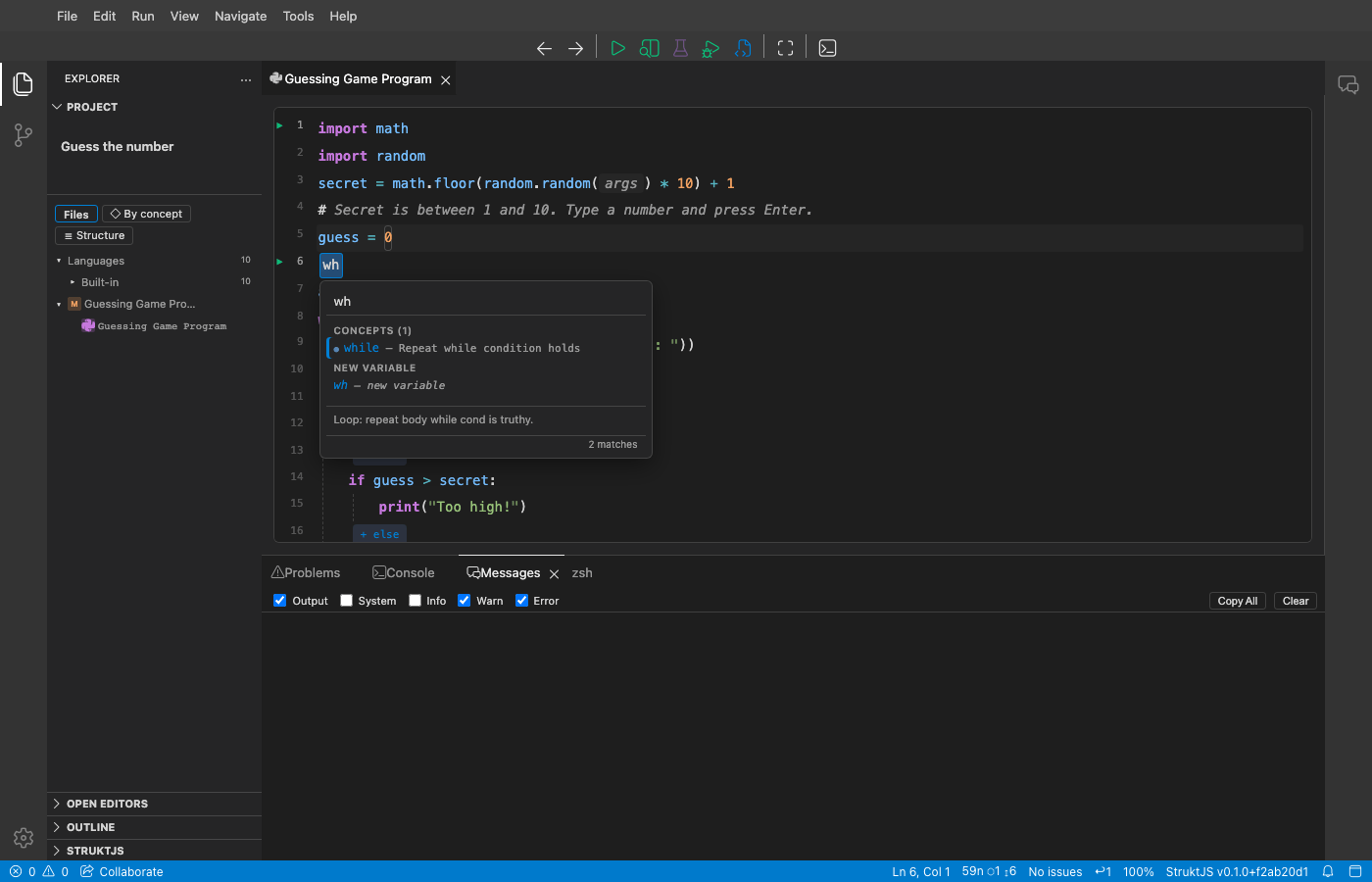
- Click an empty cell, or press Enter after a statement to create one (see Entering code).
- Press Ctrl+Space (Control, not Cmd, on a Mac). Or just start typing a letter.
- Type a few letters. The list narrows as you type; the line at the top shows your query.
- Press ↑ / ↓ to move the highlight. The text under the list describes the highlighted entry.
- Press Enter to accept. The concept is inserted and the cursor lands on its first empty slot.
- Press Esc to close without changing anything.
If you type something that matches exactly one concept's alias (its authoritative short name, such as if or while), it is accepted at once and the popup never shows. The exception is when a longer name also starts with what you typed: typing for does not jump to for while foreach is still possible.
If only one concept can possibly fit a slot, it is also accepted without a popup.
Replacing something that is already filled
Ctrl+Space on a filled cell opens a replace completion. The text before your caret seeds the query. The new concept keeps your existing children where its slots line up with the old ones.
In a cell that holds one of a fixed list of values, Ctrl+Space lists them all and selects the one the cell holds, so a rounding mode of half-even, a currency EUR, a type int or a const shows its alternatives instead of only itself: ↑ and ↓ move, Enter takes the highlighted one (the current one keeps the cell as it is), Escape closes. Type a few letters and the list filters as usual. A number cell can list its own common values the same way (a currency's decimal places: 0, 2, 3), and any other number can still be typed.
On a keyword, operator or punctuation (a decoration), Ctrl+Space works on the node that owns it. On a plain keyword such as while nothing opens, because a keyword is not a value. On an operator, see below.
Retyping an operator
Focus an operator's own symbol (Tab to it) and press Ctrl+Space. A section called operators lists the other operators that fit the same shape. Picking one swaps the operator and keeps both operands. A single choice is never auto-applied here, so you can always read it first.
What is in the list
The popup is split into sections, in this order when they apply.
| Section | What is in it |
|---|---|
| modifiers | Words that switch an on/off setting of the statement (like static), or add an optional part (like as name). Picking one turns it on. Press Backspace or Delete on the word later to turn it off. |
| variables | Names in scope at this point (including ones nothing uses yet: a data constructor, a name bound by a pattern, a labelled cell of a KernelF sheet test that comes earlier), plus an exact-match entry for what you typed. Names from a plain import x are labelled module. |
| values | true, false, 0, 1, "", and any number you typed. Not offered where a bare value would not be a legal statement. |
| concepts | The concepts the slot accepts, grouped by their category (Statements, Expressions, and so on). Many languages group them further (for example math). |
| module symbols, builtins | Functions and constants of imported modules, and the language's built-ins. Built-ins can sit on their own tab. |
| new variable | Always last: create a variable with the name you typed. Hidden where a new variable makes no sense. |
| modules, names | In an import statement: module names, then (in from … import) the names the module exports. |
| enum members | In a slot that holds one of a fixed set of values, only those members. |
| values (strings) | In some string slots, a language supplies a candidate list (for example slot names). After a dot it lists what the receiver has: the methods of a string, list or dict, or, for an imported module such as math., the constants, functions and classes its stub declares. When the receiver's type is not known (a value from your own class, a JavaScript value), it lists the member names the model already uses or declares (class methods and fields, .name and .name() elsewhere), because those are the likeliest. When the value is recognisably an instance of a class in the model (self or this inside it, a variable assigned Shape() or new Shape()), that class's own members come first. The popup opens when you type the first letter of the member name, or with Ctrl+Space; a name that is not in the list still types normally, and Enter with nothing listed just starts the next line. |
| operators | In operator-retype mode only. |
Sections that apply to the whole popup take over completely. An import slot shows only modules, and an enum slot only its members.
Ranking. Within a section, entries you pick often come first. Pick counts are stored in this browser profile, per machine, not in the model. A misspelling is tolerated when nothing else matches: one wrong letter for queries up to four characters, two for longer ones.
Tabs. When there are more than 20 results (or a special group such as builtins exists next to others), a strip of tabs appears above the list: All plus one per category, each with a count. Ctrl+← / Ctrl+→ (Cmd on a Mac) cycle the tabs; clicking one also works. Tabs are only a way to page the same list.
Footer. While a query is typed and there are results, the footer reads N matches.
The popup follows you
- ←, →, Home, End, Tab and mouse clicks keep navigating the editor. The popup re-aims at the cell you land on, re-seeding its query from the text before the caret.
- Moving onto a cell that has nothing to complete (a keyword, blank space) hides the popup but keeps it armed. It reappears on the next completable cell.
- Esc, accepting an entry, or clicking outside the editor ends it.
- Merely navigating never edits your model, so a cell is never silently replaced because you passed through it.
Two ways the query works
| Where you opened it | The query is | Typing |
|---|---|---|
| A filled free-text cell (a name, a string) | The cell's whole text, wherever the caret is in it | Edits the cell itself |
A filled cell holding one of its slot's listed values (half-even, EUR, int) |
Empty: the whole list opens with the cell's value selected, until you edit the cell | Edits the cell itself, and the list filters |
| An empty cell, a number or boolean cell, or a decoration | A small type-ahead buffer shown on the query line | Goes to the buffer. The cell is untouched until you press Enter. |
For an empty cell the typed text also shows in the cell as a preview. Ctrl+Space again keeps the buffer rather than starting over. Typing a letter in a number cell opens completion instead of putting text in a number.
In buffer mode, typing an operator key such as <, ( or . while a query is typed and an entry is highlighted commits that entry and then applies the key.
Every control
| # | Control | What it does | Shortcut | Gotcha |
|---|---|---|---|---|
| 1 | Open | Opens the popup on the focused cell (or replace-completion on a filled one) | Ctrl+Space | Control on every platform, including a Mac. |
| 2 | Auto-open | Opens when you type a letter into an empty cell | a letter | In a name-definition slot the letter just starts the name. |
| 3 | Query line | Shows what you typed | (typing) | In cell mode it is the cell's own text. |
| 4 | Tab strip | Pages results by category | click, or Ctrl+← / Ctrl+→ | Appears only above 20 results (or with a special group). |
| 5 | Highlighted entry | The entry Enter would pick | ↑ / ↓ / PageUp / PageDown, or hover | The exact name or alias match is pre-selected. |
| 6 | Description | The one-line description of the highlighted entry | (follows highlight) | Hidden if the entry has none. |
| 7 | Footer | Match count | Only while a query is typed. | |
| 8 | Accept | Inserts the highlighted entry | Enter, or click | With no results Enter falls through to the normal Enter. |
| 9 | Close | Closes with no change | Esc | Also ends the armed state. |
| 10 | Modifier word | Turns a flag on, or adds an optional part | choose it under modifiers | Remove later with Backspace / Delete on the word. |
| 11 | Box dropdown ▾ | Some cells have a small ▾ that opens this same list | click | Same list as Ctrl+Space. |
| 12 | Retype operator | Swaps an operator keeping operands | Ctrl+Space on the operator | See above. |
Keys the popup does not take: Tab, ←, →, Home, End. They keep moving you around the editor.
Related
- Entering code and Operators and side-transformations: the other ways to build code without the menu.
- Intentions: Alt+Enter, a different popup for changing code that already exists.
- Developer detail: Completion menu.