Models, roots and imports
Audience: everyone who builds more than one program · ~9 min read · Prerequisites: Project folder anatomy
What it is
A model is a folder that holds your program or data. A model has zero or more roots. A root is the model's own top node (for example a PythonFile in Core), and each root is saved in its own file. A model also imports: it names the languages whose concepts it may use, and it can name other models it may refer into. Roots share their model's imports and identity. The editor shows one root at a time.
A root is never a statement inside a file. x = 1 is a statement; the file that holds it is the root.
When you'd use it
- You want two or three small programs that share data or settings: make them two roots of one model.
- Your program needs concepts from another language, such as decision tables or diagrams: add a language import.
- One model needs to call functions defined in another: add a model import.
Roots
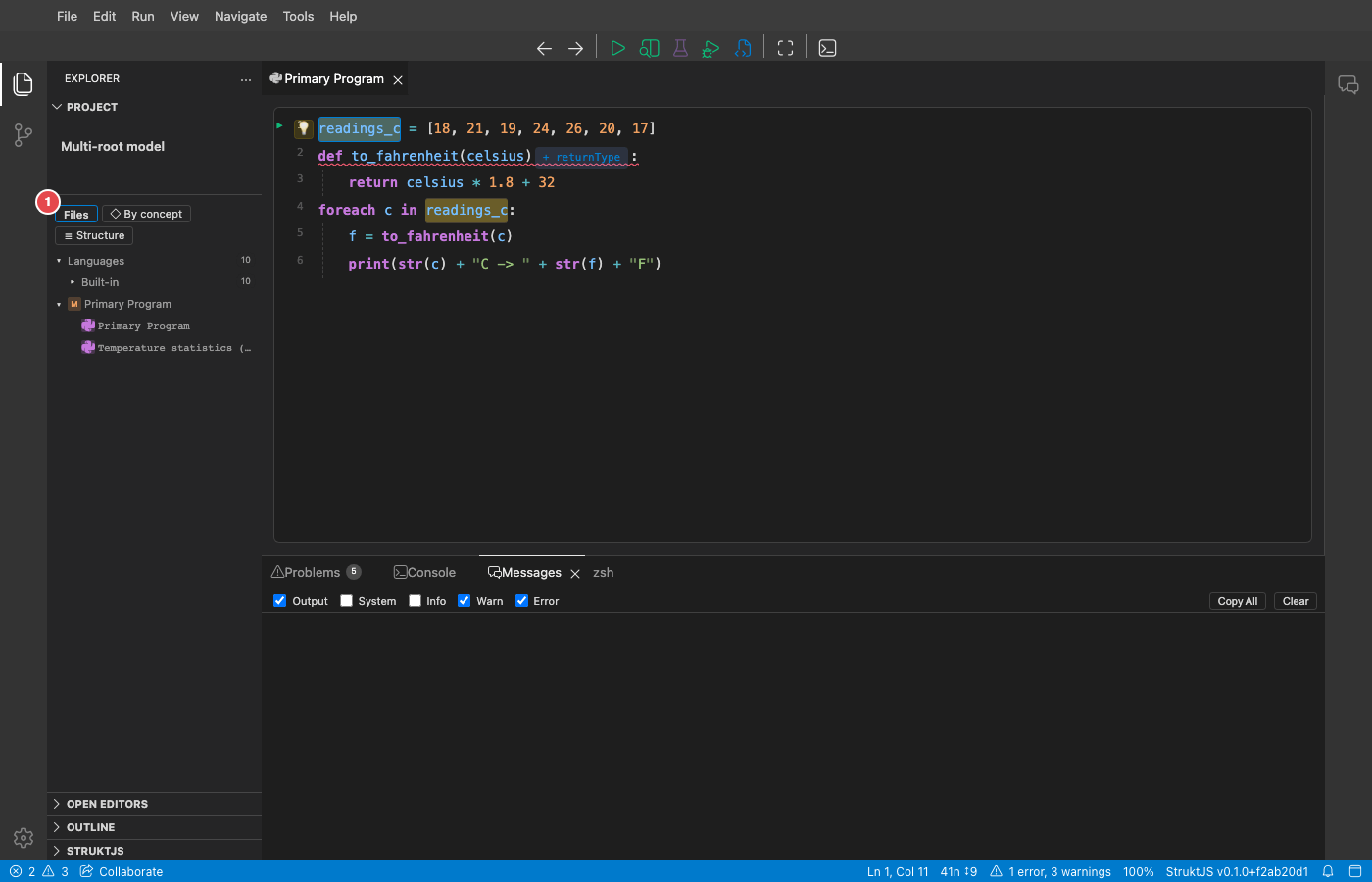
The multi-root-demo sample ("Multi-root model") has two roots: one converts a week of Celsius readings to Fahrenheit, the other computes the minimum, maximum and average of the same data.
Add, rename, move and delete a root
- In the Explorer's Project section, right-click the model and choose Add root node. If the model imports more than one language that has root concepts, you first pick the language of the new root. A searchable picker then lists that language's root concepts. Choose one. A new file is created and listed under the model.
- Click a root row to open it. A model with exactly one root also opens when you click the model row. With zero or several roots, click the root you want.
- Right-click a root for Rename root node…, Change Language… (only when another imported language can hold the root), Copy Path, Copy Qualified Name, Reveal in File Manager, Move to Another Model… (only when the project has more than one model) and Delete root node.
- You can also drag a root onto another model row to move it there.
The list offers every concept a language declares as a root, including a test suite (language Test Language, TestSuite); when the model imports several languages with roots, the entries are grouped by language and sorted by language name.
Add root node always adds a new file. It never puts one root inside another. A root's display name (the label you see) is stored in model.json; the file name is its identity. Every menu item is explained in The Explorer and Project pane.
Roots in different languages
A model's roots do not all have to be written in the model's primary language. A root can have its own language, chosen from the model's imports: a Core root stored as Python text next to a root in JS Grammar stored as JavaScript text, for example. A root in a language other than the primary one shows that language as a badge in the Explorer. Every root still shares the model's imports, so each can use the concepts of all of them.
- Add root node asks for the language first (when there is a choice). The new file uses that language's grammar and file extension.
- Change Language… on a root re-expresses it in another imported language: the same tree, saved in the new language's grammar. It is offered only where the other language has the root's own concept as a root concept, and it changes nothing if the root would not read back identically. It also offers a language of the project that only customizes the root's language (made by Customize this rule, see Generators and preview) and, from such a root, the language it customizes: they store the same text, so only the generation rules differ. The root then names the language itself; the model's imports do not change. The old file is removed after the new one is written.
- Opening a root switches the editor to that root's language. Run, Generate, checks and the CLI use each root's own language; tests run in the language of the model's primary root.
- A root can refer to a declaration in another root, in the same language or another, only through a concept that offers cross-root references (a reference provider, as the Name Clash language's
useValuedoes). Ordinary variable references stay inside their own root. The Mixed-language roots sample shows one: a JavaScript-text root uses a value the Python-text root defines.
The language of each root is stored in the model's model.json as rootLanguages (see The model file format).
Multiple roots
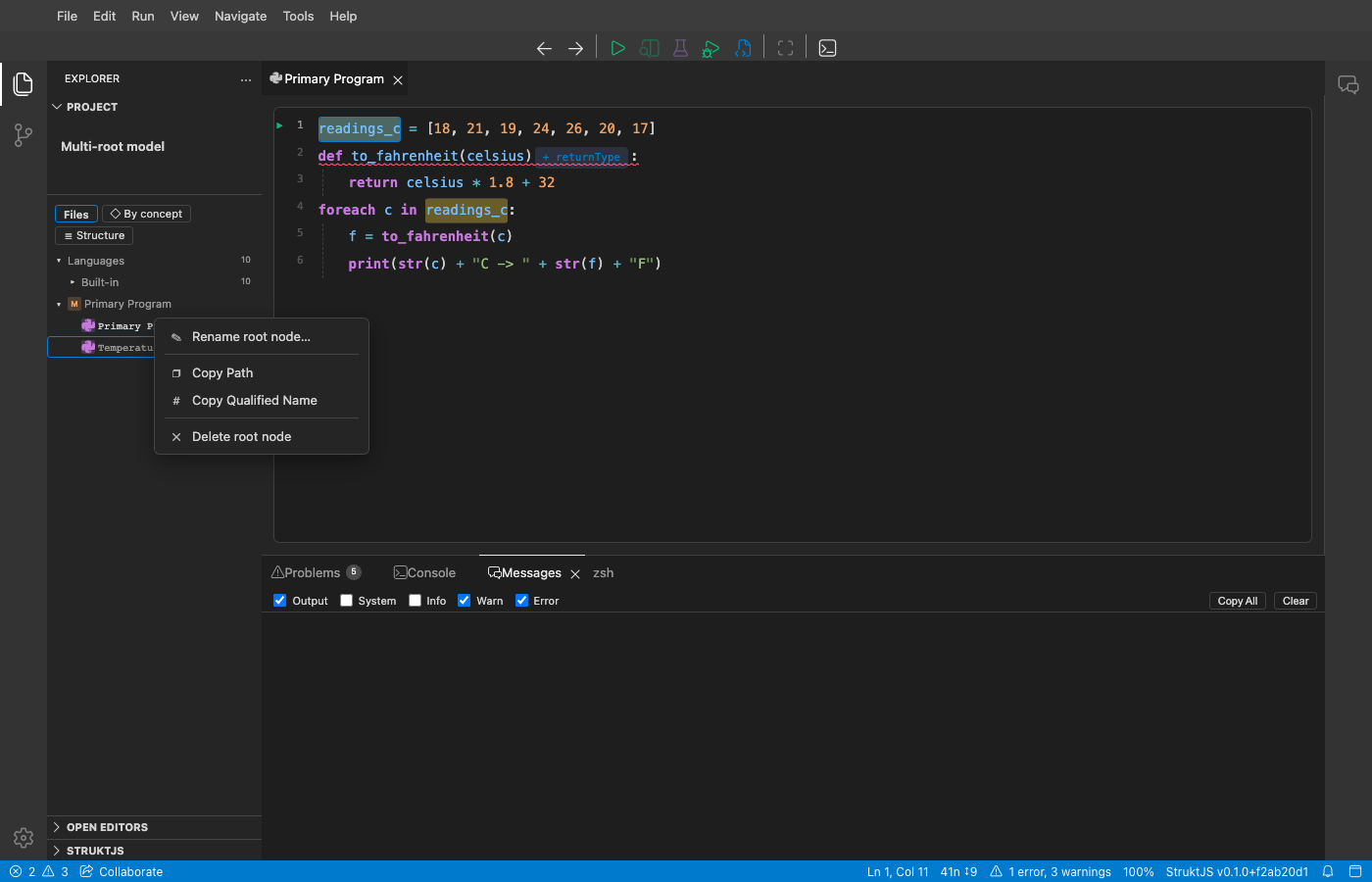
Roots are independent programs. They do not call each other, but they share the model's imports and name. From the Model Console, model.roots() returns every root and root is the one currently open.
Language imports
A model's language imports decide which concepts you can type and which root concepts Add root node offers.
- Choose Edit > Add Language Import… (Ctrl/Cmd+K, E, M), or right-click a language in the Explorer's Languages group and choose Add import….
- Pick a language in the searchable list. You may give it an alias for qualified calls.
- The import is written to the model's
model.json.
The first import is the model's primary language. It decides the file type (.model.py or .model.js), the root concepts, and the checks. Further imports are secondary: their concepts are added to the primary language for this model only, and are invisible to other models. For example the Decision table sample imports Core and also the decision-table language, so decisionTable appears only there. Each secondary import is composed when the model opens.
A project can also carry its own languages as *.lang.js files. They load for the open project only. See Bundled languages and Trusting project code.
Model imports
A model import lets one model point into another by the other's qualified name. In Core this is the from <model> import <name> statement.
- Right-click the importing model, then choose Organize > Add model import…. The picker lists the other models of the project. (The item is hidden when there is nothing to import.)
- To undo it, Organize > Remove model import…. Organize > Optimize Imports removes imports that nothing uses. These two appear only when the model already has model imports.
- The imports are stored in the model file's
# modelimports:header line. See The model file format.
Renaming a model, or setting its virtual package (Organize > Set virtual package…), updates the imports that point at it. Renaming a declaration can also update other models' imports; see Find, Replace, Find Usages and Rename.
Seeing the dependencies
Tools > Typechecker > Show Model Dependencies… draws the project's models as a diagram: an arrow from a model to each model it imports, and a dashed arrow to each language it uses. Untick Languages to see only the models. Models that import each other in a cycle are drawn in red.
Qualified names
Models and roots get a small, automatic, dotted, kebab-case name derived from where they sit on disk, so nothing extra is stored.
| Thing | Example |
|---|---|
| Model "Console Cookbook" | console-cookbook |
| Its root "Console Sample" | console-cookbook.console-sample |
A model nested inside another model's folder is prefixed by the outer model's name, and a # package: header adds a package prefix. Copy one with Copy Qualified Name in the Project pane, or Model > Copy Active Model's Qualified Name from the command palette. In the Model Console, printing model shows its qualified name. The design is explained in Qualified names.
Languages and imports in detail
The terms above are the whole story: languages come in through model.json imports, other models through # modelimports:. If an import points at a model that was deleted, remove it with Remove model import… and add the right one.
Every control
| # | Button/Option | What it does | Shortcut | Gotcha |
|---|---|---|---|---|
| 1 | Add root node (model row) | Creates a new root file in the model | none | Always appends; never nests |
| 2 | Rename root node… | Changes the root's display name | F2 on the row | Stored in model.json, not in the file name |
| 3 | Move to Another Model… (root row) | Moves the root file into another model | drag onto a model row | Hidden with only one model |
| 4 | Delete root node | Deletes the root file after you confirm | Delete or Backspace on the row | Cannot be undone |
| 5 | Add Language Import… | Adds a language to the model's imports | Ctrl/⌘+K, E, M | First import is primary |
| 6 | Add import… (language row) | The same, from the Languages group | none | |
| 7 | Add model import… / Remove model import… | Edits # modelimports: |
none | Hidden when nothing to add or remove |
| 8 | Optimize Imports | Drops unused model imports | none | |
| 9 | Set virtual package… | Groups the model under a logical package name | none | Not a real folder |
| 10 | Show Model Dependencies… | Diagram of models and languages | none (Tools > Typechecker) | Cycles are red |
| 11 | Copy Qualified Name | Copies the dotted name | none | Model and root rows |
| 12 | Change Language… (root row) | Re-expresses the root in another of the model's imported languages (new grammar and file extension) | none | Only offered where another import has the root's concept, or a customized copy of the root's language exists in the project; nothing changes if it would not read back identically |
Related
- The Explorer and Project pane
- The model file format
- Model Console
- Samples: Multi-root model, Decision table