Undo, redo and local history
Audience: everyone who edits models · ~4 min read · Prerequisites: Editor basics
What it is
Undo reverses your last structural edit; redo reapplies it. The history belongs to one document (one model root). It keeps whole-tree snapshots, so undo restores the exact tree, including the cursor position where possible. There is no separate file-level local history in struktJS (no timeline of saved versions). For past versions use Source Control.
When you'd use it
- You deleted or moved the wrong statement.
- You want to step back through several edits.
- You want to get back to a model you left and returned to.
How to do it
- Press Ctrl+Z (Cmd+Z on a Mac) to undo, or choose Edit > Undo.
- Press Ctrl+Shift+Z (Cmd+Shift+Z), Ctrl+Y, or choose Edit > Redo to redo.
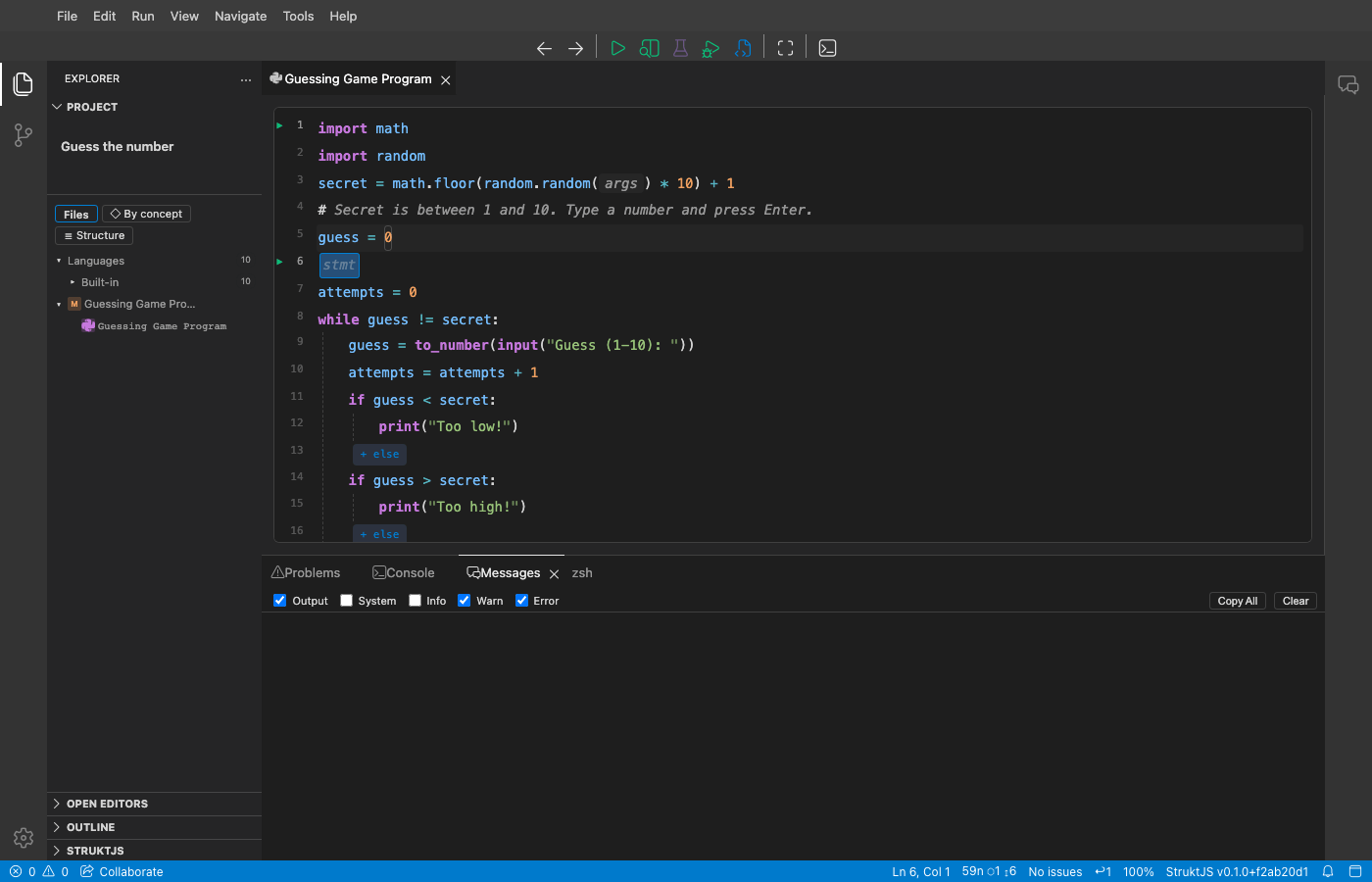
- Watch the badge at the right of the status bar. It reads
↩N, where N is the number of undo steps available.
An edit that happens while you are still typing in a text cell is committed first, so a half-typed value is one step you can undo. Editing after an undo discards the redo steps.
What counts as one step
- One keystroke action that changes the tree is one step: an Enter, a delete, a wrap, a paste, an intention.
- A command that changes several nodes at once (a rename across many nodes, Toggle Comment on a range, Extract to variable...) is one step.
- Navigation, selection and folding are not steps.
Limits and rules
- Depth. The preference Undo history depth (key
struktJS.editor.maxUndoSteps; 50, 100, 200 or 500; default 100) caps the steps kept per document. Older steps fall off. Higher values use more memory. - Switching models. Each model root keeps its own history while it is open in the window. Switching to another model and back keeps it.
- Loading something new (a sample, applying FullForm or Surface text, a new project) starts a fresh history.
- Remote edits. When a change from outside lands (another pane or a peer), undo cannot rewind past it, so it never overwrites that change.
- Undo inside text cells in the Language Editor's source view, the Console input and text panes use their own undo; the shortcut is the same.
Undo during a live session
In a Live Model Session undo is per person. Ctrl+Z reverts only your own last edits; edits by other participants are left alone. While a session is bound to a model, the step list is the session's, not snapshots. When the session ends, the history restarts from the current tree and you cannot undo back past the session.
The undo badge and history list
The ↩N badge is shown in the status bar of the IDE and is display-only there (hover for the tooltip "N undo steps available"). In the standalone webview, clicking the badge opens an Undo History list ("Edit #3", with a relative time such as "5m ago"); clicking an entry jumps straight to that state. This list is not available in the Theia IDE, and not during a live session.
Every control
| # | Control | What it does | Shortcut | Gotcha |
|---|---|---|---|---|
| 1 | Edit > Undo | Reverts the last step | Ctrl+Z / Cmd+Z | Greyed out when nothing is left. |
| 2 | Edit > Redo | Reapplies the last undone step | Ctrl+Shift+Z / Cmd+Shift+Z / Ctrl+Y | Gone after a new edit. |
| 3 | Status-bar ↩N badge |
Count of undo steps | hover | Clicking opens the list only in the standalone webview. |
| 4 | Undo History list | Jump to any earlier state | click an entry | Webview only; cannot jump behind a remote edit. |
| 5 | Undo history depth preference | Caps the steps | Preferences… (no default shortcut) | Applies to each document. |
| 6 | Alt+Backspace | Restores the last deleted node(s) | Alt+Backspace | Not an undo; a one-deep delete buffer. |
Related
- Editing structure: delete and restore.
- Collaboration.
- Source Control for saved versions.