Generators and Open Preview
Audience: everyone · ~7 min read · Prerequisites: Running a model
What it is
A generator is a set of rules, written by the language, that turns a model into text or a document: Python source, JavaScript, a configuration file, an HTML page. Run Generator shows you that text. Open Preview shows you the model's result: a live page for languages whose generator produces HTML, otherwise a formatted view of what the program prints. Neither command changes your model or writes a file; to write files see Multi-file generation.
When you'd use it
- You want to see exactly the code a model turns into (for Core, this is what Run executes).
- You want to see a visual result without leaving the IDE (a diagram language, the maze explorer).
- You are writing a generator and want fast feedback.
Run Generator
- Open a model and choose Run > Execute > Run Generator (F6), or the generator icon in the top toolbar.
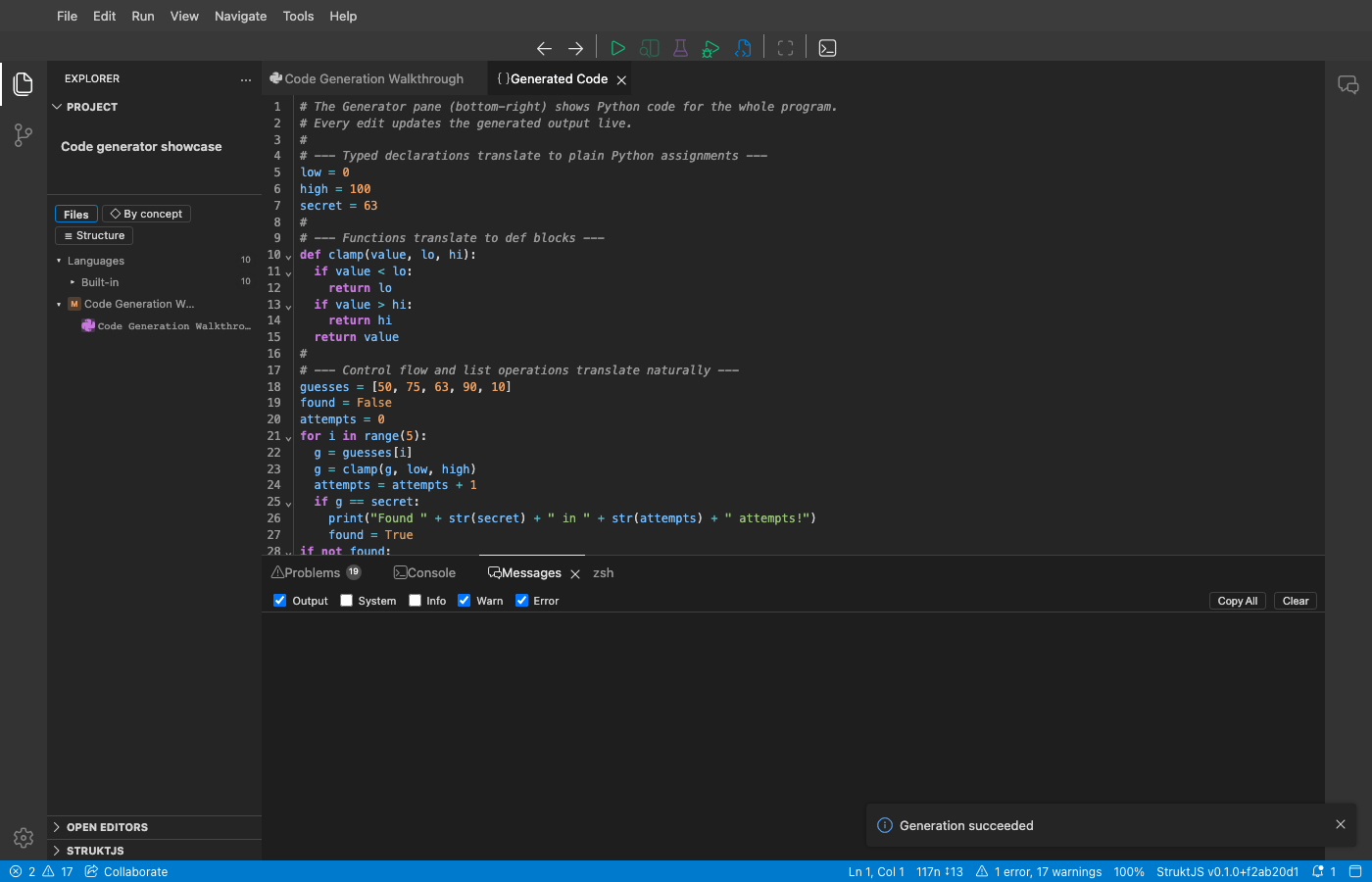
- A read-only tab named Generated Code opens beside the editor with the text. A toast says "Generation succeeded".
- If a concept's generator fails, each failure is reported as
Generator error for "head": messageand the text of the tab marks it. A generator that throws shows# Generator error: .... - Run it again after editing; the tab is a snapshot, not live.
- A language whose generator also writes other files (a rule's
files) shows them in the same tab: the main text first, then each file under a# file: <path>line. A Show list above the text picks one at a time (Everything, Main text, or a file); for an HTML file an Open preview button shows it in the sandboxed preview. Nothing is written to disk by Run Generator; Multi-file generation writes the files. A named output (an export) is not part of Run Generator.
Notes:
- Some samples are not meant to be generated ("... is not meant to be generated — its code is intentionally illustrative, not a program to compile."); the tab then contains that message.
- A language may declare an explicit generator plan (a staged transformation pipeline). Run Generator then runs the plan and shows its debug output instead of plain text.
- Run Generator does not refuse because of check errors; Run and Open Preview do.
- The Code generator showcase sample shows a typed program translated to plain Python.
Open Preview
- Choose Run > Execute > Open Preview (F4) or the preview icon in the top toolbar. It refuses to start with "Preview not run: fix the reported errors first (see Problems)." if the model has errors.
- What opens depends on the language:
- HTML languages (the language's default
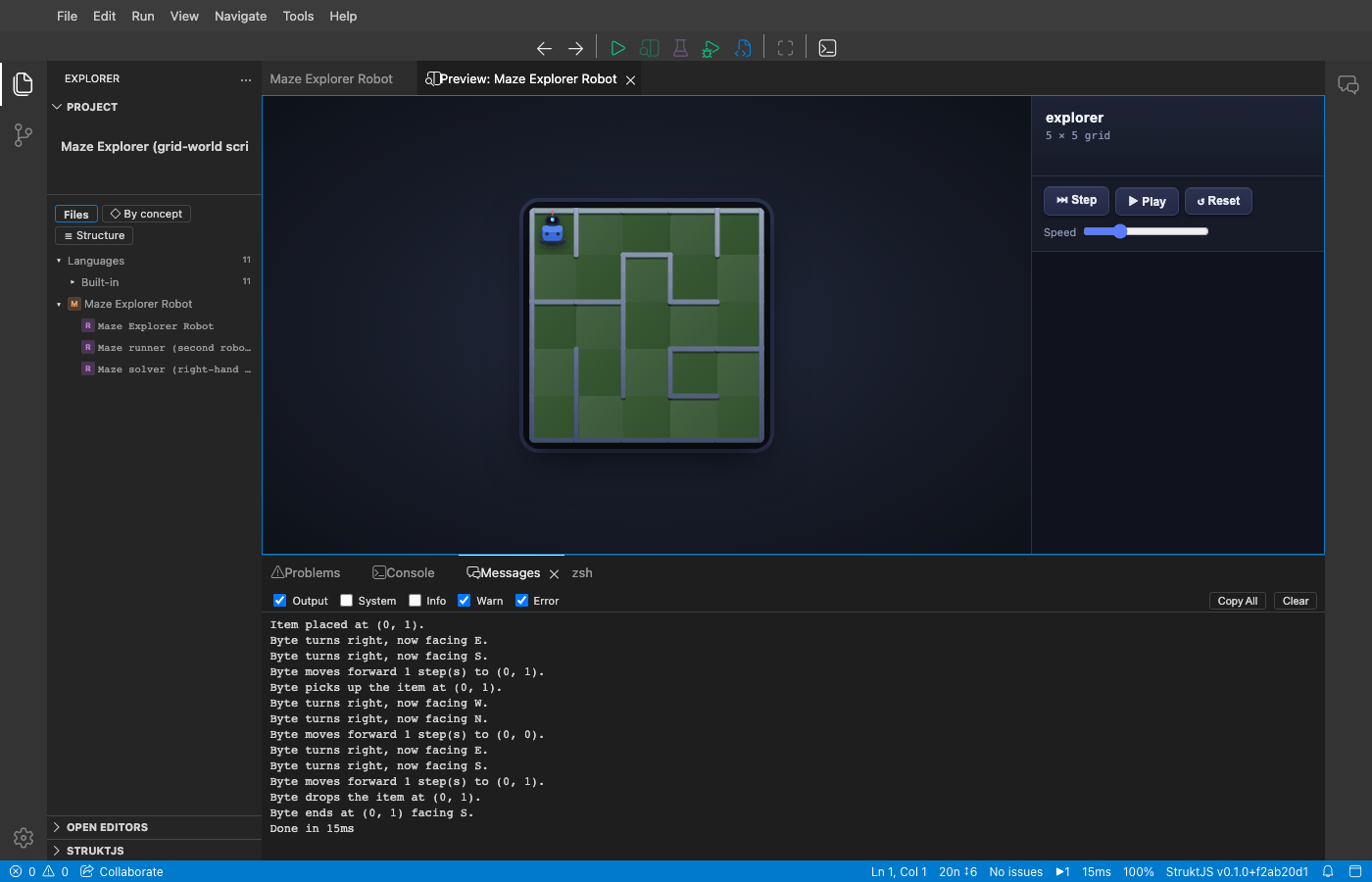
generatetransformation has the file extensionhtml, as the Grid Robot demo's Maze Explorer does): the generator produces a complete HTML and JavaScript page, shown in a tab named Preview orPreview: <label>. It runs inside a sandboxed frame (scripts allowed, no access to the IDE, its files or your session). - All other languages: a fresh run is made and its
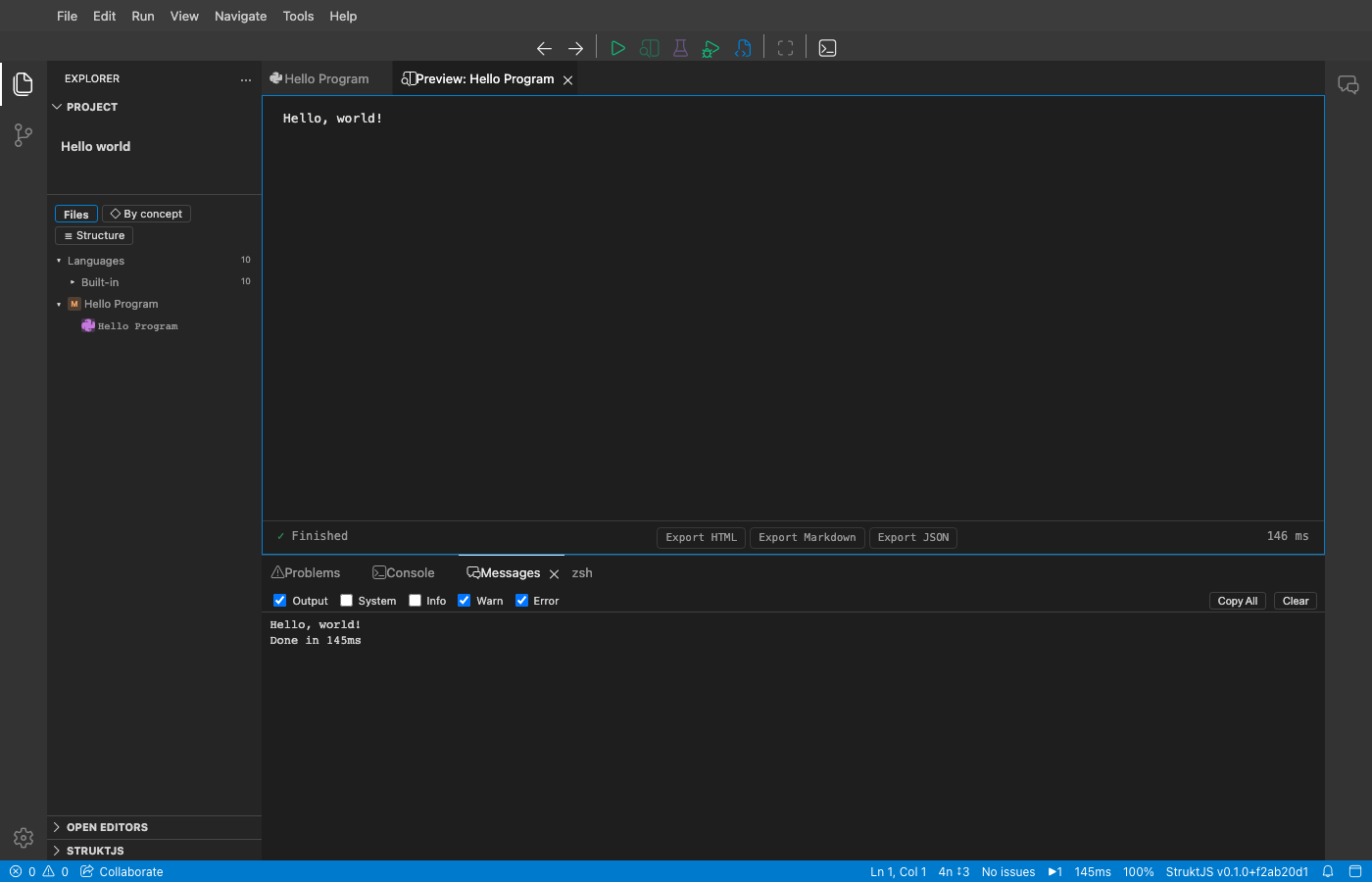
printand log output is shown as a formatted page, with the run's duration and whether it succeeded. A run that is still working shows "Running…". This extra run does not touch the Messages view.
- HTML languages (the language's default
- A program that calls
input()cannot be previewed: "Preview not run: this program reads interactive input (input()), which Open Preview's output view can't provide. Use Run Program instead." - The preview is a snapshot. Run Open Preview again after a change.
Every control
| # | Button/Option | What it does | Shortcut | Gotcha |
|---|---|---|---|---|
| 1 | Run > Execute > Run Generator / toolbar icon | Shows the generated text in a read-only tab | F6 | Nothing is written to disk |
| 2 | Run > Execute > Open Preview / toolbar icon | Live HTML preview, or a formatted output view | F4 | Refuses with errors or with input() |
| 3 | Generated Code tab | Read-only text; can be split and copied from like any editor tab | — | A snapshot |
| 4 | Preview tab | Sandboxed frame | — | Closes like any tab |
| 5 | Open Preview icon on the Generated Code tab | Runs the already-generated HTML | — | Only for HTML-preview languages |
| 6 | Run > Generate > Generate Model and others | Write files | Ctrl/Cmd+F9 etc. | See Multi-file generation |
Editing a generator
A language's generator is a set of rules. In a language of your own, a concept's rules are edited in the Generation tab of the concept (Rules of this concept: a text rule opens as a tree of lines, text runs and chips; any rule opens as code), and the transformation as a whole, its Post-process and the Generator plan (as rows you can reorder with the keyboard) under Language settings > Transformations; see The Language Editor. The Generators tour sample (File > Samples > Load Sample…) has one small language with every kind of rule: text, indented text, function, files, a named output, rule imports from a library model, a weave rule, a post-process, a concept's own model-to-model rule and a plan.
Editing a bundled rule for this project
A bundled language (Core, Grid Robot, ...) is shared by every project, so its rules cannot be edited in place; but your project can
have its own version of one. Open the rule in the concept's Generation tab and press Edit for this project: the card becomes
your project's own (marked Edited for this project, editable like any rule of your own language) and the project saves it as
generator-overlay.json in its folder, next to its language files. Every model of the project, written in the bundled language
itself, is then generated with your version (Run Generator, Rebuild Model, strukts generate), while the bundled language and every
other project keep the original. Revert to bundled on the card removes your version (and the file, when it was the last one).
- It works for a rule of any transformation, a named output included, and a model needs no other language or Change Language.
- A text rule can always be edited this way; a function rule only when it is self-contained (the same condition as below: a rule that
calls a helper of its language's own source says so on the card). To let such a rule use the project's library models, add a
"ruleImports"text togenerator-overlay.json(import lines, the same form a language's rule imports take, e.g.import { shout } from "helpers"): the rules are then compiled against those libraries, and editing a library asks for trust again. The Language Editor has no field for this yet; edit the file. - A function rule in
generator-overlay.jsonis code, so opening such a project asks for trust once, like a project's own language; what the app wrote itself is not asked about again. Refused, the whole file is left out and the problem is listed.strukts generateand the other CLI commands refuse a project with a function rule in it unless--trust-project-codeis given (a template-only overlay is data and needs nothing). Where the app generates through its sandboxed worker (Run Generator, Open Preview, the Generated Code tab) a function rule runs there, like any project code; Rebuild Model, Verify and the generator plan run it on the page thread, as a project language's code already runs there. - Your version is used for a concept wherever the bundled rule would have been, also for a model written in another language that borrows the concept.
- A Generated Code tab that is already open shows the new output the next time it is generated.
Customizing a bundled rule
The other way to change a bundled rule: make a language of your own that holds a copy. Open the rule in the
concept's Generation tab and press Customize this rule: the project gets a language (<name>-custom, shown in the Explorer
and written as <name>-custom.lang.js) that imports the bundled one and holds a copy of the rule, which you then edit like any rule of
your own. A rule of a language beats the same concept's rule of a language it imports, so a model written in the customized language
is generated with your copy, and the rest of the bundled language is untouched. A second customized rule goes into the same language.
- To see it run, switch a root of an existing model to the customized language: right-click the root in the Explorer, choose Change Language… and pick the customized language (the root then shows it as a badge; choosing the bundled language there switches it back). The model's own first import stays its language, so its other roots are unchanged. Or write a new model in it: make a new model and import the customized language first (Ctrl+L; a model's first import is its language). A root that stays in the bundled language is generated as before.
- Delete the copy to go back: deleting the rule from the customized language gives the bundled rule again.
- Only a rule of the default
generatetransformation can be customized (a named output is found as a whole, not rule by rule), and a function rule only when it is self-contained: a rule that calls a helper of its language's own source (Core'sifdoes) says so on the card instead of offering the button, because the copy would fail when it runs. A text rule can always be customized.
Related
- Multi-file generation
- Running a model
- Writing generators (developer) and Generator architecture
- Overview: running, debugging and generating