The Language Editor
Audience: language designers · ~12 min read · Prerequisites: Bundled languages, Projects and models
What it is
A language is a set of concepts. A concept is one kind of node, such as if or Plus: it says which
slots (children, properties, references) a node has, how it looks, what it does when run, and so on. The
Language Editor is where you read and change them. Every language you can open in the IDE, bundled or your
own, is shown here.
When you'd use it
- To see how a bundled concept is defined.
- To make your own language, concept by concept, without writing a plugin by hand.
- To set language-wide options such as reserved words.
Find Unused Concepts
Tools > Find Unused Concepts helps while you design a language. It lists, in the Messages panel, every concept the open model's language declares that is not instantiated anywhere in the models of the open project. Abstract concepts and platform interfaces are never listed, because they are not meant to be instantiated. "Unused" only means unused in the models that are open: a concept that a sample or another project uses can still show up, so treat the list as candidates to review or to cover with a sample, not as a delete list. It needs a language-backed model to be open.
How to
Open it
Choose Tools > Language Editor (Ctrl/Cmd+K, F, E; the command's own name is Show Language). In the Theia IDE the list of languages is in the Project section of the Explorer, under Languages: Built-in, User Languages (if any) and one group per open project. Click a concept to edit it.
Only the core languages are listed under Built-in at start-up. Demo languages (Robot, Entities, ...) appear once you open a sample or project that uses them.
Make a language
- In the Project tree right-click Languages (or any language) and choose New Language….
-
One dialog asks for the Language name (a name already taken is flagged under the field and Create language waits) and a Start from card:
- Blank: nothing in it yet. You are asked for the name of its first concept (leave the suggestion or type your own; Cancel keeps the language empty).
- Expression: like Blank, but the first concept starts as an expression with a left and a right operand.
- Statement: like Blank, but the first concept starts as a statement with a condition and a body.
- Copy of a language: every concept and setting of a language you pick, under your name (shown only when there is a language to copy).
- Calculator: a working small language (numbers,
letvariables,+ - * /,show, and a check that flags dividing by zero). With a project open, an example model written in it opens right away, so you see the language working before you change anything. Open the language's concepts in the Explorer to see how it is built and change it. - Data model: entities with typed fields. It flags duplicate field names and has a generator that writes TypeScript interfaces, so Run > Execute > Run Generator shows a model turning into code.
Under Advanced (for Blank, Expression and Statement) you choose the text format the language's model files use (Python-style
.model.py, the first entry, is the usual choice). It cannot be changed later in this dialog. A new language's settings page starts with a Getting started list (add a concept, give it slots and a look, write a model in it) that ticks itself off and disappears when all three are done. 3. With a project open, the language is saved in the project folder as<name>.lang.js. 4. Right-click the language's Concepts folder and choose Add new concept. 5. Fill in the concept on the tabs below, then use the language in a model through Add Language Import… or the model's language setting.
Go to a concept
Ctrl/Cmd+Shift+R inside the Language Editor opens a list of everything the language names, each entry starting with its
kind (concept: Plus, enum: Color). Type to narrow it (every word you type must appear in the entry), use Up and Down,
and press Enter to open the concept (Escape cancels). Inside the Language Editor the shortcut does not reload the page.
Enums are listed but not opened yet, and roots inside a concept are not listed.
The tab strip
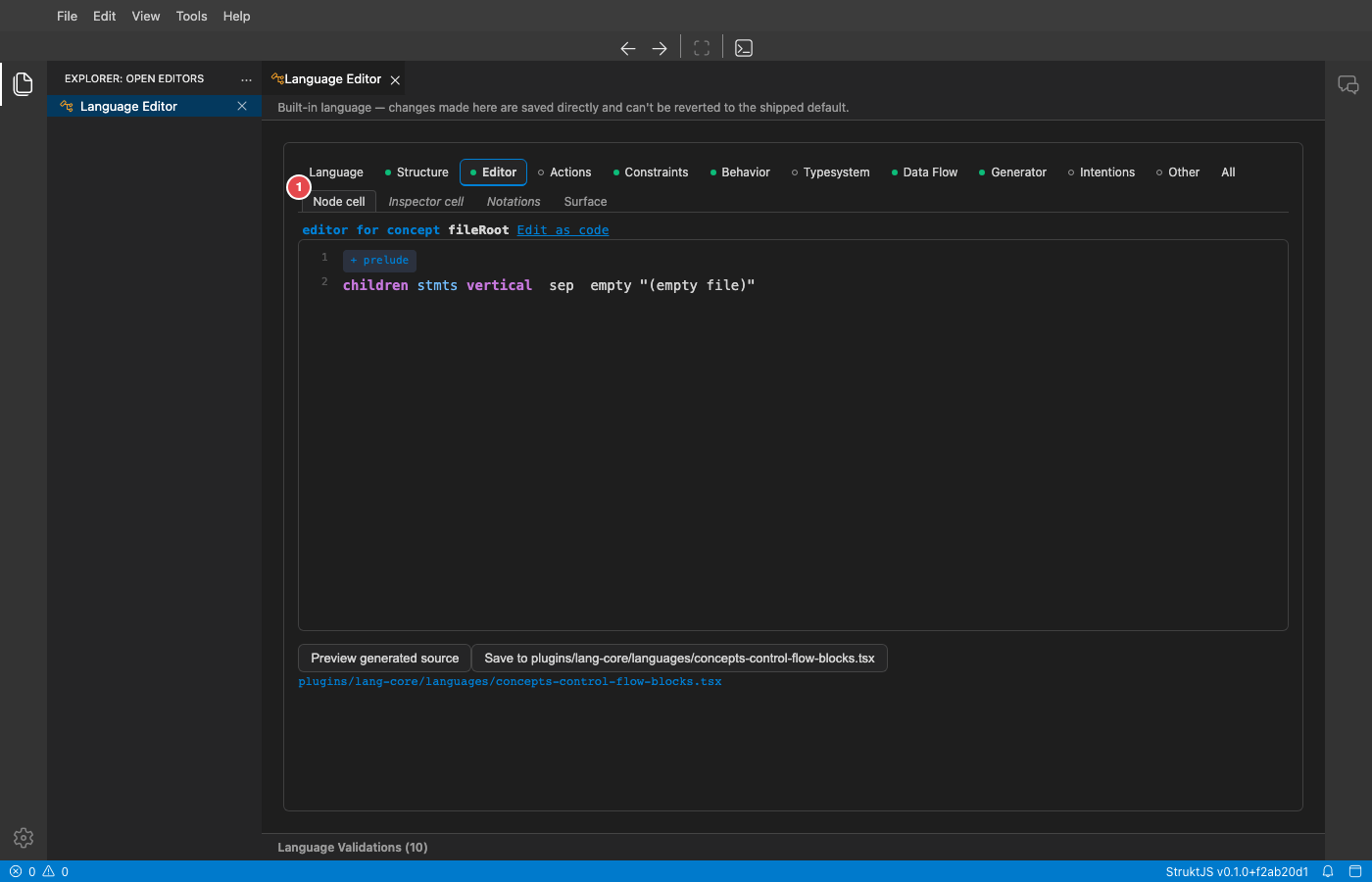
Each concept is split into tabs. The tab bar sits below the editor; the sub-tabs of an aspect (for example Appearance's Node cell and Inspector cell) sit above it. Every tab is always listed, in fixed groups with a small gap between them: Structure, Appearance and Text syntax; Rules, Types, Scope & flow and Running; Files; Menus & actions and Intentions. Each tab is named for what you want it to do, not for the aspect behind it (the old names are in the table below). Hovering or focusing a tab says what it is for, with an example (for Types: "number + number gives number; text + number is an error"). A filled dot means the aspect has content. An aspect with nothing in it is not a tab: the … menu after the tabs lists it, and picking an entry creates it. A small diamond on a tab means something in that aspect has an error or a warning (the diamond has a text alternative for a screen reader). The arrow keys move between tabs without opening them; Enter, Space or a click opens one. Home / End move to the first / last tab, and Up moves into the open tab's editor (the bar sits below it, and Tab from the bar leaves the pane). Alt+PageUp / Alt+PageDown open the next or previous tab that has content while the cursor is inside the concept. Escape in an editor moves on to the next control (the footer buttons, then the bar). Ctrl/Cmd+K, 1 to Ctrl/Cmd+K, 9 open the first to ninth tab of the bar, counting only the tabs you can see (a tab with nothing in it is not one); the digit is a second stroke of a chord because Ctrl/Cmd+1 to 9 belong to the browser's own tabs. Ctrl/Cmd+K, N, T opens the … menu, which lists the aspects with nothing in them, so you can create one from the keyboard. Both are also under Tools > Language Editor Tabs. With no concept open, or with no tab of that number, a message says so and nothing changes.
| Command (Tools > Language Editor Tabs) | Chord | What it does |
|---|---|---|
| Go to Tab 1, Go to Tab 2, Go to Tab 3, Go to Tab 4, Go to Tab 5, Go to Tab 6, Go to Tab 7, Go to Tab 8, Go to Tab 9 | Ctrl/Cmd+K, then 1 to 9 | Opens the Nth visible tab of the open concept and puts the focus on it. |
| Create Tab… | Ctrl/Cmd+K, N, T | Opens the … menu of aspects with nothing in them; picking one creates it. |
| A tab is only a view of the same concept; nothing is lost when you switch. |
| Tab | Sub-tabs | What it holds |
|---|---|---|
| Language | Settings of the whole language, not the concept (see below). | |
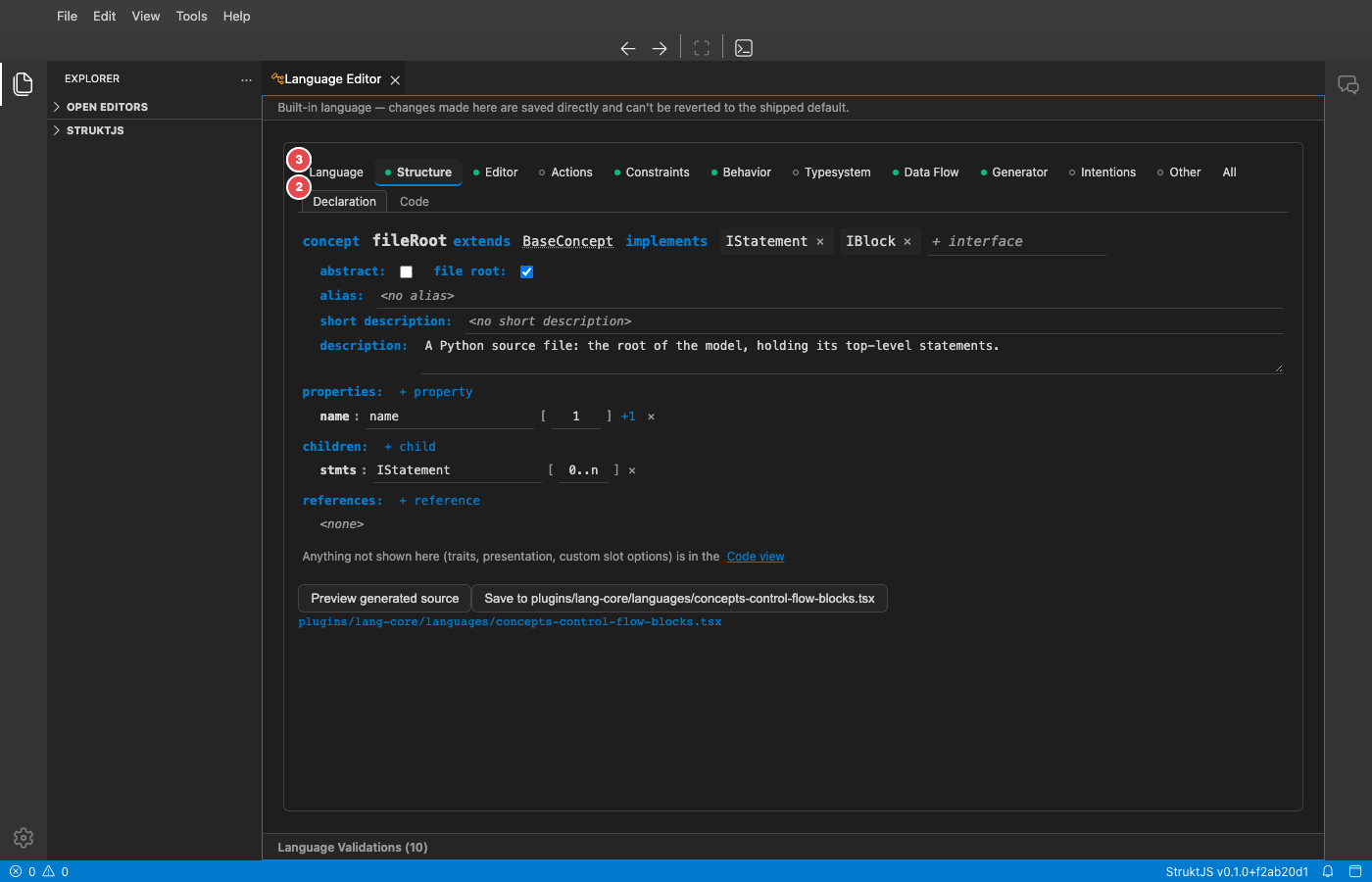
| Structure | Declaration | Head name, the parent class (the name after extends; edit it in place, Ctrl+Space lists the base class and the language's concepts), interfaces, the alias, the display name (what the Inspector calls this kind of node, for example Variable reference; without one the Inspector uses the concept's name split into words), the keywords abstract and rootable (in front of concept, shown only while set), short, description, deprecated, icon and color lines (one per line, aligned, not collapsible; every text line that is not set shows a dimmed none you click to type a value; icon is the one glyph drawn beside the concept's name, picked from a row of named glyphs or typed as any single character; color colours that glyph and is a palette name or a hex colour like #3b82f6, picked from the swatches or the colour chooser, a hex colour is mixed with the theme's text colour so it stays readable; none clears either; a colour that is neither a name nor a hex value is reported and not saved), and the slots: properties, children, references. Deleting a slot line asks first only when something else in the class reads that slot (code on another tab); a slot nothing reads goes at once, with an Undo line under the declaration. When saved models of the open project hold a value in the removed slot, the same line (or the question) adds ⚠ 14 nodes in 3 models have a value in it.; Migrate… on the language is the way to bring those models along. Declaration is the concept drawn as a declaration you edit in place. There is no separate class-source view: what no aspect claims is under Other. |
| Appearance (was Editor) | Node cell, Inspector cell, Notations | How a node is drawn and edited, the Inspector layout and alternative notations. |
| Text syntax (was Surface) | The text form of the node in model files: how it is read and printed. | |
| Menus & actions (was Actions) | Keyboard creation and transformation: operator keys, precedence, upgrades, surround-with, completion strings. | |
| Rules (was Constraints) | Placement, Constraints, Scopes | Where the node may go, validation rules, and which targets a reference may point at. Placement shows an In words block above the code (Allowed when the parent is params or lambdaParams.); it is read-only and only describes the code, which stays the thing that runs. A condition it does not know is shown as code. |
| Running (was Eval) | What the node does when it is run. | |
| Types (was Typesystem) | Inference, Checking rules | Type inference and checks. |
| Scope & flow (was Data Flow) | Scope, Control flow | Names the node introduces (and whether it is the default identifier, isDefault); how data flows through it. |
| Files (was Generator) | Turning the node into another model: reduction and weaving. | |
| Intentions | Quick actions on Alt+Enter. | |
| More (was Other) | Anything no other tab claims. Shown only when it has content. This is where a getPresentation() override lives: every concept inherits one that shows the node by its name (or head), and a concept that wants another label in menus and completion overrides that method. |
There are no headings above the editor; the tab already names the aspect.
Root tabs
When an aspect holds several declarations (a method, a field), each one is a tab of its own in a row above the editor, and only the open one is drawn. + at the end of the row lists the kinds of declaration the aspect can still add and adds the one you pick as a new tab. Rules are added as decorated methods (@check, @infer, @constraint): the new method gets a name nothing else uses, and the decorator stays with it when it is shown, moved or deleted; × deletes the open declaration after asking. The arrow keys move between the root tabs without opening them. An aspect with one declaration and nothing left to add (Running) shows no row. Switching to another aspect starts on that aspect's first declaration.
Inherited rules
A concept that extends another concept's class inherits that class's decorated rules. They show in their tab as greyed tabs (italic, dashed underline, announced as "inherited from Base") after the concept's own. They apply as they are. Choose one and press Override to change it here: the editor adds a root marked @override that calls super.name(ctx), so the override extends the inherited rule instead of hiding it, and the greyed tab turns into an ordinary one. A tab whose only rules are inherited is not dimmed as empty. A root that replaces an inherited one without @override, or an @override that replaces nothing, is named in a line under the tabs. Rules are read from the concept as last applied, so a parent's new rule shows after it has been applied. A rule declared on an interface the concept implements (or whose parent implements) is listed the same way, as inherited from the interface. Interface classes are written in a concept file's text: the aspect tabs list a concept's rules, not an interface's own, so an interface's rules are edited in the file.
The hint line
Below the editor there is one line of grey text. It follows the selection: select a part of the Structure tab's declaration (an implemented interface, a property, a child slot) and the line says what that part is ("Implements: An interface the concept implements."). It is empty when nothing with a description is selected.
Preview generated source is an entry of the right-click menu of a tab's editor (and of a tab drawn as cards). The status bar names the file the concept is written to ("Saved to plugins/…/x.concept.js") after a save.
Opening an empty tab
An aspect with nothing in it is not shown as a tab. The … menu at the end of the tab bar lists those aspects, and picking one creates it at once. (An empty sub-tab still asks Create … for plus? with Not now.) The wording of the button is always "Create" plus what the tab holds: output text, type rules, text syntax, …. Create … adds the aspect's starter declaration and opens the tab with the caret already in its first cell, so you can type at once, and the aspect starts with a small working body (a generator that writes the concept's own slots, one hole each, an intention with a name and an empty apply, a surface with one grammar entry, an Appearance layout that starts from the concept's keyword and one cell per slot: a list of statements goes on its own indented lines), never a blank pane. Close, Escape, or a click elsewhere closes the popover and nothing else happens: the tab you were on stays open and focus returns to it. A remembered tab that has since become empty is not reopened.
A type cell completes by any part of a name (Exp finds IExpression), and a single match is taken at once (the cell shows the pick, not what you typed). In the Output text rule view a part's slot cell completes to the concept's own slot names and its indent cell to none, same, more; in the Types view the type cells complete to the engine's types (number, string, …), the concept's category and the type names the language itself declares (its subtypes and type constructors, imports included), and the else line's severity cell to error, warning, info.
A property's type completes (Ctrl+Space) to the value kinds string, number, boolean, name and code, then to the
language's enums; a child or reference slot's type completes to interfaces and concepts.
Output text moved to Transformations
There is no Output text tab. A concept's text is a rule of the language's generate transformation, edited in the Generation tab of the concept (Rules of this concept, below) or under Language settings > Transformations (see below): a text template such as while ${self.cond}: with ${self.slot} holes, or a function when the text needs code. A concept class that still has a generate() method is not run any more: Run Generator reports each such concept (its text is a /* generator error ... */ comment naming it), the Health section lists them, and the method shows under the More tab until you move its text into a rule.
Text syntax: the template each grammar prints
The Text syntax tab shows how a concept is written in a model file, one template per grammar (python, javascript, ...):
python: print`${pad}while ${cond}:\n${suite(self.body)}`
javascript: print`${pad}while (${cond}) ${block(self.body)}`
   reads "while_statement": condition → cond (derived), body → body (derived)
Literal text is plain. A blue chip is a slot of the concept (${cond}; a modifier such as .sf(false) follows it when the grammar's default is not right).
A pink chip is anything else a hole can hold: the statement's own indentation (${pad}), a body (${suite(self.body)}, ${block(self.body)}), a joined list,
or a part that is only there when a slot is (${self.name.opt(...)}). \n is a line break. Under a grammar that also reads text, the reads line names the
syntax-tree node it matches and which field fills which slot; a field marked derived needs nothing more (the slot's kind says how to read it), one marked
explicit carries the modifier that says it otherwise (.as("text"), .inner()). A concept that is the host grammar's own syntax node (the TypeScript family) is
drawn the same way tagged with its node type, node("if_statement")`${prefix}${condition}${infix}...`, one hole per slot in the order it is stored. An operator is
one line, return infix("+");. The calls after the reads are rows of their own, one per line: the reasons a syntax node is given up on
(.rejects(unlessToken("of"), ifFieldType("left", "identifier"))), how the types of a template are told apart (.forType(...)), a token that wraps the result
(.wrapsWhenToken("async", "async")). Their names complete from the builders, and so do the builder calls inside them. A call the tab cannot read stays after the
template as written, and is never dropped.
Edit the literal text and the names in place. Saving without an edit never reprints the body, and an edit prints the template back exactly as the tab shows it. The Syntax | Code switch above the tab shows the TypeScript the tab stores. A new Text syntax (the Create button of an empty tab) starts as the text of the Python grammar with one hole for each slot.
Rules: settings that complete
On the Rules tab each rule is an entry tab (see above) of settings written key: value and the function that runs. A setting's key completes to
name, severity, slot and description; the value of severity completes to "error", "warning" and "info", and the value of slot to the
concept's own slots (the target of the rule); a value is the literal as written, so clear it first (Ctrl+Space lists what matches the text in the cell). The Rules | Code switch shows the TypeScript the rules print.
Running and Scope & flow
The Running tab shows what the node returns when it is run, in plain words: returns null, returns result of {left} awaited, returns each {stmts}
in order, result of the last, or returns code <expression> for anything else. Statements before the return are the setup (code). In an empty result
{ builds the child hole with the caret in its slot cell (Ctrl+Space lists the concept's slots); the words constant, child, each and code pick a
result from the completion. A new Running rule starts from the concept's slots: a list child is evaluated in order, a single child is the result, a concept
with no child returns null. The Rules | Code switch shows the TypeScript.
The Scope & flow tab (Scope and Control flow) lists the flags the analysis reads; each known flag says what it means after an arrow, for example
isTerminator = true -> ends the flow or nameSlot = 0 -> is named by the child at this index. A flag's key completes to the flags the analysis
knows; a setting it does not know has no caption and is still kept as written. The words flag, handler (a function such as process or analyze) and
delegate pick a member from the completion. The scope settings scope: block|function and visible: after declaration are not part of the hook, so
they are not shown here.
A function written as introduces: (node) => { ... } is shown like the other functions, with its body as highlighted code. It is printed as a method (introduces(node) { ... }) once you edit the rules; an arrow function that reads this is kept exactly as written.
The Tests tab shows each example as the snippet and what running it must give: given1 + 2expect result 3, expect prints "hi", or
expect fails (give fails an argument such as "not defined" to name a part of the error message). Ctrl+Space in the word after expect lists result,
prints and fails; the cell after it holds the value, the text or the message part, as written. A
backtick or ${ typed into the snippet is escaped for you. An example the form cannot say (a throw, several statements, a snippet with ${...} in it)
stays code, with the reason above it. The Example | Code switch shows the TypeScript. Refactorings and Migrations stay code: they are decorated
methods (@refactoring, @migration) that change the model, so there is no fixed shape to draw. What the editor does for them: the completion menu says what each
destructured parameter is (node, ask, model), and a new one starts from a skeleton that shows the helpers. ask("Label", default) is a question put to you
before the refactoring runs: it needs a literal label and a literal default, and the default's type (text, number, true/false) is the type of the answer. A
migration @migration(1, 2) runs over the model: for (const n of model.nodes("concept")) n.set("slot", n.property("old")).
The Menus & actions tab has two forms for what a concept adds to the workbench. contributes() (the actions and commands it offers on a node and in
menus) reads as a form: actions: and commands: sections, each entry with its id, label, the menus it is offered in and the code it runs.
menus: ["context", "palette"] is one cell per menu, and Ctrl+Space in a menu cell lists the real menus an action can be offered in (palette, context,
edit); a command's menu setting completes to the host's top-level menus (file, edit, view, run, navigate, tools, help). The code
(run, isApplicable) stays code. events: {...}, a spread or anything else the form does not model is kept exactly as written. A diagram's
diagramActions() (the buttons on its toolbar) shows one tab per button, named by its label, like the rules of the other tabs. The Rules | Code switch
shows the TypeScript. Add either from the … menu of the tab bar.
The Generation tab (it was called Files) starts with Rules of this concept: the rules every transformation of the language has for the open concept, each as a card you can open. A text rule has a
Code | Tree switch: Tree draws the template as one row per line, the literal text as quoted runs (the whitespace in them is visible) and each hole as a chip
(${ cond at indent plus " " }); edit a run or a chip and the template is written back and applied, exactly as the Apply button does. A model-to-model rule that returns a
template has a Code | Template switch (the template drawn as the target language's tree). Any rule can be opened as code. Add rule adds a rule of this concept to a transformation
that has none for it. A bundled language shows its rules read-only, with an Edit for this project button (your project's own version of the rule,
saved as generator-overlay.json, with Revert to bundled) and a Customize this rule button (a language of your project that
imports the bundled one and holds a copy of the rule); see Editing a bundled rule for this project and Customizing a bundled rule
in Generators and Open Preview. Below that, the Generation tab shows the concept's own hooks:
The Generation tab shows a concept's reduce rule (the model-to-model rule that builds an output tree from the node) as the tree it builds: builds Output
with one line per argument. In the empty list click no arguments, press Ctrl+Space and pick a word: copy (a copy of a slot's node, itself reduced
afterwards), property (a slot's value as a property), each (a body once per element of a slot, LOOP.index is the position), weave (a body woven in once
per element), node (a nested output node), value (a literal) or code (anything else, kept as written). Slots are named by the rule's parameters
(bodyFn, fieldsFn, ...). This form is opt-in and built from the documentation alone: no bundled concept has a reduce body, so treat it as new; a body
that is not one return stays code, with the reason above it. The Rules | Code switch shows the TypeScript. The weave hook (a rule that rewrites the
output afterwards) stays code.
Slot options
A slot's options beyond type and cardinality are the last cell of its own line, written as text: a flag is just its
name, a value is key=value, text with spaces is quoted. For example multiline default=5 on a property, or
multiline on a child slot. The options each kind accepts are
default, multiline, placeholder and label (properties), default, multiline and label (child slots), and default and
label (references; the concept a reference points at is its own column). label is what a person calls the slot in a problem
message: label="interest rate" makes a blank slot read "The interest rate is missing." Without one, the two operands of a
binary operator read "left side of +" and "right side of +", and any other slot reads as its name in words. How a child is drawn (one per line, separated, a statement body)
is not set here: the Editor tab says it. The change is written into the concept's class when you leave the cell; an
unknown option or unreadable text is reported under the declaration and nothing is written. An option whose value is
code shows as key=<code> and is kept as it is.
Keywords are fixed
In the code views, keywords such as class, extends, implements, await, return, if and while are drawn like text but cannot be typed into: you can move onto them with the keyboard, and they are announced as read-only. They are part of the code's shape, not something to retype; to change which construct you have, replace the whole node (completion, Alt+Enter). The text itself is still saved exactly as it was.
Documentation on hooks
In an aspect tab, double-click the name of a field or hook (editor, description, your own notes) to see its
documentation. A /** ... */ comment right before the member is shown first (its @param, @returns and @example tags
are formatted), followed by the built-in description when it is a standard concept hook. The comment stays in the file as
written.
Quick actions on a declaration
Put the cursor in the declaration and press Alt+Enter for quick actions: Make abstract / Make concrete, Make this the
file root (the rootable keyword) / Not a file root, and Implement INamedConcept. They change the same things the cells do.
If a concept's editor ever fails to draw (an error in its layout code), the node is drawn as plain labeled rows of its slots instead of going blank, and the failure is logged once.
The Node cell layout
On a concept's Appearance tab the layout is drawn the way a node will look, filled with a sample node (pick the sample
above the drawing), and you edit it in place. Click a piece to select its cell, then use the keyboard:
Enter opens a list of what can be inserted after the selected cell (text, line break, indent, a box, a computed
value, parentheses, an element, an expression, and a cell for each slot nothing shows yet), Shift+Enter inserts before it. You can
also just start typing: the list opens with what you typed, narrows as you type, and Enter inserts the highlighted
kind (Escape closes it). A new text, computed or element cell takes you straight to its value. The arrows walk the
cells, Alt+Up/Down move a cell, Alt+Shift+I wraps it in an indent, Delete removes it, and F2, double-click or
Edit value (in the cell's menu) goes to the cell's main value. There are no buttons on the layout: everything about the
selected cell is in the Inspector, which opens by itself the first time you draw a layout (without taking the keyboard
from the drawing; close it and it stays closed until the next tab): the sample the drawing
is filled with, the text style, the slot a cell shows and its other properties. Its Style lists include the styles of your
language's style sheet. Without an Inspector the same form sits above the drawing. A pair of brackets written with
parens(...) or call("name", ...) is one Parentheses cell holding the cells between them (a name in the Inspector
makes it name( ... )); the two brackets highlight each other.
The Example node under the drawing is a real editor on the node the drawing shows. If you replace its root (delete it, or wrap it in
something else) it is no longer a node of this concept, so the drawing keeps the last good one, the hint says so and Reset example node
starts again from an empty node. The Empty, Typical and Everything buttons next to the title restart it too: Empty has every slot a
placeholder, Typical fills every required slot, Everything fills the optional parts and lists as well, so you see how the layout looks with a part
absent and present without knowing to fill it. The placeholders in the example node carry the slot's name (cond, then), as on the drawing. When you select a cell the drawing does not
show because its slot is empty, a line under the drawing says so (Hidden: "else" is empty in the example node…). A layout with no cells says so on the canvas. Right-click a cell (or press Shift+F10 / the Menu key)
for a menu of the same commands. There is no separate outline: the drawing is the structure, and a screen reader walks the
same cells as a tree. A concept that declares an operator (operator = { key, kind, precedence }) shows an Operator line above the layout with its key and a
Precedence field. The field is always editable and writes straight into the class. It warns, naming the pair, when the editor's order of
operators differs from the Text syntax's (for example In the editor plus binds equally tight as lShift, but in the Text syntax it binds
tighter than lShift), because then what you type and what the saved text reads back as can differ. Only the order is compared, never the
numbers: the two use different scales.
The switch above the layout picks Preview (the drawing and the cell list), Structure (the cell list alone, one short line per
cell such as Text "if " (kw) or Children args; the drawing and the sample are hidden) or Template (the template's source). Your
choice is remembered. In both layouts the Inspector files a cell's settings in groups: its main value first, then Appearance
(styles), Typing (wrap trigger), Layout (separator, one per line, text when empty) and, folded under More, the rarely
used ones (attributes, widget options, code). Switching views never rewrites the stored class. A layout has no place for loose code: when an editor needs a computed value (a label, a flag), write it as a method of the concept
(Behavior tab) and call it from an Expression cell, e.g. {this.suppressLabel()}. An editor whose body has statements before its return
is not drawn as a layout; it stays in the TypeScript tab until you move that code into a method. Ctrl/Cmd+Z, Shift+Z and Y undo and redo in the layout.
When a slot of the concept has no cell, a line under the toolbar names it (No cell shows:) with an Add button for each; the button adds the right kind of cell (a child, a list or an optional one).
The aspect bar stays where you clicked it: the view above it keeps a minimum height, the bar wraps onto a second row instead of cutting a tab label, and the footer sits above it, so it is always visible. There is no Save button: once something changed the line reads ● Saving to … until the write succeeds, then Saved to ….
Autosave. The concept's .concept.js file, in your own project (<language>.concepts/…) or a bundled plugin in a
development checkout, is written about a second after your last edit, once the class is valid, without asking: the status bar then
says Language X: all changes saved. Ctrl/Cmd+S writes at once. A class that does not parse is never written, and the status
bar says can't save with the reason.
Recovery. Every edit is also kept as a recovery copy in the browser. If the window closes or crashes before the edit was written, opening the concept again restores it and says so with Keep and Discard: Keep leaves it as an unsaved change (an own-project file is then written as above), Discard reopens the file's class. A restored copy can be undone like any other edit: Ctrl+Z steps back to the class as the file has it, Ctrl+Shift+Z returns to the copy.
Undo and redo. Ctrl+Z / Ctrl+Shift+Z (and Edit > Undo / Redo) undo the edit in the open tab; when that tab has nothing left, they continue into the changes made on the concept's other tabs (the tab those changes were made on opens, so you see them). A tab remembers its steps for as long as it stays open: switching away folds everything done there into one step for the other tabs. Creating an aspect from the … menu is undone the same way.
Entry tabs
On the Intentions, Rules > Constraints and Types > Checking rules tabs, a hook that returns a list of rules (an
intention, a constraint or a check each) shows one rule at a time, as a tab per rule in a row above the editor. A line before the
tabs says where you are (while › Intentions › Convert to if). The tab's label is the rule's name, and it follows when you rename
the rule in its own name cell (as soon as you leave the cell). + adds a rule with a name no other rule has and opens it with the caret in its first cell; × (or Delete on the open tab)
deletes the open rule without asking, because nothing refers to a rule, and a line under the tabs offers Undo until you do
something else. The arrow keys, Home and End move between the tabs, and Enter opens the one that has focus. The open tab is remembered when you
switch to another aspect and back (and when the concept is opened again). The other rules are never touched by editing
one: saving writes the whole list back as it was, with only the changed rule different. Refactorings and Migrations are decorated
methods (@refactoring, @migration), so each is a root tab (see above), with + to add one.
New concept from a template
In the language pane's concept list, New from template… starts a concept with slots and a layout already in place: an expression with two operands, a statement with a condition and a body, or a declaration with a name and a value. + New concept still makes an empty one. Every way of making a concept asks for its name first (the suggestion is NewConcept), and a name of several words gets a suggested alias, the initials of its words (whileLoop gets wl), that you can edit or clear in the declaration; a template's slots are typed by interfaces (IExpression, IStatement), so a concept made from a template has no check errors. In the Explorer, right-click a language's Concepts folder: Add new concept makes an empty one, and the entries after it (Add new concept: Expression…, Statement…, Declaration…) start from a template.
Help
Right-click a tab (or focus it and press Shift+F10) and choose Help to open the documentation page for that tab.
Language tab
The Language tab is the language's settings page: one page for the whole language, not the open concept. Open it from the first tab of any concept, or right-click a language in the Explorer and choose Language settings… (it opens the Language Editor on the page with no concept selected). Its sections, each with a one-line caption under the title:
- Identity: the language's name (renamed from the Explorer), its label and description, and its Version. Raise the version when a change needs existing models migrated, then use Migrations… to write the steps; the steps already declared are listed below.
- Imports: the languages whose concepts this one may use. Type a name in the box to add one; the list completes from the languages the project can see.
- Persistence: the text Grammar a model written in this language is stored in. Models already saved keep their
own
# format:line. - Flags: the interfaces the language implements and their settings (the class described below).
- Transformations: how the language's nodes are turned into text, as named sets of rules. The one named
generateis the default: every generation (Run Generator,strukts generate) writes each concept with its rule; a concept with no rule is written as its name and children. Any other name is a named output, run bystrukts generate --export <name>. A rule is a text template (the text with${self.slot}holes, written as it comes out;.each(...)repeats a part for every item of a list and.opt(...)writes a part only when a slot is filled), a function (code that returns the node's text; it gets the same context an output hook did) or files (what the node writes besides its text;the root of the runis the rule of a named output), a model-to-model rule (what the node becomes in another model) or a weave rule (a fragment injected into the output after the reductions: it gets the source node and the output a reduce rule labelled for another node; a concept may have a weave rule and a rule of another kind in one transformation). A transformation also has one Post-process: a function over the whole output, run last, after the reduce and weave rules. Open a rule to read its source; in a language of your own, change it and press Apply (a text that does not read is shown beside the rule and nothing changes), Add rule, Delete rule, Add transformation. The rules of a concept of the language are edited in that concept's Generation tab, not here: the card says how many there are and lists only the rules no concept tab shows (the rule for the root of the run and rules for concepts of another language; Add rule here is for those). A bundled language shows its rules read-only. - Generator plan: below the transformations, the plan as rows: one per step (
transform,checkpoint,fork,serialize) with the fields of its kind (the language to transform and, optionally, which of its model-to-model transformations to run (Transformation; left at "all model-to-model rules" the step runs every model-to-model rule and the first post-process, as plans always did), a name,kdlortextand an optional named transformation to print through), a nested list for a fork, and Move up, Move down and Delete step on every row (the buttons are the keyboard way to reorder; a status line says where the step went). A language with no plan offers Add a plan. A bundled language shows its plan read-only. - Enums and Styles, then Health: the coverage matrix (see Coverage below) and notes on rules the loader moved. Health also lists the concepts that still write their text with a
generate()method on the class: that form is going away, and each one should become a rule of thegeneratetransformation (see Transformations above). A bundled language does not show the list. Health also names the concepts that do not say what their type is (no type rule, no no type computed or no value row on the Types tab, and not a statement): each counts asany, nothing is wrong, and each name opens that concept's Types tab. It is hidden when every concept says it, and for a bundled language.
A bundled or external language shows the same page read-only.
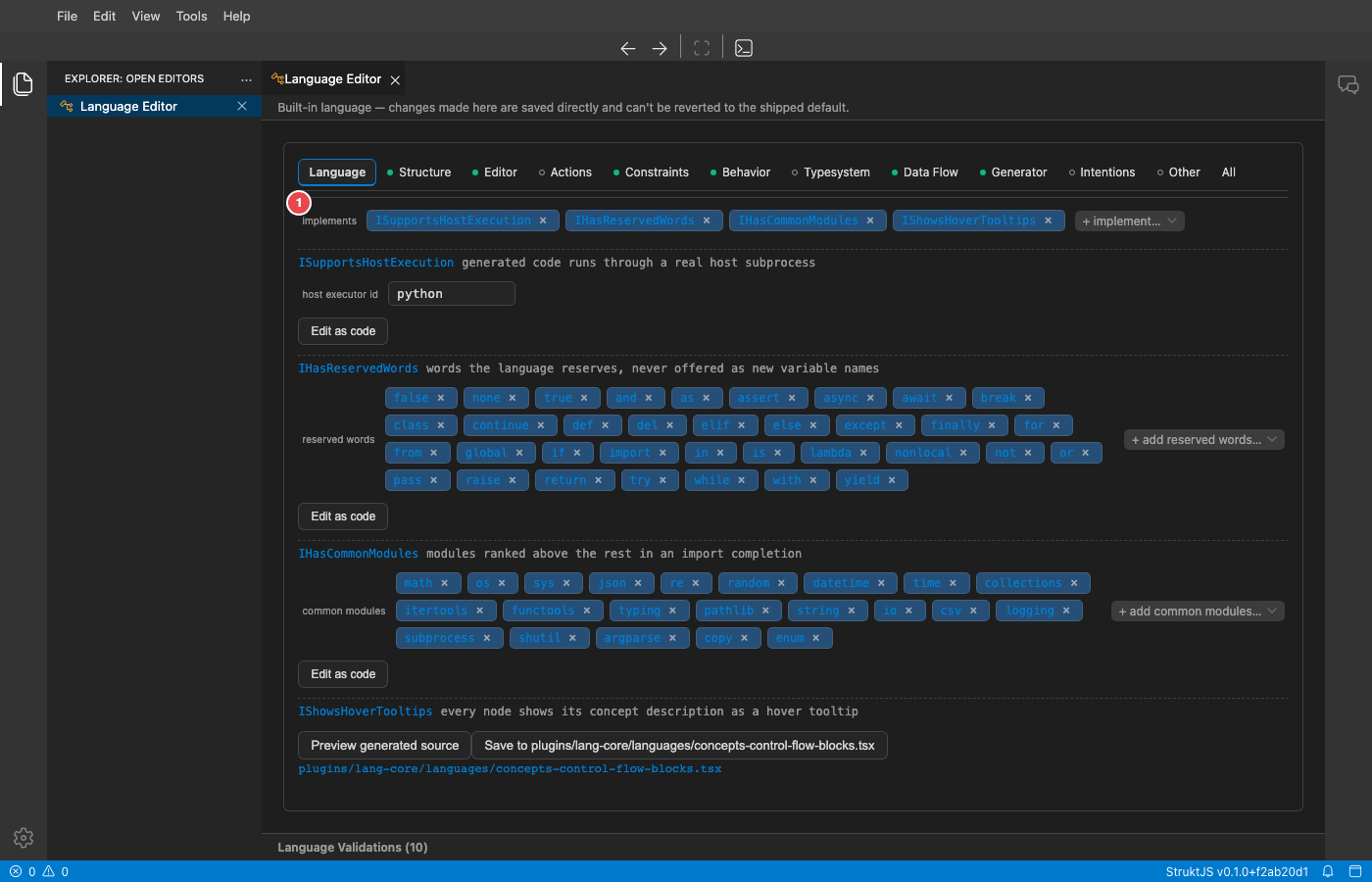
The language is drawn as a class, edited like any concept class:
export class Python extends Language(IHasReservedWords, IHasStringQuote) {
    reservedWords(lang) {
        return ["if", "else"];
    }
    stringQuote(lang) {
        return "'";
    }
}
The names inside Language(...) are the interfaces the language implements: reserved words, common modules,
string quote char, null literal glyph, host executor id (which program runs generated code), preview
format (HTML output is run by Open Preview), the generated file extension and hover tooltips. Each interface that
has a behavior is implemented by a method of the class, whose body is the value (a literal such as a list or a text, or
code that computes it from lang).
Extending an interface means implementing it. Edit the class: when it reads cleanly and you pause typing, it is applied by itself (Apply does it at once). A missing method of an extended
interface is added with its default (the message under the class says so), while a method that no extended interface
declares, an unknown interface name or a syntax error is refused and nothing is changed. + extend an interface… above
the class adds one with its default method. Inside Language(...), completion lists the interfaces you can extend.
The class also holds the language's data as three fields, each written only when it is not empty:
export class Python extends Language(IHasStringQuote) {
    imports = ["core"];
    enums = [{ "name": "Direction", "description": "", "members": [{ "name": "north", "value": 0 }] }];
    styles = [{ "name": "kw", "color": "var(--kw)", "italic": true }];
    stringQuote(lang) { return "'"; }
}
imports lists language names, enums the enums of the Enums section and styles the style sheet of the Styles
section below, in the same fields those sections show. Each is a plain list literal (bare keys and single quotes are
fine; nothing is calculated). An import that names no language (or the language itself), a repeated name, or an enum or
style the sections would refuse is reported under the class and nothing is changed. A change to these three fields is
applied with the Apply button, which redraws the tab (the sections below show the new values); a change to the
interfaces is still applied by itself when you pause typing. Remove a field to empty that list.
Styles
Below the enums, the Styles section is the language's style sheet: named text styles that a concept's
template refers to by name, as in style="kw". Each style has a name, an optional parent (Extends: it starts
from the parent's look and overrides what it sets), a colour, a weight, italic and underline, a
background, and Extra declarations for anything else (letter-spacing: 1px). Colours may be a theme token
such as var(--accent-text), which follows light, dark and high-contrast themes. + add creates a style with
its name selected; ✕ removes it. The Aa sample shows the result. The Appearance tab's inspector offers these
names in every Style list, next to the built-in ones.
A style can only set text appearance: colour, background, font, spacing, decoration and opacity. Anything else, and
any value that could load a resource (url(...)), is refused and shown as a note under the style. A style you
define with a built-in name such as kw replaces that built-in look in this language, and a style can extend a built-in (the Extends list offers them: kw, comment, string, ...). A style now also colours text in code-kind cells, which a plain rule used to miss. Styles of imported
languages apply too, with your own winning.
Edit as CSS shows the whole sheet as plain CSS, one .style-name { ... } rule per style with only what that
style sets itself and its parent as a /* extends: parent */ comment. Edit it and leave the box: the sheet is replaced
by what you wrote. Rules or declarations that are refused (a selector that is not .style-name, a property outside
the safe set, a value that loads something, a style written twice) are listed under the box and left in the text so you
can fix them; the CSS view below it is the same sheet resolved for the editor, read-only.
If concepts use a style name that is neither defined here nor built in, a note above the list names it; add it here or it renders unstyled.
A project can override any of this without touching the language: put a project.styles.json next to
project.json, for example {"styles": [{"name": "kw", "color": "var(--accent-text)", "italic": true}]}. It uses
the same fields and the same safe set, and wins over the language's styles. It is plain data, so opening the
project does not ask for trust. It is read when the project opens and again whenever the window regains focus, so an edit made in another
program shows up when you switch back. Problems in the file are listed with the project's load messages (at open).
Two kinds of concept
- Class-backed (bundled languages): the editor edits the concept's source file. The buttons Preview
generated source and a line saying where the file is written appear. There is no Save button: edits are written automatically, without asking, into
the repository's
plugins/folder, so this only works in a development checkout, not in a packaged app. Bundled languages show the banner "Built-in language - changes made here are saved directly and can't be reverted to the shipped default." - A concept you make with Add new concept is a class file too (in the project folder, or inside the language's own file when it has none). It opens on the same tabs, and its edits are written to the file and applied to the language at once.
See your changes live
Open a model in the language you are editing in a split tab next to the Language Editor, edit one of its concepts and the edit is written by itself. Every open editor on that language re-renders and re-checks, and the status message tells you how many editors were updated and how many new problems appeared. Nodes that no longer fit the concept stay in the model and show up as problems; nothing is deleted. Unsaved edits in the model and the editor's selection are kept.
Mistakes in code, marked where they are
A this.x or self.x that names no slot of the concept (a typo, or a slot that was never added) is marked on that word with a warning that
says what is wrong, why, and what to do: "argz" isn't a slot of plus, so this reads nothing. Declare it on the Structure tab, or fix the spelling
(declared: args). It counts in the tab's issue badge and shows as ✖ in the Coverage matrix, and it clears as soon as the name is right. In a
type rule's code, Ctrl+Space after env. lists the type environment's methods (get, set, getFn, setFn, child, ...), read from the
engine itself so the list is never out of date.
A misspelt name that is close to a declared slot comes with a fix: press Alt+Enter on the marked word and the first entry is Fix: Change to "args" (the error lens, when it is on, says so too: Alt+Enter: Change to "args"). In the Theia app every problem of the open concept is also a row in the Problems panel, read as Plus › Appearance: "argsz" isn't a slot of plus ...: the concept, the tab it is on, what is wrong. A click on the row opens that concept on that tab (without reloading it, so unsaved edits stay), and the row goes when the problem does or when you open another concept or close the Language Editor.
Navigating inside a concept
With the caret on a slot's name (in a code body or a notation cell), F12 goes to its declaration on the Structure tab and puts the caret on
that slot's row, and Shift+F12 lists where the class reads it: one row for the declaration and one per aspect with its number of uses, each
row opens that aspect (Escape closes the list and gives the caret back). Alt+Left and Alt+Right walk back and forward through the tabs you
visited in this concept. On a concept's name, an interface or a type (the extends and implements entries, a slot's type), F12 (the same
Navigate > Go To > Go to Declaration key as in a program, so no separate key is needed here) opens that
concept and Shift+F12 searches every concept of the language for the name and lists the hits as Concept › Aspect: n uses; a row opens that concept
on that aspect (concepts that cannot be read are named, not skipped silently). The same search is the Find usages of box in the Coverage
section of the Language tab. Ctrl+Z / Cmd+Z continues across tabs: when the open tab has nothing left to undo, it undoes the changes you
made on the tab you left (one step per tab visit) and opens that tab; Ctrl+Shift+Z redoes them. Renaming a slot in the declaration asks first: the dialog lists every aspect that reads it ("This changes: Appearance: 2
uses ...") and how many mentions of the name it leaves alone (an object key, a string, another object's property); Cancel brings the old name back.
The Coverage section of the Language tab is the language's health view: a table with one row per concept and one column per aspect. Check coverage reads every concept's class (one file per concept, so it runs when you ask, not on its own), then shows ● where the concept declares something in that aspect, ○ where it is empty and ✖ where what it declares has errors or warnings. A line above the table counts the concepts, the ones with problems and the ones that could not be read. Click a cell (or press Enter on it) to open that concept on that aspect. The table is one tab stop: the arrow keys, Home and End move between cells, and each cell has a full-sentence label such as "Plus, Types: has 2 declarations and 1 problem." for a screen reader, so the glyph is never the only cue.
A rule lives on the concept or interface it checks (its Types > Checking rules and Rules tabs), not in a language-wide list. When an older language still has language-level rules, the Language tab says what happened when it loaded: a rule that named one of the language's concepts or interfaces now sits on it, one that names none (or names a concept of another language) sits on the language's own Concept entry, which applies to every concept, and a rule whose name the concept already uses is dropped, because the concept's own rule wins (it also shows as a warning in the Problems list on that concept, so nothing is dropped silently). A concept's Types > Checking rules and Rules tabs also list, read-only, the rules it inherits from the interfaces it implements and from the Concept entry, grouped by where each is declared. ← Back to Editor returns to the model.
Concept files in a project
A project language can keep concepts as class files instead of as data. Put them in a folder named after the language file,
beside it: for shapes.lang.js, the folder is shapes.concepts/, and each *.concept.js in it holds one or more concepts
in the same class form the bundled languages use (class Circle extends Concept(IStatement) { head = "circle"; ... }, with
JSX in editor).
- Imports are real JavaScript, and optional. The names a concept file needs are provided without any import:
Concept,Interface,Prop,ChildSlot,Ref,Text,Child,Children,Br,Indent,Computed,Optional, the standard interfaces (IExpression,IStatement,INamedConcept, ...),nodeandtyping(the builders of atypesystem()rule:typing.result("number"),typing.same("expr"),typing.untyped("why"),typing.noValue()). You can also spell them out:import { Concept, Prop, Text } from "strukts/engine";(every name is checked, and a name the engine does not provide is an error). All files of a language are one module, so an interface declared in one file is visible in the others. - The Text syntax builders.
persist,print,pad,suiteand the other builders ofsurface = persist(...)(what the Text syntax tab writes) are provided too, andsurface.children(", "),surface.node(...)reach the ones whose names the engine already uses. If your files declare a name of their own (text,Item,block), yours wins and the builder of that name is left out of that language. - A library of the project. Shared code goes in a model folder whose
model.jsonsays"role": "library"and which holds one JavaScript file (helpers/model.jsonandhelpers/helpers.js, for a library namedhelpers). Any concept file of the project's languages imports it by the folder's name:
import { shout } from "helpers";
export class Mark extends Concept(IStatement) {
  head = "mark";
  checks() { return [{ name: "says", check(n) { return { message: shout("hi " + n.text) }; } }]; }
}
A library keeps its own names private: a concept file sees only what the library exports, and a library can import only
from "strukts/engine", not from another library. Only named imports are supported (import { a, b as c } from "...");
a default, namespace or side-effect import, a relative path, a name the library does not export, or a name that clashes
with another is an error that says which. A library is also a model in the Explorer, with no roots. Libraries are found at
any depth in the project, not inside node_modules, generated or a *.concepts folder.
- Rule functions can import too. The function rules of a language's transformations (text, files and model-to-model functions) are text in the language file, so they take their imports from one field: Language settings > Transformations > Imports for the rule functions, the same import lines a concept file may use (import { shout } from "my-library";, import { node } from "strukts/engine";). Apply imports compiles every function rule of the language with them; an import that does not load is shown as an alert and is not kept. A language with no imports compiles its rule functions as it always did. Renaming a library does not update this field (the rule functions then fail to load, naming the import).
- Where you see them. The Explorer lists a language's libraries in a Libraries folder beside Concept files; hover a
library to see which concept files import it, and click it to open its source file in the projectional editor, the same
kind of document the Language Editor edits a class in (right-click offers Open as text file instead). In the Language Editor, a concept that
comes from a file with imports shows an Imports line under the editor: the engine's names as text, each library as a
button that opens its source, and an import that cannot be resolved marked "not found".
- Text that looks like a comment inside JSX (/* or //) is read as a comment. Write it as a string:
<Text class="punct">{"/* "}</Text>.
- It is code. Like the .lang.js next to it, the folder runs as JavaScript, so it asks for trust once for the language
and its concept files and its libraries together; editing any of them asks again. The prompt names the concept files
and libraries the decision covers, so you can see what you are trusting. The command-line tool refuses it without
--trust-project-code.
- Heads must be new. A head that a bundled language or another project language already uses is refused, with the name
of the owner.
- Saving the language writes its data only; the classes stay in their files.
- New concepts are class files. In a project language, Add new concept (and the template entries) writes
<name>.concepts/<Head>.concept.js and opens it on the same tabs as a bundled concept. its edits are written to the file
in the project folder and applies it to the language at once. The app wrote the files, so reopening the project does not ask
for trust again. If a saved file does not load (a syntax error), the message names the file and the language keeps what it had.
- Languages outside a project folder keep their concepts inside their own file. A language you imported, or one
stored in the app's language folder, carries its class files in its .lang.js. The first time such a language is saved
with them, the previous file is kept once beside it as <name>.lang.js.pre-classes.bak.
- Older concepts are converted when the project opens. A concept that a project language still keeps as data in its
.lang.js is rewritten as a class file in <name>.concepts/. Each conversion is checked first: the class must describe
exactly the same concept as the data did, and anything that cannot be converted that way stays as data, and the Language Editor says why instead of
showing a form (for example a slot named like a concept field). The original .lang.js is kept once as <name>.lang.js.pre-classes.bak, and the .lang.js is only rewritten after
every file has been written and read back. A project opened where nothing can be written (the command-line tool) is left
alone. Concepts written this way carry static spec = true, which makes the class stand for the data record itself, so the
concept behaves exactly as before.
Every control
| # | Button/Option | What it does | Shortcut | Gotcha |
|---|---|---|---|---|
| 1 | Aspect tab bar (below the editor) | Switches the aspect shown (hover or focus a tab for what it is for and an example). | Alt+PageUp / Alt+PageDown (tabs with content), Ctrl/Cmd+K then 1 to 9 (the Nth visible tab), Ctrl/Cmd+K, N, T (the "…" menu), ←/→ move focus, Home/End first/last, ↑ into the editor, Enter opens | "More" is hidden when empty; aspects the concept does not have are in the "…" menu, which creates them. |
| 1 | Help (the tab strip's context menu) | Opens the documentation page for the tab you right-clicked. | Shift+F10 on a focused tab | |
| 2 | Entry tabs (Intentions, Rules > Constraints, Types > Checking rules) | One tab per rule of the hook, one rule shown at a time; + adds a rule, × deletes the open one, with an Undo line afterwards. | ←/→/Home/End move between tabs, Enter opens, Delete deletes the open tab | The label is the rule's name and follows a rename; a new rule gets a name no other rule has. |
| 2 | Rules | Code switch (Types, Rules, Running and Scope & flow tabs; Syntax | Code on Text syntax; Example | Code on Tests; Rules |
| 2 | Sub-tab row | Switches between declarations of an aspect. | Only shown for aspects with two or more. | |
| 3 | Declaration cells | Alias, short description (shown in completion), description, deprecated message, the Look chip (icon and colour), the keywords abstract and rootable. | ||
| 3 | Properties / children / references lines | Enter adds a slot line; type its name, then its type and cardinality. | Slot names must be unique. | |
| 3 | Delete a slot line | Removes the slot (asks first, because other tabs may use it). | ||
| 3 | implements list | Adds or removes an interface the concept implements. | ||
| 4 | Explorer: duplicate / delete (a concept's context menu) | Copies or removes the concept. | Delete warns when other concepts reference it. | |
| 5 | Preview generated source (right-click menu of the tab) | Opens the regenerated class source in a tab. | Refuses when the source is not valid. | |
| 6 | Saving line (Saved to <file>) |
There is no button: the concept class file is written by itself after each edit. In a project the file is in its concepts folder; a language with no folder keeps it inside its own file. | A bundled language's file is in the repository, so that only works in a development checkout. | |
| 7 | + add (checks, constraints, intentions, notations, sections) | Adds a rule or entry; Apply saves its body. | A body with a syntax error is refused. | |
| 8 | Enums: + add / + member | Declares an enum and its members. | ||
| ctx | Languages group: New Language…, Import… | Create a language from a card (Blank, Expression, Statement, Copy of a language, or a template) with the file grammar under Advanced, or import one. | ||
| ctx | Language: Rename… | Renames the display name. | Double-click | Not for built-in. |
| ctx | Language: Export…, Import…, Add import…, Duplicate as…, Migrate…, Open language.json | See Import and export. | ||
| ctx | Concepts folder: Add new concept | New spec-authored concept. | ||
| ctx | Concept: Rename…, Find usages, Add subconcept…, Open source file, Pin, Duplicate, Copy Qualified Name, Delete | Rename with a preview of what else changes, list where the name is used, make a subclass of the concept, open its class file as text, copy, copy the dotted name, remove. | Rename and Open source file need a concept written as a class file in the project; Copy Qualified Name needs a language namespace. | |
| filter | Filter concepts… / any aspect | Narrows a long concept list (shown when a language has more than 8 concepts); the aspect drop-down opens the Language Editor on that tab. | ||
| coverage | Coverage (Language tab) > Check coverage | Reads every concept's class and shows a concepts x aspects table with ● declared, ○ empty, ✖ errors or warnings, plus a health line. | Arrow keys, Home/End move between cells; Enter opens the concept on that aspect | It parses one file per concept, so it runs on request; a concept without a class file shows dashes and its reason. |
| nav | Slot name under the caret (code body or notation cell) | F12 goes to the slot's declaration on Structure; Shift+F12 lists the aspects that read it (a row opens that aspect). | F12 / Shift+F12 (Escape closes the list) | Works when the cell's text is a slot name of this concept; elsewhere the keys are left alone. |
| nav | Back / forward in a concept | Walks through the tabs visited in this concept. | Alt+Left / Alt+Right | A new visit drops what was ahead; focus goes to the open tab after a jump so the next key still works. |
| nav | Renaming a slot (Structure > Declaration) | Previews every aspect that reads the slot and the mentions it leaves alone, then asks. | Cancel restores the old name; the class is not touched until you confirm. | |
| nav | Concept, interface or type name under the caret | F12 opens that concept on Structure; Shift+F12 lists every concept and aspect that mentions the name. | F12 / Shift+F12 | Shift+F12 reads every concept's class, so it says it is searching; concepts it cannot read are listed. |
| nav | Undo across tabs | With nothing left to undo in the open tab, Undo goes back through the changes made on the tabs you left and opens that tab. | Ctrl+Z / Cmd+Z, Ctrl+Shift+Z / Cmd+Shift+Z | One step per tab visit (the net change of that visit); also reachable from Edit > Undo. |
| nav | Coverage > Find usages of | Type a concept, interface or type name (it completes from the language) and get Concept › Aspect rows. | Enter searches | Searches this language's own concepts, not the ones it imports. |
| lang | Language settings (Language tab, or Explorer > language > Language settings…) | One page with Identity (label, description, version, Migrations…), Imports, Persistence (file grammar), Flags (the interfaces), Enums, Styles and Health (the coverage matrix); each section has a one-line caption. | A bundled or external language is shown read-only; a new version number only matters once a migration step exists for it. |