Source Control pane
Audience: everyone who keeps models in git · ~10 min read · Prerequisites: Projects and models
What it is
The Source Control pane is a small git client built into the IDE. It works on the project you have open. It
can stage and commit changes, switch and merge branches, stash work, and browse history. For model files it shows
changes as a comparison of the parsed trees instead of text lines; see
Model-aware diff. It runs ordinary git commands on the machine where the IDE
backend runs (details).
Two views
This page describes the struktJS pane. By default the IDE shows Theia's standard Source Control view instead; see Which Source Control view you get to switch.
When you'd use it
- You want a safety net: commit before a risky edit, go back if it fails.
- You work in a team and share the project folder through a git remote.
- You want to see exactly what an edit changed in a model.
If you have never used git: a commit is a saved snapshot of your files with a message. A branch is a separate line of snapshots. Staging means choosing which changed files go into the next commit. See the glossary.
How to
Open the pane
- Open a project (File > Open Project… or load a sample).
- Choose View > Tool Windows > Source Control, or press Ctrl/Cmd+K, V, G (command Toggle Source Control Panel). The command is a toggle: pressing it again hides the pane.
With no project open the pane says "Open a project to use git."
Start a repository
A new project gets a repository and an "Initial commit" automatically when the preference Enable version control for new projects is on (it is on by default). Samples you load are plain copies and are not repositories.
The pane uses the nearest enclosing repository
Git looks for a repository in the project folder and then in every folder above it. If one of those parent
folders is already a repository (for example your home folder after an accidental git init there), the pane
shows and acts on that repository: Stage All and Commit All then include files from outside your
project. Check the branch name and the file list before you commit, and run git rev-parse --show-toplevel
in the Terminal if the list looks too long.
- Open the pane. It says "This folder isn't a git repository yet."
- Click Initialize Repository. Every file now shows under Untracked.
Make a commit
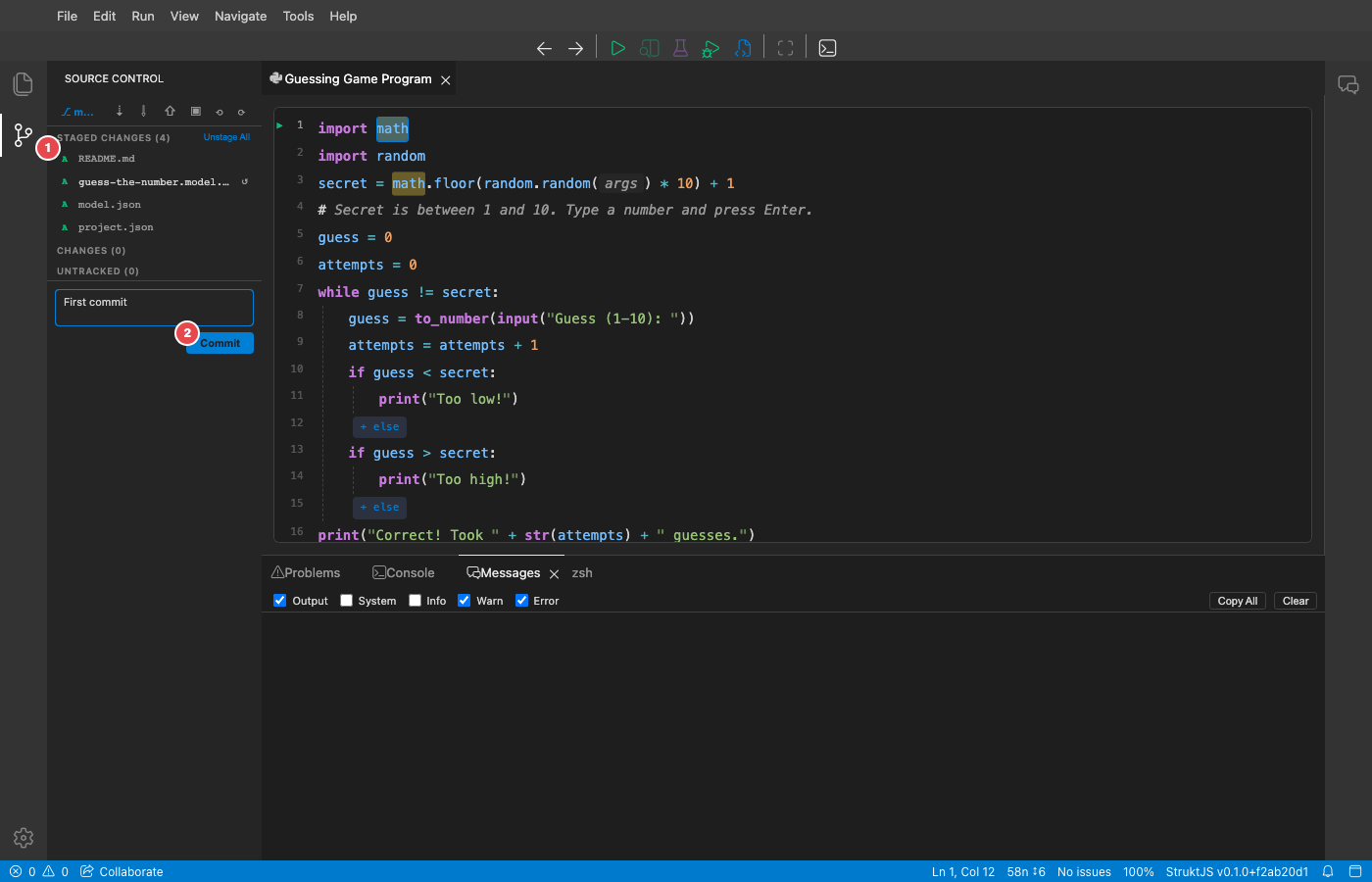
- You do not need to wait for autosave: Commit (and Amend…) first saves the pending edit of every open model, then commits.
- Click the ✓ button on a file to stage it, or Stage All in the section header.
- Type a message in Commit message….
- Click Commit.
If nothing is staged, the button reads Commit All. It then stages every change in the project folder and commits them in one step.
Look at what changed
Click a file name. A diff opens under the lists. Model files (.model.py, .model.js, ...) show the
tree diff; any other file shows a text diff with + and - lines. Click the same file again to close it.
Work with branches
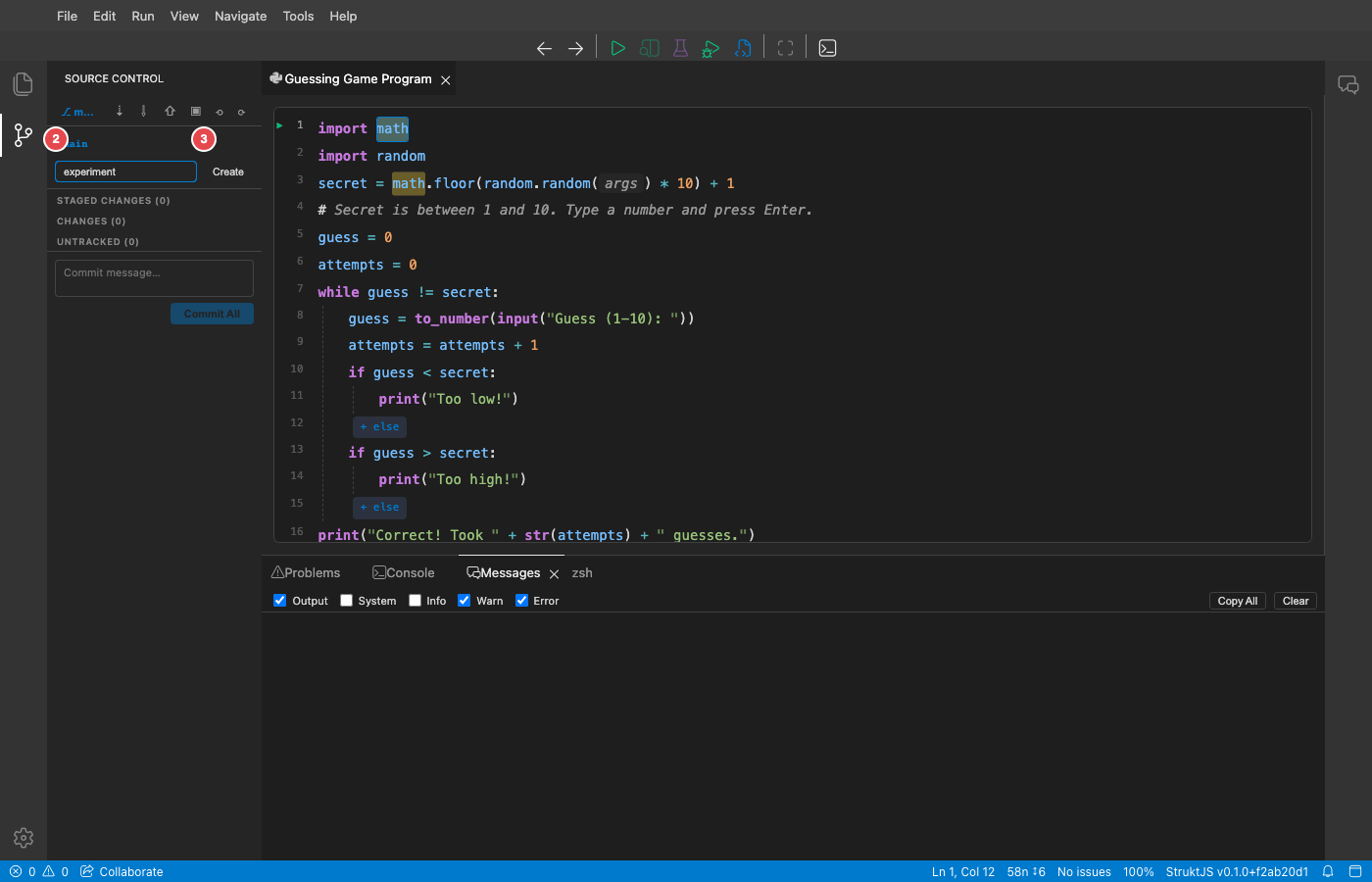
- Click the branch name (for example
⎇ master) in the header. - Click a branch in the list to switch to it, or type a name in New branch name… and click Create. Create also switches to the new branch.
- To merge, click ⇄ on the other branch. You are asked to confirm, and the other branch is merged into the current one.
Browse and edit history
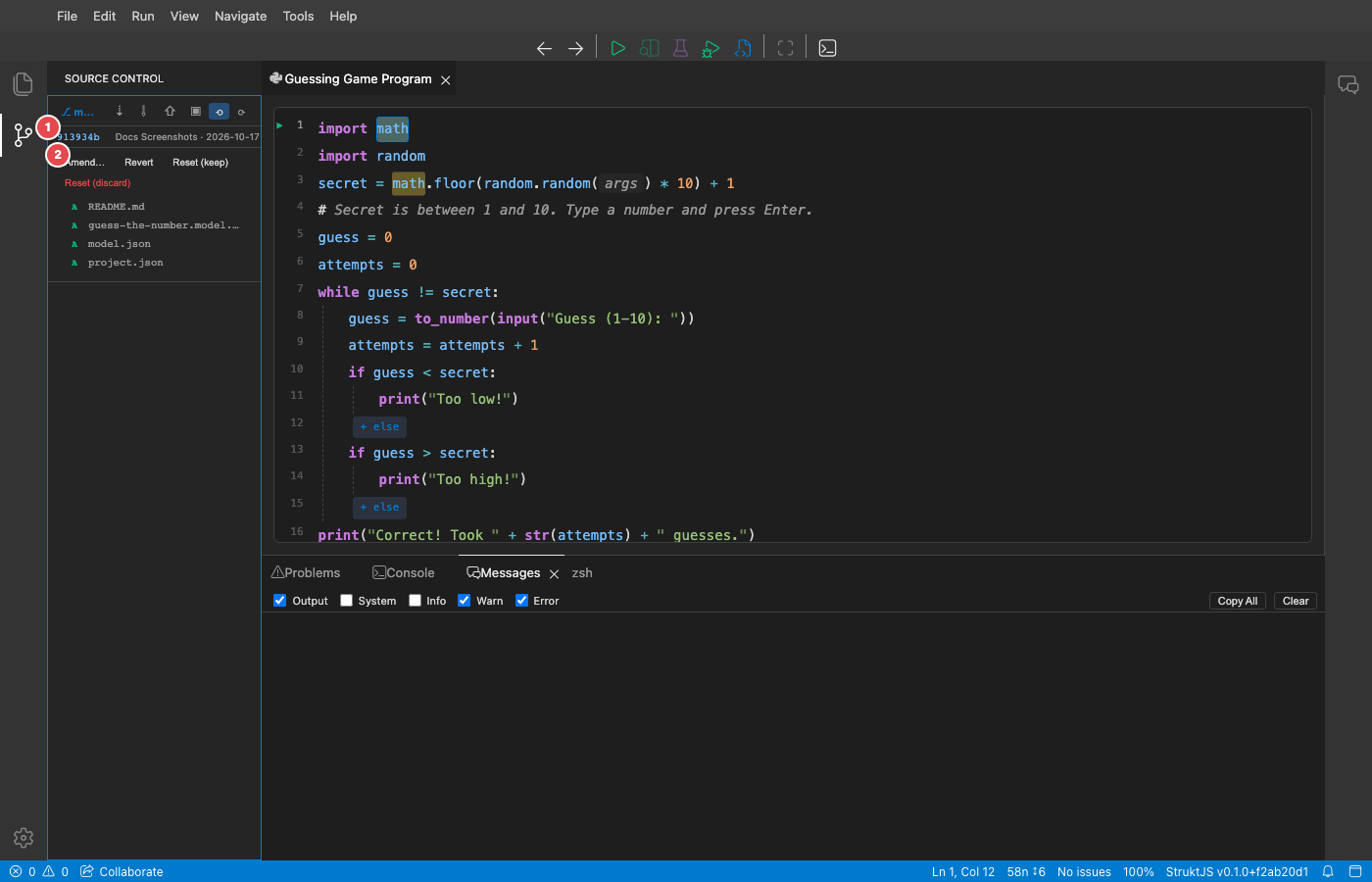
- Click the ⟲ (History) button. The last 50 commits are listed.
- Click a commit to expand it. Its changed files are listed; click one to see that commit's diff.
- Use the buttons under the commit (see the table below).
Stash work
- Click ▣ (Stash). Optionally type a Stash message (optional)…, then click Stash.
- Later, use ⇩ (Apply), ↺ (Pop) or ⨯ (Drop) on the stash entry.
A stash saves your uncommitted changes, including untracked files, and cleans the folder.
Which Source Control view you get
The IDE ships two Source Control views over the same git commands, and shows exactly one. By default it is
Theia's standard Source Control view (the one other Theia and VS Code style IDEs have), described below. The
struktJS pane that the rest of this page describes has more features: branches, stash, history, amend, reword,
revert and reset. To use it, set struktJS.git.sourceControlView to struktjs in the settings and reload the
window. The View menu entry, the quick view and the toggle shortcut always open whichever view is active.
In the standard view (the default):
- Changes are grouped as Merge Conflicts, Staged Changes, Changes and Untracked. Hover a row for Stage, Unstage, Discard (Changes) or Stage (Mark Resolved) (Merge Conflicts); group headers have Stage All and Unstage All.
- Type a message in the box and press Ctrl/Cmd+Enter to commit. It refuses an empty message and, as in the struktJS pane, a commit while merge conflicts remain.
- Click a model file to open its model-aware diff in a tab; other files open as a plain text diff.
- Click a conflicted model file to open the node-level resolver from Resolving conflicts in a tab. Apply and mark resolved closes it.
- The current branch (with ahead/behind counts) appears in the status bar.
Not available there yet: Fetch, Pull and Push, starting a repository (Init), switching, creating and
merging branches, Abort merge, stash, commit history, amend, reword, revert and reset. Set
struktJS.git.sourceControlView to struktjs to use those in the struktJS pane.
Every control
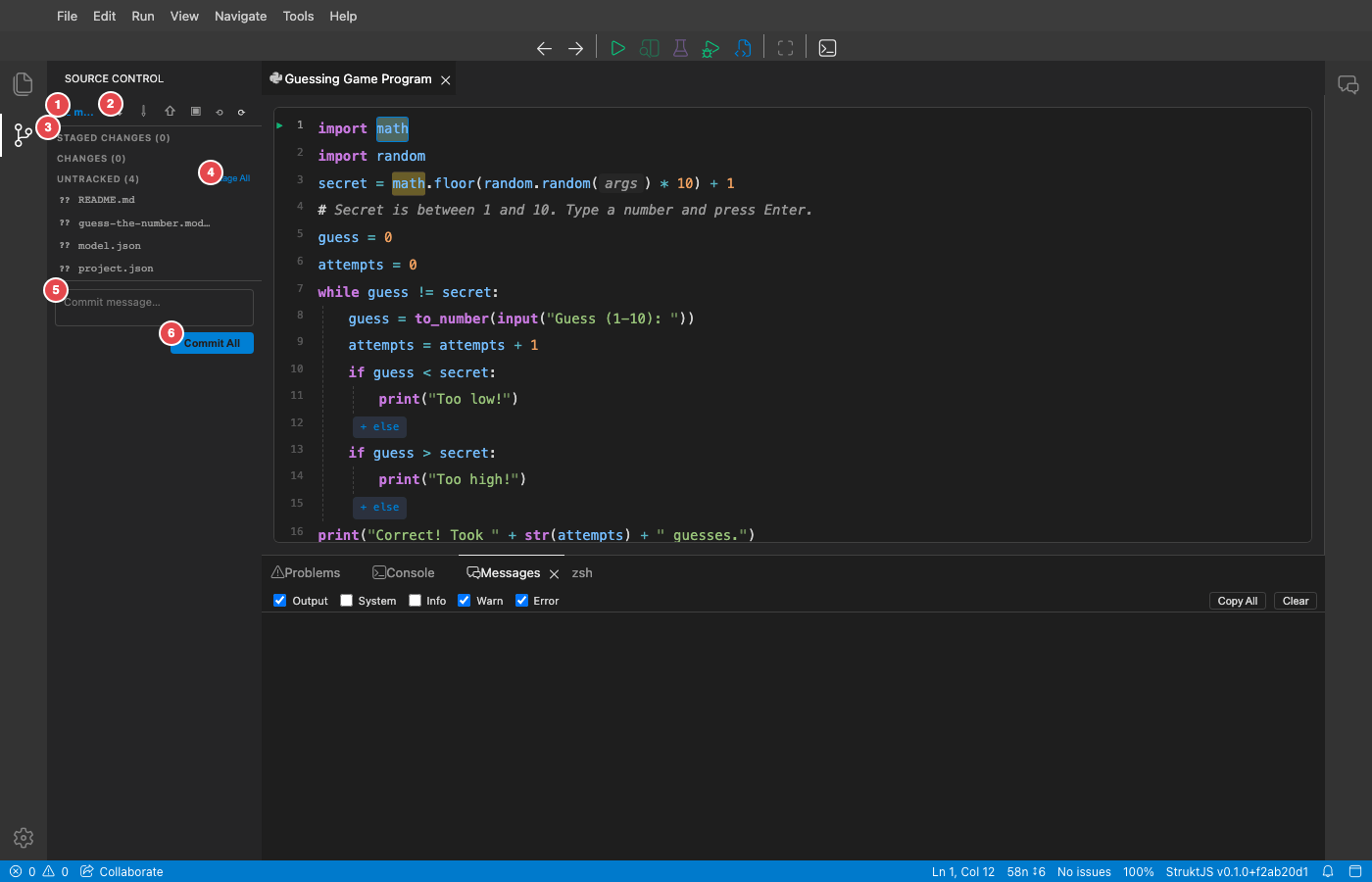
Numbers match the callouts on the first screenshot.
| # | Button/Option | What it does | Where | Shortcut | Gotcha |
|---|---|---|---|---|---|
| 1 | Branch name (⎇ name) |
Opens or closes the branch panel. Shows "No project" when none is open. | Source Control pane | A fresh repository with no commit shows "(no commits yet)". | |
| 1b | ↑n ↓n next to the branch |
Commits ahead of / behind the upstream branch. | Source Control pane | Only shown when there is an upstream and a difference. | |
| 2 | ⇣ Fetch | git fetch. |
Source Control pane | Network calls are stopped after 60 s. | |
| 2 | ⇩ Pull | git pull, then reloads open models from disk. |
Source Control pane | A pull that hits a conflict is not undone: the conflicted files appear under Merge Conflicts and the pane offers Abort merge. See Resolving conflicts. | |
| 2 | ⇧ Push | git push. |
Source Control pane | No password prompt exists: credentials must already work (why). | |
| 2 | ▣ Stash | Shows or hides the stash panel. | Source Control pane | ||
| 2 | ⟲ History | Switches between the changes view and the commit history. | Source Control pane | Shows 50 commits at most. | |
| 2 | ⟳ Refresh | Re-reads the repository state. | Source Control pane | The pane does not watch the disk; refresh after changes made outside. | |
| 3 | Merge Conflicts (n) | Files git could not merge (badge UU, AA, DD, AU, UA, DU, UD). |
Source Control pane | Only shown while there are any. Each row has ✓ Stage (mark resolved) and no Unstage or Discard. Commit stays disabled until none is left. See Resolving conflicts. | |
| 3 | Staged Changes (n) | Files that will go into the next commit. | Source Control pane | A file modified again after staging (porcelain MM) is listed here and under Changes: Staged shows what will be committed, Changes shows the newer edits. |
|
| 3 | Changes (n) | Modified files that are not staged. | Source Control pane | ||
| 3 | Untracked (n) | New files git does not know yet. | Source Control pane | ||
| 4 | Stage All / Unstage All | Stages (or unstages) every file in that section. | Source Control pane | Limited to the project folder. Stage All in Changes also stages any conflicted file that still has markers; resolve those first. | |
| 4b | Abort merge (banner "A merge is in progress.") | git merge --abort after a confirmation: everything merged so far, including your conflict resolutions, is discarded. |
Source Control pane | Only shown while an unfinished merge exists, for example after a Pull that conflicted. Open models are re-checked against the disk afterwards. | |
| row | Status badge | M modified, A added, D deleted, R renamed, ?/?? untracked, UU (and the other unmerged pairs) conflicted. A file in both Staged and Changes shows the index letter in one row and the working-tree letter in the other. |
Source Control pane | ||
| row | ✓ Stage | Stages one file (Changes and Untracked rows). On a Merge Conflicts row it is called Stage (mark resolved) and runs git add. |
Source Control pane | Stage a conflicted file only after you removed the conflict markers. | |
| row | ⨯ Discard | Throws away the file's changes. | Source Control pane | No confirmation. On an untracked file it deletes the file. | |
| row | ↺ Unstage | Moves a file out of the staged list (Staged rows). | Source Control pane | ||
| 5 | Commit message… | The message for the next commit. | Source Control pane | The draft is kept while you browse. | |
| 6 | Commit / Commit All | Creates the commit. | Source Control pane | "Commit All" runs git add -A on the project folder first. |
|
| branch | Click a branch row | Switches to that branch (git checkout). |
Source Control pane | Open models are re-checked against the files on disk. | |
| branch | ✎ Rename | Renames the branch inline (Enter saves, Escape cancels, or use ✓ / ⨯). | Source Control pane | ||
| branch | ⇄ Merge into current branch | Merges that branch into the current one after a confirmation. | Source Control pane | If the merge conflicts it is aborted automatically and an error is shown. Not offered for the current branch. | |
| branch | ⨯ Delete | Deletes the branch after a confirmation. | Source Control pane | If git says it is not fully merged you are asked a second time before it is force-deleted. Not offered for the current branch. | |
| branch | New branch name… / Create | Creates a branch and switches to it. | Source Control pane | Enter | |
| stash | Stash message (optional)… / Stash | git stash push -u. |
Source Control pane | Enter | Includes untracked files. |
| stash | ⇩ Apply | Applies the stash and keeps it. | Source Control pane | A conflict is left in the files. | |
| stash | ↺ Pop (apply + drop) | Applies the stash and removes it. | Source Control pane | A conflict is left in the files. | |
| stash | ⨯ Drop | Deletes the stash entry after a confirmation. | Source Control pane | Cannot be undone. | |
| commit | Amend… / Reword… | Edits the commit message in a box with Save and Cancel. The newest commit says Amend…, older ones Reword…. | Source Control pane | Reword needs a clean working folder, a checked-out branch, and no merge commits in the rewritten range. | |
| commit | Revert | Makes a new commit that undoes this one, after a confirmation. | Source Control pane | If the revert conflicts it is aborted automatically. | |
| commit | Reset (keep) | Moves the branch to this commit; later changes become uncommitted. | Source Control pane | Confirmation first. | |
| commit | Reset (discard) | Moves the branch here and throws away everything after it. | Source Control pane | Destructive; confirmation first. | |
| none | Initialize Repository | Runs git init. |
Source Control pane | Only shown when the folder is not a repository. |
Good to know
- Everything is limited to the open project's folder, even if the repository is larger.
- Git hooks run only for commit, merge, push, pull and revert. Other commands run with hooks off.
- Local git commands are stopped after 10 seconds, network ones after 60 seconds.
- The Git Graph extension can be installed from the Extensions view, but only if its publisher is allowed; see Plugins and extensions.