Bookmarks and navigation history
Audience: everyone who edits models · ~8 min read · Prerequisites: Editor basics
What it is
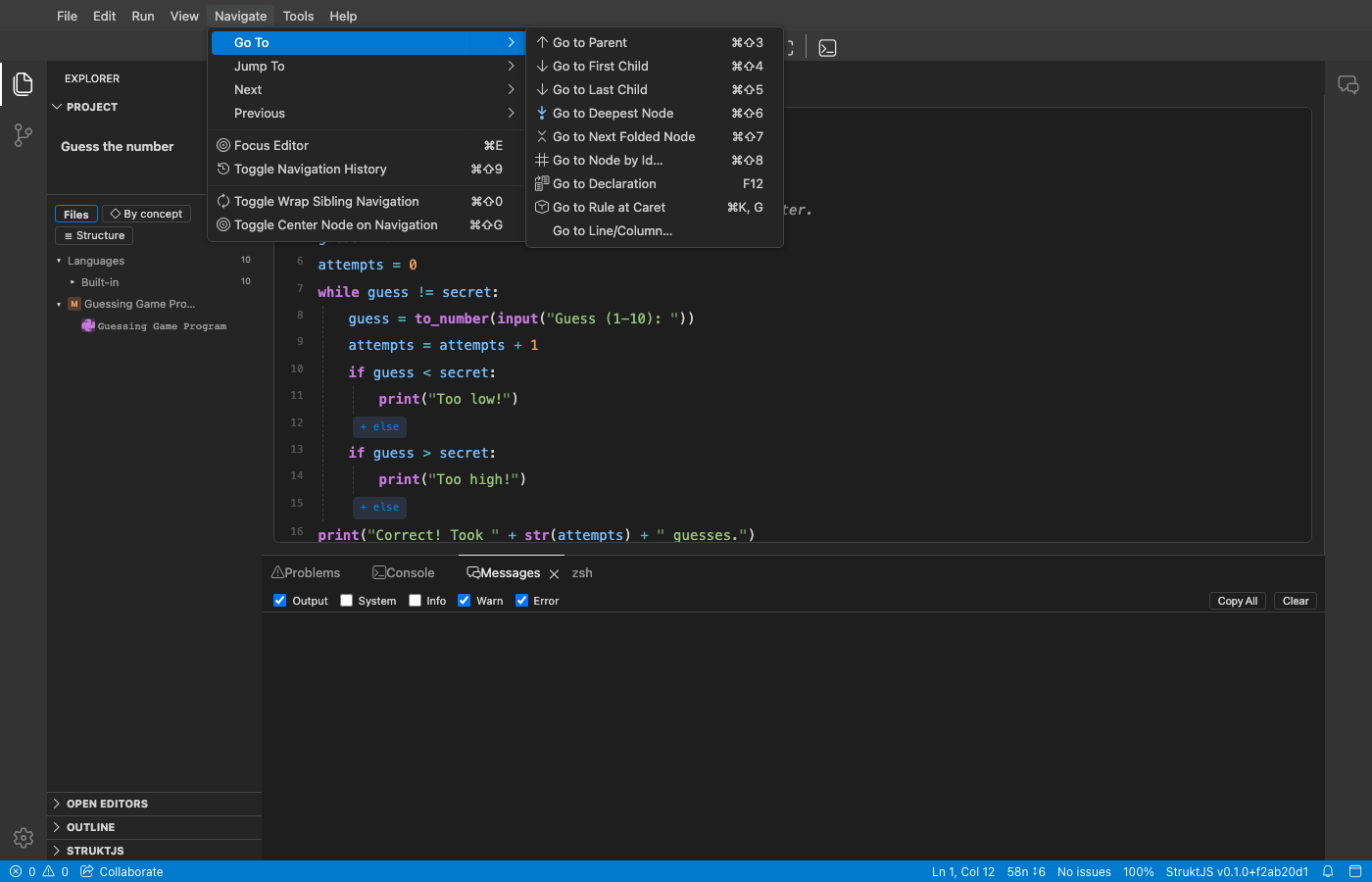
Besides the arrow keys, the editor has three ways to move around a large model. Bookmarks mark nodes you want to come back to. The navigation history remembers where you have been, like a browser's Back and Forward. The Navigate menu jumps by structure: to the parent, the next sibling, the next empty slot, and so on.
When you'd use it
- You are editing in two distant places and want to hop between them.
- You jumped to a declaration and want to go back to where you were.
- You want the next empty slot, the next node of the same kind, or the first error, without scrolling.
Bookmarks
- Put the cursor on a node.
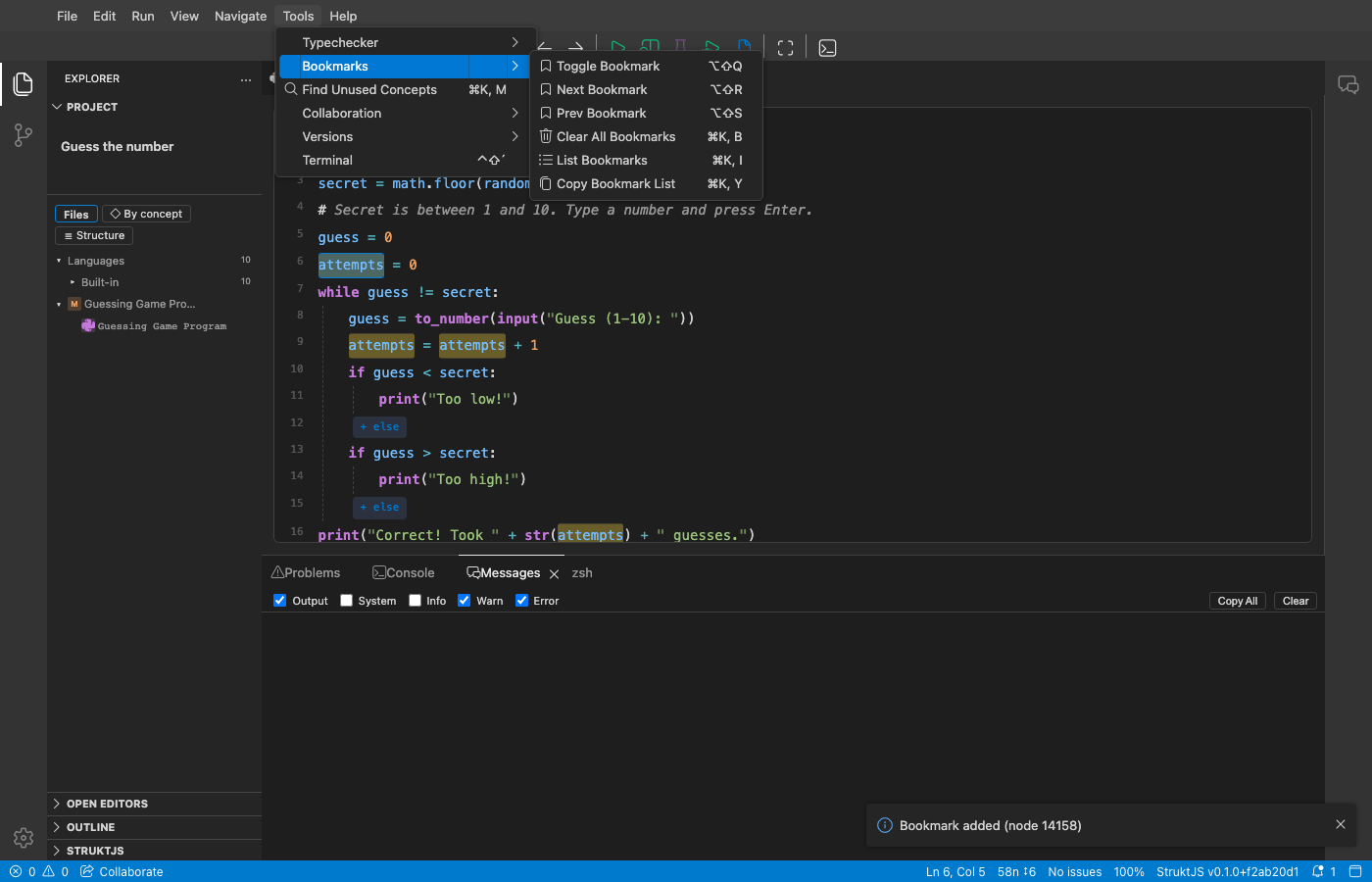
- Choose Tools > Bookmarks > Toggle Bookmark (Ctrl/Cmd+K, T, B). A toast says "Bookmark added (node 4021)". A mark appears in the editor's left gutter next to that line. Doing it again removes the bookmark.
- Press Ctrl/Cmd+K, T, N (Next Bookmark) or Ctrl/Cmd+K, T, Shift+N (Prev Bookmark) to jump through them. Jumping wraps around at the ends.
- Tools > Bookmarks > List Bookmarks (Ctrl/Cmd+K, T, L) opens the Find Usages panel with one row per bookmark. Click a row to jump.
- Copy Bookmark List (no default shortcut) copies the list as text. Clear All Bookmarks (no default shortcut) removes them all; it asks first unless you turned that off (see below).
Bookmarks are node numbers, not places in a file
- The bookmark list is one list for the whole app, not one per model, and it is kept in the browser's or app's own storage.
- A bookmark remembers a node's internal number. Numbers are given out when a model is opened. After you reload the model, close and reopen it, or the file changes on disk, old bookmarks may point at nothing. Then List Bookmarks shows the row as "(gone)" and jumping says "Bookmark target not found — the model may have changed since it was set". Clear them and set new ones.
- The gutter mark's tooltip says "F3 to navigate". That is the standalone web page's key. In the IDE, F3 is Next Sibling; use Ctrl/Cmd+K, T, N.
Bookmark preferences (preference key confirmClearBookmarks): the preference Confirm clearing all bookmarks (and the command Toggle Confirm Clearing All Bookmarks, no default shortcut) controls the question that Clear All Bookmarks asks.
Navigation history
Every jump you make (go to declaration, next bookmark, an error jump, clicking a usage) is added to a history.
- The ← and → buttons in the toolbar's centre group, and the ‹ › buttons in the status bar, go Back and Forward. The commands are Navigate Back and Navigate Forward; they have no menu entry; in the IDE they are Ctrl/Cmd+[ and Ctrl/Cmd+] (or run them from the command palette, F1). In the standalone web page they are Alt+Left and Alt+Right.
- Navigate > Toggle Navigation History (Ctrl/Cmd+E) shows or hides a floating list of the nodes you have jumped to in this editor, newest first. Each row is the node's concept name and its node id (for example
Call #42), and the row you are on now is highlighted. Click a row to go straight there without adding a new entry (so Back and Forward keep their place). The history keeps the last 100 places, is empty until you have jumped somewhere, is not saved between sessions, and the list closes when the pointer leaves it. It is a viewer only: it changes no setting.
The Navigate menu
| Menu path | Command | Shortcut |
|---|---|---|
| Navigate > Go To | Go to Parent | Ctrl/Cmd+K, N, ↑ |
| Go to First Child | Ctrl/Cmd+K, N, ↓ | |
| Go to Last Child | none | |
| Go to Deepest Node | none | |
| Go to Next Folded Node | none | |
| Go to Node by Id… | Ctrl/Cmd+G | |
| Go to Declaration | F12 | |
| Go to Rule at Caret | Ctrl/Cmd+K, N, R | |
| Go to Line/Column… | (Theia's own command; see the note below) | |
| Navigate > Jump To | Jump to Program Root | Ctrl/Cmd+K, N, H |
| Jump to First Statement | Ctrl/Cmd+Home | |
| Jump to Last Statement | Ctrl/Cmd+End | |
| Navigate > Next | Next Sibling | Ctrl/Cmd+K, N, → |
| Next Same Concept | Ctrl/Cmd+K, N, C | |
| Next Empty Slot | none | |
| Navigate > Previous | Previous Sibling | Ctrl/Cmd+K, N, ← |
| Previous Same Concept | Ctrl/Cmd+K, N, Shift+C | |
| Previous Empty Slot | none | |
| Navigate | Toggle Navigation History | Ctrl/Cmd+E |
| Navigate | Toggle Wrap Sibling Navigation | none |
| Navigate | Toggle Center Node on Navigation | none |
Also available from the command palette: Go to Cell… (Ctrl/Cmd+K, N, G), Navigate Back, Navigate Forward.
Go to Declaration jumps to where the name under the cursor is declared when the cursor is on a reference that has a declaration in the model (Ctrl+click does the same); Navigate Back (Alt+Left) returns to where you came from. Anywhere else it opens the concept under the cursor in the Language Editor (the enclosing node's concept if the cursor is on a plain value). The two Toggle items under Navigate flip a saved preference each time you run them (there is no check mark in the menu; the new state, such as "Wrap sibling navigation: on", is written to the Messages panel, and the same switches are on the Settings page under struktJS):
- Toggle Wrap Sibling Navigation (default on): when on, Next Sibling on the last sibling continues with the first, and Previous Sibling on the first continues with the last; when off, the cursor stays put at either end. It only affects the sibling commands, not Go to Parent or Go to First/Last Child.
- Toggle Center Node on Navigation (default off): when on, every jump scrolls the target node to the vertical middle of the editor; when off, it is only scrolled into view (the least movement). For a one-off, use View > Center Focused Node.
Jumping to errors is in Tools > Typechecker: Go to First Error (Ctrl/Cmd+K, T, E), Go to First Warning and Go to Last Error (no default shortcut), Next Issue (F8) and Previous Issue (Shift+F8). See Problems panel and Checks pane.
Every control
| # | Button/Option | What it does | Shortcut | Gotcha |
|---|---|---|---|---|
| 1 | Toggle Bookmark | Adds or removes a bookmark on the focused node | Ctrl/⌘+K, T, B | Works on the focused node only |
| 2 | Next Bookmark / Prev Bookmark | Jump forward / back through bookmarks | Ctrl/Cmd+K, T, N / Ctrl/Cmd+K, T, Shift+N | Wraps; "(gone)" targets warn |
| 3 | Clear All Bookmarks | Removes every bookmark | Asks first by default | |
| 4 | List Bookmarks | Lists them in the Find Usages panel | Ctrl/⌘+K, T, L | |
| 5 | Copy Bookmark List | Copies the list as text | ||
| 6 | Toggle Confirm Clearing All Bookmarks | Turns the question on or off | Same as the Confirm clearing all bookmarks preference | |
| 7 | Toolbar ← / →, status bar ‹ › | Navigate Back / Forward | none | Back and Forward are not in a menu |
| 8 | Toggle Navigation History | Shows or hides the list of the last 100 nodes you jumped to; click one to return | Ctrl/⌘+E | |
| 9 | Go To, Jump To, Next, Previous items | Structural jumps | See the table above | Many Ctrl+Shift digits can be taken by a browser; use the menu |
| 10 | Toggle Wrap Sibling Navigation | Next/Previous Sibling continues from the last sibling to the first (and back) instead of stopping | A preference; stays set | |
| 11 | Toggle Center Node on Navigation | Jumps scroll the target to the middle of the editor instead of just into view | ||
| 12 | Toggle Breadcrumbs | Shows the path of enclosing nodes above the editor | none (View > Toggle) |
Go to Line/Column…
This entry is Theia's own text-editor command. It is listed under Go To but is meant for plain text files; to jump by position in a model use Go to Node by Id… or the navigation above. (Not tested against a projectional editor tab.)