Keybindings
Audience: everyone who prefers the keyboard · ~7 min read · Prerequisites: Screen map
What it is
A keybinding (or shortcut) is a key combination that runs a command. struktJS has three kinds, and it helps to know which one you are looking at:
- Editor keys. Enter, Tab, arrows, Ctrl+Space and so on, handled inside the projectional editor. They are fixed and cannot be rebound. The cheat sheet is Help > Keyboard Shortcuts… (Ctrl/Cmd+K, then Ctrl/Cmd+S). See the Editor keyboard reference.
- App commands. Run, Save, Find Usages, panel toggles, collaboration, and about 200 others. These are in the command catalogue and can be rebound with Customize keybindings… in the Help > Keyboard Shortcuts… tab (or Preferences: Open Keyboard Shortcuts in the Command Palette). The full list with default keys is the generated Commands and shortcuts table.
- Theia's own commands (Quick Open, the Command Palette, terminal, and so on). They are listed in the same Keyboard Shortcuts editor and can be changed there too.
When you'd use it
- A default clashes with your OS, browser, or another extension.
- You want a quick key for a command you use all day.
- You are looking up what a command's shortcut is.
Look up a shortcut
- Command Palette. Press F1 and type the command name. The row shows its key.
- Menus. Every menu item shows its shortcut on the right.
- Keyboard Shortcuts editor. Choose Customize keybindings… in the Help > Keyboard Shortcuts… tab (Ctrl+Alt+, or Preferences: Open Keyboard Shortcuts in the
Command Palette) and search for the command name or
struktJS. It lists every command with its real key. - Reference. Commands and shortcuts. Use the Theia shortcut column for the IDE and the Webview shortcut column for the standalone browser preview.
The chord convention
Most struktJS shortcuts in the IDE are chords: press one combination, release, then press a second key.
They are written Ctrl/Cmd+K, C, S, which means "hold Ctrl (Cmd on macOS), press K, let go, press C, then S".
There are no Alt+letter shortcuts for menu commands: they collide with the browser and the OS. The pattern is:
| Pattern | Used for | Example |
|---|---|---|
| Ctrl/Cmd+K, then a menu letter | The second key picks the menu: F File, E Edit, M Selection, V View, N Navigate, R Run, O Output, T Tools, C Collaboration, H Help | Ctrl/Cmd+K, C = the Collaboration commands |
| then the command's mnemonic | The third key names the command | Ctrl/Cmd+K, C, S = Share Model Session (Live)… |
| then Shift+letter | The reverse or opposite action | Ctrl/Cmd+K, T, Shift+N = Prev Bookmark |
Notes:
- Press Escape to cancel a chord in progress.
- A few commands have no chord and are reached from a menu or the Command Palette, for example Start Recording Session.
Change a shortcut
- Choose File > Preferences > Keyboard Shortcuts.
- Search for the command, hover its row and click the pencil (Edit Keybinding).
- Press the new combination (a chord is fine: press the first combination, then the second) and press Enter.
- The change is saved to
keymaps.jsonin your Theia user folder, and the editor follows it at once: the old key stops running the command everywhere, including with focus inside the editor.
To go back, right-click the row and choose Reset, or delete the entry from keymaps.json (the editor's Open Keyboard Shortcuts
(JSON) button opens it). Shortcuts you changed in an older version's Keyboard Shortcuts tab are moved into keymaps.json the first
time the IDE starts.
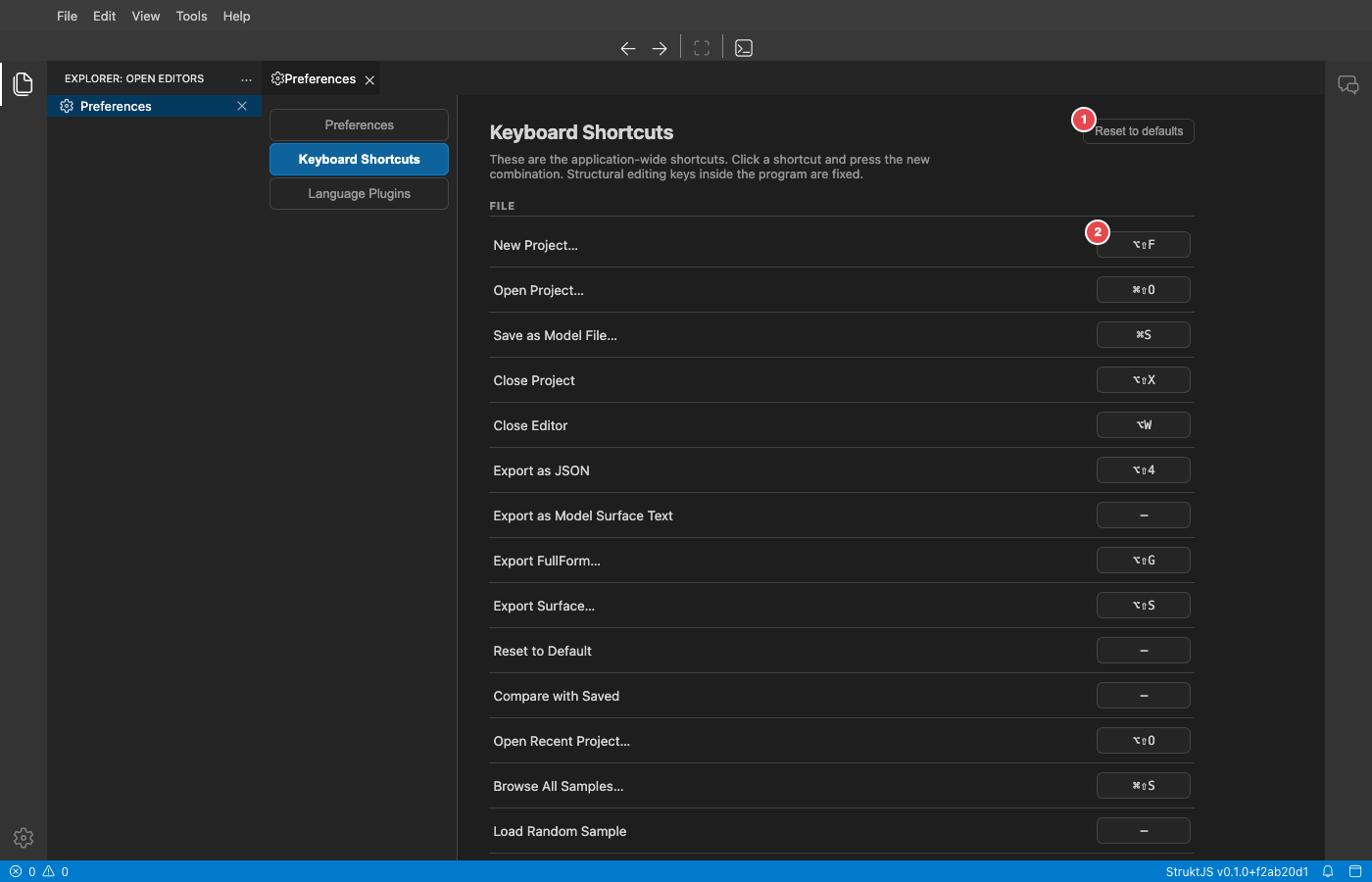
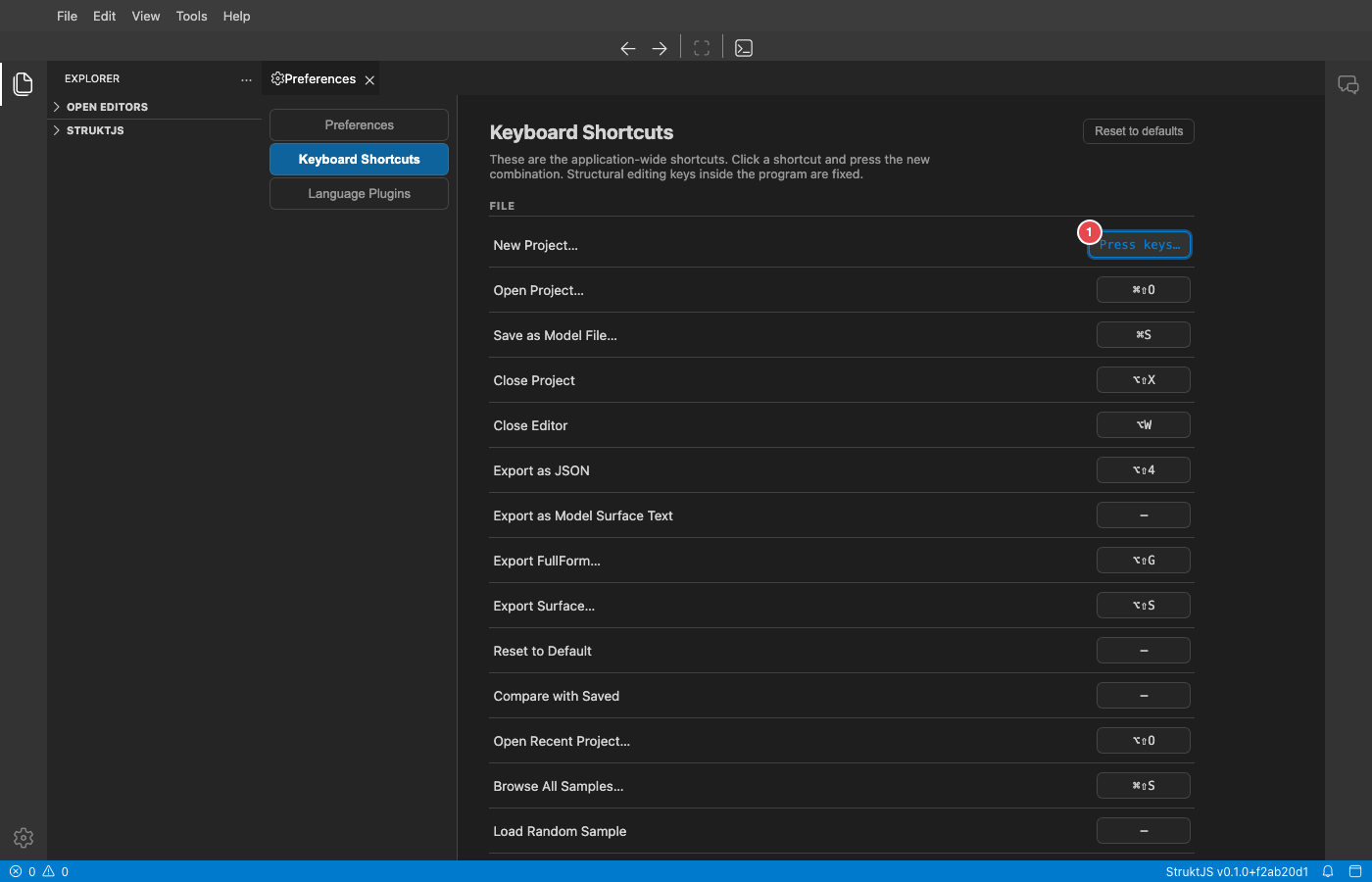
In the standalone web preview, which has no Theia, shortcuts are changed in that preview's own Keyboard Shortcuts tab (click a key button, press the new combination; it must include Ctrl/⌘/Alt or be a function key, and it cannot clash with another struktJS command).
How struktJS and Theia fit together
Theia owns shortcuts; struktJS follows it:
- At startup, each struktJS command that has an IDE shortcut registers it with Theia. That is why the shortcut appears in menus, the Command Palette and the Keyboard Shortcuts editor.
- The editor also has its own key handler. When your
keymaps.jsonmoves a command to another key (or removes its key), struktJS updates that handler to match, so a key you freed does not keep working inside the editor. - F5 is a special case: Theia's debug start also uses F5, so struktJS switches that binding off in favour of Run Program.
Collisions
- Theia's Keyboard Shortcuts editor shows a warning when a key is already used by another command, but it cannot know about browser or operating-system keys. If your new key does nothing, or does something else, it is probably taken by one of those. Pick another.
- Do not rebind a command to one of the editor's own keys (Alt+S, Alt+A, Alt+I and so on; see the Editor keyboard reference). In the IDE the application key is handled before the editor sees it, so the editor key would stop working. The shipped chords were checked for this.
- On macOS, Option+letter produces special characters. struktJS recognises the physical key, so
Alt+Cstill matches, but your OS or an input method may still capture some combinations. - The same physical key is used on every keyboard layout (position, not letter), so on Dvorak or AZERTY the letter you see may differ from the one in the label.
Every control
| # | Button / option | What it does | Shortcut | Gotcha |
|---|---|---|---|---|
| 1 | File > Preferences > Keyboard Shortcuts | Lists every command, including struktJS's, with its real key. | Ctrl+Alt+, | Search for struktJS or the command name. |
| 2 | Edit Keybinding (pencil) | Captures a new key or chord for the command. | click, then press the keys and Enter | The editor follows the change at once. |
| 3 | Reset (right-click a row) | Restores the command's default key. | right-click | Only for a command you changed. |
| 4 | Open Keyboard Shortcuts (JSON) | Opens keymaps.json, where your changes are stored. |
toolbar button | Edit with care; Theia re-reads it when you save. |
| 5 | Help > Keyboard Shortcuts… | Opens the fixed editor-key cheat sheet. | Ctrl/Cmd+K, Ctrl/Cmd+S | Read only. Also Keyboard Shortcuts on the Welcome page. |
| 6 | Command Palette (F1) | Search a command and see its key. | F1 | Shows IDE keys. |
The command Keyboard Shortcuts in the reference tables is the same Keyboard Shortcuts page.