Problems panel and checks
Audience: everyone who edits models · ~12 min read · Prerequisites: Editor basics
What it is
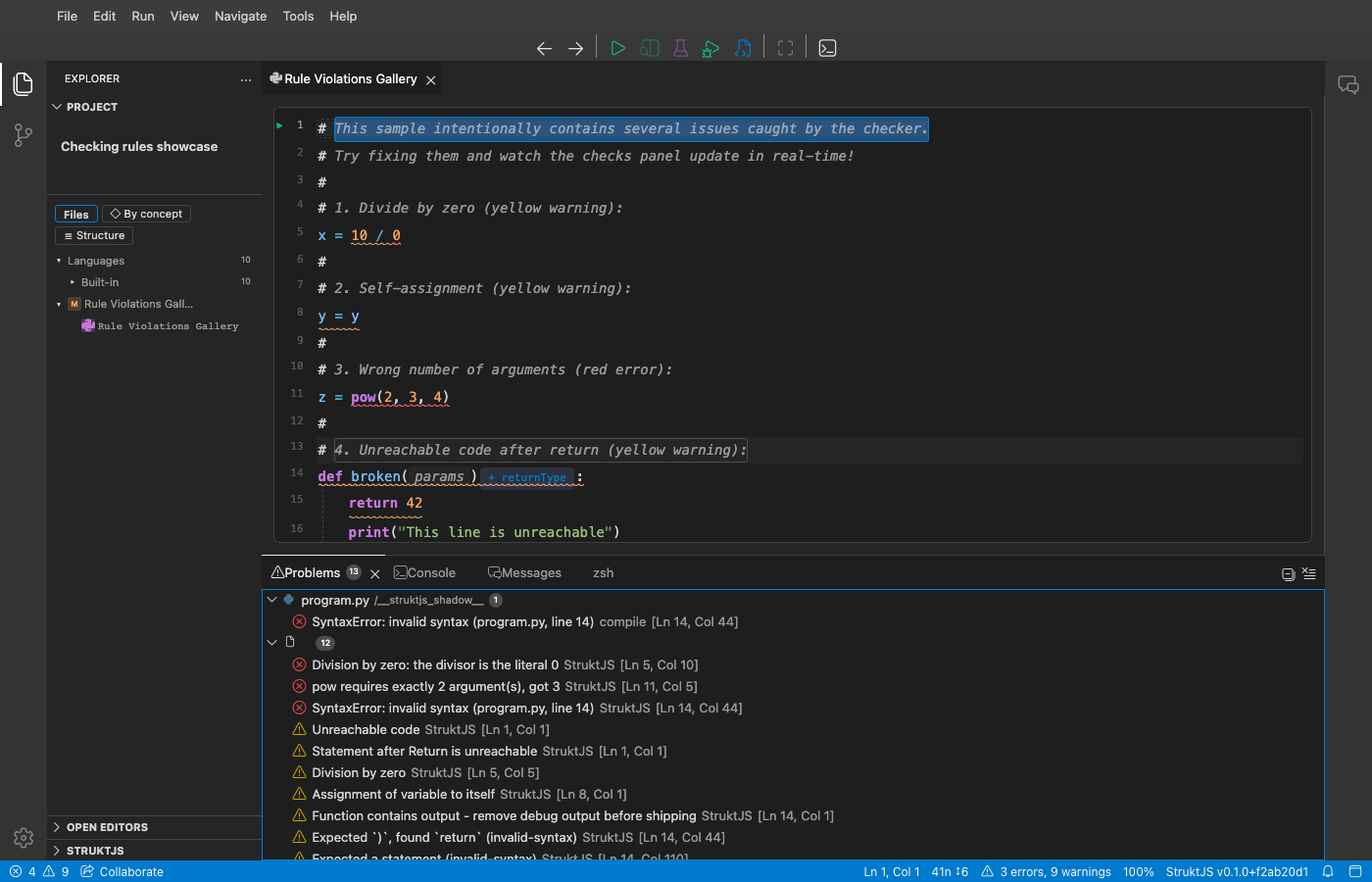
While you edit, struktJS looks at your program and points out mistakes: dividing by zero, using a name that does not exist, calling a function with the wrong number of arguments, and so on. Each finding is a problem. A problem has a severity (an error or a warning), a message, and the node it is about. The problems for the open model are listed in the Problems panel at the bottom of the IDE, and the node itself gets a wavy underline in the editor. The rules behind the findings are written by the language, so different languages report different things (see glossary for check, constraint and concept).
There is no separate "Checks" window in the IDE. A few older sample READMEs still say "Checks panel": they mean the Problems panel. (A rule is written on the concept it checks, in the Language Editor's Types > Checking rules and Rules tabs.)
When you'd use it
- You want to know why a model will not run: Run refuses to start while there are errors.
- You are cleaning up a model before sharing it, and want to see every issue in the whole project.
- You are writing a language and want to see your own checks fire.
What the severities mean
| Severity | Underline | Blocks Run? | Typical meaning |
|---|---|---|---|
| Error | Red wavy | Yes. Run, Run with Debugger, Run with Coverage and Open Preview all stop with "Not run: fix the reported errors first (see Problems)." | The code breaks a rule and cannot work, such as a wrong argument count or break outside a loop |
| Warning | Amber wavy | No | Probably a mistake but the program is still valid, such as a division by the literal 0 or code after return |
| Information | None on the node | No | Used for the results of Run Assessment… (see below). A language's own check can also declare "info"; in the live Problems panel it is shown as a warning |
How to read the problems of the open model
- Open a model. The status bar (bottom right) shows No issues or something like 1 error, 2 warnings.
- Click that status-bar item, or choose View > Tool Windows > Bottom > Problems, to open the Problems panel. (In the menu the entry is simply View > Tool Windows > Problems.)
- Each row has the message, the source
struktJS, and a position such as[Ln 5, Col 11]. Click a row to jump to the node in the editor. The position is the line and column in the model's text form. - Fix the problem. The list updates as you edit; the underline disappears when the problem is gone.
- Press F8 to move to the next problem in the editor and Shift+F8 for the previous one without touching the mouse.
The Problems panel itself is the standard Theia panel, so its own filter box, grouping, collapse buttons and "copy" context menu work the way they do in any Theia based IDE.
A problem that comes from a check rule shows the rule's name in brackets after the source, for example
struktJS(no-literal-zero-divisor). Right-click such a problem and choose Edit Rule to open that rule in the
Language Editor. The menu item only appears for problems that came from a rule; the panel does not group problems
by rule or filter them by severity beyond what Theia's own filter box offers.
To see a message without opening the panel, hover the underlined node (see Hover and Inspector), or turn on the Inline error lens preference (Toggle Inline Error Lens, no default shortcut), which writes the first message right after the node.
Where a rule has put its problem in plain words, every one of these places shows the plain words first: a required
spot you left empty reads "The right side of + is missing. Click the blank spot and type a value." in the hover, in
the error lens, in the Problems panel and to a screen reader. The hover keeps the developer's own text (for example
rhs slot is required) on a second line, and strukts check prints it as the message, with the plain words beside it
in its JSON output. The empty spot itself is where the problem is attached, so clicking the problem (or pressing
F8) puts the caret there and typing fills it. The spot is drawn with a solid red outline (instead of the grey dashed one every empty spot has) and a screen reader announces it as invalid; the wavy line under the statement around it stays. The plain words follow the IDE's display language (English, German,
Dutch); a name you gave a slot is shown as you wrote it.
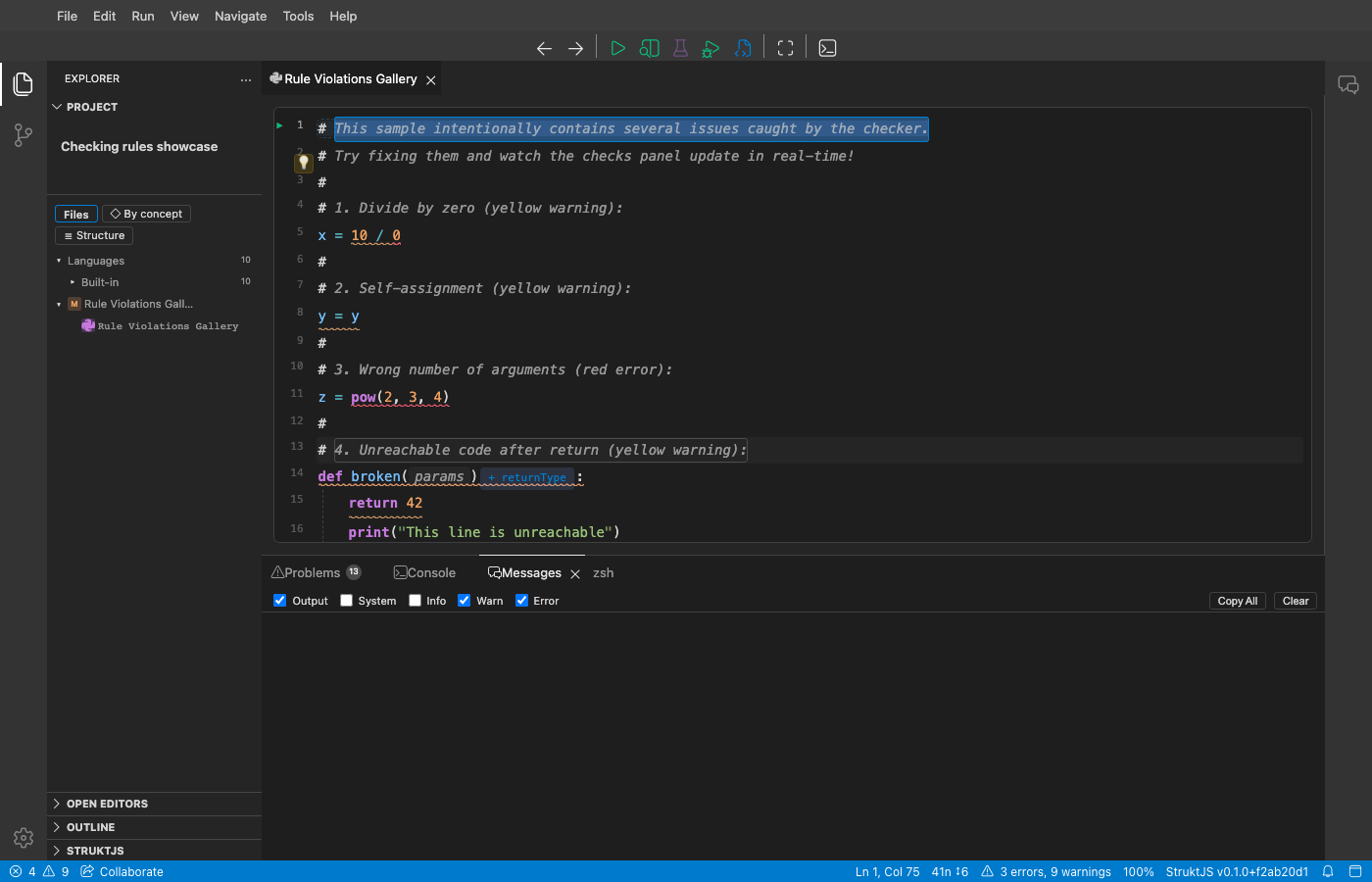
The Checking rules showcase sample (File > Samples > Load Sample…) is deliberately full of problems. Load it, open Problems, and fix them one by one.
Checking the whole project
The Problems panel only lists the model you have open. To check everything:
- Choose Tools > Typechecker > Check Entire Project (Ctrl/⌘+K, T, C).
- A notification says either "Check Entire Project: no issues found across N root(s)." or the Problems panel opens with every issue, grouped by file.
- Click a row to open that model and jump to the node.
Notes:
- Models whose language has not been loaded yet this session are skipped, and a warning says how many ("Skipped N model(s) with no language loaded yet this session — open them once to include them."). Open them once and run the check again.
- A model that is not open has no live editor to resolve references from, so reference checks can report less than you would see after opening the model.
- The rows for a project scan have a line number that is only the position in the list, not a real source line.
- A clean re-run clears the markers a previous run left.
Checks that run only when you ask
Some checks are too slow to run on every keystroke, or only make sense on demand. A language marks those as manual. Tools > Typechecker > Run Checks… offers them (when a model of the project uses such a language) next to the ordinary checks: pick this model or the whole project. The command palette also has Run Manual Checks (open root only), Run Manual Checks on Model (every root of the active model) and Run Manual Checks on Project (every model). Results show with the other problems until you next edit. If the language has none you get "This language has no concept that runs its checks manually."; for the model and project variants the message is "No model here uses a language with a concept that runs its checks manually." (The Changelog language's node-reference checks are the bundled example.)
Assessments
Tools > Typechecker > Run Assessment… lets you pick a read-only analysis of the whole project:
- Documentation coverage: how many functions, classes and similar statements carry documentation, with each undocumented one listed.
- Unused declarations: names declared but never used. Names starting with
_are ignored.
The summary appears as a notification and the findings as information entries in the Problems panel; each one jumps to its node. Plugins can add more assessments. Show Model Dependencies… (same submenu) is a related read-only view of which models import which.
Other analyses that report into Problems
Four analyses run continuously and report into the same panel:
| Analysis | What it catches |
|---|---|
| Checks | Per-concept rules written by the language: divide by zero, self-assignment, wrong argument counts, break outside a loop, unreachable code |
| Constraints | Rules about individual slot values and where a concept may be placed. See Constraints and placement rules |
| Type system | Optional and gradual type checking. See Type checking |
| Data-flow | Possibly-uninitialized variables and unreachable code, below |
Data-flow analysis
Data-flow analysis runs automatically and reports two kinds of problems.
Possibly-uninitialized variables. Applies to variables declared with varDecl(name, type) without an
initial value. If the analysis cannot prove the variable is assigned before a read, the reference gets a
warning. It is conservative about branches, loops and function boundaries. Bare x = expr assignments are not
tracked (they follow Python's function-scope rule). Fix it by giving the declaration an initial value or
assigning before the first use.
| Code | Result |
|---|---|
varDecl(x, "number") then print(x) |
Warning on x: possibly uninitialized |
varDecl(x, "number", 0) then print(x) |
Clean: has an initial value |
varDecl(x, "number"), x = 5, print(x) |
Clean: definitely assigned |
Unreachable code. Any statement after a definite terminator (return, break, continue or raise) in the
same block is flagged, on the unreachable statement rather than the terminator. Code in nested blocks is not
affected. Load the Python language tour sample and open its Data-Flow Walkthrough root to see both.
Spelling
Free text in languages that opt in (today, the entries of the Changelog language) is spell-checked and reported as warnings, using a bundled English (Hunspell) dictionary that is downloaded the first time it is needed. Alt+Enter on a flagged entry offers Replace "x" with "y" for each suggestion and Add "x" to dictionary; words you add are remembered in this browser. The Spell-check language preference chooses the language (English for now) or turns spell checking off; the change applies from the next edit.
An error raised by a run
When Run Program runs on a real Python and the program stops with an error, the statement that raised it gets a warning mark with the error's last line (Run error: ZeroDivisionError: division by zero), and the line in the Output pane goes to the same statement when you click it. It is a warning, so it never stops the next run; it goes away as soon as you edit the model or run again. The statement is found from the line number in Python's own report, so nothing is marked when that cannot be told (a program the generator re-flowed, or an error inside a library).
Common messages and what to do
The first column is the checker's own text. Most of these problems show a plain sentence and a hint first (for example "score is declared as number, but this gives it a string. Give it a number, or change what it is declared as."), with the checker's text on the second line of the hover and in strukts check.
| Message (shape) | What it means | Fix |
|---|---|---|
"x" is not defined in this scope |
A name is used but nothing declares it above it | Declare it, or fix the spelling. Press Ctrl+Space on the cell to see names in scope |
Division by zero: the divisor is the literal 0 |
The right side of / is the number 0 |
Use a non-zero divisor |
Assignment of variable to itself |
y = y |
Remove the line or assign something else |
pow requires ... argument(s), got N |
Wrong number of arguments to a built-in | Match the function's signature |
Unreachable code |
A statement after return, break, continue or raise in the same block |
Delete it or move it before the return |
'break' outside loop, 'continue' outside loop, 'return' outside function |
A control keyword is outside the construct it belongs to | Move it inside the loop or function |
String "..." used as loop condition — did you mean a boolean expression? |
A text value sits where a true/false value is expected (while, if, elif, assert, a conditional expression) |
Use a comparison |
Type error: cannot assign string to score (declared as number) |
A typed variable got the wrong kind of value | See Type checking |
'X' cannot be placed inside 'Y.slot' |
A concept was put somewhere its language forbids | See Constraints and placement rules |
The right side of + is missing., A value for x is missing. |
A required spot holds nothing | Click the blank spot and type a value |
This step isn't connected to the rest of the flow. |
Nothing in the diagram points at that step | Draw a connection to it from another step, or delete it |
The unit "mm" does not fit a grammage here. |
A quantity names a unit of another kind (a length where a weight goes) | Use one of the units the hint lists |
EUR amounts and plain numbers don't mix: …, EUR and USD amounts don't mix: … |
Money added to a plain number, or to money of another currency | Write the number as an amount (money<EUR>(5)), or use one currency |
These two values don't fit together: text and number. |
An operator was given two kinds of value it does not combine | Make both sides the same kind |
Empty placeholder — fill it in before running. |
A slot is still the empty __Empty__ placeholder |
Fill it in (this one appears when you run, not as a live problem) |
Every control
| # | Button/Option | What it does | Shortcut | Gotcha |
|---|---|---|---|---|
| 1 | Status-bar issue count (No issues / N errors, M warnings) | Shows the counts for the open model; click opens the Problems panel | — | Counts the open model only |
| 2 | View > Tool Windows > Problems | Shows or hides the Problems panel | — | There is no keyboard shortcut for it in the IDE (the standalone webview uses Ctrl/⌘+Shift+P) |
| 3 | A row in Problems | Jumps to the node in the editor | Click | Rows of Check Entire Project open the model first; their line numbers are just list positions |
| 4 | Tools > Typechecker > Next Issue | Moves the selection to the next problem | F8 | Wraps around at the end of the list |
| 5 | Tools > Typechecker > Previous Issue | Moves to the previous problem | Shift+F8 | |
| 6 | Tools > Typechecker > Go to First Error | Jumps to the first error | Ctrl/Cmd+K, T, E | Says "No errors to jump to" if there is none |
| 7 | Tools > Typechecker > Go to First Warning | Jumps to the first warning | none | |
| 8 | Tools > Typechecker > Go to Last Error | Jumps to the last error | none | |
| 9 | Tools > Typechecker > Refresh Editor | Re-renders the editor and re-runs every analysis | none | Use it if a problem looks stale |
| 10 | Tools > Typechecker > Refresh Checks | Re-runs only the checks | none | Refresh Editor also re-renders |
| 11 | Tools > Typechecker > Check Entire Project | Checks every model of the project and lists the results in Problems | Ctrl/Cmd+K, T, C | Skips models whose language is not loaded yet |
| 12 | Tools > Typechecker > Run Checks… | Asks what to check (this model or the whole project, automatic or manual checks) and runs it | — | The manual choices only appear when a model of the project uses a language with manual checks |
| 13 | Tools > Typechecker > Run Manual Checks, … on Model, … on Project | The same manual runs as direct commands, for the open root, the active model, or every model | — | Run Checks… asks which of these you want |
| 14 | Check Entire Project and Run Checks… share one report | Both list their findings in Problems | — | |
| 15 | Tools > Typechecker > Run Assessment… | Asks which assessment to run, then reports it as information entries | — | Needs an open project |
| 16 | Tools > Typechecker > Show Model Dependencies… | Shows which models depend on which | — | |
| 17 | Toggle Inline Error Lens (command palette, F1) | Writes the first message after the node | none | Same as the Inline error lens preference; off by default |
| 18 | Jump to first error after run (preference) | After a run, selects the first remaining problem | — | Because errors block a run, this effectively jumps to the first warning. Toggle Jump to First Error After Run (palette; no default shortcut) flips it |
| 19 | Copy Error & Warning Count (command palette) | Copies "N error(s), M warning(s)" for the open model | — | |
| 20 | Alt+Enter on an underlined node | Offers quick fixes for the problem when one exists | Alt+Enter | See Intentions and quick fixes |
| 21 | Spell-check language (preference) | Chooses the spelling dictionary or turns it off | — | Only affects languages that opt in |
For language authors: where the rules live
The rules behind a problem are written in the Language Editor (Tools > Language Editor). Open a concept and use its aspect tabs: Types > Checking rules for checks, Rules > Constraints for slot constraints, and Rules > Placement for where a concept may go. See The Language Editor. A problem caused by a named rule can be traced back to it with Go to rule (an Alt+Enter entry on the node).
Related
- Constraints and placement rules
- Type checking and the Type Trace pane
- Running a model: why Run refuses to start while there are errors
- Hover, the Inspector and descriptions
- Glossary