Entering code: Enter, Shift+Enter, Ctrl+Enter
Audience: everyone who edits models · ~8 min read · Prerequisites: Editor basics
What it is
In struktJS you do not type text and hope it parses. You grow the program one slot at a time. A slot is a named place in a node that holds a child (see the glossary). Enter, Shift+Enter and Ctrl+Enter add the next item to a list of items: a new statement line, a new list element, a new table row. The new item starts as an empty placeholder (an unfilled slot). You then type into it, or press Ctrl+Space to pick from the completion menu.
When you'd use it
- You finished a statement and want to write the next one below it.
- You want a new statement above the one you are on.
- You are deep inside an expression such as
print(a + b)and want a new statement, not another argument. - You are filling a list, set, tuple or table and want one more item or row.
How to do it
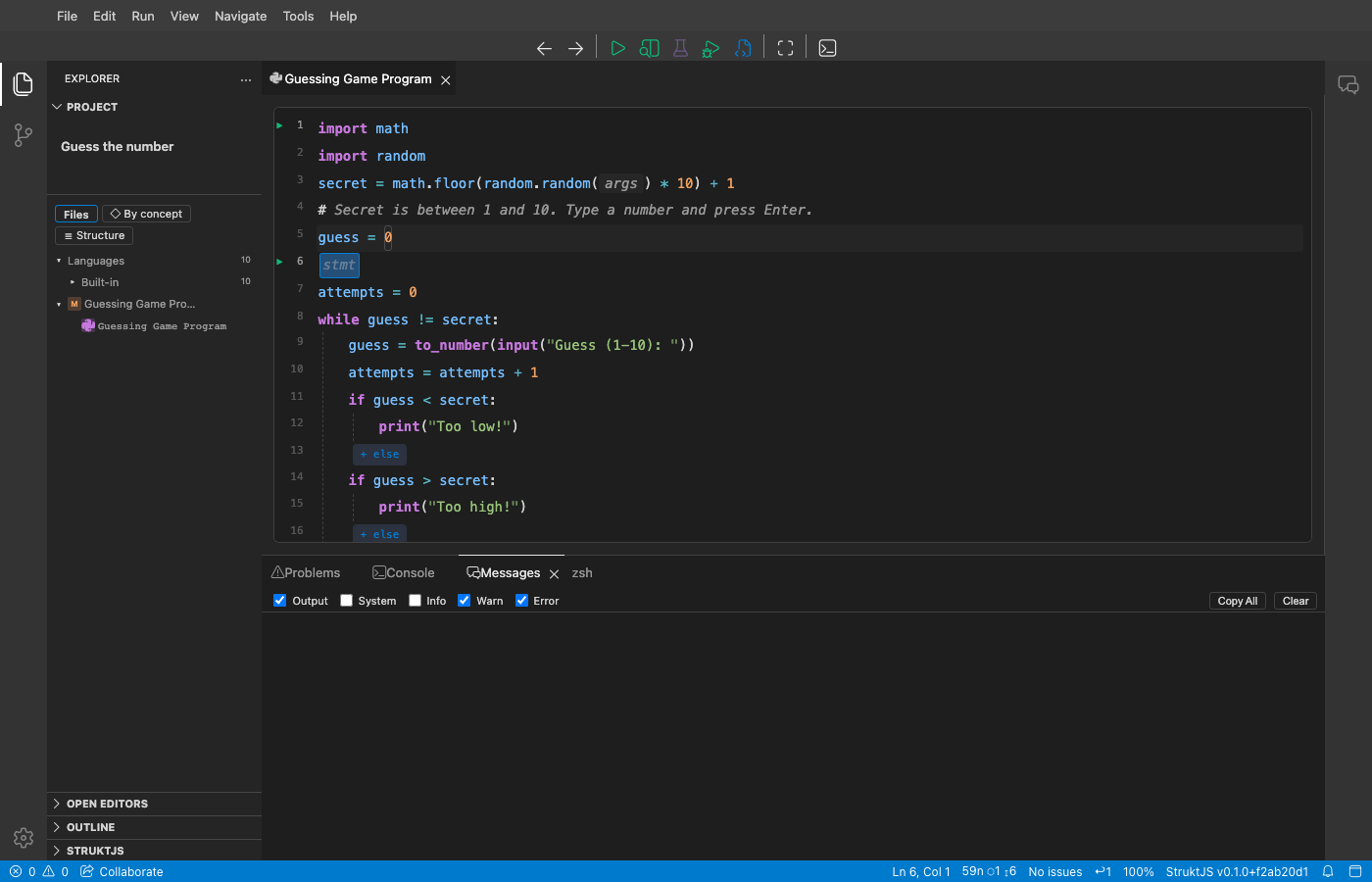
Use the Guess the number sample (File > Samples > Load Sample…) to follow along.
- Click the
0inguess = 0, then press End to put the caret after the digit. - Press Enter. A new empty statement line appears below
guess = 0, with the cursor in it. - Type a letter such as
p. The completion menu opens. Pickprint, or keep typing. - To insert before a statement, put the caret at the very start of a filled cell (press Home) and press Enter, or press Shift+Enter from anywhere in it.
- To add a statement from inside an expression, press Ctrl+Enter. The new line goes after the nearest enclosing statement, however deep you are.
The rule for where the new item goes
Enter looks for the nearest list that takes whole lines or rows and adds an item there. It starts at the cell you are in and walks outward. The first list that qualifies wins.
| You are in... | Enter adds... | Example |
|---|---|---|
| A statement (for example inside a call's arguments) | A new statement below the whole statement | In print("hi"), Enter adds a new line, not a second argument. |
A value collection: list [1, 2, 3], set, tuple |
The next item in that collection | On the 2 of [1, 2, 3], Enter adds an empty item after it. |
A record list: table rows, dictionary pairs, case branches, except clauses |
One more row / pair / case / clause | In a decision table, Enter adds a row. |
A construct's header (if x:, def f(a):, while c:) |
Moves into the construct's body | Enter on def f(a): jumps into the function body. |
An if / elif header |
A new elif branch |
Enter on if x: adds elif _:. |
Two details that surprise people:
- Function parameter lists and import name lists are deliberately not treated as collections. Enter after a parameter finishes the declaration. Use , to add another parameter. In an empty parameter cell, * builds the keyword-only marker and / the positional-only marker (
def f(a, /, b, *, c)), and a letter typed right after * turns it into*args(*thenargs); Ctrl+Space there lists both, plus*argsand**kwargs; in JavaScript [ and { build a destructured parameter. , after a marker opens the next parameter, and : after a name gives it a type. - A language whose file format has no room for a second thing (the tiny Simplest demo language) cannot grow. There the cell shakes instead. Everywhere else Enter and Shift+Enter always do something.
Enter never changes which concept the model file is saved as (its root). If no list is found anywhere above the cursor, the editor wraps the content in a block, as a text editor appends a line at the end of a file. For a root that cannot be replaced, the cell shakes instead.
Every control
| # | Key / control | What it does | Shortcut | Gotcha |
|---|---|---|---|---|
| 1 | Insert after | Adds a new item after the current position, using the rule above | Enter | On a cell with the caret at offset 0 of a filled cell it inserts before instead. |
| 2 | Insert before | Adds a new item before the current position | Shift+Enter (or Enter with the caret at the start of a filled cell) | On the placeholder of a still-empty list there is nothing to be "before", so Shift is ignored and the first item is created. |
| 3 | Insert statement | Adds a real statement after the nearest enclosing statement list, climbing out of expressions and collections | Ctrl+Enter (Control on every platform) | It skips value collections that Enter would grow. Use it to leave [1, 2, 3] and add a line below. |
| 4 | Header to body | Enter on a construct's header jumps to the body (creating it if it is a one-liner) | Enter on the header | Shift+Enter on a header still inserts a sibling statement before the whole construct. |
| 5 | Add elif |
Enter on an if or elif header chains another branch |
Enter on the header | Core-specific. Use Shift+Enter to insert a plain statement before the whole chain instead. |
| 6 | First item of an empty list | Enter or any typed character on an empty-list placeholder such as (empty block) creates the first item |
Enter | Typing a character here starts that item with the character you typed. |
| 7 | Newline in a text block | In a multi-line string slot (a raw source-code blob) Enter inserts a real line break at the caret | Enter | Only for slots flagged multi-line. In ordinary string cells Enter adds a new line item. |
| 8 | Boolean / enum cell | Enter on a true/false or enum-member cell inserts a new item like any other cell |
Enter | Picking a different value is done with Ctrl+Space or the Toggle boolean / Next value intentions. |
| 9 | + slot button |
An optional part that is not present is shown as a small +. Enter or Space on it adds the part |
Enter or Space, or click | It is the one Enter that does not insert a sibling. |
| 10 | Live widget cell | A cell hosting an embedded widget: Enter hands focus to the widget's own control | Enter | Does not add a line. |
| 11 | Next list argument | Adds the next item to the enclosing argument, parameter or list slot (skipping operators like +). On a single expression it wraps into a tuple |
, (comma) | In a string cell a comma is just text. |
| 12 | Drop an empty line | Backspace on an empty cell removes the empty line if the slot allows it | Backspace | See Editing structure for the full delete rules. |
| 13 | Cancel an edit | Reverts an uncommitted literal edit, an armed delete, a selection or a popup | Esc |
Editing a statement as text
If you would rather type a whole statement than build it cell by cell, press Alt+Shift+E with the caret in it. A text box with the statement's source opens over the line. Edit it like any text; Enter (or leaving the box) reads it back and replaces the statement in one undo step, Shift+Enter adds a line, and Escape drops your text. If the text cannot be read, the box stays open and says so, so nothing you typed is lost. The model is still the structure: the text is read once, when you leave the box.
Templates
A project can keep its own templates in a file templates.json in the project folder, so a team shares them through git:
{ "templates": [ { "trigger": "guard", "name": "Guard clause", "text": "if not ${condition}:\n print(${message})" } ] }
text is source in the model's own language, with ${name} for each hole. In an empty statement or expression cell, type the trigger (or part of the name) and press Ctrl+Space (with ghost text off the menu opens by itself): the menu lists the template under templates. Choosing it inserts the construct as if you had pasted it, in one undo step, with every hole an empty cell and the cursor in the first; Tab moves from hole to hole, and from the last one on to the next cell after the construct. A template that does not read in the model's language is not offered usefully: it is pasted as commented-out text, like any text that cannot be read. The file is read when the editor opens and again every few seconds, so an edit shows in the next menu; a menu that is already open is drawn again when the list arrives. There is no template editor yet: write the file by hand.
Naming an argument
In a call, type the parameter's name and then = to pass that argument by name: in total( type rate and = and the argument becomes rate=… with the cursor in the value. It works where the language has named arguments (Core and its Python and JavaScript surfaces do), only when the cell holds a bare name, and only in an argument slot; after a bigger expression, or anywhere else, = keeps its usual meaning (a comparison inside an expression, an assignment at the start of a statement).
Pulling an expression into a variable
Press Alt+V with an expression selected, or with the caret anywhere inside one, to give that expression a name. The expression moves into a new variable on the line above, the place it came from now refers to the variable, and the new name is open for typing: type the name you want, Enter confirms and Escape keeps the suggested one. The name is checked against the names already used in the model, so the suggestion never clashes. Everything is one undo step. It is available in languages whose variable declaration says how to extract one (today Core, the Python-like language), and not on a whole statement or on a declaration's own name.
Choosing what to do with a selection
Ctrl+Space with a node (or a run of statements) selected lists what you can do with that selection instead of the completion menu of a cell: replace it with one of its parts, and Surround with … entries that put the selection inside a new construct, such as if or while, and leave it selected inside. Typing a letter over a selection still replaces it, as before; the list is for when you want to keep what is selected.
Typing into an empty cell
An empty placeholder reacts to the first character you type. This is how you enter code without opening a menu.
The placeholder names what goes there: condition, left, arg. In a call to a function you defined (total(price, _)), the empty argument shows that parameter's name (quantity), so you can see which value the function expects next.
| Type | Result |
|---|---|
| A digit | Starts a number literal. |
- or . |
Starts a number that begins with that character (-5, .42). |
" |
Starts a string literal. Typing the closing quote at the end of the string finishes it. |
( ) ] } ; |
A bracket or terminator the editor already draws is typed over, not added: after print is applied the ( is already there, so typing ( changes nothing and typing ) moves past it. In a declaration's name (val ▯ = …) a space is refused and the = shown after it is typed over, so val tax = total * 8 / 100 reads as a val. |
const let (JavaScript, TypeScript) |
The words a JavaScript programmer types: const + Space (or the exact word) builds the declaration with that keyword, = after the name adds the value, and a ; that ends the statement is accepted and does nothing. |
A name, then = (Formula) |
tax = 0.2 on an empty line builds a defined value tax and puts the caret on its value, as rate = 0.004 is drawn. let and define (and input) are the menu words for the same line. Core and KernelF do not need this: x = … and val x = … already work there. |
[ |
Starts an empty list, with the caret in its first item. |
$ |
Creates a variable reference directly and puts the cursor in its name, skipping the menu. |
# |
In a statement slot of Core: a comment (a concept that declares the # alias). |
@ |
In a decorators slot of Core: a decorator. |
{ |
In an expression slot: an empty dictionary with one key: value pair ready to fill. |
( ? , or an operator key (+, !, ...) |
Seeds the operator with empty operands, for example + gives _ + _. See Operators. |
| A letter | Opens completion seeded with that letter. In a name slot (a variable or function being defined) the letter just starts the name. |
| Anything else | Ignored. The placeholder never receives stray characters. |
A name slot has no list of existing choices because you are inventing the name. A string slot never offers variables or concepts either: it holds free text.
Related
- Completion menu: what Ctrl+Space shows.
- Operators and side-transformations: type
+after a value to wrap it. - Editing structure: delete, move, copy, wrap.
- Undo and redo: every Enter is one undo step.
- Developer detail: Enter / Shift+Enter insertion.