Output, Terminal and error messages
Audience: everyone · ~10 min read · Prerequisites: Running a model
What it is
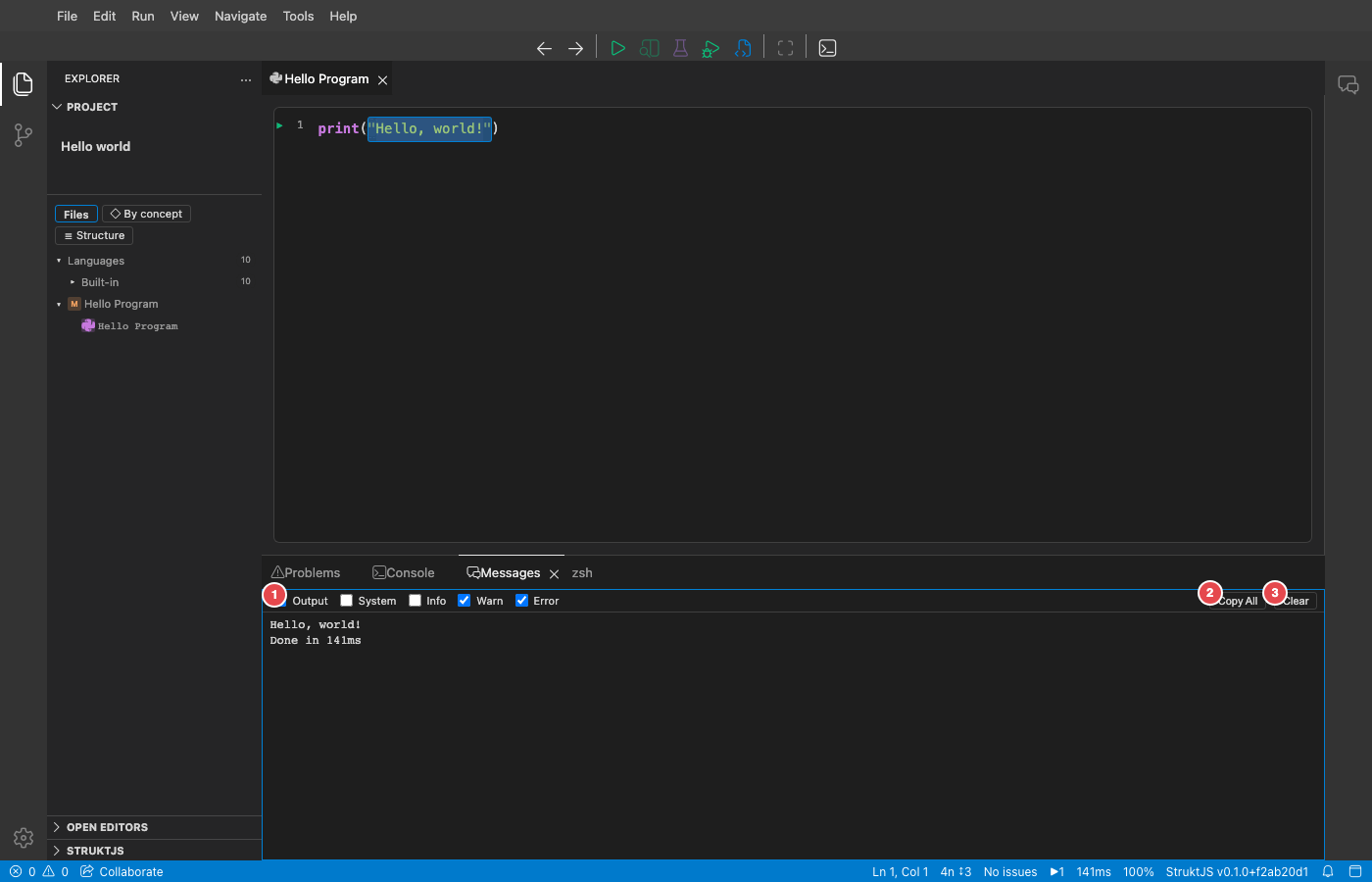
Three bottom panels show what happens when you run things. Messages is the merged view of your program's output and the system's log messages in time order. Console is the Model Console for querying the model. Terminal is an ordinary shell on the machine that runs the IDE. Problems (see Problems panel and checks) lists check results and is separate. This page lists every control and the messages you will meet.
When you'd use it
- A run printed something unexpected and you want to filter or copy it.
- You need to save a run's output or send the error text to someone.
- You see a message and want to know what it means.
The Messages view
Open it with View > Tool Windows > Bottom > Messages (Ctrl/Cmd+K, V, M, command Toggle Messages). It opens by itself when you run, unless you turn off Show output panel on run.
- The top row is a three-way switch: All (everything, in time order), Output (only what your program printed) and Log (only the workbench's own messages). Each shows how many lines it holds.
- In All and Log a row of severity chips appears: Errors, Warnings and Info (Info also covers the IDE's own notices, such as "Opened model"). Click a chip to hide or show that severity. All chips start on, so nothing, errors above all, is hidden by default.
- The second row has the Filter… box, the filter/highlight toggle, word wrap, scroll lock, and Copy, Save and Clear. Filtering by text applies on top of the switch and the chips. When nothing is shown the panel says why.
- Lines that are not plain output start with a coloured badge (
ERRO,WARN,INFO,SYST). - A line that refers to a node (for example a printed model node) is clickable and jumps to it. Ctrl/⌘+click pins any line to a Pinned strip at the top.
- The three icon buttons at the right of the toolbar (hover for their names): Copy (two sheets) copies the output lines as text, Save (a disk) writes them to a file, and Clear (a bin) clears the output and the messages (and the pinned lines).
- A multi-line error, such as a Python traceback, is shown with its line breaks. Terminal colour codes in tracebacks are removed.
The Run > Output menu and other commands
All of these are in the Run > Output menu. The first four are at its top; the others are in its submenus Copy, Export, Pinned Lines, Display & Filter and Options, except Clear Console, Clear Output, Messages & Console and Append Output Separator, which are at the top too. Every one is also in the command palette (F1).
| Command | What it does | Shortcut |
|---|---|---|
| Clear Output (Run > Output) | Clears the program output and shows the Messages view | Ctrl/⌘+K, R, O |
| Clear Messages (Run > Output) | Clears the system messages | Ctrl/⌘+K, R, M |
| Save Output to File (Run > Output) | Saves the output lines as output.txt, with timestamps if shown |
none |
| Copy Errors to Clipboard (Run > Output) | Copies the output lines that are errors; says "No error lines in output" if none | none |
| Clear Output, Messages & Console | Clears all three | Ctrl/⌘+K, O, A |
| Copy All Output, Copy Messages, Copy Warnings & Errors, Copy Console, Copy Pinned Output, Copy Last Output Line | Copy that part to the clipboard | Ctrl/⌘+K, O, C, then A / M / W / C / P / L |
| Export Console to File, Export Messages to File | Save console.txt or messages.txt |
Ctrl/⌘+K, O, X, then C / M |
| Clear Console | Empties the Model Console log | Ctrl/⌘+K, O, D |
| Report Run Info | Logs how many runs this session and the last duration | Ctrl/⌘+K, O, I |
| Report Output/Console/Message Counts | Logs the three line counts | Ctrl/⌘+K, O, N |
| Append Output Separator | Adds a ──── line to the output |
Ctrl/⌘+K, O, S |
| Toggle Output Word Wrap, Toggle Output Scroll Lock, Scroll Output to Bottom | Output panel display options | Ctrl/⌘+K, O, then W / L / B |
| Filter Output…, Clear Output Filter, Toggle Output Filter/Highlight Mode | Filter the output by text, or highlight matches instead | Ctrl/⌘+K, O, F / Ctrl/⌘+K, O, Shift+F / Ctrl/⌘+K, O, H |
| Pin Last Output Line, Clear Pinned Output Lines | Keep a line visible at the top of the output | Ctrl/⌘+K, O, P / Ctrl/⌘+K, O, Shift+P |
| Cycle Max Output Lines | Cycles the Max output lines preference through 0, 200, 500, 1000 | none |
| Toggle Output Timestamps, Toggle Clear Output Before Run, Toggle Show Output Panel on Run, Toggle Jump to First Error After Run | Flip the matching preferences | none |
| Toggle Confirm Before Clearing Output | Flips the matching preference | none |
Note: the Messages view is the same component in the IDE and in the standalone webview, so the toolbar above is identical in both. The palette commands for filter, word wrap, scroll lock and pinning belong to the standalone webview's own state and I could not confirm a visible effect on the IDE's view; use the toolbar there. Many of these commands confirm with an Info line, which the Info chip shows. The save, copy and export commands do work from the IDE.
Preferences
| Preference | Default | Effect |
|---|---|---|
| Clear output before each run | on | Each run starts with an empty log |
| Show output panel on run | on | Brings Messages forward on run |
| Confirm before clearing output | off | Asks "Clear output?" first |
| Show timestamps | off | Prefixes each line with HH:MM:SS |
| Max output lines | 0 (all) | Trims to the most recent 200, 500 or 1000 lines |
| Jump to first error after run | off | Selects the first remaining problem after a run |
| Inline error lens | off | Writes the first message after the offending node |
Terminal
Tools > Terminal (or View > Tool Windows > Bottom > Terminal) opens a shell in the bottom panel on the
machine that runs the IDE: your computer in the desktop app, the server in the browser version. It is the normal
Theia terminal, independent of Run. Use it for git, for the strukts command (see The strukts CLI) or
anything else you would type in a shell. See Security and privacy for what a browser
deployment exposes.
Reporting a problem
Help > Report Issue… (command Report Issue) opens the struktJS issue tracker (https://struktjs.youtrack.cloud/issues) to start a bug report. Include the build line from the
status bar and the contents of the Messages view (Copy All).
Common messages and what they mean
| Message | Meaning and fix |
|---|---|
| Not run: fix this error first: … / Not run: N errors must be fixed first. First: … | There is an error-level problem; the line names the first one and jumps to it when clicked. The rest are in Problems |
| Not run: this sample is illustrative only and isn't meant to run end to end. | The sample opted out of running |
| Not run: fix the generator error first: … | The generator failed on a concept; the line carries the generator's message and jumps to that concept when clicked |
| No python interpreter found on this host's PATH | Install Python 3 on the machine running the IDE |
| Timed out (30s) | A Python run computed for more than 30 seconds; look for an endless loop |
| Input cancelled — run stopped | You dismissed an input() prompt |
| Runtime error: ... | The program failed while running; the text after the colon says why |
| Undefined variable: x | The evaluator found a name with no value |
| Empty placeholder — fill it in before running. | An unfilled __Empty__ slot was reached |
| Unknown concept or function: f / Unknown function: f | A call to something the language or program does not define |
| Eval loop runaway / Eval For runaway / Eval Foreach runaway | A loop passed 1,000,000 iterations |
| Not run: a debug session is already running in another tab. | Stop the other session first |
| Preview not run: this program reads interactive input | Open Preview cannot answer input(); use Run Program |
| Skipped N breakpoint(s) set in a different tab/model. | Breakpoints belong to other documents |
Python traceback lines (NameError, ZeroDivisionError, ...) |
A real Python error from a hosted run; the line numbers refer to the generated code (see Generators) |
| Checks took longer than N s and were stopped. The Problems list is out of date … | A check written in a project's own language ran past its time limit and was stopped. The same message is an error on the root node in Problems; change the document or the check and the checks run again. Project checks run in a restricted background worker with no network or storage access |
| Failed to load model "...": Syntax error ... Saving this file is disabled | A model file edited outside the IDE could not be parsed completely; fix the file on disk, it reloads |
Every control
| # | Button/Option | What it does | Shortcut | Gotcha |
|---|---|---|---|---|
| 1 | All / Output / Log switch | Show everything, only program output, or only the workbench's own messages | — | Starts on All; each segment shows its line count |
| 2 | Errors / Warnings / Info chips | Hide or show one severity (Info includes system notices) | — | All on by default; hidden while the switch is on Output |
| 2b | Filter…, filter/highlight, wrap, lock | Text filter (or highlight), word wrap, scroll lock | — | Applies on top of the switch and chips |
| 2c | Copy, Save | Copy the output lines, or save them to a file | — | Ctrl/⌘+click a line to pin it |
| 3 | Clear | Clears output and messages | — | Asks first only if Confirm before clearing output is on |
| 4 | A clickable line | Jumps to its node | Click | Only lines that carry a node |
| 5 | View > Tool Windows > Messages | Shows the view | Ctrl/Cmd+K, V, M | |
| 6 | Run > Output items | See the table above | — | |
| 7 | Tools > Terminal | Opens a terminal | — | Same machine as the IDE backend |
| 8 | View > Tool Windows > Console | Opens the Model Console | — | See Model Console |