Editing structure: cut, copy, paste, wrap, surround
Audience: everyone who edits models · ~10 min read · Prerequisites: Editor basics, Entering code
What it is
Besides typing new code, you reshape what is already there: cut, copy and paste whole statements, delete them, move them up and down, duplicate them, wrap them in another construct, or comment them out. All of this works on the tree, not on characters. You cannot paste half a statement or leave unbalanced brackets, because a statement or node is the unit (see the glossary).
When you'd use it
- Reorder statements, or copy a block to another place.
- Put existing code inside an
iforwhile(surround), or inside a call or list (wrap). - Remove a wrapper but keep what is inside (unwrap).
- Switch code off without deleting it (Toggle Comment).
How to do it
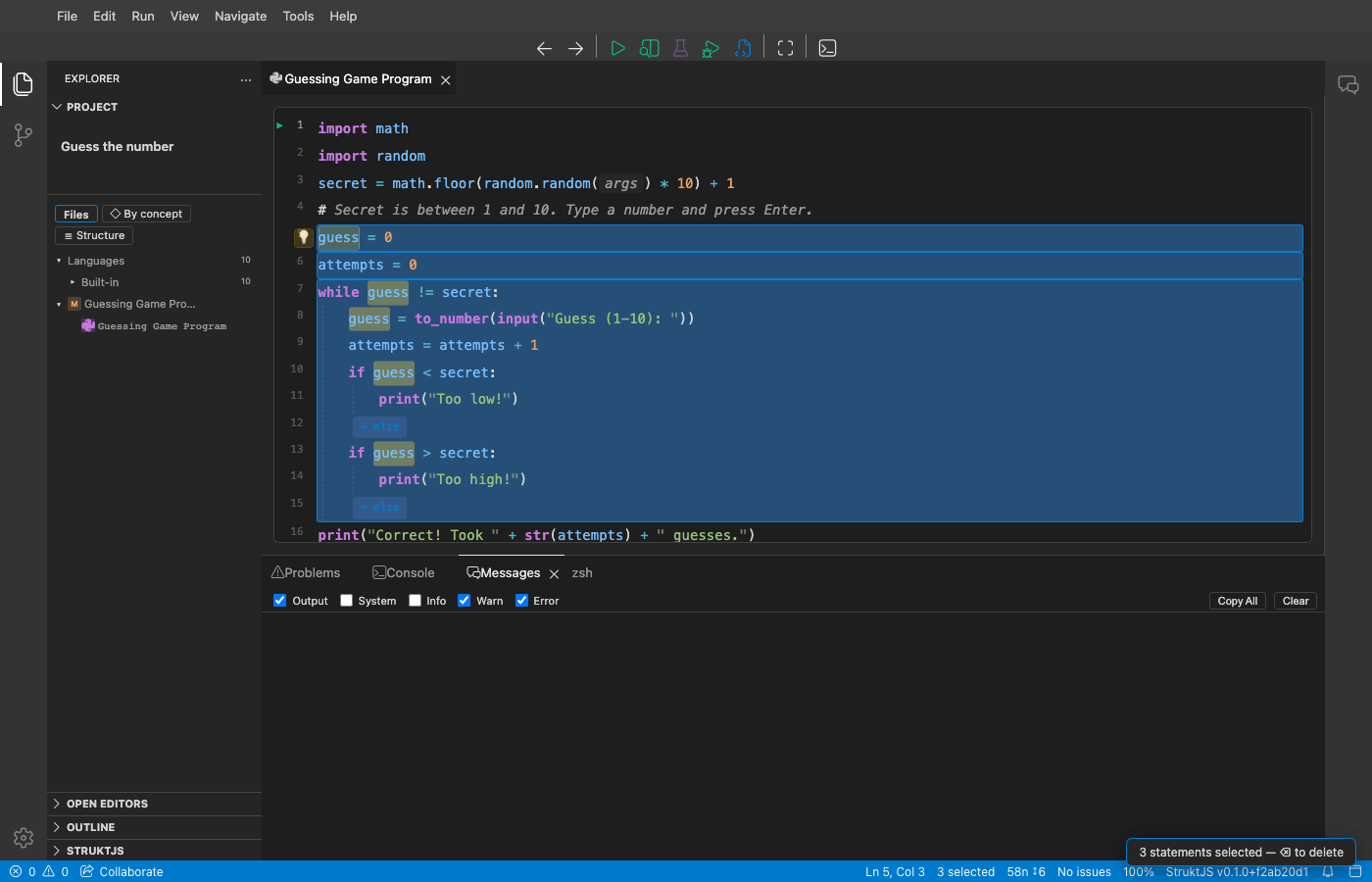
- Open Guess the number (File > Samples > Load Sample…) and click the
guessinguess = 0. - Press Shift+↓ twice. Three statements are highlighted: a selection.
- Press Ctrl+C, click an empty line or a statement end, press Ctrl+V. The statements are inserted after it.
- Or press Alt+Enter with the selection active and choose Surround with if(…). The range becomes the body of a new
if, and the cursor sits on its condition. - Press Ctrl+Z to undo.
(Ctrl is Cmd on a Mac for Z, C, V, X, D and A. Alt is Option.)
Selecting
| Keys | What it does |
|---|---|
| Shift+↑ / Shift+↓ | Starts or extends a range of statements in the same list |
| Alt+W / Shift+Alt+W | Grows / shrinks the selection to the enclosing / inner structure, one box at a time: from a numerator to its fraction, from a table cell to its row, all rows, the table, then the statement. Delete removes the selected node and leaves an empty cell where it was |
| Alt+A | Selects all siblings in the nearest list |
| Ctrl+A | Selects all statements |
| Drag across rows, or Shift+click a line | Selects a range of lines. Inside a table it selects the rows you cross, not the whole statement that holds the table |
| Esc | Clears the selection |
The status bar shows how many are selected.
Copy and paste
- Copy (Ctrl+C) puts the surface text of the focused node or the selection on the clipboard (Python-style text, or the language's own grammar). Inside a text cell it copies plain text.
- Paste (Ctrl+V) parses the clipboard as surface text, or as FullForm (the canonical KDL text) if it looks like that. Text that does not parse is not lost: it is pasted as commented-out code (the text exactly as you pasted it), with a hint; fix it, then use Alt+Enter > Edit disabled code to read it again. It never throws.
- There is one Paste. It already is the "smart" one: FullForm or surface text is parsed into a real node and inserted where a slot accepts it, so there is no separate Smart Paste or Paste and Import command. To replace the whole open root with text from the clipboard, paste it into the Surface panel and use Auto-detect & import.
| Where the cursor is | What paste does |
|---|---|
| An empty expression cell | The expression fills the cell |
| An empty cell | A literal (42, "hello", true) fills it |
| A statement | The statement(s) are inserted after it, or at the nearest list that accepts them |
A pasted block { ... } into a statement slot |
Unwrapped into its statements |
| A selection | The selection is replaced |
| Inside a literal's text | The text is edited in place; no new statement |
| The document root | Appended to the root; the root is never wrapped |
Pasted items are refused when they do not fit the slot (a statement into an expression slot) or when a placement rule of the language forbids them.
Deleting
After a larger deletion (more than one statement, or one big node) a small toast offers Undo; clicking it, or pressing the ordinary undo key, brings the nodes back.
- Backspace / Delete on a keyword deletes the containing statement.
- On an empty cell they drop the empty line if the slot allows it, or merge a fresh operator back into its operand. If neither is possible the cell shakes, and a second press within about 2.5 seconds deletes the whole containing statement.
- Ctrl+Backspace / Ctrl+Delete (Cmd on a Mac) delete the current statement from anywhere. A subtree of six or more nodes needs a second press to confirm ("Press ... again to delete N nodes").
- With a selection, Backspace or Delete removes every selected statement. Deleting all of a file's top-level statements also needs a second press.
- A list never ends up with zero items: a placeholder is put back.
- Alt+Backspace restores the last deleted node(s) after the focused statement. The buffer holds one deletion. In a text cell Alt+Backspace stays "delete word".
- Alt+Delete on a literal resets it to an empty placeholder.
Moving and duplicating
| Action | How |
|---|---|
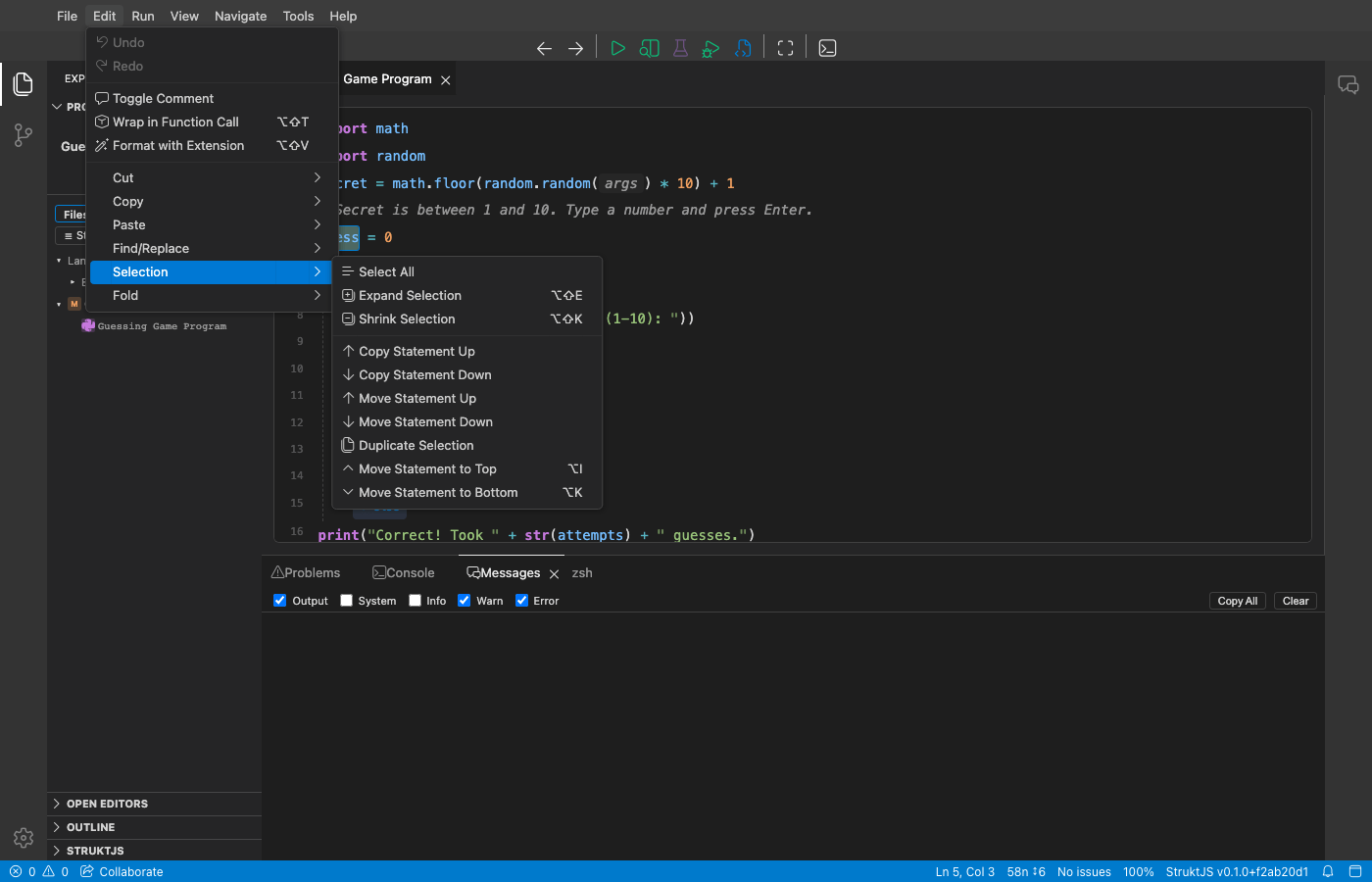
| Move a statement up / down | Shift+Alt+↑ / Shift+Alt+↓, or Edit > Selection > Move Statement Up / Move Statement Down |
| Move to the start / end of its list | Edit > Selection > Move Statement to Top / Move Statement to Bottom |
| Duplicate | Ctrl+D, or Edit > Selection > Duplicate Selection (palette: Duplicate). A selected range is duplicated and the copies stay selected. |
| Copy the statement above / below | Edit > Selection > Copy Statement Up / Copy Statement Down |
| Browse and jump back through edits | Click the ↩N badge in the status bar (palette: Show Undo History), then pick an edit |
| Delete the focused node | Delete or Backspace in the editor, or Edit > Delete Node (palette: Delete Node) |
| Drag | Press and drag the line number in the gutter, then drop on another line; the number turns into a grip when you point at it |
| Sort / reverse a list | Palette: Sort Children (alphabetical by text) and Reverse Children, on the list of the focused item. Empty placeholders stay in place. |
Dragging a row's body selects a range instead; the gutter number is the handle. A drop is accepted only between real siblings of the same list.
Wrapping, surrounding, unwrapping
- Surround with if(…) / while(…) (Core: Alt+I / Alt+L, or Edit > Editor > Surround With…). Wraps the focused node or the selected range in a new construct and puts the cursor on its condition. It is also in Alt+Enter and in the context menu's Transform submenu. Declarations such as
x = 1cannot be surrounded, because nesting them would change where the name is visible. - Wrap in function call… (an intention: Alt+Enter on an expression). Asks for a function name and replaces the focused node
xbyname(x). It is offered only in languages that have a function-call concept (Core does; a language without calls never shows it), which is why it is an intention and not an Edit-menu entry. - Wrap in List (Edit > Editor > Wrap in List in the IDE). Replaces
xby[x]. Intentions offer the same as Wrap in list. - Unwrap (Alt+U, editor key only). Removes the focused wrapper node and keeps its first non-empty child: with the cursor on
not x, Alt+U leavesx. Siblings of that child are dropped, so it is a keyboard action and not a menu item. - Swap operands (Alt+S, or the intention Swap operands on Alt+Enter). Swaps the two operands of a binary operator, for example
a - bbecomesb - a. The intention appears only on a binary operator.
Alt keys belong to the editor
Alt+I, Alt+L, Alt+S, Alt+U and the other Alt keys listed in the Editor keyboard reference are handled by the editor, and no IDE command shares them any more. The IDE commands that used to (for example Move Statement to Top, once on Alt+I) are now Ctrl/Cmd+K chords (Move Statement to Top is Ctrl/Cmd+K, M, T).
Edit > Editor gathers the editor's in-cell actions as clickable menu items that act on the focused node: Delete Statement, Surround With…, Cycle Notation, Toggle Breakpoint, Clear Cell to Placeholder, Restore Last Deleted, Select All Siblings in Slot, Rename Symbol, Inline Declaration, Find Usages…, Find Similar, Call Hierarchy and Quick Documentation. An entry that cannot act on the focused node is greyed out, not hidden: Rename Symbol needs a name, Inline Declaration an inlinable declaration, Call Hierarchy a declaration, Cycle Notation a concept with more than one notation, Clear Cell a text or number cell, Restore Last Deleted something deleted earlier, and Quick Documentation a node that has documentation (a documentation comment on the declaration it is or refers to). Duplicate and Move Statement are under Edit > Selection, the Inspector under View > Tool Windows, and Increment/Decrement Number (Alt+↑ / Alt+↓), Quick Fixes (Alt+Enter) and the cell context menu (Shift+F10) are editor keys only. The submenu appears while a model is open in the editor. Its entries are also in the command palette.
Find Usages… asks what to search for, in a small pick list: the usages of the focused name, every instance of its concept, structurally similar nodes, or the call hierarchy of the enclosing declaration. Alt+F in the editor still runs the default search straight away.
Toggle Comment
Edit > Toggle Comment (Ctrl+/, Cmd+/ on a Mac) comments out the focused statement or the whole selection, and toggles a commented one back. A commented-out statement is shown as a real comment, every line starting with the language's comment mark (# in Python, // in JavaScript), and is saved as comment lines in the file. It is kept as frozen text, so it is not run and not checked. Items that are not statements are skipped. One undo step covers the whole selection.
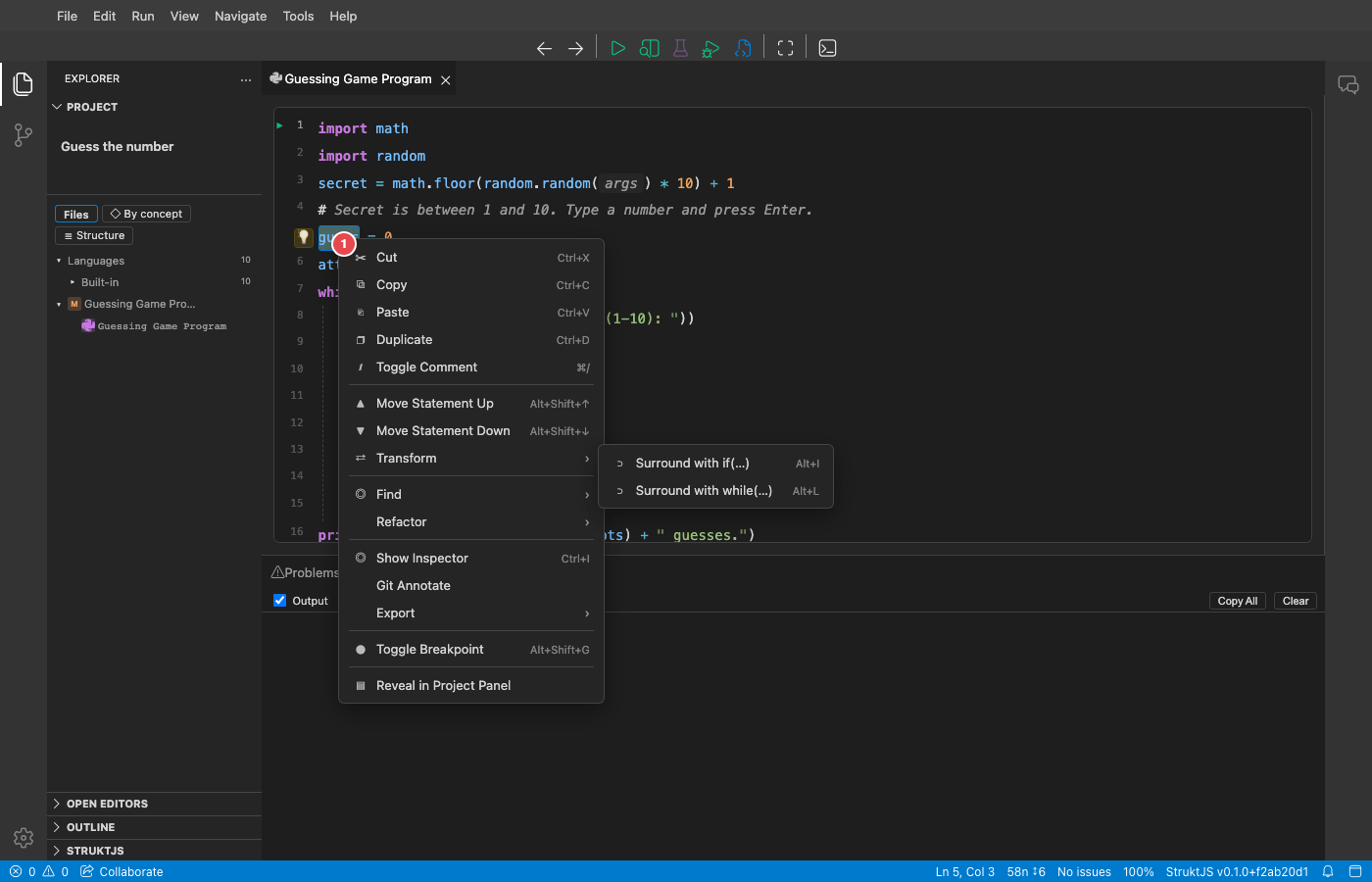
The context menu
Right-click a cell, or press Shift+F10, to open the menu for that node. The last entry, Help, opens the documentation for the editor.
| # | Entry | What it does | Shortcut | Gotcha |
|---|---|---|---|---|
| 1 | Cut / Copy / Paste / Duplicate | Same as the Edit menu | Ctrl+X / C / V / D | The hints follow your platform: Cmd on macOS, Ctrl elsewhere. |
| 2 | Toggle Comment | Comments out or restores | Ctrl+/ (Cmd+/) | |
| 3 | Move Statement Up / Down | Moves in its list | Alt+Shift+↑ / ↓ | Shown only when a move is possible. |
| 4 | Transform > Surround with … | Surround the node or range | Alt+I / Alt+L | Greyed out when not allowed here. |
| 5 | Switch Notation | Shows the node in another notation | Mod+Alt+V cycles | Only when the concept has several; see Notations and views. |
| 6 | Find > Find Variable Usages / Find Concept Usages / Find Similar (Structural Search) / Structural Replace… / Call Hierarchy | Search and navigate | Alt+F, Alt+Shift+T, Alt+Shift+H | See Find and rename. |
| 7 | Find > Language → concept | Opens the node's concept in the Language Editor | ||
| 8 | Refactor > Rename… / Inline / Extract to variable... / Delete Declaration (Safe) / Copy Qualified Name | Refactorings | Alt+R, Alt+Shift+M | Each appears only when it applies. |
| 9 | Quick Documentation / Show Inspector / Git Annotate | Information | Ctrl+Q, Ctrl+I | See Hover and Inspector. |
| 10 | Export > Export Node as Image / Export Root as Image | Saves a picture | ||
| 11 | Toggle / Remove Breakpoint | Debugger breakpoint | Alt+Shift+G | |
| 12 | Reveal in Project Panel | Selects the model in the explorer |
Right-click the line-number gutter for Hide Line Numbers / Show Line Numbers and a breakpoint toggle.
The gutter numbers what you see, row by row, not the lines of the saved text. A stacked formula takes one number for each row it draws: a fraction is two, a fraction over a fraction three, a sum with limits three. A table numbers its header, its rows and its footer, but not the filter row or the "add row" strip, and a row that starts where the statement holding it starts shares that statement's number. Where two things stand side by side at the same height (a table beside a formula, two columns), they share one number, as in IntelliJ IDEA, and a small mark such as the dot over a variable does not count as a row. The numbers always rise from the top of the screen to the bottom, also when a formula holds rows of its own (the cases of a piecewise function inside a fraction): they take the numbers in between. Clicking a line number puts the cursor in that row, not in the first row of the statement. A diagram numbers its steps the same way: each row of boxes takes a number beside it, boxes side by side share one, and the numbers stay put when you zoom or pan (a box scrolled out of view just has no number showing). Drag a box to another row and the numbers follow. With the line numbers hidden, a small badge on each box shows its position in the source instead.
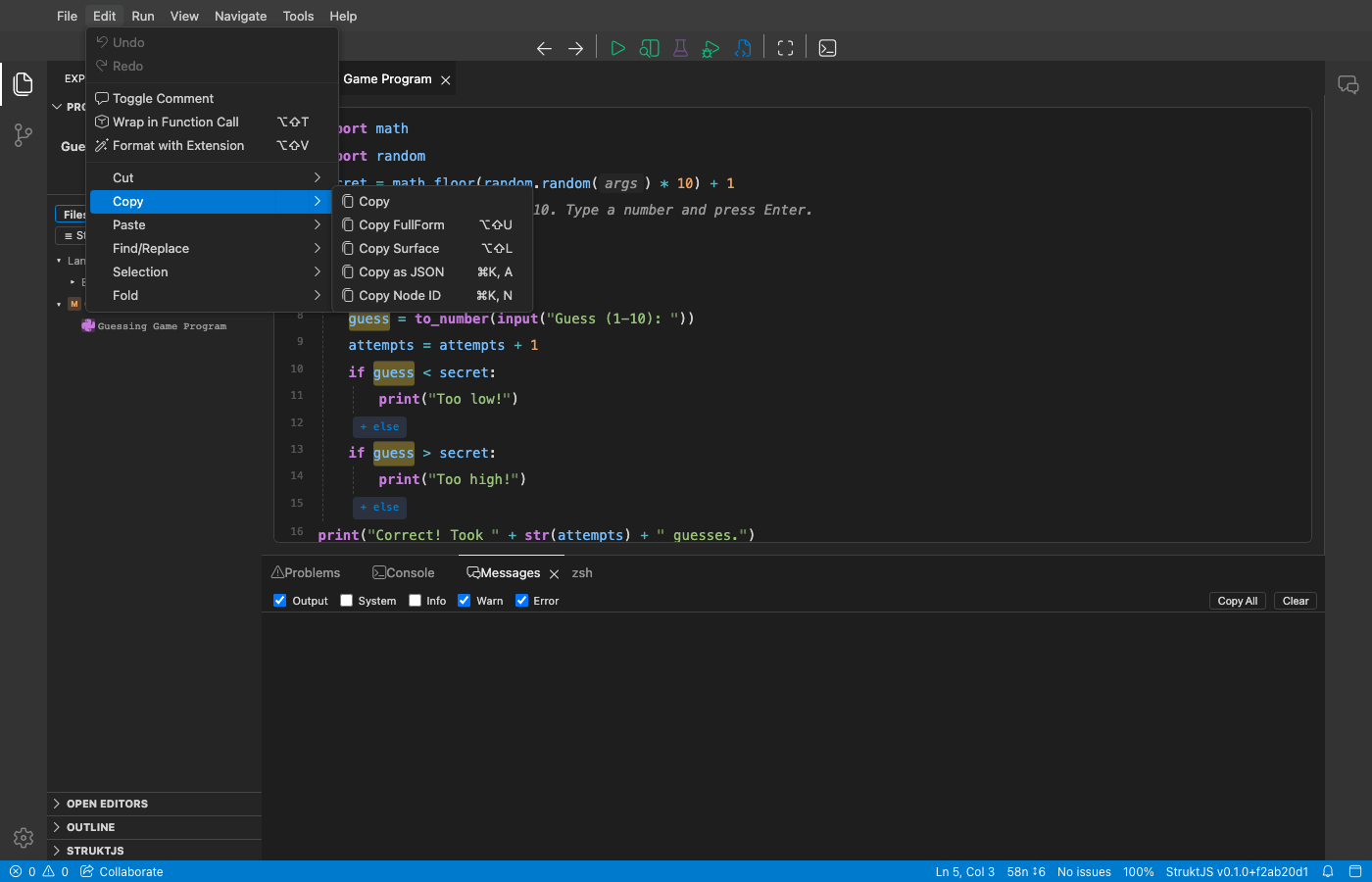
Every Edit-menu entry
| # | Menu path | Palette name | Shortcut (IDE) | Gotcha |
|---|---|---|---|---|
| 1 | Edit > Cut > Cut Node | Cut | Ctrl+X (editor) | Copies, then deletes the node or selection. |
| 2 | Edit > Copy > Copy | Copy | Ctrl+C (editor) | Surface text. |
| 3 | Edit > Copy > Copy FullForm | Copy as FullForm | Ctrl/Cmd+K, E, F | KDL text. |
| 4 | Edit > Copy > Copy Surface | Copy as Surface Text | Ctrl/Cmd+K, E, S | Same text as Copy for one node. |
| 5 | Edit > Copy > Copy as JSON | Copy as JSON | Ctrl/Cmd+K, E, J | The node as JSON. |
| 6 | Edit > Copy > Copy Node ID | Copy Node ID | Ctrl/Cmd+K, E, N | |
| 7 | Edit > Paste > Paste | Paste | Ctrl+V (editor) | |
| 8 | Edit > Toggle Comment | Toggle Comment | Ctrl+/ | |
| 9 | Edit > Selection > Select All | Select All | Ctrl+A (editor) | |
| 10 | Edit > Selection > Expand Selection / Shrink Selection | same | Ctrl/Cmd+K, M, E / Ctrl/Cmd+K, M, S | Same as Alt+W / Shift+Alt+W in the editor. |
| 11 | Edit > Selection > Copy Statement Up / Copy Statement Down | same | Ctrl/Cmd+K, M, U / Ctrl/Cmd+K, M, D | |
| 12 | Edit > Selection > Move Statement Up / Move Statement Down | same | none (editor: Shift+Alt+↑/↓; web page: Alt+Shift+↑/↓) | |
| 13 | Edit > Selection > Duplicate Selection | Duplicate | Ctrl+D (editor) | |
| 14 | Edit > Selection > Move Statement to Top / Move Statement to Bottom | same | Ctrl/Cmd+K, M, T / Ctrl/Cmd+K, M, B | |
| 15 | Edit > Undo / Redo | Undo / Redo | Ctrl+Z / Ctrl+Shift+Z | See Undo and redo. |
| 16 | Edit > Add Language Import… | Add Language Import | Ctrl/Cmd+K, E, M | Adds a language to the model's imports (moved here from File). |
A separate set of utility commands: Wrap in List, Sort Children and Reverse Children are in Edit > Editor. Copy Whole Program (Surface), Copy Whole Program (FullForm) and Copy Whole Program (JSON) are in Edit > Copy. The rest are in Edit > Copy & Report Info: Copy Breadcrumb Path, Copy Concept Name, Copy Inferred Type, Copy Node Depth, Copy Program Stats, Copy Child Count, Copy Node Value, Copy Parent Concept, Copy Concept Occurrence Count, Copy Error & Warning Count, Copy Selection Count and Report Focused Node Info. The "Copy ..." ones copy a fact about the focused node to the clipboard. All of them are also in the command palette (F1).
Related
- Intentions: Alt+Enter for context-specific changes.
- Undo and redo.
- Constraints and placement: why a paste or wrap can be refused.
- Find and rename.