Quick start
Audience: new users · ~5 min read · Prerequisites: Install and first launch
What it is
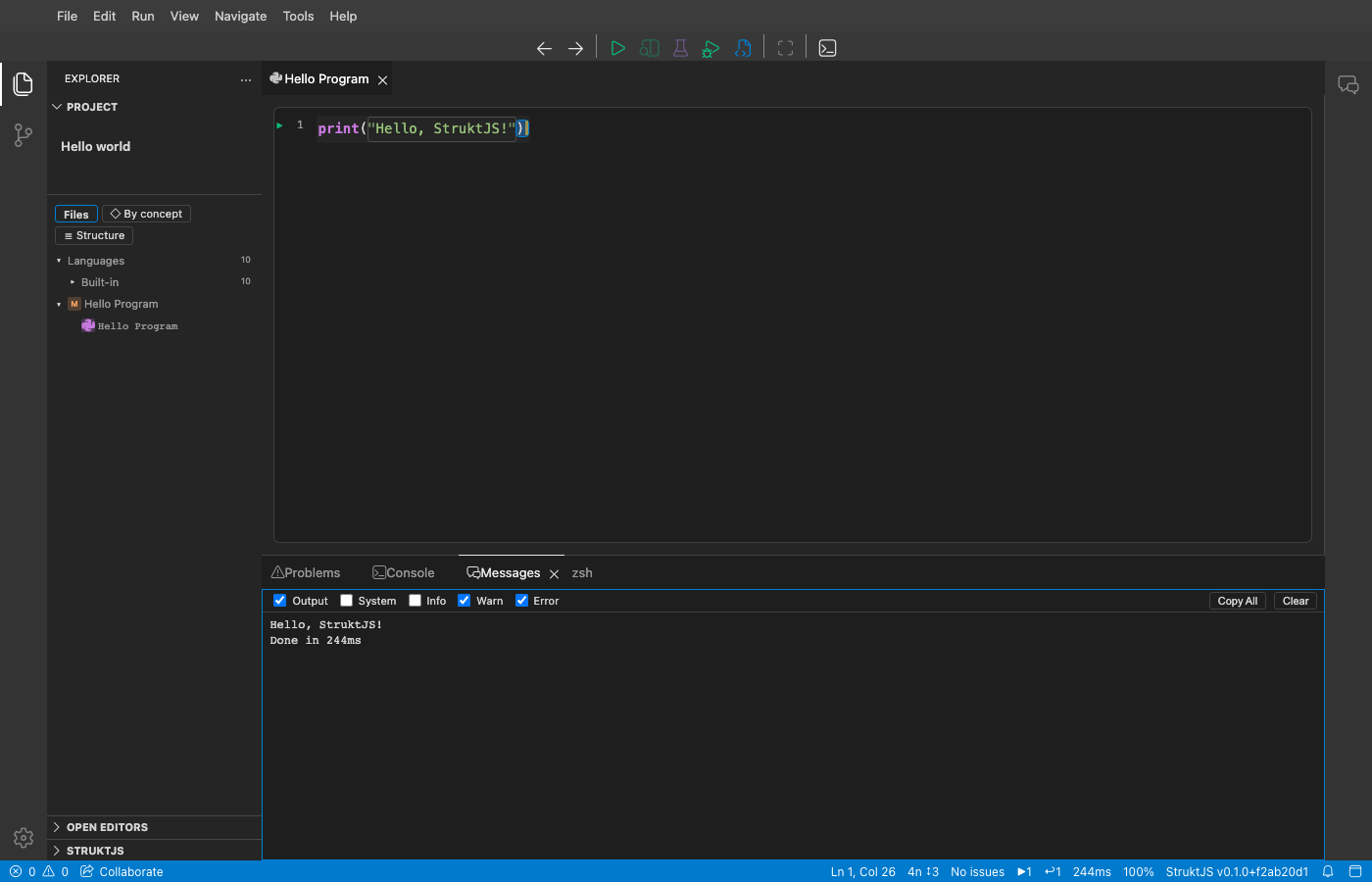
This is the shortest path from "installed" to "I changed a program and ran it". You open a finished example, change one value, run it and look at how it is stored. It takes about five minutes and uses only the built-in Core language, which reads like Python.
When you'd use it
Use it right after installing. If you would rather learn by building something from nothing, go to the Tutorial afterwards.
Steps
1. Start the IDE
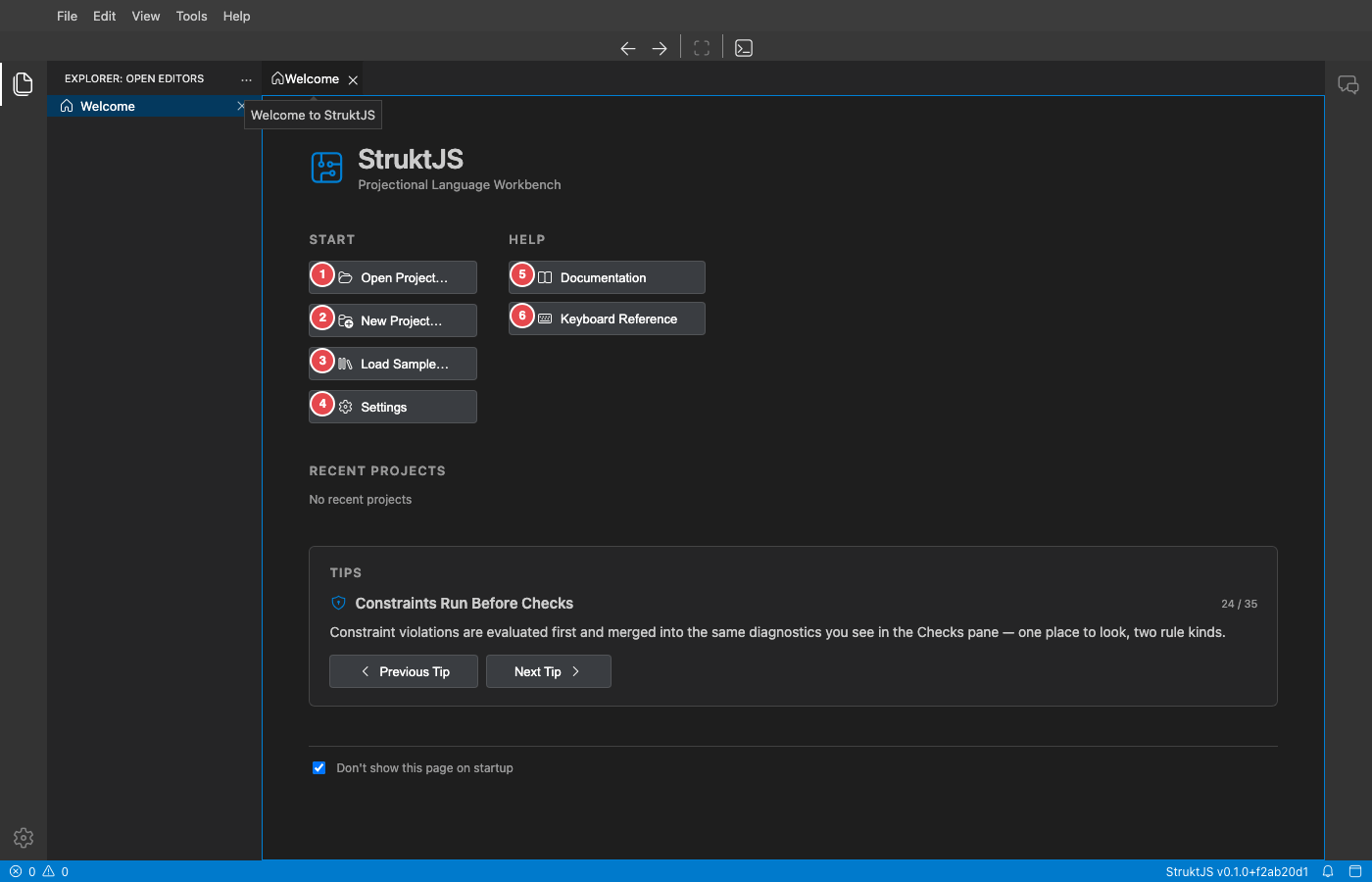
Open the desktop app, or run npm start and open the address it prints. You land on the Welcome tab (bring
it back any time with Help > Welcome). Details and the unsigned-build warnings are in
Install and first launch.
2. Load a sample
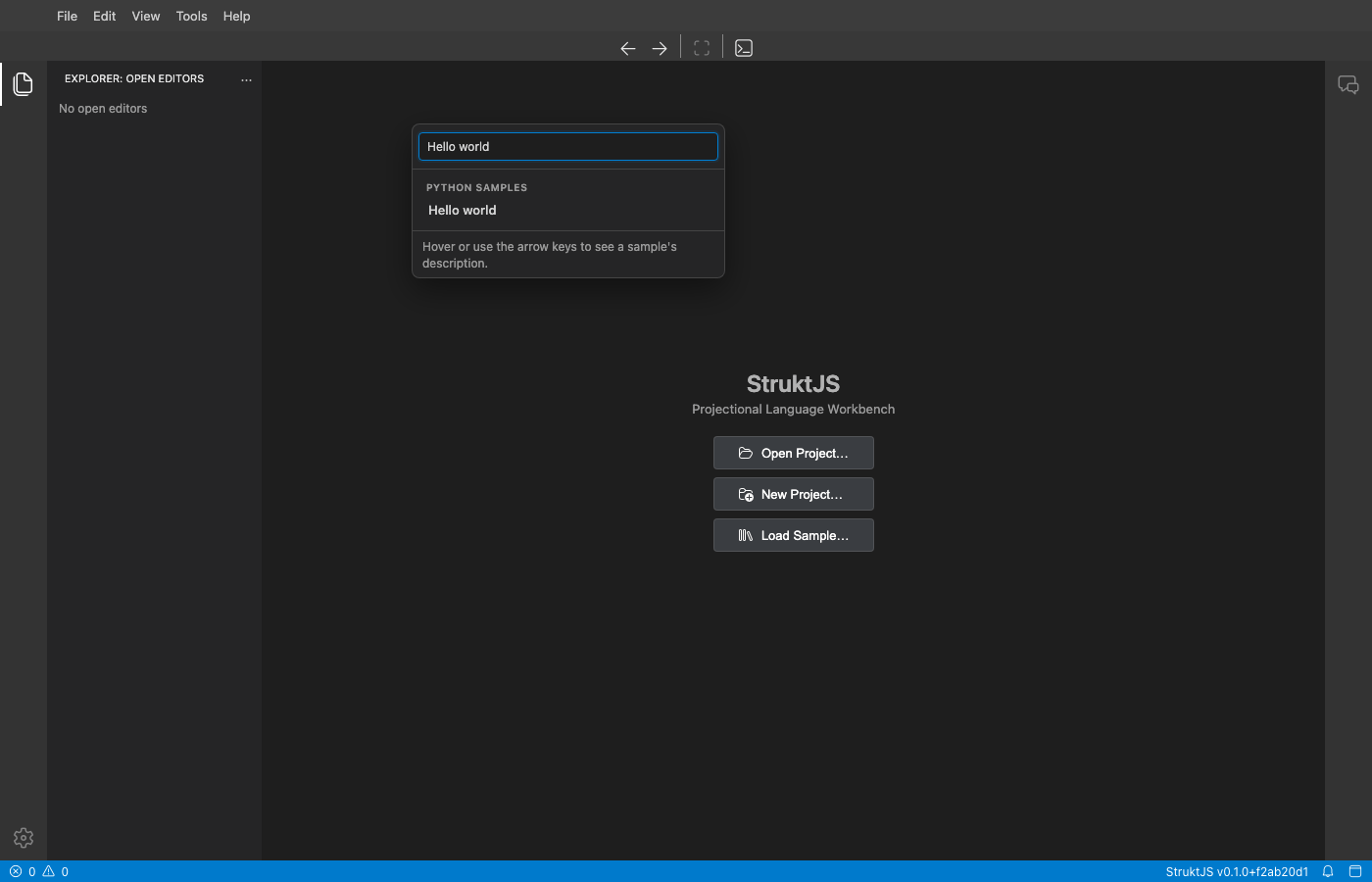
Choose File > Samples > Load Sample… (or the Load Sample… button on the Welcome tab). A list of
bundled example programs opens. Type Hello world in the search box and click Hello world.
3. Look around
The program opens in a new tab called Hello Program. If you turn on Settings > struktJS > Open README.md when opening a project, a README.md tab explaining the sample opens next to it (off by default). The Explorer on the left shows the project and its model. The program itself is one statement:
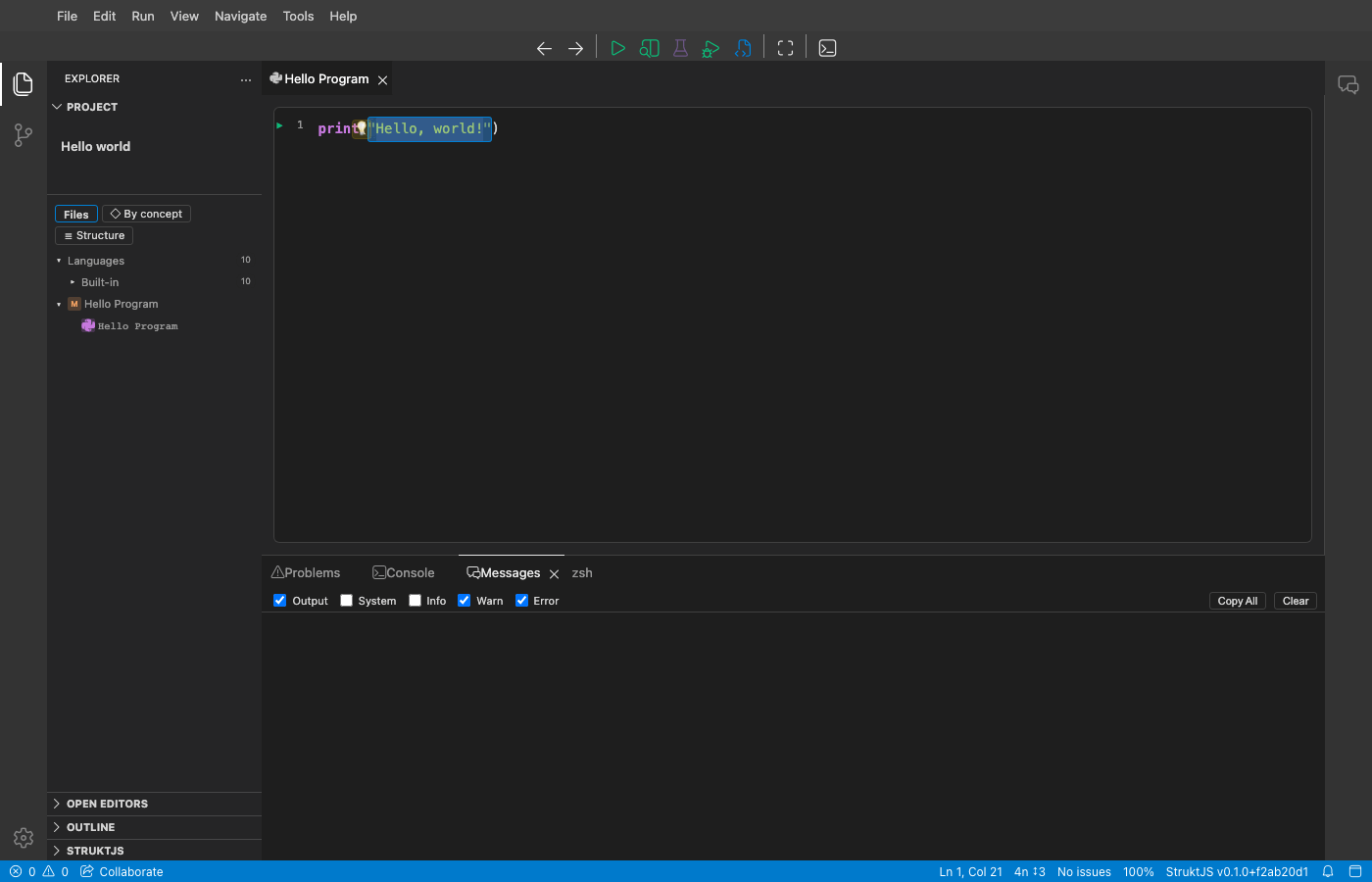
Each coloured piece is a cell. Click print, then use the arrow keys: the selection moves from node to
node, not from character to character. See Screen map for every region of the window.
4. Change a value
Click the text Hello, world! inside the quotes, press Ctrl+A (Cmd+A on macOS) to select the whole text,
and type your own message. Press Tab to finish editing the cell.
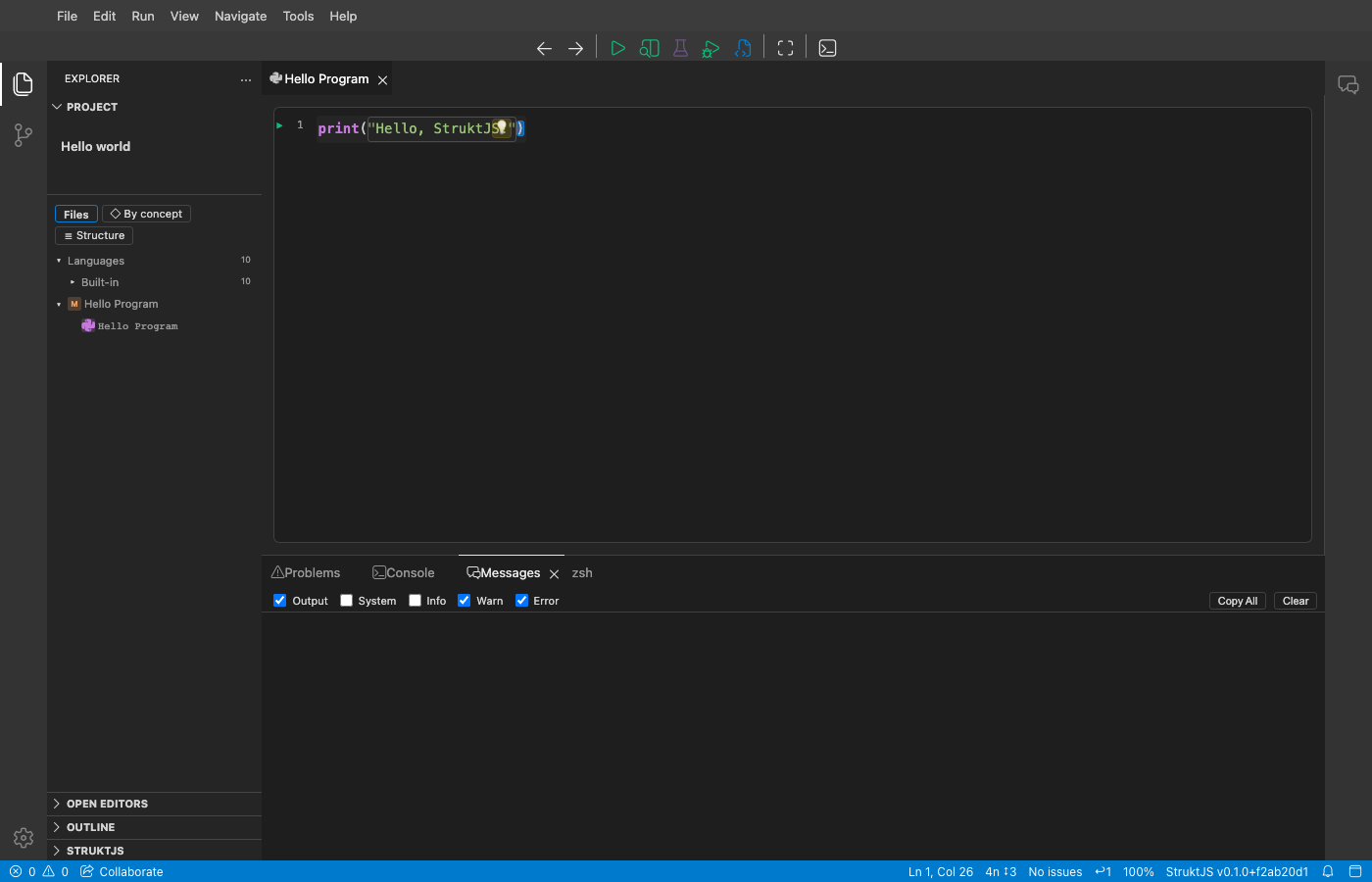
You are editing a node's value, not a line of text. The quotes and parentheses are drawn for you and cannot be broken.
5. Run it
Press F5, or choose Run > Execute > Run Program. The output appears in the Messages panel at the bottom, followed by how long the run took. The status bar also shows the run count and duration.
If nothing happens, check that Python 3 is on your PATH: Core programs run by generating Python and running it
with your interpreter. See Troubleshooting.
6. See how it is stored
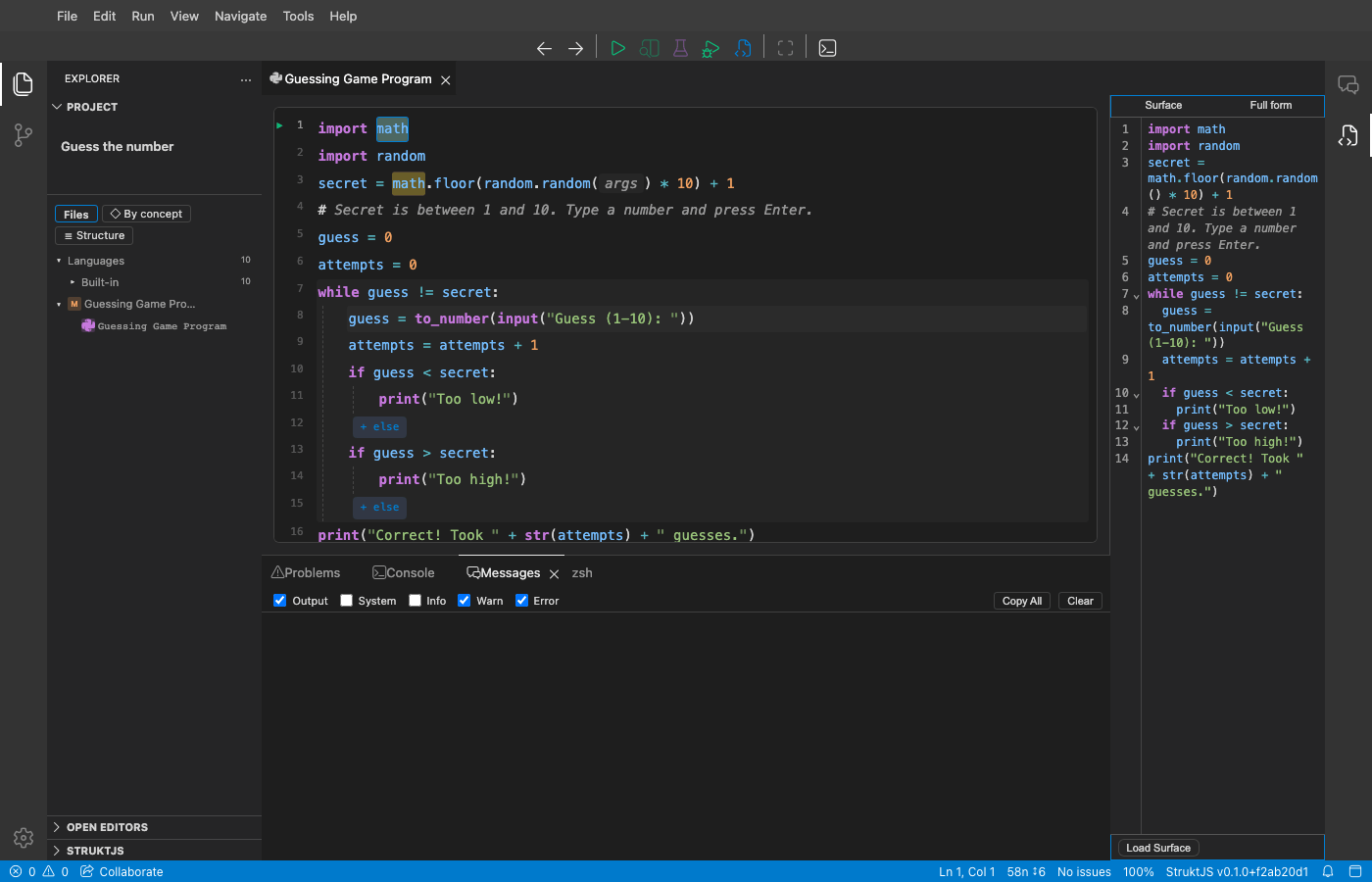
Choose View > Tool Windows > Surface (Ctrl/Cmd+K, V, S). The Surface pane on the right shows the same program as plain text, which is how it is saved on disk.
Start your own project
Instead of a sample, choose File > New Project… (Ctrl/Cmd+K, F, N):
- Enter a Project name and pick a Language (the default is
core), then click Choose Folder…. - Pick a folder in the picker that opens.
- struktJS writes a
project.jsonand amodel.jsoninto that folder, runsgit initwith an initial commit, opens the project and shows one model, ready to edit.
See Install and first launch for the dialog, and Project folder anatomy for what the folder contains.
Every control
| # | Button/Option | What it does | Shortcut | Gotcha |
|---|---|---|---|---|
| 1 | File > Samples > Load Sample… | Opens the sample dialog: type to filter, the right-hand pane shows the highlighted sample's description, click a sample to open it. | none | A sample opens in place, as an ordinary project folder; see Samples. |
| 2 | File > Samples > Load Random Sample | Opens a randomly chosen sample. | none | Different every time. |
| 3 | File > Samples > Browse All Samples… | Opens the sample browser. | Ctrl/Cmd+K, F, B | Also in the command palette (F1 or Ctrl/Cmd+Shift+P, then type the name). |
| 4 | Run > Execute > Run Program | Runs the program; output goes to the Messages panel. | F5 | Does not open the debugger, even with breakpoints (use Shift+F9). Blocked while a blocking error exists. |
| 5 | View > Tool Windows > Surface | Shows the program as source text in a right-hand pane. | Ctrl/Cmd+K, V, S | Edits in the pane do not apply until you load them back (Load Surface button). |
| 6 | Open Project… | Opens an existing project folder. | Ctrl/Cmd+K, F, O | A folder with no project.json opens read-only. |
| 7 | File > New Project… | Name, one or more languages (searchable list; the first is the primary one), folder; creates and opens a project. | Ctrl/Cmd+K, F, N | Cancelling any step creates nothing. |
| 8 | File > Close Editor | Closes the active editor tab. | Ctrl/Cmd+K, F, W | Does not close the project. |
| 9 | File > Close Project | Closes the project and returns to the start screen; Back/Forward no longer lead into its closed tabs. | Ctrl/Cmd+K, F, C | Only visible once something is open. |
Shortcuts shown are the Windows/Linux ones; on macOS Alt is Option. The full list is in Commands & shortcuts.
Related
- Previous: Install and first launch. Next: Tutorial.
- Screen map, Editor basics, Samples
- Running a model for what F5 does in detail