Hover, the Inspector and descriptions
Audience: everyone who edits models · ~7 min read · Prerequisites: Editor basics
What it is
Two small views explain the node you are on. The tooltip is a quick card with the node's concept, its description, and any problems on it. The Inspector is a side view of the node's context: where it sits (its qualified name), what it refers to, where it was imported from, and its type. Neither one is a dump of the node's slots; the editor already shows those.
When you'd use it
- You meet a keyword or concept you do not know and want its one-line description.
- You want to know which declaration a name points to, or who uses a declaration.
- You want the inferred type of a node, or the documentation text attached to a declaration.
The tooltip
It opens on double-click, not hover
Despite the older word "hover", the tooltip opens when you double-click a cell, or when you press Ctrl+Q for documentation. Moving the mouse over a node does nothing. Some pages of this guide and some sample READMEs still say "hover".
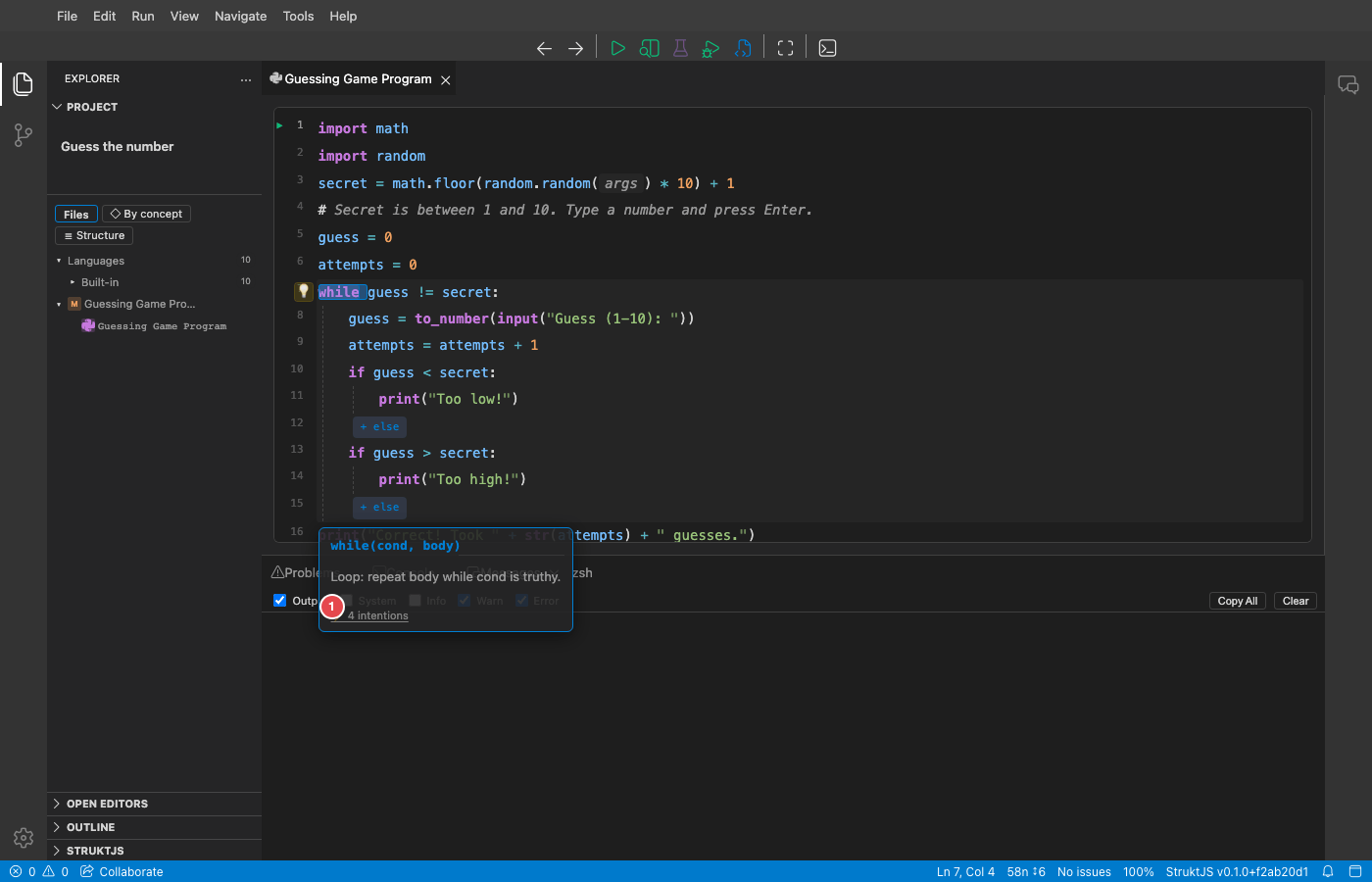
- Double-click a keyword or name, for example
whilein the Guess the number sample. - The card shows a signature line (
while(cond, body)), the concept's description, and one line per check problem on that node. - At the bottom you may see More info and a ⚡ N intentions button. Click More info to open the Inspector. Click ⚡ N intentions to open the intentions list for the node (the same list as Alt+Enter).
- Click anywhere else in the editor to close it. Click inside the card to pin it, then moving the mouse away no longer closes it.
Not every cell has a tooltip. A language chooses where tooltips appear. Core turns them on for every node. The Hover Tooltips sample (in the Heating language) shows a language that only opts in on three concepts.
| Key | What it does |
|---|---|
| Ctrl+Q | Quick documentation: opens the tooltip for the node under the cursor, showing the doc comment of a declaration or of the declaration a name refers to. If there is no documentation it shows "No documentation found" |
The context menu has the same entry as Quick Documentation. It is available only where there is something to show: a documentation comment on the declaration the focused node is or refers to (a language needs a documentation-comment concept, as in lang-richdoc). Elsewhere the menu entry is greyed out and Ctrl+Q shows "No documentation found".
The Inspector
Right-click in the Inspector and choose Help to open this page. The Tests pane, the Explorer and the editor have the same Help entry in their context menus and open their own pages; the completion menu keeps its ? button.
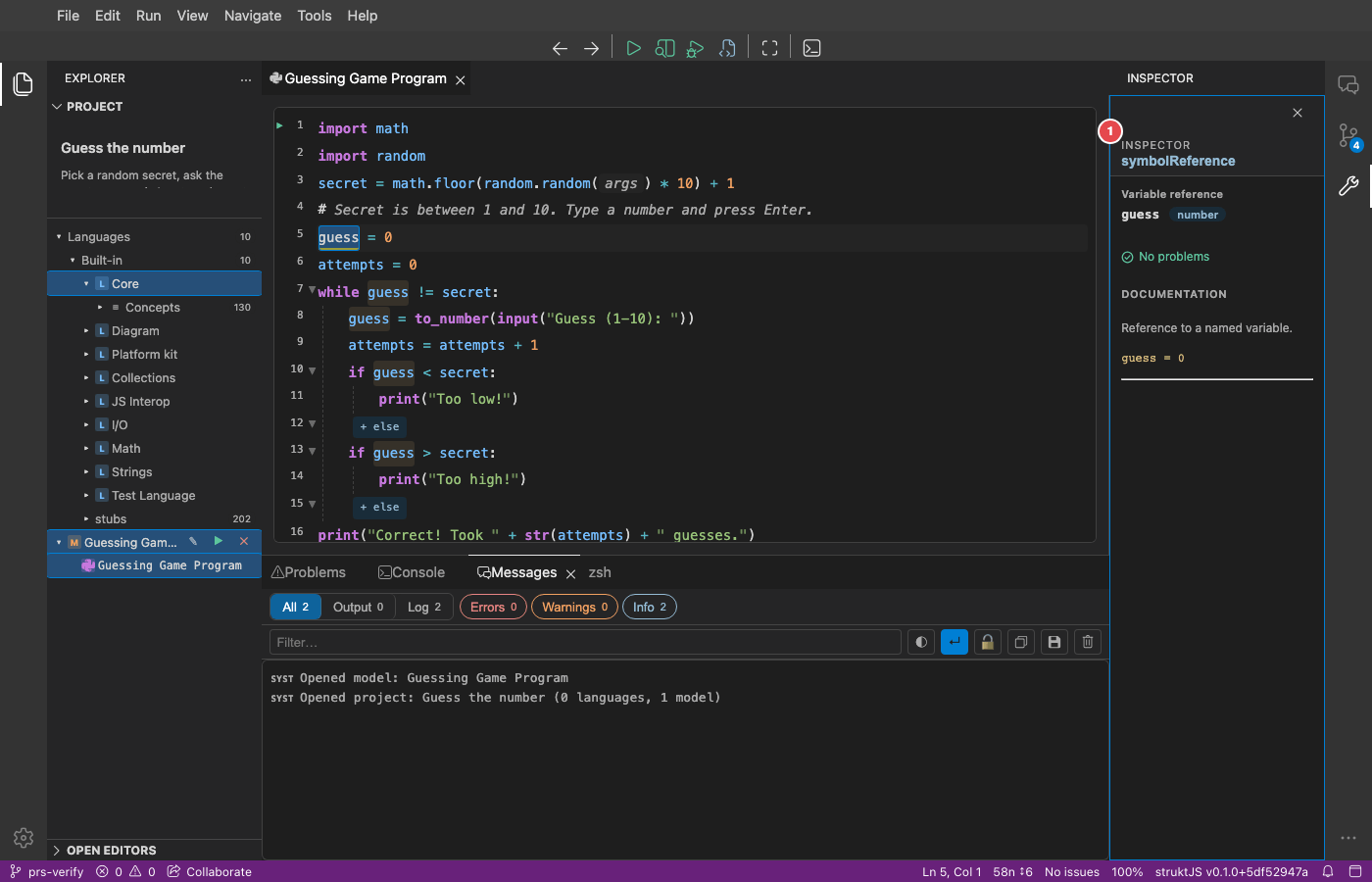
The Inspector is not a permanent window. It opens on demand and follows your selection while it is open.
- Put the cursor on a node and press Ctrl+I, or right-click and choose Show Inspector, or click More info in the tooltip.
- The banner at the top shows the concept name. Click it to open that concept in the Language Editor.
- Read the header below the banner. It names the kind of node (for example Variable reference), draws where the node sits as a path (
pricing › total) that ends in the node's type, then adds a few short lines (what it refers to, where it is defined). A line appears only when it has something to say. - Click Refers to to jump to the declaration, also in another model.
What the Inspector shows
| Part | Shown for | Content |
|---|---|---|
| Kind | Every node | The concept's name as a small title above the path, for example Variable reference or Decision table |
| Path | Every node in a language with names or types | The names around the node as you wrote them, for example pricing › discount, ending in a tag with its type in plain words (number, text). A reference shows the path of the declaration it refers to. The model and the file's root are left out, because you do not see them in the editor; they appear only when the declaration is in another model, or in another root of a model that has several. A copy button next to the path copies the full qualified name. A node with no declaration shows its own short text. A node with a type problem gets a red tag with an icon that still names the declared type when it has one, otherwise "type not known". The reason is never given here: the Problems panel and the Type Trace have it |
| imported from | A name imported from another model | A line under the path naming the other model |
| Refers to | A reference (a use of a name) | The declaration it resolves to; click to jump |
| Defined in | A declaration nested in another one | The declarations around it, for example the function a local variable belongs to. A declaration at the top has no such line. See Models, roots and imports |
| N issues - see Problems / No problems | Every node | A button that opens the Problems panel when the node has check problems. The Inspector never lists the problems themselves. No problems appears when the model has check results and none of them is on this node |
| (authored content) | Concepts whose author wrote an inspector view | Concept-specific fields. They replace the header above unless the author placed it back |
| Documentation | A documented statement, a name that refers to one, or any concept with a description | The first paragraph, with more to show the rest. It is open by default |
| Concept (language author) | Only while you edit a language in the Language Editor | The concept's head, node id, implemented interfaces and slots. Folded by default |
To find where a declaration is used, use Find Usages; the Inspector does not list usages.
If nothing is selected, the Inspector shows a short message instead.
Property grids
Some concepts show their properties in a grid: category bands you can collapse, a name column and a value column, and a description of the focused row at the bottom. Type in the Filter properties box to narrow the rows (Esc clears it), and use the two buttons beside it to group by category or sort alphabetically. Drag the line between the columns to resize them, or focus it and press the left and right arrow keys (Home, End or double-click resets it). A row with a small arrow in front holds more rows: click the arrow, or press the left and right arrow keys on it, to fold and unfold them. Values are edited in place, the same way as anywhere else in the Inspector: Tab goes to the next field, Enter commits the value and stays in the field, and Esc puts back the last committed value (with nothing to put back it does nothing).
Descriptions and documentation
Two different texts can appear.
- A concept description is written by the language author. It is what the tooltip shows for a keyword.
- Documentation is written by you. With the cursor on a function, class or assignment, press Alt+Enter and choose Add documentation. The text is saved with the statement as
# struktjs:doccomment lines, shows in the editor as a# docline, appears in the tooltip, in Ctrl+Q, and in the Inspector's Documentation section, and goes into generated code as comments. Remove documentation removes it. See Editing structure.
Every control
| # | Button/Option | What it does | Shortcut | Gotcha |
|---|---|---|---|---|
| 1 | Double-click a cell | Opens the tooltip | none | Not hover. Only on cells where the language enables tooltips |
| 2 | More info (tooltip) | Opens the Inspector for that node | Ctrl+I | Shown only when the Inspector has content for the node |
| 3 | ⚡ N intentions (tooltip) | Opens the intentions list | Alt+Enter | Shown only when intentions exist |
| 4 | Quick Documentation | Opens the documentation tooltip | Ctrl+Q | Needs a documentation comment on the declaration the node is or refers to; Edit > Editor > Quick Documentation is greyed out when there is none |
| 5 | Show Inspector (context menu) | Opens the Inspector | Ctrl+I | |
| 6 | Banner concept name | Opens the concept in the Language Editor | none | Plain text if no language editor is available |
| 7 | Refers to | Jumps to the declaration | none | The declaration may be in another model |
| 8 | Copy button (next to the path) | Copies the qualified name | none | |
| 9 | N issues - see Problems | Opens the Problems panel | none | |
| 10 | Add documentation / Remove documentation | Attaches or removes your documentation text | Alt+Enter | Stored as comment lines in the model file |