Editor keyboard reference
Audience: everyone who edits models · ~8 min read (a lookup page) · Prerequisites: Editor basics
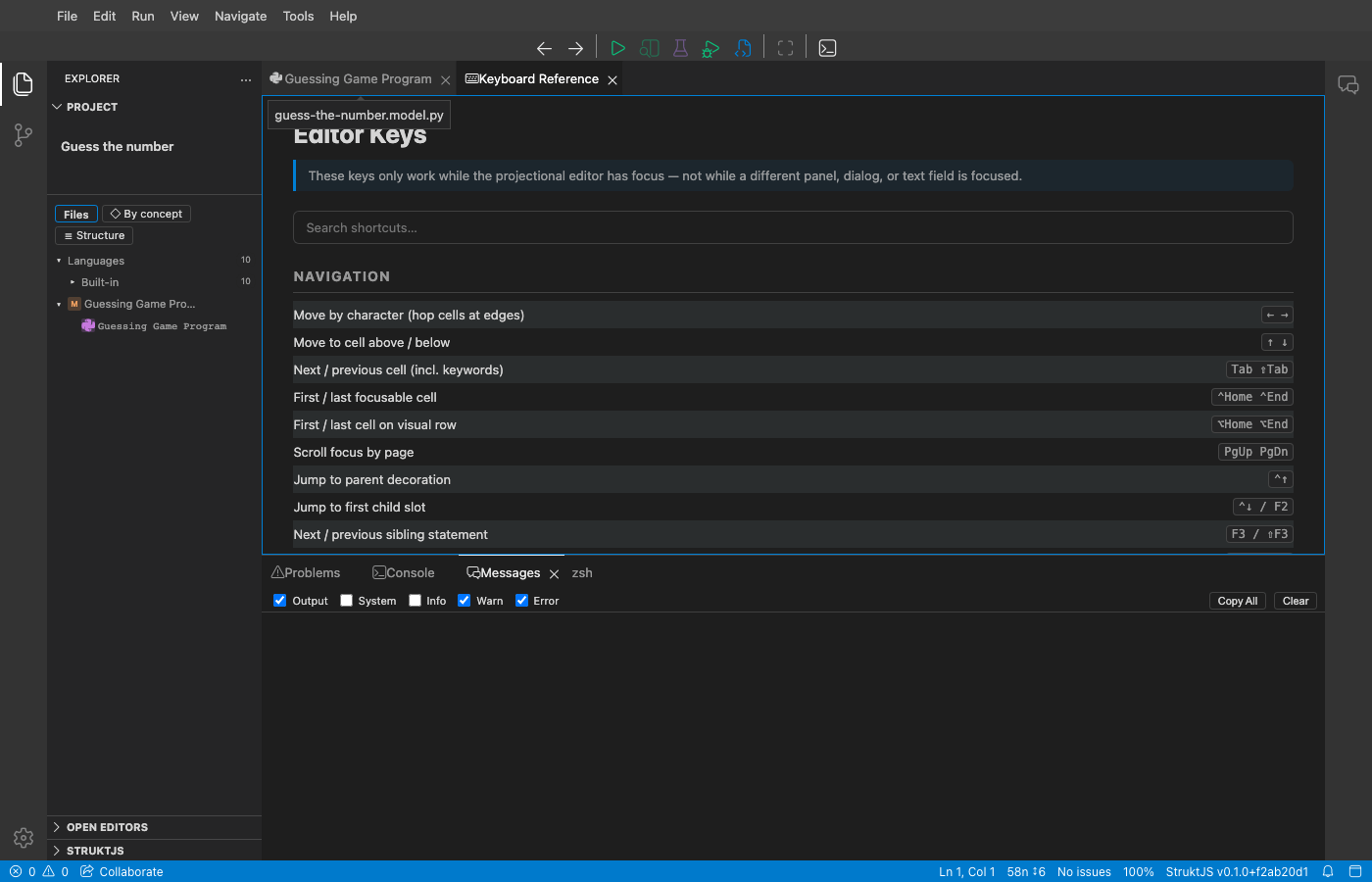
What it is
This is one table of the keys you use while the cursor is in the projectional editor. There are two families.
- Editor keys are handled by the editor itself. They are not commands, are not in the keybinding settings, and cannot be rebound.
- Application shortcuts belong to commands such as Run, Navigate and View. They appear in menus and can be rebound (see Keybindings). The full list is the generated Commands and shortcuts page.
Mod means Cmd on a Mac and Ctrl elsewhere. Alt is Option on a Mac. A plain Ctrl is the Control key on every system.
Application shortcuts for menu commands are chords that start with Ctrl/Cmd+K. The second key picks the menu (F File, E Edit, M Selection, V View, N Navigate, R Run, O Output, T Tools, C Collaboration, H Help) and the third key is the command's mnemonic, so Ctrl/Cmd+K, C, S is Share Model Session (Live)…. Shift on the last key is the reverse action (Ctrl/Cmd+K, T, N is Next Bookmark, Ctrl/Cmd+K, T, Shift+N is Prev Bookmark). Escape cancels a chord in progress. Alt+letter shortcuts for menu commands no longer exist (in the IDE), which is why every Alt+letter on this page is an editor key.
When you'd use it
Look here when you forget a key, or when a key does something unexpected. The built-in cheat sheet is Help > Keyboard Shortcuts… (command Keyboard Shortcuts, Ctrl/Cmd+K, Ctrl/Cmd+S). Copy note: Mod+C copies the focused node as surface (source) text; there is no separate Mod+Shift+C. The built-in cheat sheet is checked against the real key handling by a test, so it matches this page.
Moving
| Keys | Action |
|---|---|
| Tab / Shift+Tab | Next / previous cell, including keywords and punctuation |
| Esc | Leave the editor: focus moves to the next control after it (keyboard users: Tab only walks cells, so this is the way out). Cancels a pending delete, selection or cell edit first |
| ← → | Move within a text cell; at its edge hop to the next cell |
| ↑ ↓ | Cell above / below |
| Ctrl+Home / Ctrl+End | First / last cell of the document |
| Alt+Home / Alt+End | First / last cell on the row |
| PageUp / PageDown | About a screen |
| Ctrl+↑ | Jump to the parent node's keyword |
| Ctrl+↓ or F2 | Jump into the first child |
| F3 / Shift+F3 | Next / previous sibling statement |
| F8 / Shift+F8 | Next / previous issue |
| Ctrl+. / Ctrl+Shift+. | Next / previous empty placeholder |
Inserting and deleting
| Keys | Action |
|---|---|
| Enter / Shift+Enter | Insert after / before. See Entering code |
| Ctrl+Enter | Insert a statement, climbing out of expressions |
| , | Next item in an argument or list |
| Ctrl+Space | Completion menu (see Completion menu); with a node selected, the choices for the selection, including Surround with … |
| Space at the end of a finished value | What can come next: the operators of the language (type words to filter: not equal finds !=), ., (, [, word operators, and Add … for an optional part the construct shows as a + chip (see Operators and side-transformations) |
| Alt+Enter | The intentions of the node; Add … lists optional parts that are not drawn at all while missing (see Operators and side-transformations) |
| Backspace / Delete | Delete the node or selection, or step back from an empty cell. On a value (a number once its digits are erased, True, None, or a string's quote mark) it removes just that value: 1 + 2 becomes 1, a list item is dropped, a lone value leaves an empty slot |
| Mod+Backspace / Mod+Delete | Delete the current statement from anywhere |
| Alt+Backspace | Restore the last deleted node |
| Alt+Delete | Reset the focused literal to an empty placeholder |
| Alt+↑ / Alt+↓ | On a number: add or subtract one; on a boolean: flip it; on an enum value: the previous or next member. Alt+↓ on a text cell that has a list of sensible values (a unit of measure in KernelF or Devices) opens that list, whatever the cell holds at the moment. Such a cell shows a small ▾ after it |
| Shift+Alt+↑ / Shift+Alt+↓ | Move the statement up / down |
| Mod+Z / Mod+Shift+Z | Undo / redo |
| Mod+D | Duplicate |
| Esc | Cancel an edit, a pending delete, a selection or a popup |
Selecting
| Keys | Action |
|---|---|
| Mod+A | Select all statements |
| Shift+↑ / Shift+↓ | Start or extend a statement selection |
| Alt+A | Select all siblings in the enclosing list |
| Alt+W / Shift+Alt+W | Expand / shrink the selection |
Refactoring and information
| Keys | Action |
|---|---|
| Alt+Enter | Intentions for the node |
| Shift+F10 or right-click | Context menu |
| Alt+R or Ctrl/Cmd+Shift+L | Rename (select every use of the name; typing replaces them all) |
| Alt+V | Extract the selected (or enclosing) expression into a variable, then name it in place (Enter confirms, Escape keeps the suggested name) |
| Alt+F | Find usages |
| Alt+Shift+E | Edit the statement as text (Enter applies it, Escape discards) |
| Shift+Alt+T | Find similar (structural search) |
| Shift+Alt+H | Call hierarchy |
| Shift+Alt+M | Inline the declaration |
| Alt+S | Swap the operands of a binary node |
| Alt+U | Unwrap |
| Alt+I / Alt+L | Surround with if / while (Core) |
| Mod+Alt+V | Cycle the node's notation (Notations and views) |
| Ctrl+I | Inspector |
| Ctrl+Q | Quick documentation |
| Shift+Alt+G | Toggle a breakpoint |
| Alt+. / Shift+Alt+. | Fold or unfold a block / every block |
Application shortcuts you use in the editor
| Keys | Command |
|---|---|
| Ctrl/Cmd+F / Ctrl/Cmd+H | Find in Editor / Replace in Editor |
| Ctrl/Cmd+P | Search Everywhere… |
| F5 / F6 / Shift+F9 | Run Program / Run Generator / Run with Debugger |
| F4 | Open Preview |
| F12 | Go to Declaration |
| Ctrl/Cmd+K, N, G / Ctrl/Cmd+G | Go to Cell… / Go to Node by Id… |
| Ctrl/Cmd+K, T, B / N / Shift+N | Toggle Bookmark / Next Bookmark / Prev Bookmark |
| Ctrl/Cmd+K, V, S / V, F | Toggle Surface / Toggle FullForm |
| Ctrl/Cmd+= / - / 0 | Zoom In / Zoom Out / Reset Zoom |
| Ctrl/Cmd+K, Ctrl/Cmd+0 / Ctrl/Cmd+K, Ctrl/Cmd+J | Fold All / Unfold All |
The Navigate and Output menu shortcuts follow the same chord scheme; the Navigate ones are in Bookmarks and navigation history.
Keys that moved off the editor's keys
The editor handles the keys on this page itself, and in the Theia IDE the editor's key always wins when it has focus: no application command shares a key with them. Several IDE commands used to sit on the same chords (Theia's key dispatcher ran first, so for example Alt+I ran Move Statement to Top instead of surrounding with if). They now have Ctrl/Cmd+K chords or no default shortcut:
| Command | Old key | New key |
|---|---|---|
| Open Recent Project… | Alt+F | Ctrl/Cmd+K, F, R |
| Toggle Source Control Panel | Alt+U | Ctrl/Cmd+K, V, G |
| Center Focused Node | Alt+S | Ctrl/Cmd+K, V, C |
| Prev Bookmark | Shift+Alt+S | Ctrl/Cmd+K, T, Shift+N |
| Jump to Program Root | Alt+Home | Ctrl/Cmd+K, N, H |
| Preferences… | Alt+A | none |
| Move Statement to Top | Alt+I | Ctrl/Cmd+K, M, T |
| Increase Editor Font / Decrease Editor Font / Reset Editor Font Size | Shift+Alt+G / H / M | none |
| Unfold Level 1 | Ctrl/Cmd+Shift+Z | none |
Swap operands (Alt+S) and Unwrap (Alt+U) are editor keys only; Swap operands is also an Alt+Enter intention, as is Wrap in function call… (offered only in languages that have calls; it used to be Smart Paste and Wrap in Function Call as chords, both removed: paste already parses text into nodes). Increment/Decrement Number (Alt+↑/↓), Quick Fixes (Alt+Enter) and the cell context menu (Shift+F10) are editor keys with no menu entry. Under Edit > Editor you find Delete Statement (Mod+Backspace), Surround With… (Alt+I / Alt+L), Cycle Notation (Mod+Alt+V) and Toggle Breakpoint (Shift+Alt+G): each is under Edit > Editor. Surround With… lists the surround constructs of the active language and asks which one; Delete Statement on a large statement asks you to run it a second time.
Ctrl/Cmd+K on its own starts the chords; in a diagram it opens the diagram command list instead.
Every control
| # | Button/Option | What it does | Shortcut | Gotcha |
|---|---|---|---|---|
| 1 | Help > Keyboard Shortcuts… | Opens the built-in cheat sheet in a tab | Ctrl/Cmd+K, Ctrl/Cmd+S | May be out of date |
| 2 | Shift+F10 | Opens the editor context menu at the cursor | Shift+F10 | Same menu as right-click |
| 3 | Alt+Enter | Opens intentions | Alt+Enter | Depends on the node |
| 4 | Editor keys on this page | Handled by the editor | see tables | Not rebindable |
| 5 | Application shortcuts | Commands in the menus | see Commands | Rebindable in Keybindings |
Related
- Editor basics explains each key with examples
- Keybindings for changing application shortcuts
- Entering code, Completion menu, Operators and side-transformations