Editor basics
Audience: new users · ~8 min read · Prerequisites: Quick start
struktJS is a projectional editor: you never edit raw text. Every keystroke either moves between cells, fills a slot with a value, or performs a structural operation on the tree. The notation you see is rendered from the tree on the fly, so the program is always structurally valid.
In the tables below Mod means Cmd on macOS and Ctrl elsewhere, Alt is Option on a Mac, and a plain Ctrl is the Control key on every platform (so Ctrl+Space and Ctrl+Home are Control, not Cmd, on a Mac). Help > Keyboard Shortcuts… opens the editor's built-in cheat sheet in a tab; treat it as a quick reminder, since it can lag behind this page. Application-level commands (Run, panels, navigation history, and so on) are in the generated Commands & shortcuts reference.
Note
The keys on this page are handled by the editor itself and are not rebindable. No application command shares a key with them: the IDE commands that used to (Preferences, Open Recent, Center Focused Node, Source Control, Jump to Program Root, Move Statement to Top and the editor-font and Unfold Level 1 commands) are now Ctrl/Cmd+K chords or have no default shortcut. See Editor keyboard reference.
The cell model
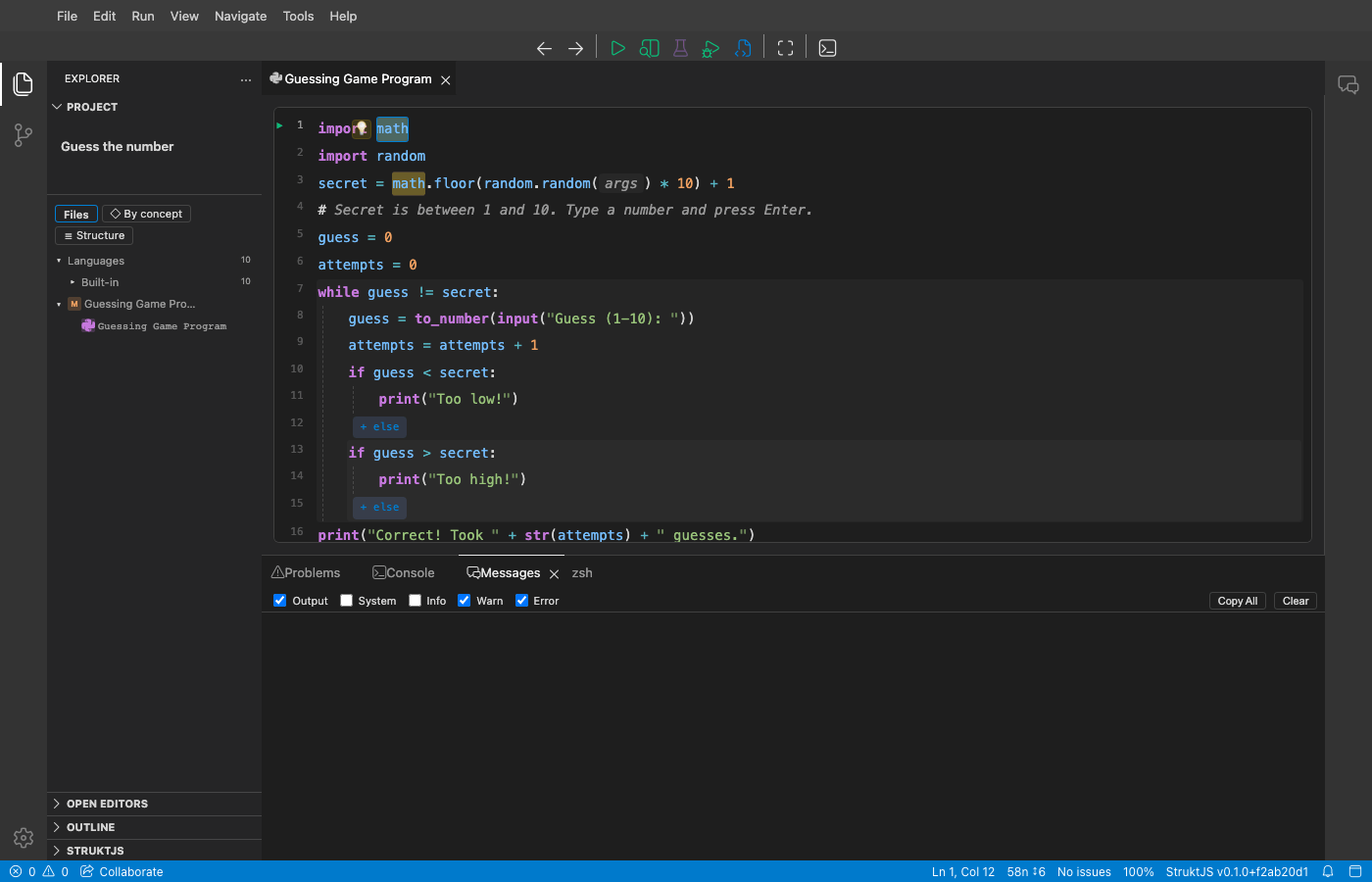
Every node and every value in the program is drawn as one or more cells. Tab and the arrow keys walk between cells in document order.
| Cell | What it is | Editable? |
|---|---|---|
| Literal / name text | Inline text of a number, string or identifier | Yes |
| Empty placeholder | An unfilled slot | Yes: typing fills it |
+ slot affordance |
Adds an optional slot | Click, or press Enter |
| Decoration | A keyword, operator or punctuation mark (def, if, +, () |
You can place the cursor in it, but typing never changes it; Ctrl+Space opens completion instead, pre-filled with the text before the cursor |
Moving around
| Keys | Action |
|---|---|
| Tab / Shift+Tab | Next / previous cell, including keywords, operators and punctuation |
| ← / → | Move within a text cell; at the cell's edge hop to the neighbouring cell |
| ↑ / ↓ | Move to the cell above / below |
| Ctrl+Home / Ctrl+End | First / last cell of the document |
| Alt+Home / Alt+End | First / last cell on the visual row |
| PageUp / PageDown | Move by about a screen |
| Ctrl+↑ / Ctrl+↓ | Jump to the parent node's keyword / into the first child |
| F3 / Shift+F3 | Next / previous sibling statement |
| F8 / Shift+F8 | Next / previous issue (error or warning) |
| Ctrl+. / Ctrl+Shift+. | Next / previous empty placeholder |
Application-level navigation (Go to Cell, Go to Declaration F12 (jumps to the declaration of a name under the cursor; otherwise opens the concept under the cursor in the Language Editor, falling back to the enclosing node's concept), back/forward, bookmarks, "next same concept") lives in the Navigate and Tools menus.
Inserting and deleting
- Enter, Shift+Enter, Ctrl+Enter and , add items: see Entering code.
- Deleting, restoring, duplicating, moving and Ctrl+Z: see Editing structure and Undo and redo.
- Esc cancels an in-progress literal edit, an armed delete, a selection or a popup.
Selecting
| Keys | Action |
|---|---|
| Mod+A | Select all statements |
| Shift+↑ / Shift+↓ | Start or extend a statement-range selection |
| Alt+A | Select all siblings in the nearest enclosing list |
| Alt+W / Shift+Alt+W | Expand / shrink the selection to the enclosing / inner statement |
| Drag across rows, or Shift+click a line | Select a range of lines |
| Shift+click a table row | Select a range of rows, from the row holding the caret (or an earlier selection) to the clicked one. Not offered while the table's filter is active |
| Backspace / Delete with a selection | Delete all selected statements |
Typing into an empty cell
Digits, quotes, [, $, # and letters each start something different: see Entering code.
Completion
Ctrl+Space (Control on every platform) opens the list of what fits the cell: see Completion menu.
Side-transformations
Typing an operator after a finished value wraps it (x then + gives x + _): see Operators and side-transformations.
A statement that is longer than the editor is wide wraps onto further rows at its operators and arguments; the further rows are indented under the first one. This is only how it is drawn: the model has no line breaks, so the saved text and the generated code are unchanged, and the line number stays on the first row. Comments, blocks, tables and formulas keep their own layout.
Folding
| Keys | Action |
|---|---|
| Alt+. | Fold or unfold the nearest enclosing block |
| Shift+Alt+. | Fold every block, or unfold everything if anything is folded |
Click the … marker |
Expand a folded body |
Folding is view-only. Navigating into a folded region (Go to Declaration, Find Usages, a breadcrumb, the debugger) expands the blocks hiding the target. There is also a preference to fold everything when a model opens.
More folding commands
All of these are in the command palette (F1); the ones with a shortcut show it in the table. Folding only
changes what you see, never the model.
| Command | Shortcut | What it does |
|---|---|---|
| Fold Top-Level Blocks | Ctrl/⌘+K, Ctrl/⌘+1 | Folds every top-level block of the root. |
| Unfold Top-Level Blocks | none | Unfolds the top-level blocks again. |
| Fold Siblings | none | Folds every sibling of the focused node, leaving the focused one open. |
| Fold Focused Block | Ctrl/⌘+K, Ctrl/⌘+L | Folds the block around the focus. |
| Unfold Focused Subtree | Ctrl/⌘+K, Ctrl/⌘+] | Unfolds the focused node and everything inside it. |
| Collapse All But Focused | none | Folds everything, then reopens only the path from the root down to the focused node. |
| Fold All of This Concept | none | Folds every node with the same concept head as the focused node (for example every if). |
| Fold All at Depth | none | Folds every node at the same nesting depth as the focused node. |
| Report Folded Count | none | Prints how many nodes are folded in the Messages view. |
View toggles and reports
| Command | Shortcut | What it does |
|---|---|---|
| Show Program | none | Switches to the program (editor) view of the standalone webview. |
| Show Documentation | Ctrl/Cmd+K, H, D | Switches to the Documentation view. |
| Toggle Focus Dim | none | Dims everything except the focused node. |
| Toggle Outline | none | Opens or closes the Outline tool. |
| Toggle Problems | none | Opens or closes the Problems tool. |
| Toggle Status Bar | none | Shows or hides the status bar of the standalone webview. |
| Report Program Stats | none | Prints the node count, nesting depth and error count of the open root to the Messages view. |
Behavior taken from the source
These commands are implemented in src/routes/editor-view-command-actions.ts. Their behavior above comes
from that code and has not been checked in the Theia IDE: the view toggles (Show Program, Toggle Status Bar, Toggle Focus Dim, Toggle Outline)
were written for the standalone webview and may do nothing visible in the IDE, where
Theia owns the panels and the status bar. Use View > Tool Windows there.
Other small commands
- Close Saved (no default shortcut) closes the editor tabs that have no unsaved changes. It replaces Theia's own command of the same name, which would treat model tabs as saved.
- Tools > Demo > Demo: Long Running Task (only visible in developer mode) starts a cancellable progress notification. It exists to show Theia's progress UI and does nothing to your model.
Collapsible regions, dropdowns, state cells and pages
Some concepts use richer cells than plain text:
- ▸ / ▾ beside a value collapses or expands that part of the line. This is separate from Alt+. folding and is not saved in the model. Going to a cell hidden inside a collapsed part expands it.
- ▾ inside a box next to a cell opens the same completion list Ctrl+Space would, so you can pick a value with the mouse.
- State buttons (for example
☐ openor◐ Doing) change to the next state on click, Enter or Space. Shift+Enter goes back one state. - Long lists show one page at a time. The bar above the list has first/previous/next/last buttons, a page number box and a search box with match-case, whole-word and regular-expression toggles. Alt+PageDown and Alt+PageUp change page, Enter in the search box jumps to the next match. Inserting an item or navigating to one on another page switches to that page.
- Tables may have grouped headers and row headers. A table with an "Add row" button also has a "×" on each row.
Refactoring, copy and information
| Keys | Action | Page |
|---|---|---|
| Alt+Enter | Intentions for the focused node | Intentions |
| Shift+F10 or right-click | The structural context menu | Editing structure |
| Alt+R / Alt+F | Rename / find usages | Find, replace and rename |
| Ctrl+I / Ctrl+Q | Inspector / quick documentation | Hover and Inspector |
| Mod+Alt+V | Cycle the node's alternate notation | Notations and views |
| Ctrl+C, Ctrl+X, Ctrl+V, Ctrl+D, Shift+Alt+↑/↓, Alt+S, Alt+U, Alt+I / Alt+L | Clipboard, duplicate, move, swap, unwrap, surround | Editing structure |
| Alt+↑ / Alt+↓ on a number, boolean or enum value | Increment / decrement it; flip it; previous / next member | |
| Shift+Alt+G | Toggle a breakpoint | Debugger |
Double-click a cell, or press Ctrl+Q, for its tooltip (description, inferred type, documentation comment and problems; with liveValues on also the value of a declaration); More info opens the Inspector. With the preference Show live values after declarations on, the value of each top-level declaration also shows dim after its line while you edit; the program is run in the background for that, with its output swallowed and a time limit.
Navigation settings
- Wrap sibling navigation (preference, key
struktJS.editor.wrapNavigation, on by default): next/previous sibling wraps at the first or last item instead of stopping. The command Toggle Wrap Sibling Navigation (no default shortcut) flips it. - Center node on navigation (preference, key
struktJS.editor.autoCenterOnFocus, off by default): scrolls a navigated-to node to the middle of the editor. The command Toggle Center Node on Navigation (no default shortcut) flips it. Center Focused Node (Ctrl/Cmd+K, V, C, or View > Center Focused Node) does it once. - F2 or Ctrl+↓ jumps into the first child; Ctrl+↑ to the parent keyword.
Read-only mode
View > Toggle > Read-Only Mode (Ctrl/Cmd+K, V, L) blocks every mutating key while navigation, copy and select-all keep working. The status bar shows "Read-Only Mode".
Next
- Entering code, then Completion menu.
- IDE tour and Projects and models.