Screen map
Audience: new users · ~8 min read · Prerequisites: Quick start
What it is
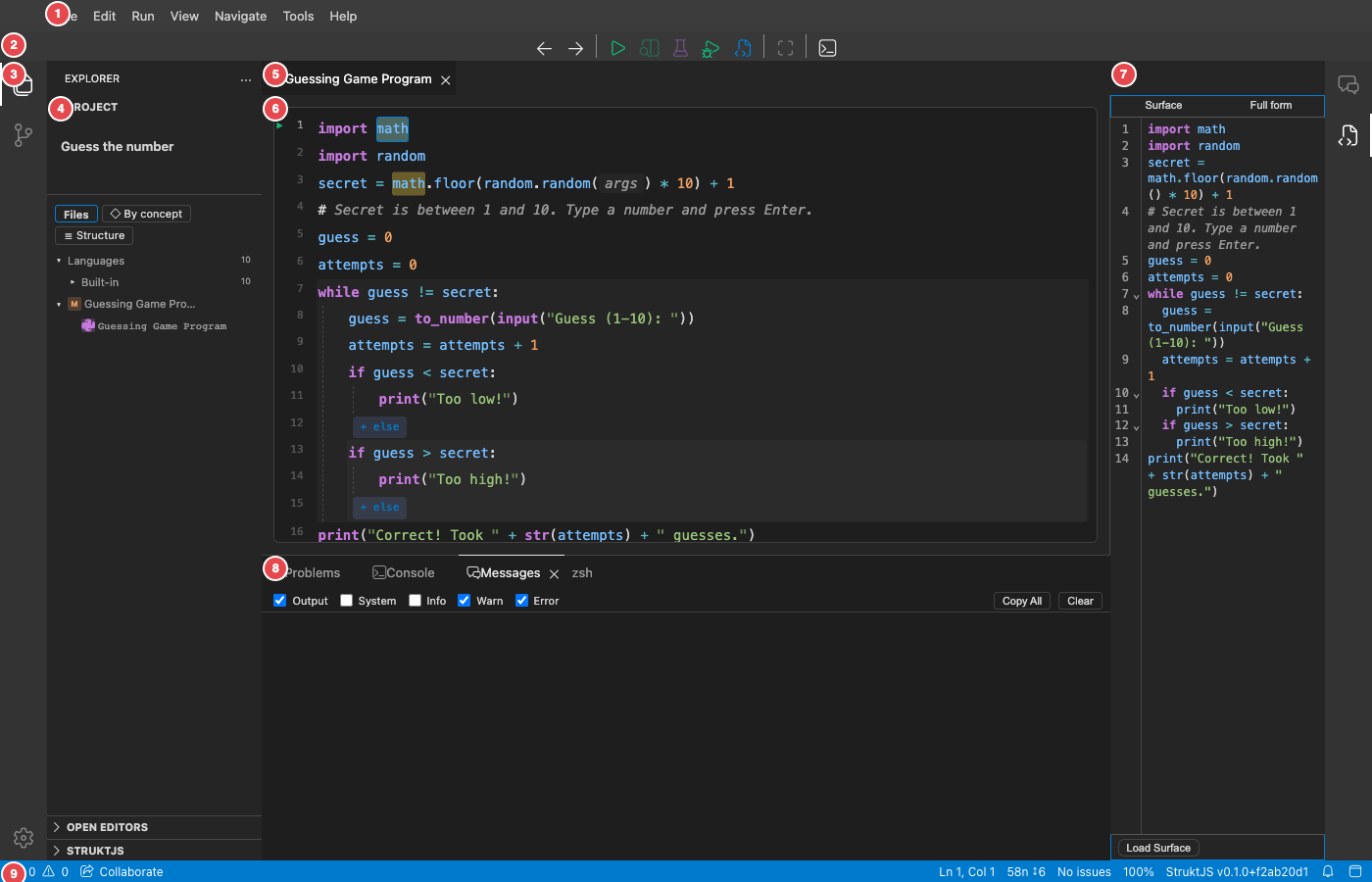
A labelled tour of the IDE window. struktJS is an Eclipse Theia IDE, so the layout is the usual one: menu bar on top, a toolbar, side panels, the editor in the middle, a bottom panel and a status bar. The screenshot shows the "Guess the number" sample with the Surface pane docked on the right. The numbers match the table below.
When you'd use it
When you cannot find something, or a page elsewhere says "the Messages panel" or "the status bar" and you want to know where that is. The same layout is used in the browser IDE and the desktop app (on macOS the desktop app also shows the menus in the system menu bar).
The regions
- Menu bar. With nothing open you see File, Edit, View, Tools and Help. Once a model is open, Run and Navigate appear too.
- Toolbar. Icon buttons under the menu bar (below).
- Activity bar (left edge): Explorer. The right edge has the same kind of strip for the right-hand panels, including Source Control. The … button at its bottom lists every tool window (AI Chat, FullForm, Surface, Inspector, Type Trace, Outline, Debugger, Problems, Messages, Console, Find Usages, Tests) and opens the one you pick, the same as View > Tool Windows.
- Explorer. Its Project section shows the project's languages, models and roots. Below are Open Editors, Outline and a section with the real file tree of the opened folder.
- Editor tabs. One tab per open model root, plus read-only tabs for generated output, previews and the sample's README.
- The projectional editor. Cells, line numbers, breakpoint dots on the left edge.
- Right-hand panel. Holds Surface / Full form, the Inspector, the Debugger and AI Chat, one at a time per tab.
- Bottom panel. Tabs Problems, Console (the Model Console), Messages (program output) and one tab per terminal.
- Status bar. Problem counts, collaboration, cursor position, model size, issues, zoom, version.
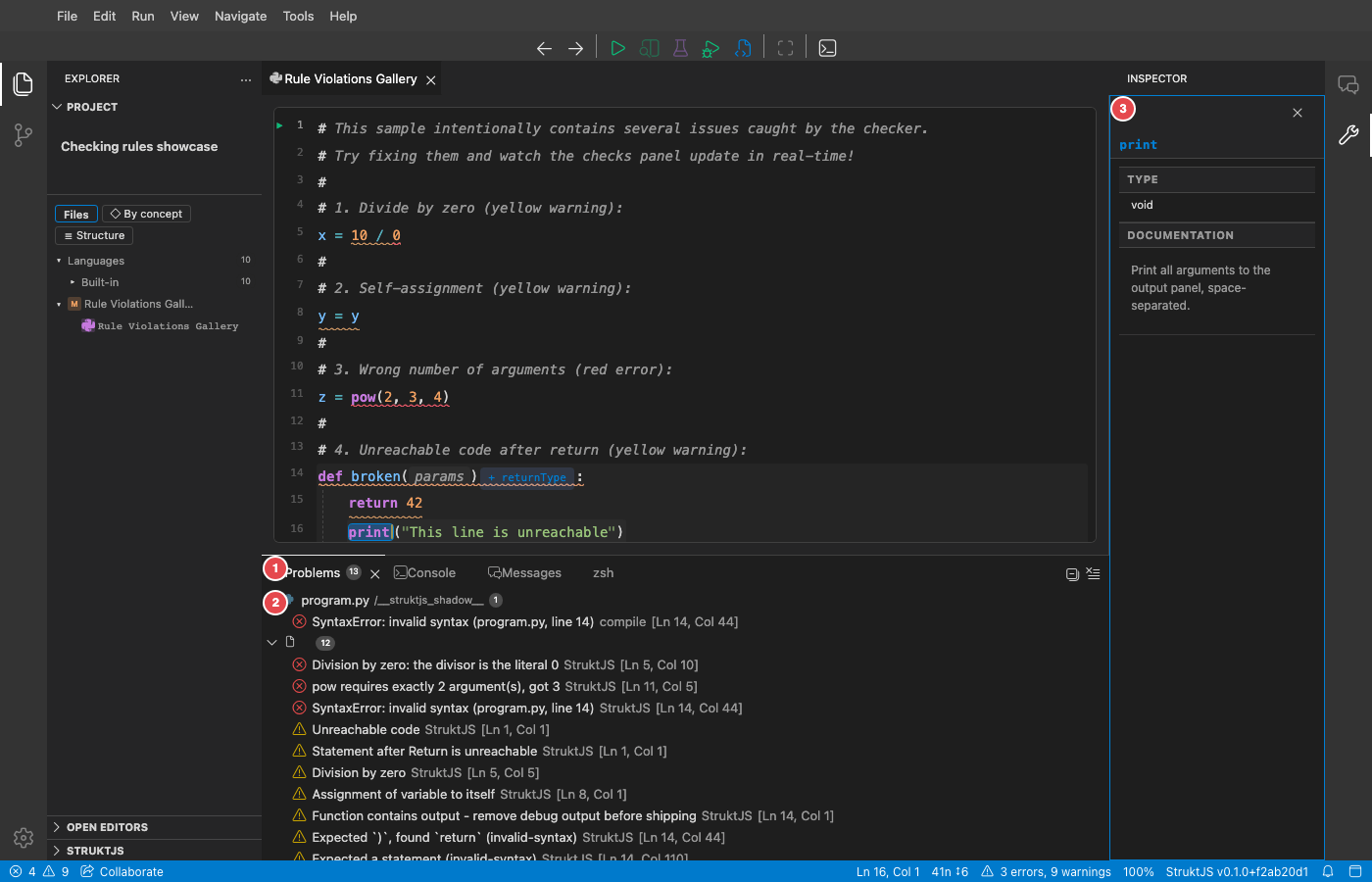
In this second screenshot, 1 is the Problems tab, 2 its list (click an entry to jump to the node), and 3 the Inspector, opened with Ctrl+I on a selected node. See Hover, the Inspector and descriptions and Problems panel and Checks pane.
Every control
Menus
| # | Button/Option | What it does | Shortcut | Gotcha |
|---|---|---|---|---|
| 1 | File | New Project…, New Folder..., New Window, Open Project…, Export, Samples, Preferences, Close Editor, Close Project | Ctrl/Cmd+K, F, N (New Project…) | Export and Close Project show only when a model is open. |
| 1 | Edit | Undo, Redo, Toggle Comment, Cut, Copy, Paste, Find/Replace, Selection, Fold | none for the menu | Undo and Redo are greyed until there is something to undo. |
| 1 | Run | Execute (Run Program, Run with Debugger, Run and Clear Output, Run Tests, Run with Coverage, Clear Coverage, Open Preview, Run Generator), Generate, Output | F5, Shift+F9, F4, F6 | Run Tests is greyed when the model has no tests. |
| 1 | View | Center Focused Node, Appearance, Editor Layout, Tool Windows, Font Size, Toggle, Zoom | Ctrl/Cmd+Shift+P | Tool Windows is where every pane opens (list below). |
| 1 | Navigate | Go To, Jump To, Next, Previous and navigation toggles | none | Only with a model open. |
| 1 | Tools | Typechecker, Bookmarks, Find Unused Concepts, Collaboration, Versions, Language Editor, Language Plugins, Terminal | Ctrl+Shift+` (Terminal) | Typechecker, Bookmarks, Versions need a model open. |
| 1 | Help | Documentation, Welcome, Keyboard Shortcuts…, Report Issue…, About | Ctrl/Cmd+K, H, D (Documentation) | Help > Welcome reopens the Welcome tab. |
Tool windows (View > Tool Windows)
| # | Button/Option | What it does | Shortcut | Gotcha |
|---|---|---|---|---|
| 3 | Explorer | Opens the Explorer. | Ctrl/Cmd+Shift+E | |
| 4 | Project | Focuses the Project section. | none | |
| 3 | Source Control | Git: changes, commit, history. | Ctrl/Cmd+K, V, G | See Source Control pane. |
| 7 | Extensions | The Open VSX extension marketplace. | Ctrl/Cmd+Shift+X | |
| 7 | AI Chat | The AI assistant. | Cmd+Ctrl+I (macOS) | See AI features. |
| 7 | FullForm, Surface | The model as canonical text, and as source text. | Ctrl/Cmd+K, V, F, Ctrl/Cmd+K, V, S | Both are one pane with two tabs. |
| 7 | Inspector, Outline | Details of the selected node (docs, type, issues); the top-level structure of the open model. | Ctrl+I (Inspector); Ctrl/Cmd+K, V, O (Outline) | Commands Show Inspector and Show Outline; also in the … menu on the right edge. Outline is the Explorer's own section and is revealed there. |
| 7 | Type Trace | How the selected node's type was inferred. | Ctrl/Cmd+K, V, T | Type checking. |
| 7 | Debugger | Run, Pause, Step, Continue, Stop, breakpoints, variables. | Ctrl/Cmd+K, V, B | The Debugger. |
| 8 | Problems | Check, constraint and type results. | none | |
| 8 | Messages | Program output and log messages, with an All / Output / Log switch, Errors / Warnings / Info chips, a text filter, Copy, Save and Clear. | Ctrl/Cmd+K, V, M | Every severity is shown by default. |
| 8 | Terminal | A shell in the project folder's backend. | Ctrl+Shift+` | |
| 8 | Console | Model Console: query the live tree. | none | Model Console. |
| 8 | Find Usages, Tests | Usages of a name; test suite results. | none |
Toolbar (2)
| # | Button/Option | What it does | Shortcut | Gotcha |
|---|---|---|---|---|
| 2 | Back, Forward arrows | Navigate Back and Navigate Forward through your cursor history. | none in the IDE | Greyed when there is nowhere to go. |
| 2 | Run (green triangle) | Run Program. | F5 | |
| 2 | Preview icon | Open Preview. | F4 | A language decides what a preview shows. |
| 2 | Flask icon | Run Tests. | Ctrl/Cmd+K, R, T | Greyed when the model has no tests. |
| 2 | Bug icon | Run with Debugger. | Shift+F9 | |
| 2 | Generator icon | Run Generator. | F6 | |
| 2 | Fullscreen icon | Presentation Mode. | Ctrl/Cmd+K, V, R | View > Toggle > Toggle Toolbar (Alt+T) hides the toolbar. |
| 2 | Terminal icon | Theia toolbar button next to the run group; it is not a struktJS command. | none | Use Tools > Terminal for a shell. |
Status bar (9)
| # | Button/Option | What it does | Shortcut | Gotcha |
|---|---|---|---|---|
| 9 | Errors / warnings counts (left) | Theia's problem counters. | none | |
| 9 | Collaborate (left) | Live session status and entry point. | none | Live Model Session. |
| 9 | Ln 1, Col 21 | Cursor position in the projectional editor. | none | |
| 9 | 58n ↕6 | Model size: 58 nodes, maximum depth 6. A ⬡ n part counts unfilled slots. |
none | Hover for the full text. |
| 9 | No issues / N errors, M warnings | Issue summary. Click to toggle the Problems panel. | none | |
| 9 | ▶1, ↩1, 202ms | Run count this session, undo steps available, last run duration. | none | Appear only after you run or edit. |
| 9 | 100% | Editor zoom. | Ctrl/Cmd+= / - / 0 | |
| 9 | struktJS v0.1.0+commit | The build version; hover for the build time. | none | A changed value after rebuilding proves the tab loaded the new bundle. |
| 9 | Bell and panel icons (right) | Theia notifications; toggle bottom panel. | Ctrl/Cmd+J (panel) |
Shortcuts are the Windows/Linux ones; macOS differs where noted (Alt is Option). Menu contents were read from the running IDE; the complete command list is in Commands & shortcuts.
Related
- Previous: Tutorial. Next: Browser vs. desktop app.
- Editor basics, The Explorer and Project pane
- IDE tour (extended reference)