Plugins and extensions
Audience: users adding languages or tools · ~8 min read · Prerequisites: IDE tour
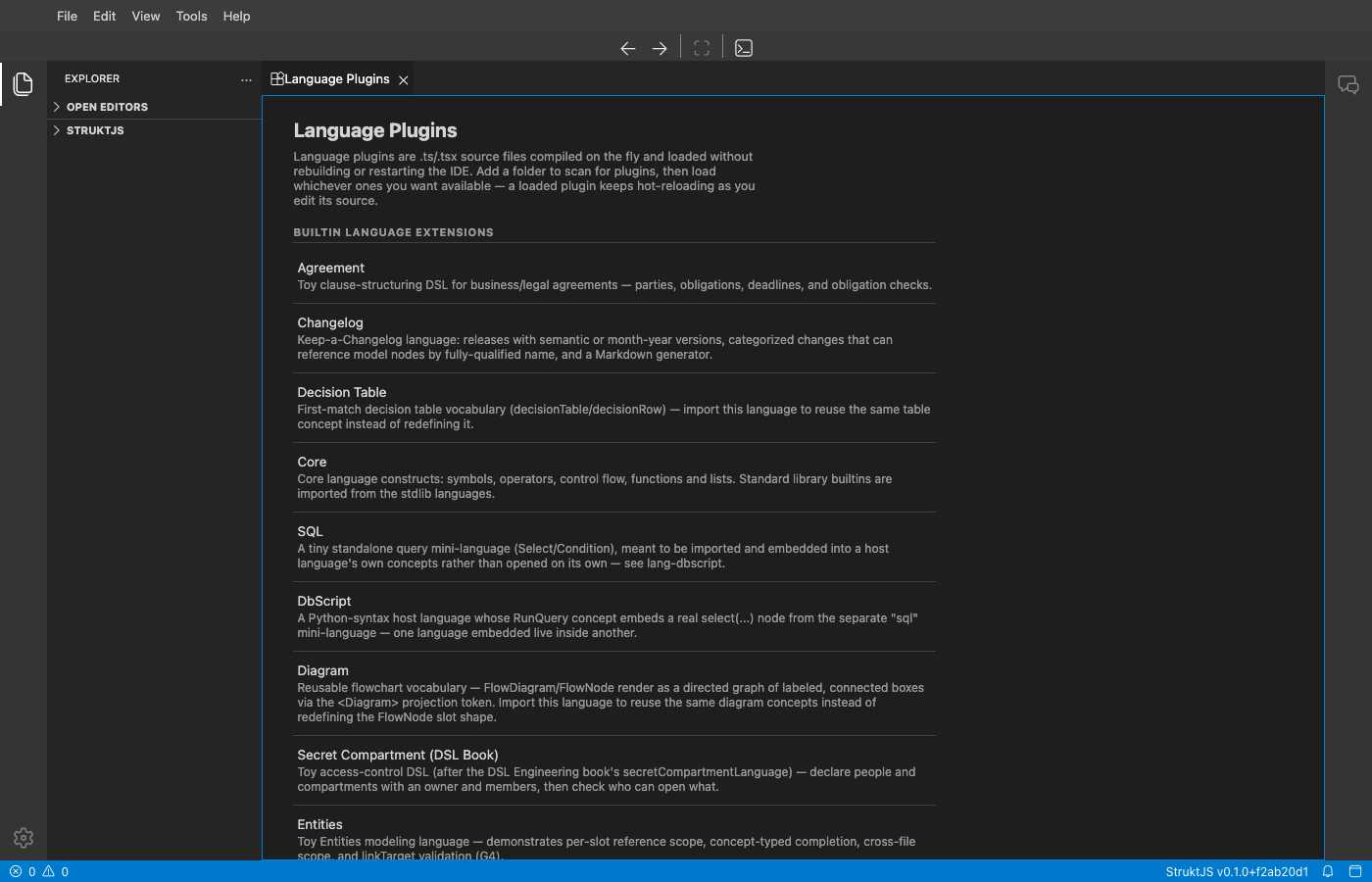
What it is
Three different things are called plugins:
- Bundled language plugins ship inside the app (see Bundled languages). You do not install them.
- Language plugins from a folder (dev-plugins): one
.tsor.tsxfile that defines a language. You load it from Tools > Language Plugins; edits show up without a rebuild or restart. - VS Code extensions from the Open VSX marketplace, installed in the Extensions view. They add editor features (formatters, themes, language packs), not struktJS languages.
When you'd use it
- You are writing a language and want instant feedback (type 2).
- You want a theme (colour or file icon; see Themes and appearance), a language pack or a tool from the marketplace (type 3).
How to
Load a language plugin from a folder
- Choose Tools > Language Plugins.
- The folder
~/.struktjs/dev-plugins/is always listed. To use another, type its absolute path into/absolute/path/to/folderand click Add folder. The folder must be under~/.struktjs(or a folder listed in the environment variableSTRUKTJS_PLUGIN_FOLDER_ROOTS). - Under Available plugins, click Load next to a file. It then shows Loaded and keeps reloading whenever the file changes.
- To stop scanning a folder, click Remove beside it. The page lists the Builtin language extensions too, for information.
A plugin file exports a language (default export) and/or contributions (commands, menu items, tool panes). It
must be self-contained: it can reach the engine only through window.StruktJS.authoring. Discovering a file
only makes it available; Load is a separate step.
Reusable building blocks for languages (guide: Reusable kits; a complete example plugin is examples/kit-tariff-plugin/) are on window.StruktJS.authoring.kit instead of being copied into each
plugin. Today that is kit.numeric, kit.report, kit.tables, kit.testing, kit.graph and kit.checks. kit.numeric has exact rationals (Rat), rounding modes, money with per-currency rounding
policies (CurrencyTable, Money) and physical quantities with unit tables (UnitTable, Quantity). kit.report has the helpers for generated output:
escaping, an element tree printed as XML or HTML, JSON text, slugs and link checks, and the standalone HTML
document a preview returns. kit.tables judges a first-match decision table whose cells are literals: it names an argument no row covers and the rows that can never be the first match (analyzeCells). kit.testing has SuiteRecorder, the bookkeeping a test language's Tests-pane provider needs (counts, failures, one detail per assertion). kit.graph builds the connections a diagram reads from its boxes' content (keyedEdges: a box that produces a name feeds the boxes that consume it) and turns them into the per-box derivedEdges function the diagram asks for (edgesIntoProvider). kit.checks has the small structural checks a concept's checks() hook keeps needing: an element may only stand inside certain parents (placementCheck), a name must be declared somewhere in the model (declaredCheck), a property must be one of a fixed list (oneOfCheck). You supply the message, so diagnostics stay in your language. Tables are passed in as arguments, so two languages never share hidden state. kit.KIT_API_VERSION changes when a kit
export changes incompatibly; the kit is a Provisional API until 1.0 (see
Stability).
The plugin runs with the page's privileges. See Trusting project code.
Language plugins installed as extensions
A language plugin can also be a normal extension (a .vsix file) that you install by hand; there is no marketplace step.
- Install the
.vsix: in VS Code run Extensions: Install from VSIX...; in the Theia IDE press F1 and run the same command. - Open Tools > Language Plugins. The plugin is listed under Installed language extensions with its extension id and version.
- Click Load to make its language available. A plugin is never loaded just because it is installed, unless its author marked it to auto-load.
In Theia the publisher struktjs is allowed by default; a plugin from any other publisher needs an entry in the
extension allowlist first. A plugin's code runs with the page's privileges, so treat a .vsix
like any other code you install. To build one yourself, see Language plugins as extensions in the Developer Guide.
Install an extension
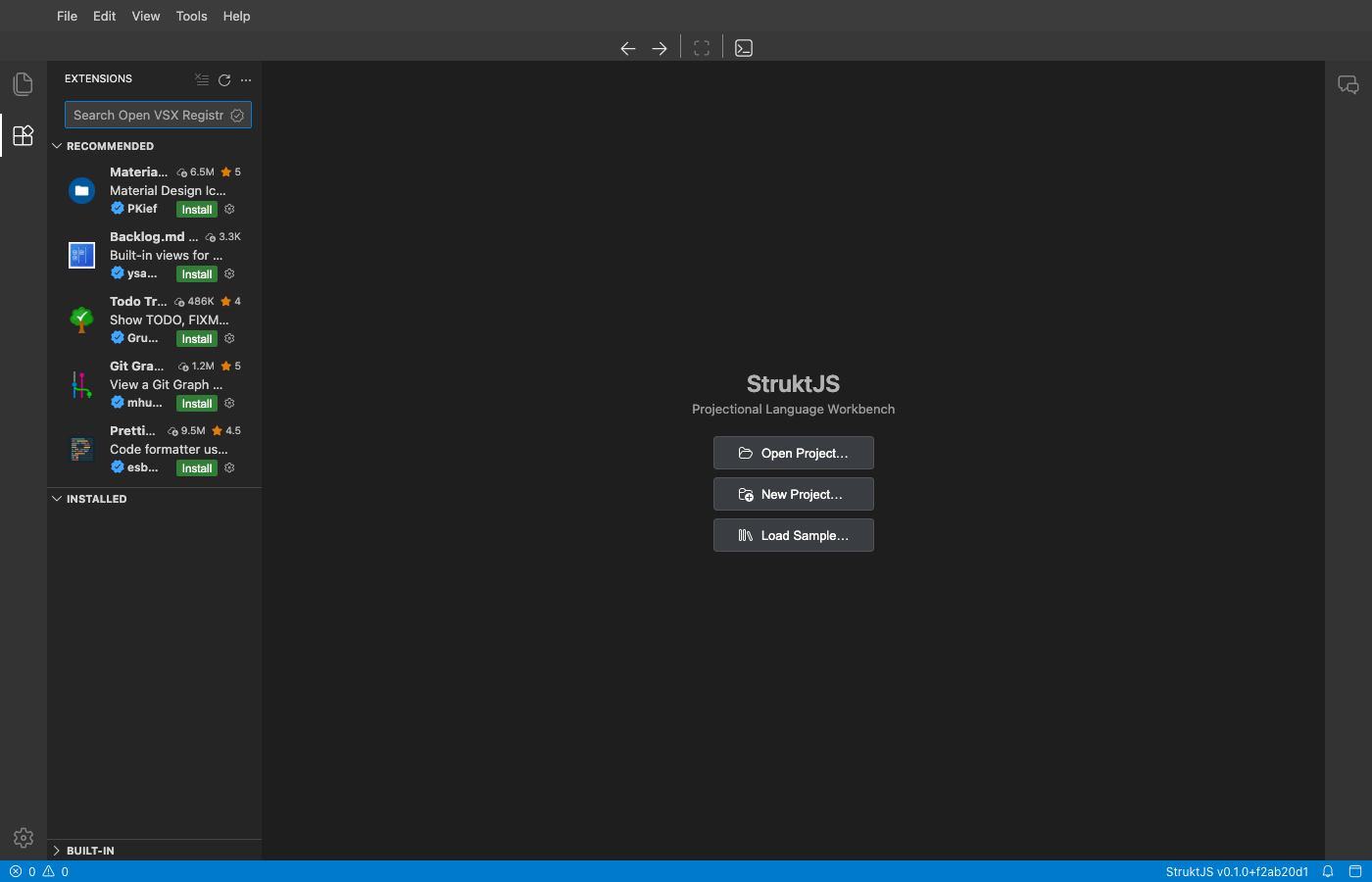
- Choose View > Tool Windows > Extensions.
- Type in Search Open VSX Registry, then click Install on a result. The sections are Recommended, Installed and Built-in.
- To install a downloaded file, press F1 and run Extensions: Install from VSIX....
To remove one, use its gear button in the Installed list.
The extension allowlist
Installing is default-deny. Only these publishers may be installed: vscode, ms-python, ms-vscode,
charliermarsh, babbelaar, eclipse-theia, redhat, dbaeumer, esbenp, github, struktjs. Others (for example
the recommended Git Graph by mhutchie) are refused with a message naming the allowlist file.
To allow more, create ~/.struktjs/extension-allowlist.json on the machine running the IDE: a list of ids
("ms-python.python") or publisher wildcards ("mhutchie.*"):
["mhutchie.*", "ms-python.*"]
This file replaces the built-in list entirely, so include any built-in publisher you still want. Setting the
environment variable STRUKTJS_EXTENSION_ALLOW_ALL=1 turns the check off (not recommended).
I could not confirm whether Extensions: Install from VSIX... is checked against the allowlist; the code
only wraps the marketplace resolver. Treat a .vsix as code you must trust.
Every control
| # | Button/Option | What it does | Shortcut | Gotcha |
|---|---|---|---|---|
| 1 | Tools > Language Plugins | Opens the plugin page. | Command-palette only name: none. | |
| 2 | Plugin folders: Remove | Stops scanning that folder. | ||
| 3 | /absolute/path/to/folder + Add folder |
Adds a folder (Enter also adds). | Enter | Must be under ~/.struktjs; otherwise an error is shown. |
| 4 | Available plugins: Load | Compiles and registers the plugin. | Loaded badge afterwards; it hot-reloads. | |
| 5 | View > Tool Windows > Extensions | Opens the marketplace view. | ||
| 6 | Install | Installs an extension. | Refused unless its publisher is allowed. | |
| 7 | Extensions: Install from VSIX... | Installs a local .vsix. |
F1 | Allowlist behavior unverified. |