Intentions and quick fixes
Audience: everyone who edits models · ~6 min read · Prerequisites: Editor basics
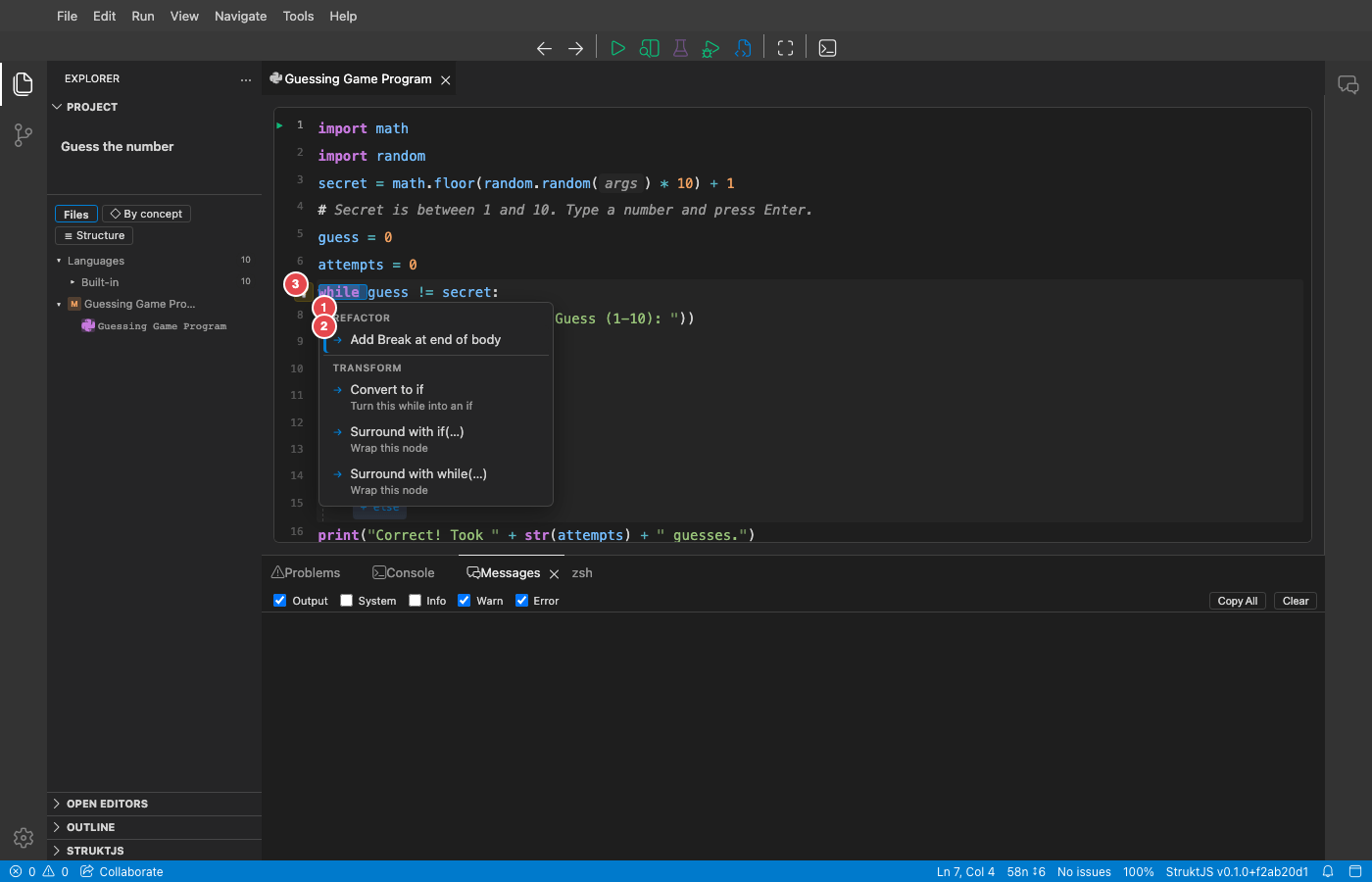
What it is
An intention is a small, ready-made change offered for the node you are on: turn an if into a while, flip true to false, fill an empty value with a sensible default, suppress a warning.
Alt+Enter opens the list. struktJS has no separate "quick fix" feature: a fix for a problem is an intention. When a node has a warning, the same popup offers Suppress: …, Go to rule: … and, for an empty value, Fill … with default value.
Languages add their own intentions on their concepts, so the list depends on the language and on where the cursor is.
When you'd use it
- A node is almost right and you want the one-step change (negate, convert, add a branch).
- You see a warning and want to silence it or jump to the rule that raised it.
- You are not sure what you can do here: open the popup and read.
How to do it
- Focus a node (click it, or Tab to it). A light-bulb marker appears at the left of the cell when the node has intentions. Clicking it opens the popup.
- Press Alt+Enter.
- Press ↑ / ↓ to move; entries are listed under group headers. A grey line under a name explains it.
- Press Enter (or click) to apply. Esc or a click outside closes it.
- With a range of statements selected (Shift+↓), Alt+Enter offers entries that act on the whole range, such as Surround with if(…).
Intentions are collected for the focused node and each ancestor, innermost first, and then the built-in ones are added. Entries the language defined come first.
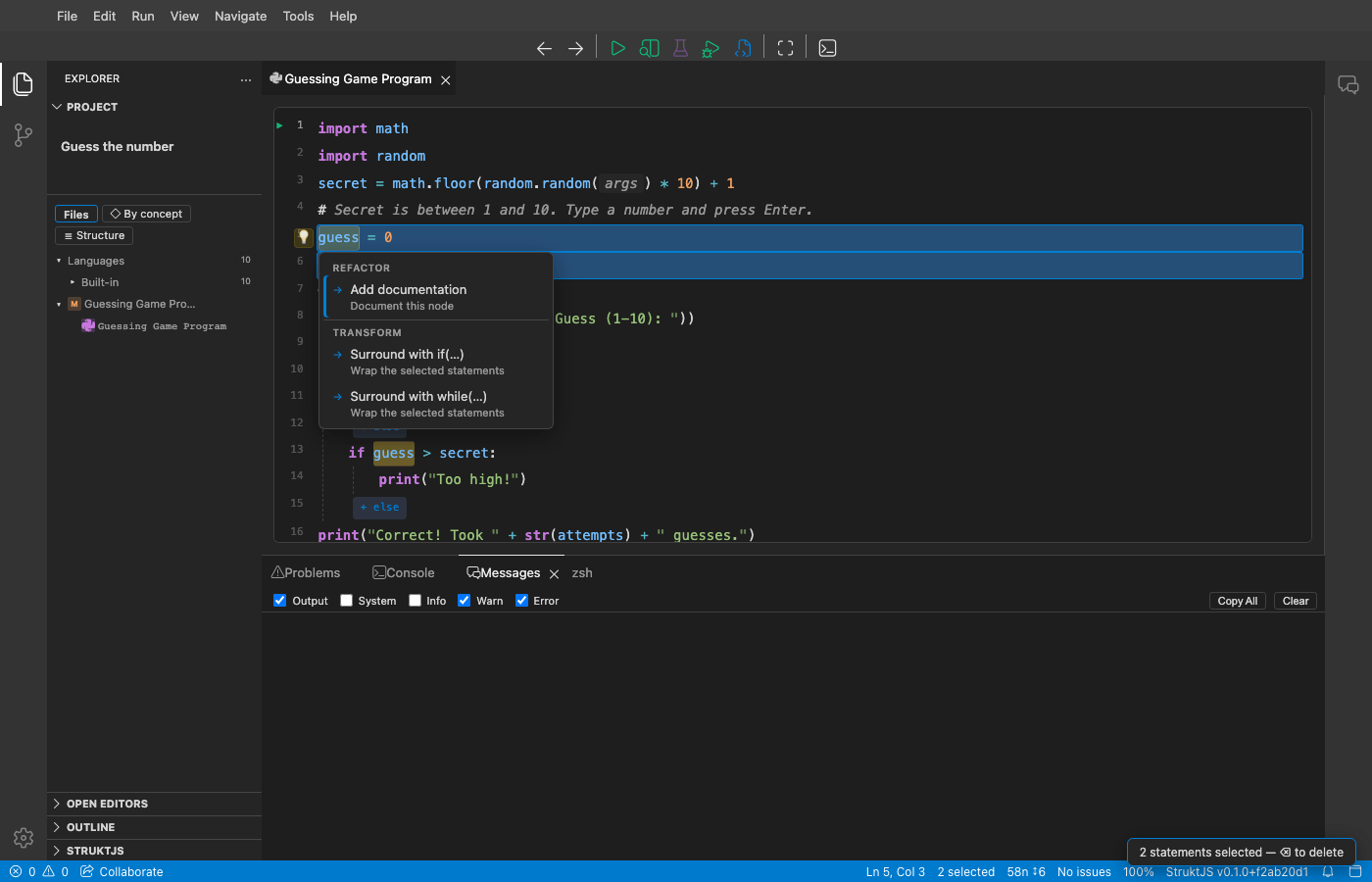
What you may see
Groups are named by whoever defines the intention. An intention with no group is listed under Refactor. These are the ones Core and the engine provide.
| Group | Entry | What it does |
|---|---|---|
| Edit value | To string, To number, To boolean | Converts a literal to another kind when that is lossless |
| Edit value | Toggle boolean | Flips true and false |
| Edit value | Next value | Cycles an enum cell to its next member |
| Transform | Wrap in list, Wrap in return, Wrap in not() | Wraps an expression (offered only where the result is legal) |
| Transform | Surround with if(…), Surround with while(…) | Wraps the node or the selected range |
| Transform | Convert to while / Convert to if | Turns an if into a while and back |
| Transform | Convert to tuple / Convert to list, Unwrap single item | Collection changes |
| Transform | Toggle and/or, Negate comparison, Remove double not() | Logic changes |
| Refactor | Remove negation | Only when the result still fits its slot |
| Refactor | Comparison swaps such as Change to ≠ (not equal), Widen to ≤ (less or equal), Flip to > (greater), swap sides | Changes a comparison operator |
| Refactor | Add term, Add factor, Add case, Add except clause, Add finally clause, Add exception message, Add Break at end of body | Adds a part to the construct |
| Refactor | Fill … with default value (…) | Sets an empty slot to its type's default (0, "", False, an empty list…). Also clears the "may be used before it is initialized" warning. |
| Refactor | Add documentation / Remove documentation | Attaches or detaches a doc line; see below |
| Refactor | Suppress: |
Silences the problems on a statement |
| Fix | Fix: Use + instead of -, Fix: Convert 5 to text: str(…) | On a type error (on the operator, or on one of its operands): a change that would type-check, checked against the operator's own rules before it is offered. Either another operator that accepts these operand types, or a conversion the language knows (str(…), int(…), float(…)) around one operand. Nothing is offered when no change would fix it. |
| Navigate | Go to rule: |
Jumps to the rule that produced a problem on this node |
| Spelling | Replace "x" with "y", Add "x" to dictionary | Fixes a misspelled word in free text (up to 3 words, 5 suggestions each) |
Where they have moved: Extract to variable... is in the context menu under Refactor, not here. Sorting and reversing a list are the palette commands Sort Children and Reverse Children; see Editing structure. Commenting out is Edit > Toggle Comment.
Documenting a statement
Add documentation on a function, class or assignment wraps it in a documentation attribute, shown as a # doc line above it, with the cursor in the text. Remove documentation detaches it. The text moves with the statement, is written as comments in generated code, never changes what the program does, and appears on hover and in the Inspector. On a node inside a statement (a parameter, an operand) Add documentation attaches a note to that node; the line above the statement then reads # doc[path]. If you later change the statement so that node no longer exists, the entry gets a warning; remove or re-add it.
In the saved file the lines are # struktjs:doc <line> comments (// struktjs:doc in JavaScript-grammar languages).
Every control
| # | Control | What it does | Shortcut | Gotcha |
|---|---|---|---|---|
| 1 | Open the popup | Lists the intentions for the focused node or selected range | Alt+Enter | Nothing opens if there are none. |
| 2 | Light-bulb marker | Shows that intentions exist; click to open | click | It appears only for the node you focused, not on hover. |
| 3 | Group header | Names a group | Not selectable; arrow keys skip it. | |
| 4 | Entry | Applies the change | Enter, or click | Mouse hover also moves the highlight. |
| 5 | Description | Grey second line under an entry | Optional. | |
| 6 | Move highlight | Moves the highlight to the previous or next entry | ↑ / ↓ | Stops at the ends; no wrap. |
| 7 | Close | Closes the popup without applying anything | Esc, or click outside |
Applying an intention is one undo step (Undo and redo).
Related
- Editing structure: clipboard, wrap, move.
- Problems and checks: where warnings and the Suppress targets come from.
- Hover and Inspector: the documentation text shows there.
- Language authors: add an
intentions()method on a concept; see Concepts.