Find, Replace, Find Usages and Rename
Audience: everyone who edits models · ~10 min read · Prerequisites: Editor basics
What it is
There are four different tools, and they answer four different questions.
- Find and Replace look for text in the cells you can see. They are a text search.
- Search Everywhere… finds models, nodes, languages, samples, documentation pages and commands by name.
- Find Usages finds the places a name or concept is used. It understands the model's structure, not just text.
- Rename changes a name and every reference to that same declaration. It is a structural refactoring, not a text replace.
When you'd use it
- Use Find / Replace to fix a repeated word in strings or comments.
- Use Rename (not Replace All) to rename a variable or function safely.
- Use Find Usages before you delete or change something, to see who depends on it.
- Use Search Everywhere… to jump to a model, command or documentation page without browsing.
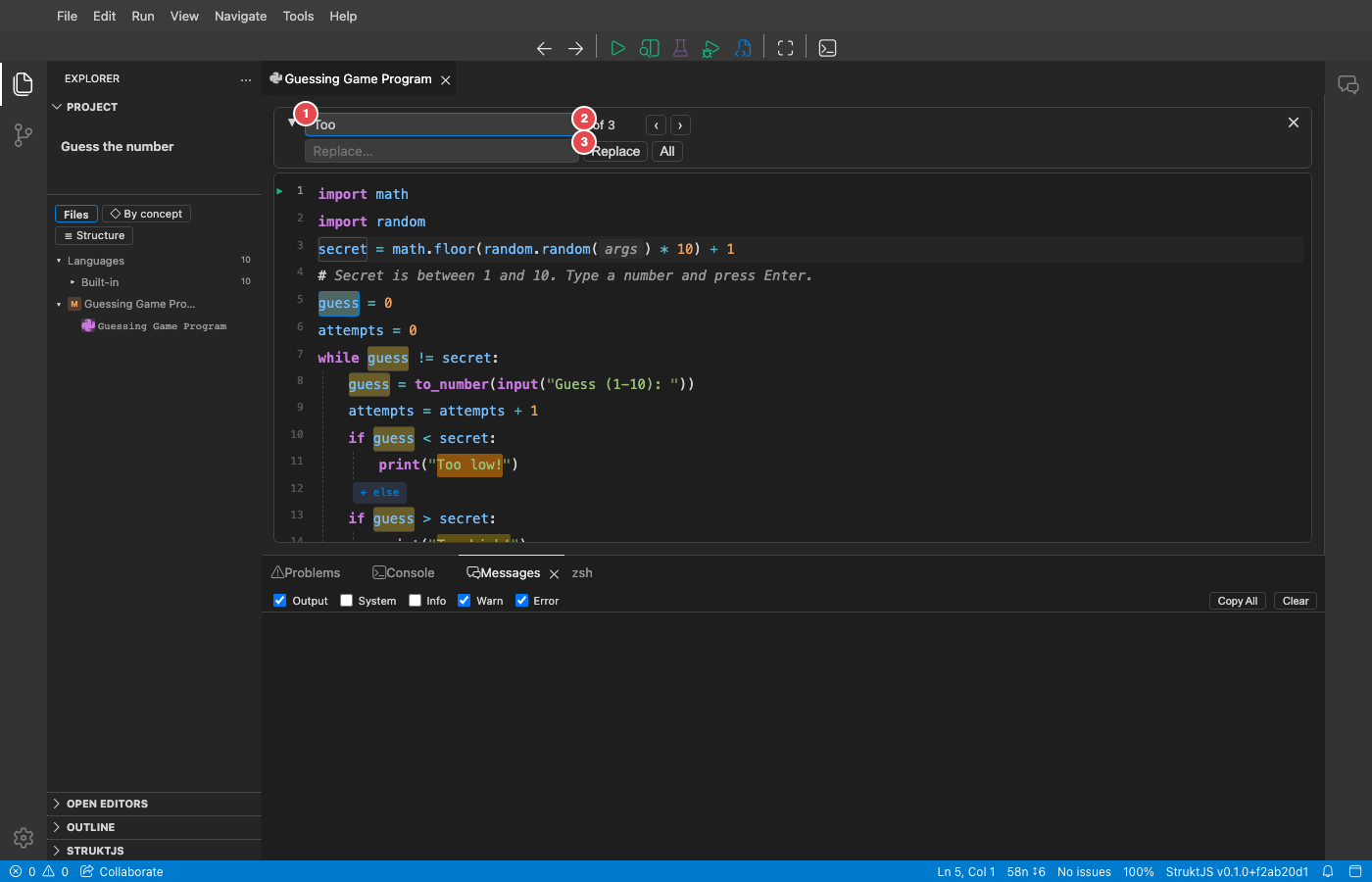
Find and Replace (the bar)
- Click into the editor.
- Press Ctrl+F (Cmd+F on a Mac) for Find, or Ctrl+H (Cmd+H) for Find with Replace. The menu path is Edit > Find/Replace > Find or Replace (the commands are Find in Editor and Replace in Editor). The menu entries work whenever an editor is open and showing, even if focus is in another panel; no node needs to be focused.
- Type in the Find… box. Matches are highlighted and the counter shows "1 of 4", or "No results".
- Press Enter (or ›) for the next match and Shift+Enter (or ‹) for the previous one. F3 and Shift+F3 also work inside the bar.
- To replace, type in the Replace… box (click ▶ to show it if hidden) and press Replace for the highlighted match, or All for every match.
- Press Esc or ✕ to close.
What Find actually searches
- Only text cells are searched: names, numbers, strings and comments. Keywords and punctuation are not.
- The match is a case-sensitive substring (
ToofindsToo low!but nottoo low). - Only cells that are drawn on screen are searched. Content inside a folded block, a collapsed region or another page of a paginated list is not found until it is shown.
- Replace and All change the stored text of every matching cell, including names.
Allrenamingguessalso changesguesses, and renames unrelated variables that happen to share the text. If you want to rename a variable, use Rename below. - If the replaced text is a number cell and the result is not a number, that cell is left unchanged.
- Both replace actions are one edit and can be undone with Undo.
Search Everywhere…
Open it with Ctrl+P (Cmd+P) in the IDE or from the command palette (F1, then "Search Everywhere…"). In the standalone web page it is Ctrl+Shift+F. In the IDE use Ctrl+P. Type part of a name. Results come from four groups, each switched on or off with a checkbox in the dialog:
| Group | Shortcut inside the dialog | Finds |
|---|---|---|
| Nodes | Alt+A | Nodes and text in the open models |
| Files | Alt+F | Models, roots, project.json and model.json |
| Reference | Alt+R | Languages, concepts, samples, documentation pages and views; also the text inside the concepts of the project's own languages (see below) |
| Commands | Alt+X | Every command, with its shortcut |
Recent searches and recent commands are remembered. Enter opens the highlighted result.
Searching inside a language. With Reference on, typing two or more letters also searches the text of every concept of the languages your project defines: its slots, checks, type rules, text templates and the rest. After a short pause, rows appear as Concept › Aspect with the first matching line; choosing one opens that concept on that aspect. Bundled languages are not searched.
Find Usages
- Put the cursor on a name (a variable, function or other reference) or on any node.
- Press Alt+F, or right-click and choose Find > Find Variable Usages (offered on references) or Find > Find Concept Usages (every node of the same concept). From the menu, Edit > Editor > Find Usages… asks what to search for in a small pick list: the usages of the focused name, every instance of its concept, structurally similar nodes, or the call hierarchy of the enclosing declaration.
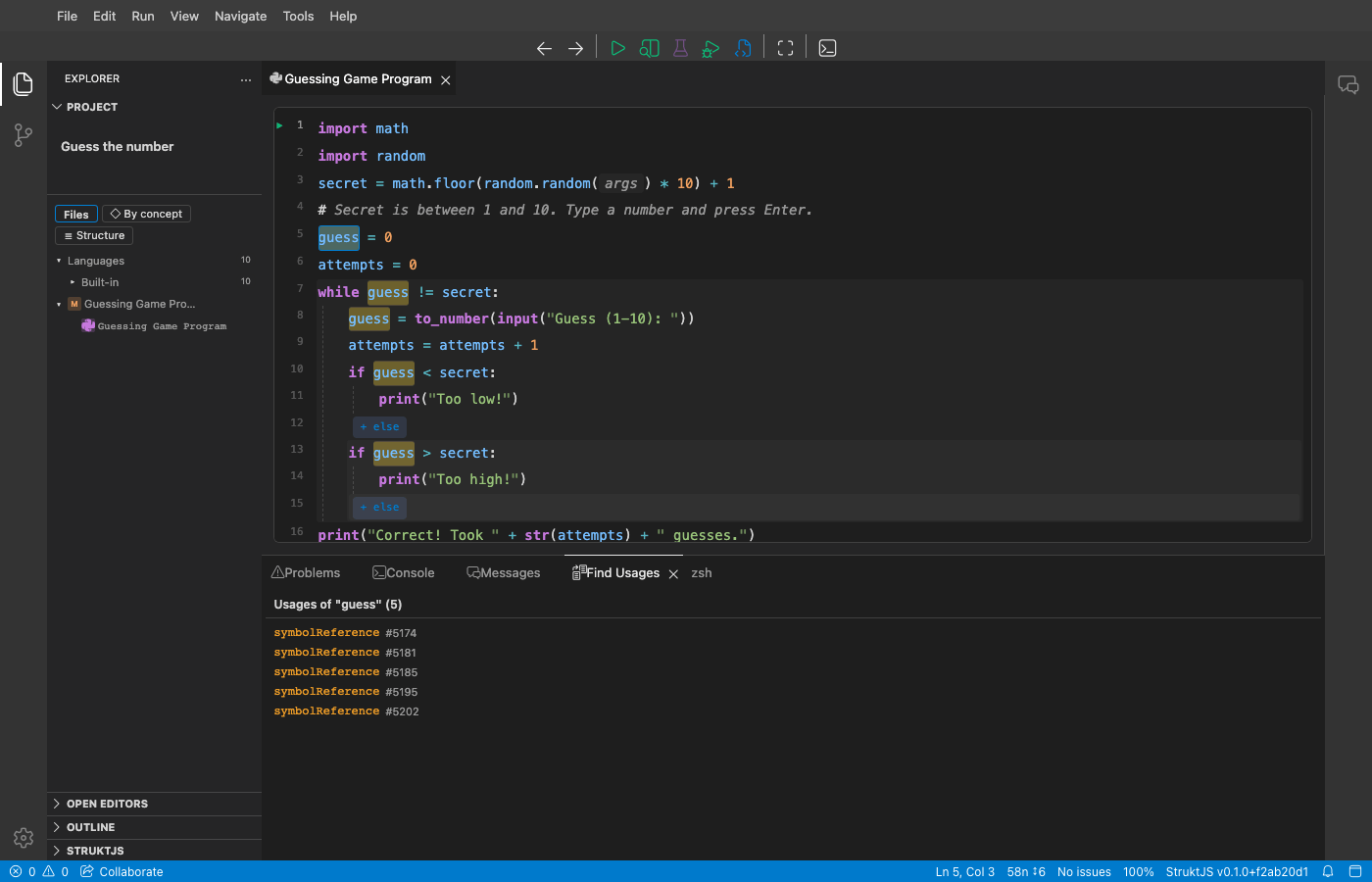
- The results open in the Find Usages panel at the bottom. You can also open the panel from View > Tool Windows > Find Usages. The header reads
Usages of "guess" (5). Each row shows the concept name and node number, with the file name first when it is in another model. - Click a row to jump to that node, even in another model.
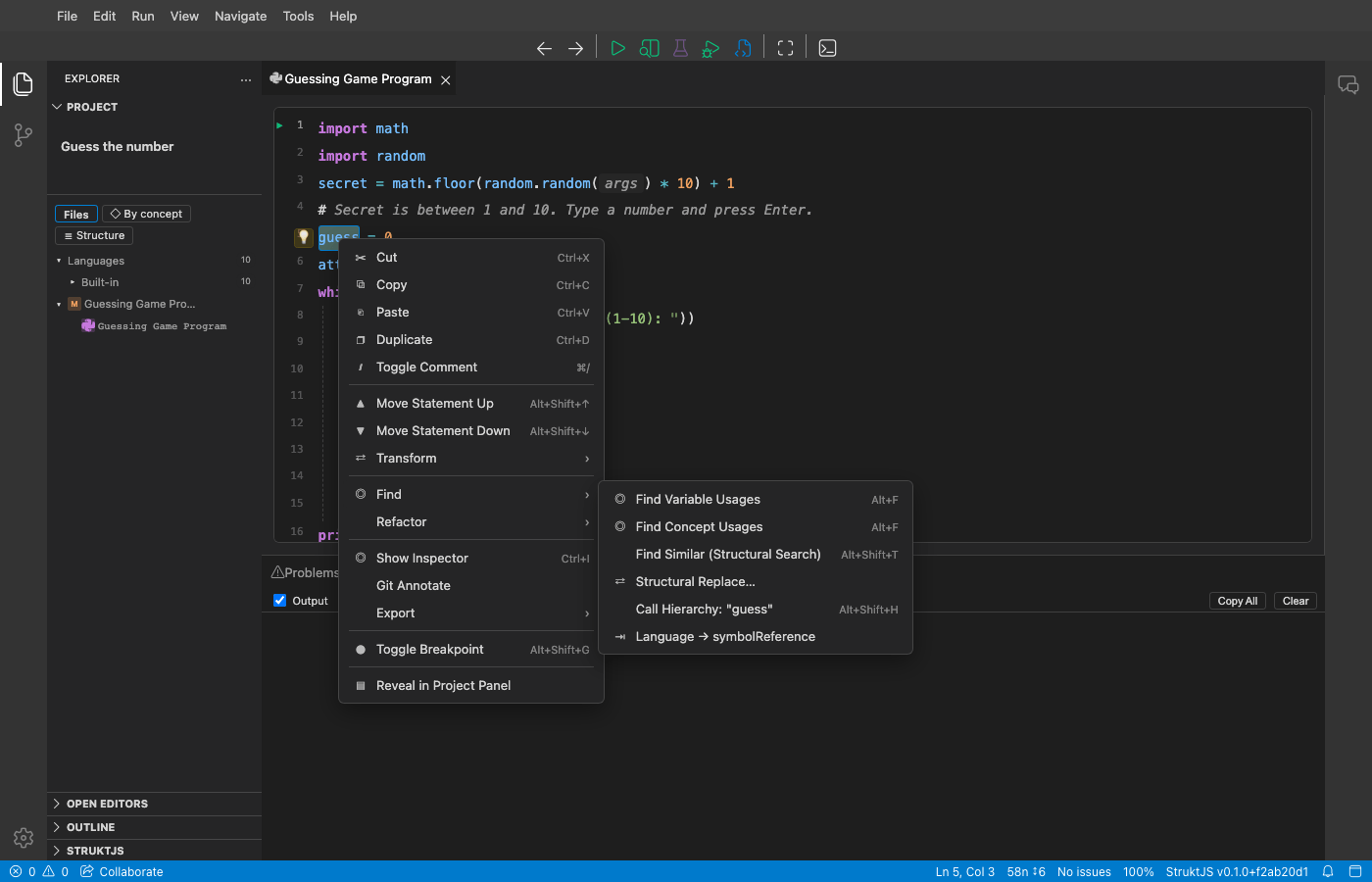
Related items in the same Find submenu:
| Item | Shortcut | What it does |
|---|---|---|
| Find Similar (Structural Search) | Alt+Shift+T | Finds nodes shaped like this one, with literal values treated as wildcards |
| Structural Replace… | none | Starts a "search and replace" session (below) |
| Call Hierarchy: "name" | Alt+Shift+H | Shows who calls this function, across models. Opens in the Explorer's Outline section |
| Language → concept | none | Opens the concept in the Language Editor |
Refactor > Delete Declaration "name" (Safe) deletes a declaration only if nothing else uses it. If something does, the deletion is refused and the blocking usages are listed. The match may say "(name-based match)" when the model cannot tell for sure.
Structural Replace…
Choose Find > Structural Replace… on an example node. A floating panel titled "Search and Replace" appears. Click the slot chips to mark which slots to keep as they are in each match, then edit the other slots of the example in the editor to shape the replacement. If the project has more than one model, choose This document only or Whole project. Press Apply to replace every match, or Cancel. This panel is rarely needed; try it on a copy first.
Rename
- Put the cursor on a name, or right-click it.
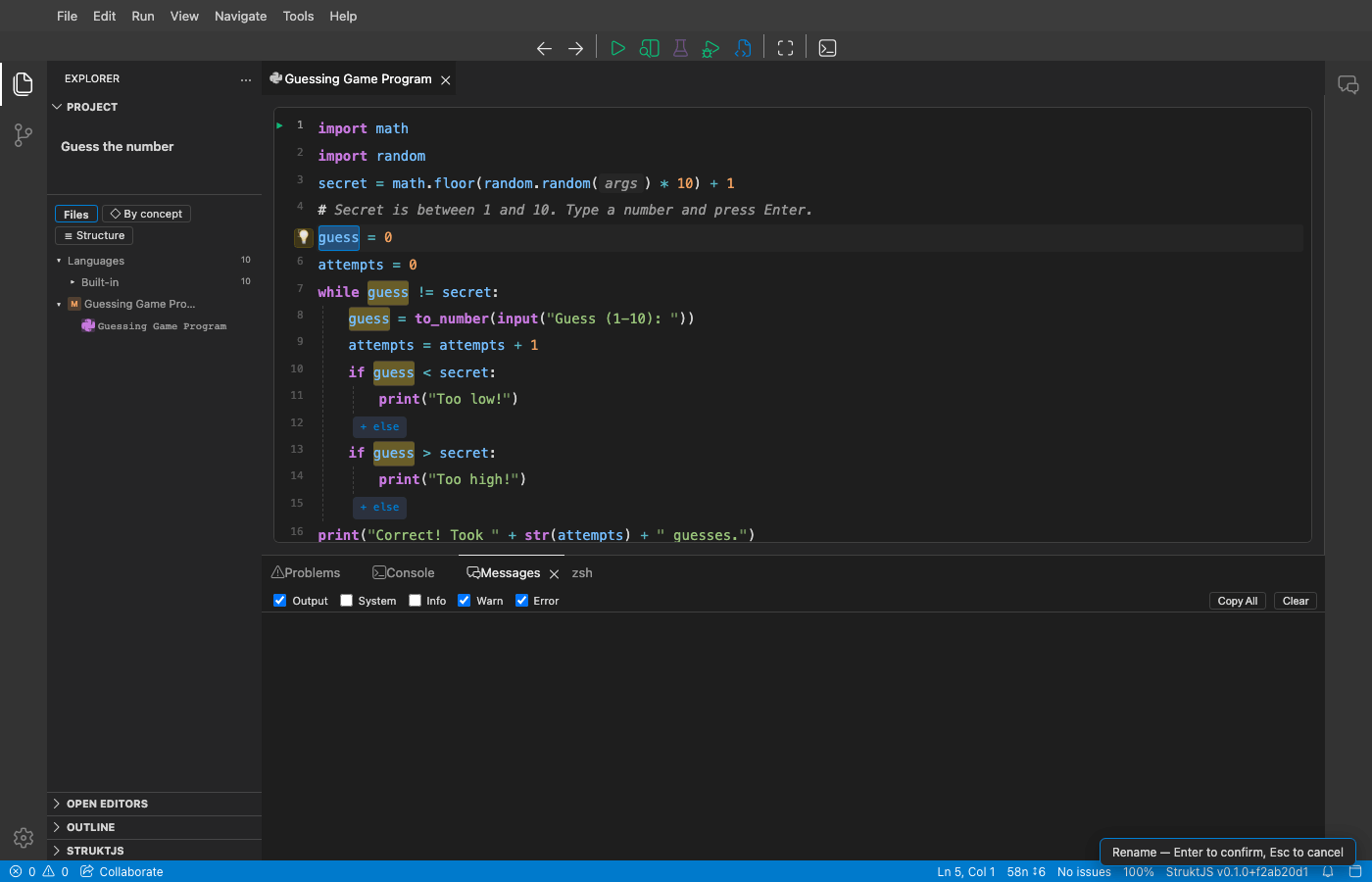
- Press Alt+R, or choose Refactor > Rename "name"…. The name is selected and the hint reads "Rename — Enter to confirm, Esc to cancel".
- Type the new name and press Enter. Esc cancels. While you type, the other uses of the name show the new text, so you see what will change.
- Every reference to the same declaration changes. Another variable with the same name in a different scope is left alone.
If the new name already means something visible at that spot, the rename still happens, with a hint: "Renamed to "x" — that name is already visible here; check for conflicts". This can be legal shadowing, so check it yourself.
Renaming across models
If the project has more than one model and they use the same language, renaming a declaration also updates from <model> import name lines in the other models, and those models are saved. You can start the rename in the model that declares the name or in the model that imports it; the real declaration is renamed either way. This only follows imports written by bare name. Names reached in other ways are not changed.
Every control
| # | Button/Option | What it does | Shortcut | Gotcha |
|---|---|---|---|---|
| 1 | Find in Editor (Edit > Find/Replace > Find) | Opens the find bar | Ctrl/Cmd+F | Searches visible text cells only; case-sensitive |
| 2 | Replace in Editor (Edit > Find/Replace > Replace) | Opens the bar with the Replace row | Ctrl/Cmd+H | Changes stored text of any matching cell, including names |
| 3 | ▶ / ▼ in the bar | Shows or hides the Replace row | Ctrl/Cmd+H | |
| 4 | Find… box | Your search text | Ctrl/Cmd+F focuses it | |
| 5 | ‹ / › | Previous / next match | Shift+Enter / Enter, F3 | Wraps around |
| 6 | Replace… box, Replace, All | Replace one match or all | none | Disabled when there are no matches |
| 7 | ✕ | Closes the bar | Esc | Highlights are cleared |
| 8 | Search Everywhere… | Opens the global search dialog | Ctrl/Cmd+P (IDE) | The webview-only key is Ctrl+Shift+F |
| 9 | Nodes / Files / Reference / Commands checkboxes | Choose result groups | Alt+A / F / R / X | Remembered between sessions |
| 10 | Find Variable Usages / Find Concept Usages | Lists usages in the Find Usages panel | Alt+F | The editor's own key; Open Recent Project… is Ctrl/Cmd+K, F, R |
| 11 | Find Usages panel | Shows usage rows; click to jump | View > Tool Windows > Find Usages | Opens by itself on a search without taking focus |
| 12 | Find Similar (Structural Search) | Finds look-alike nodes | Alt+Shift+T | The editor's own key |
| 13 | Structural Replace… | Starts a structural replace session | none | See the warning above |
| 14 | Call Hierarchy | Shows callers | Alt+Shift+H | Only on declarations |
| 15 | Rename… | Renames a declaration and all references | Alt+R | Cross-model only for same-language bare-name imports |
| 16 | Delete Declaration (Safe) | Deletes only if unused | none | Refuses when usages exist |
| 17 | Copy Qualified Name | Copies the declaration's dotted name | none | In the Refactor submenu |
No application command uses an Alt+letter shortcut any more, so these Alt keys always belong to the editor; if a key does something unexpected, use the context menu. See the Editor keyboard reference.
Related
- Hover, the Inspector and descriptions: the Inspector's Used by section also lists usages
- Models, roots and imports: how cross-model imports work
- Intentions and quick fixes
- Model Console for scripted searches