Project folder anatomy
Audience: everyone · ~6 min read · Prerequisites: Quick start
What it is
Everything you edit lives in a project: a plain folder on disk. Inside it, a model is a folder with one or more roots, each saved as a source file. There is no database and no hidden state, so projects work with git, backups and any text tool. Edits are saved automatically, and a model reloads if its file changes on disk. (See the glossary.)
When you'd use it
Read this page to learn where things are, to put a project under git, to move or share a project, or to understand what a folder you opened contains.
Terms
| Term | Meaning |
|---|---|
| Project | A folder with a project.json. Exactly one project is active per window. See Multiple projects and windows |
| Model | A folder that directly holds at least one model file plus a model.json. A folder with no model file of its own is just a grouping folder |
| Root | One top-level node of a model, for example a PythonFile in Core. Each root is its own file. See Models, roots and imports |
| Language | The concepts, checks and generators a model is written in (Core by default). See Bundled languages |
What a project looks like on disk
my-project/
  project.json                      { "name": ..., "description": ... }
  my-language.lang.js               project-scoped languages (optional)
  python-stubs/*.pyi                Python type stubs for completion (optional)
  cookbook/                         a model folder
    model.json                      label, description, imports, roots, output ...
    cookbook.model.py               the primary root
    extra-root.model.py             a second root of the same model
    versions.json                   saved versions (appears after Save Version)
    generated/                      default output folder of Generate Model
  another-model/
    model.json
    another-model.model.py
A flat project is also allowed: the model file and model.json sit directly beside project.json. The bundled samples use this layout, and it can coexist with model folders below it. Model folders can sit at any depth. The file formats are described in The model file format.
Create, open and close a project
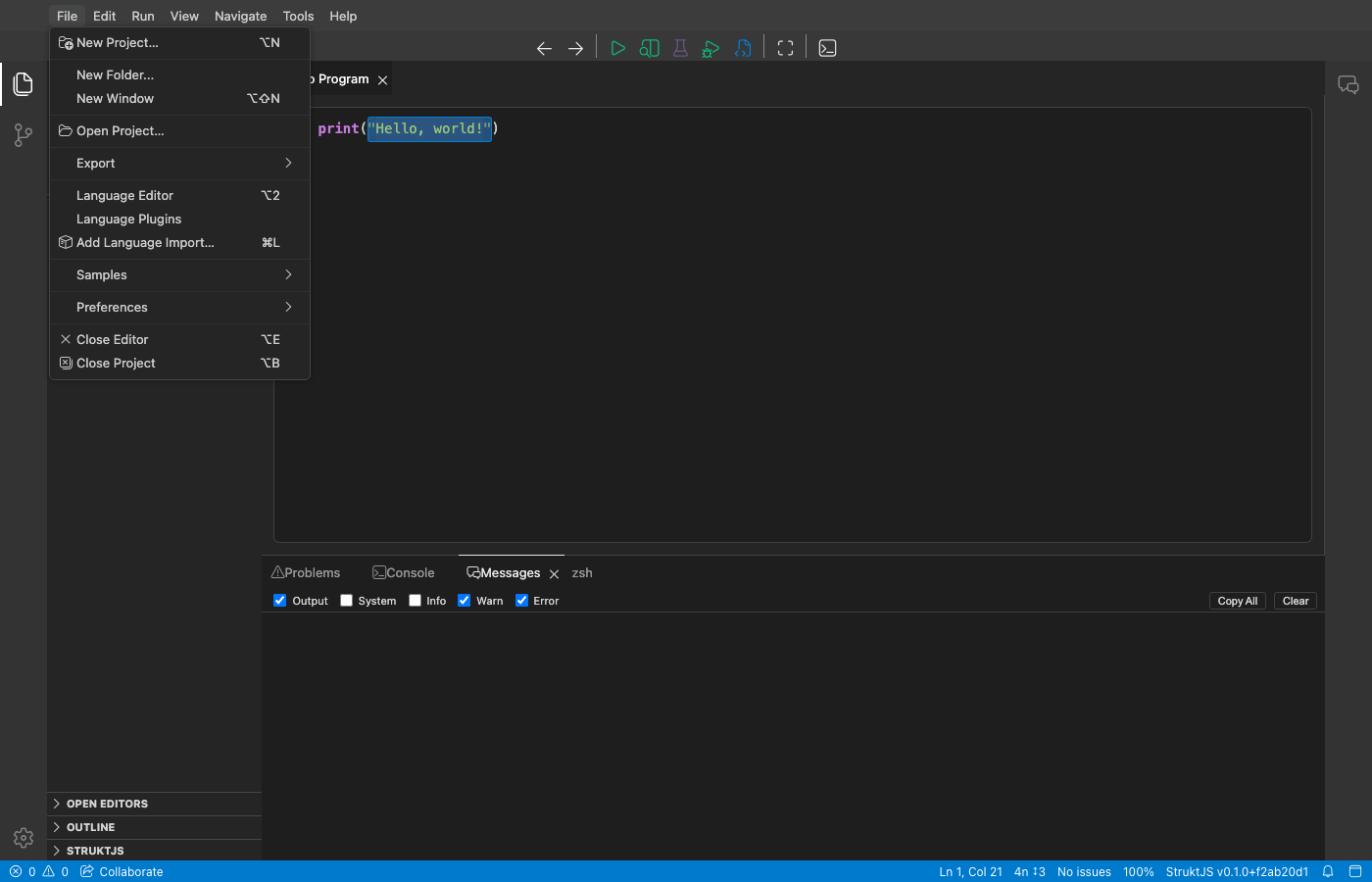
- File > New Project… (Ctrl/Cmd+K, F, N) asks for a project name and a primary language (choose "none" to decide later), then for the folder to create it in.
- File > Open Project… opens an existing folder. It first lists your recent projects. The Welcome tab and the empty main area also offer Open Project…, New Project…, Load Sample… and your Recent Projects. There is also a command Open Recent Project… (File > Open Recent Project…, Ctrl/Cmd+K, F, R). Opening a project does not open any root: the editor lists the project's roots with their sizes, and you choose one (or pick one in the Explorer). A tab opened for a specific file, and a project you just created with New Project…, still open their root straight away.
- File > Close Project closes it. A preference reopens the last project on startup (command Toggle Reopen Last Project on Startup).
If opening a project froze or crashed the page, or blocked it for several seconds, it is not reopened automatically at the next start; the Messages panel says so, and it is marked "did not finish last time" in the recent projects on the Welcome tab. Click it there, or use File > Open Project, when you want to try again.
To start once without reopening any project or tab, run Reload Without Restoring Projects (Help menu, Welcome tab or command palette). If the page is too frozen to reach a menu, load it with
?struktjsFreshWindow=1added to the address instead. - File > New Window opens a second, empty window; see Multiple projects and windows.
With the preference Enable version control for new projects on (the default), creating a project also runs git init and makes a first commit. See Source Control pane.
Models, imports and the Explorer
- The tree of models and roots is the Project section of the Explorer: The Explorer and Project pane.
- A project may also contain
*.lang.jslanguage files. They load for this project only and are code that runs, so see Trusting project code. - Every model has a qualified name derived from its place on disk: Models, roots and imports.
Multiple roots
A model with several roots keeps each in its own file inside the model folder. This is covered in Models, roots and imports.
Very large models
Drawing a model builds a cell for every node, and a very large model can freeze the page or run it out of memory. Two things protect you:
- Long lists are shown one page at a time. A list with more than 400 items (typically the top level of a big file) has a pager above it: first/previous/next/last buttons, a page box ("Page 3 of 28 · 2,657 items"), and a search box. Alt+PageDown and Alt+PageUp turn the page from the keyboard. The page follows the cursor when you insert an item, undo, or jump to a definition or a problem. Find (Ctrl+F) searches the whole model, not just the page you are on: the count covers every match, and stepping to a match on another page switches to that page. Only the current page is drawn, so memory stays flat however long the list is. Line numbers in the gutter count from the top of the page you are on. Pages are sized by how heavy the items are, so a page of whole functions is shorter than a page of one-line statements.
- A model that would still be heavy to draw asks first. When what would be drawn (counting one page of each long list) has more nodes than the Large model warning threshold preference (15,000 by default; 0 turns the warning off), the editor shows how many nodes it has instead of drawing it:
- Open collapsed folds every block first, so only block headers and statements outside blocks are drawn, which is much faster. Expand blocks as you need them.
- Open everything draws the whole thing and may make the page unresponsive until it finishes.
Because a project never opens a root by itself, you can see each root's node count in the list before choosing, and avoid opening a very large one by accident.
Languages and imports
A model declares which languages it uses in model.json, and can import other models. Both are covered in Models, roots and imports.
Samples
Bundled example programs open from File > Samples > Load Sample…. See Samples.
Git and other tools
Because a project is plain files you can put it under git. Diffs of model files compare the parsed tree rather than text lines: see Model-aware diff and merge. Saved versions of a root (Tools > Versions) are described there too and are stored in versions.json next to the model's model.json.
Importing and exporting
File > Export writes the open model as JSON, FullForm or Surface text (see Notations and views). For a one-way trip to ordinary source files use the generators.
Every control
| # | Button/Option | What it does | Shortcut | Gotcha |
|---|---|---|---|---|
| 1 | File > New Project… | Creates a project folder with project.json |
Ctrl/Cmd+K, F, N | Asks for name, language and folder |
| 2 | File > Open Project… | Opens a project folder | Ctrl/Cmd+K, F, O | Lists recent projects first |
| 3 | File > Open Recent Project… | Opens one of your recent projects | Ctrl/⌘+K, F, R | The editor's Alt+F is Find Usages |
| 4 | File > Close Project | Closes the active project | Ctrl/Cmd+K, F, C | Only shown while a project is open |
| 5 | File > Close Editor | Closes the current editor tab | Ctrl/Cmd+K, F, W | Does not close the project |
| 6 | File > New Window | Opens another window | none | Empty window; see multiple windows |
| 7 | Edit > Add Language Import… | Adds a language to the model's imports | Ctrl/Cmd+K, E, M | Writes model.json |
| 8 | Toggle Reopen Last Project on Startup | Reopens the last project at launch | Also a preference | |
| 9 | File > Save as Model File…, File > Reset to Default, Tools > Versions > Compare with Saved | File commands that are not part of everyday work (see the generated command list) | none for Reset to Default; Ctrl/Cmd+K, F, D for Compare with Saved | Not described further here; I did not test them |