Constraints and placement rules
Audience: editors and language authors · ~8 min read · Prerequisites: Problems panel and checks
What it is
A constraint is a rule about one slot of a concept (a slot is a named place in a node that holds a value
or child, such as the divisor of a division). A constraint looks at the value in that slot and reports a problem
when it is wrong, for example a literal 0 as a divisor, or a text value used as a loop condition. A
placement rule is a different kind of rule: it says where a concept may sit in the tree (inside which parent
slot, at the model's root, or beneath which ancestors). Constraints are reported after the fact as problems.
Placement rules mostly stop the bad edit before it happens. Both are declared by the language (see the
glossary), so which ones you meet depends on the language.
When you'd use it
- You see an error like
'X' cannot be placed inside 'Y.slot'and want to know why. - A completion list is missing a concept you expected, or a paste or an operator key does nothing.
- You write a language and want to forbid certain values or positions.
What you see as a user
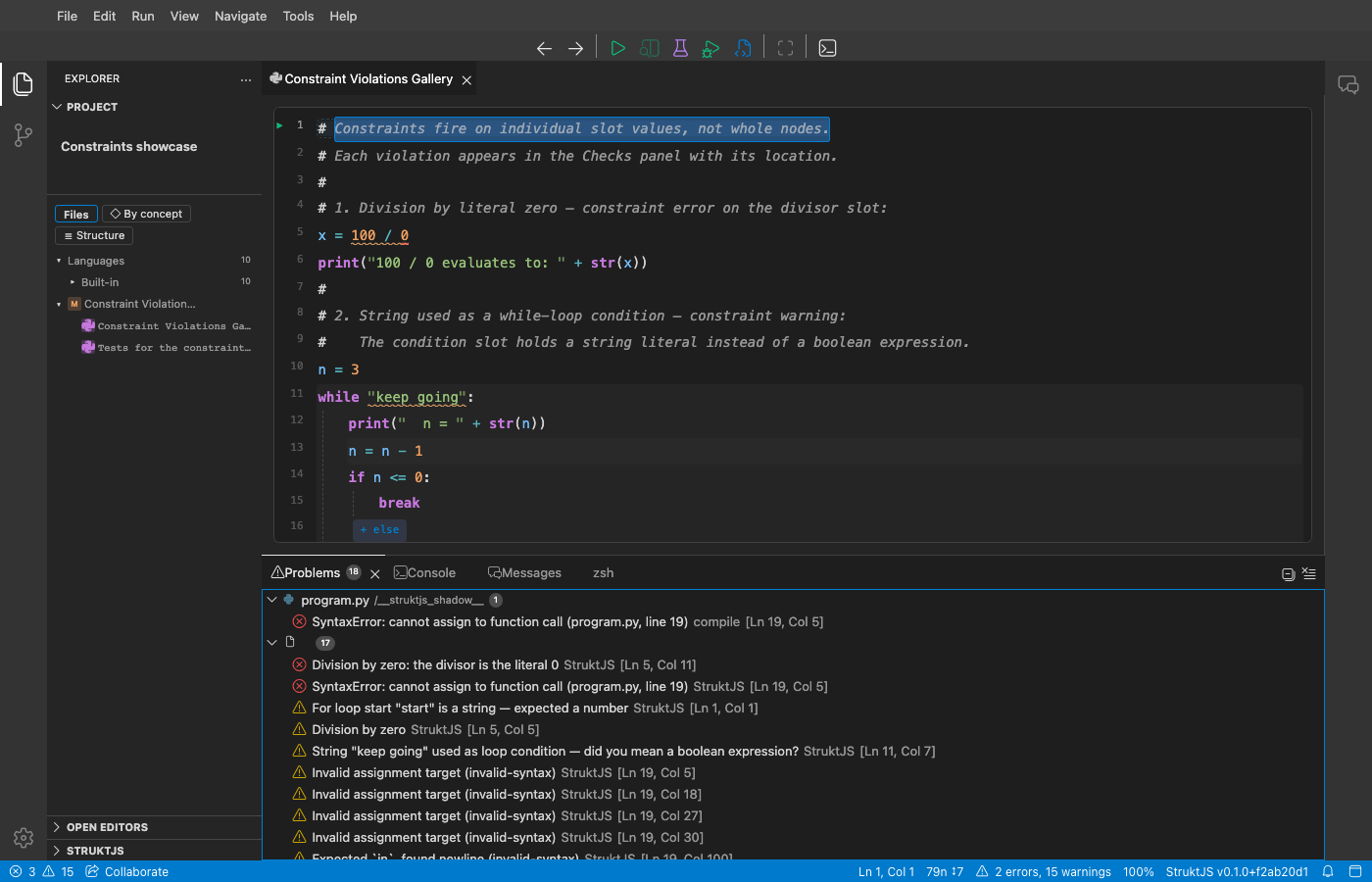
- Constraint problems appear in the Problems panel (View > Tool Windows > Problems) with a wavy
underline on the node, like any other problem. Load File > Samples > Load Sample… then Constraints
showcase: it divides by zero, uses
"keep going"as awhilecondition and a string as aforstart bound. The messages readDivision by zero: the divisor is the literal 0,String "keep going" used as loop condition — did you mean a boolean expression?andFor loop start "start" is a string — expected a number. - Kind mismatch is always checked, whatever the language: a statement cannot fill an expression slot. This is reported as an error.
- Placement rules act while you edit. The editor consults them in these places, and quietly refuses or
hides the option when the rule says no:
- the completion menu (Ctrl+Space) does not offer a concept that cannot go in that slot;
- paste refuses a subtree that would break a rule;
- operator keys that wrap the current node (for example
+wrapping a value in an addition) do nothing if the wrapping concept may not go there or may not sit beneath that ancestor; - Surround with is not offered when the wrapper would be illegal in that position, checked against every ancestor, not just the parent;
- refactorings follow the same rule.
- A concept flagged as the language's file root (the model's own top node, for example a Python file) can never be a child of anything. This floor applies to every language.
- Content can still reach the tree another way: a hand-edited file, a collaboration edit, generator output or
the Model Console. So every already-attached child is re-checked after the fact, and a
violation shows as the error
'X' cannot be placed inside 'Y.slot'. To fix it, move or delete the node.
How to fix a constraint problem
- Click the row in Problems to jump to the node.
- Read the message; it names the value and what was expected.
- Change the value (give a number where a number is expected) or move the node to a legal place.
- The problem disappears as soon as the rule passes.
For language authors
Open Tools > Language Editor, pick a concept, and use the Rules aspect tab. It has three sub-tabs:
Placement (canBeChild, canBeRoot, canBeAncestor), Constraints (slot constraints; each has a name, a
severity, the slot, and a JavaScript body that returns nothing or a { message }), and Scopes (reference
scopes and link targets). A rule can be limited to one concept or to every concept that implements a given
interface. A placement hook returns false to forbid; no hook means allowed. A rule that throws is reported as
Error in constraint "name": ... instead of crashing the check. Details: The Language Editor.
Every control
| # | Button/Option | What it does | Shortcut | Gotcha |
|---|---|---|---|---|
| 1 | Problems panel row | Jumps to the node a constraint flagged | Click | A constraint on a plain value (no node of its own) is attached to the parent node |
| 2 | Wavy underline on a node | Marks a node with a constraint or placement problem | — | Hover it to read the message |
| 3 | Tools > Typechecker > Next Issue / Previous Issue | Steps through all problems including constraints | F8 / Shift+F8 | |
| 4 | Ctrl+Space completion menu | Hides concepts that placement rules forbid in this slot | Ctrl+Space | Absence is the only sign; see Completion menu |
| 5 | Language Editor > Constraints > Placement | Edit canBeChild, canBeRoot, canBeAncestor for a concept |
— | Language authors only |
| 6 | Language Editor > Constraints > Rules | Add or edit slot constraints | — | Rule bodies are JavaScript; see Trusting project code |
| 7 | Language Editor > Constraints > Scopes | Reference scopes and link targets | — |