Running a model
Audience: everyone · ~10 min read · Prerequisites: Quick start
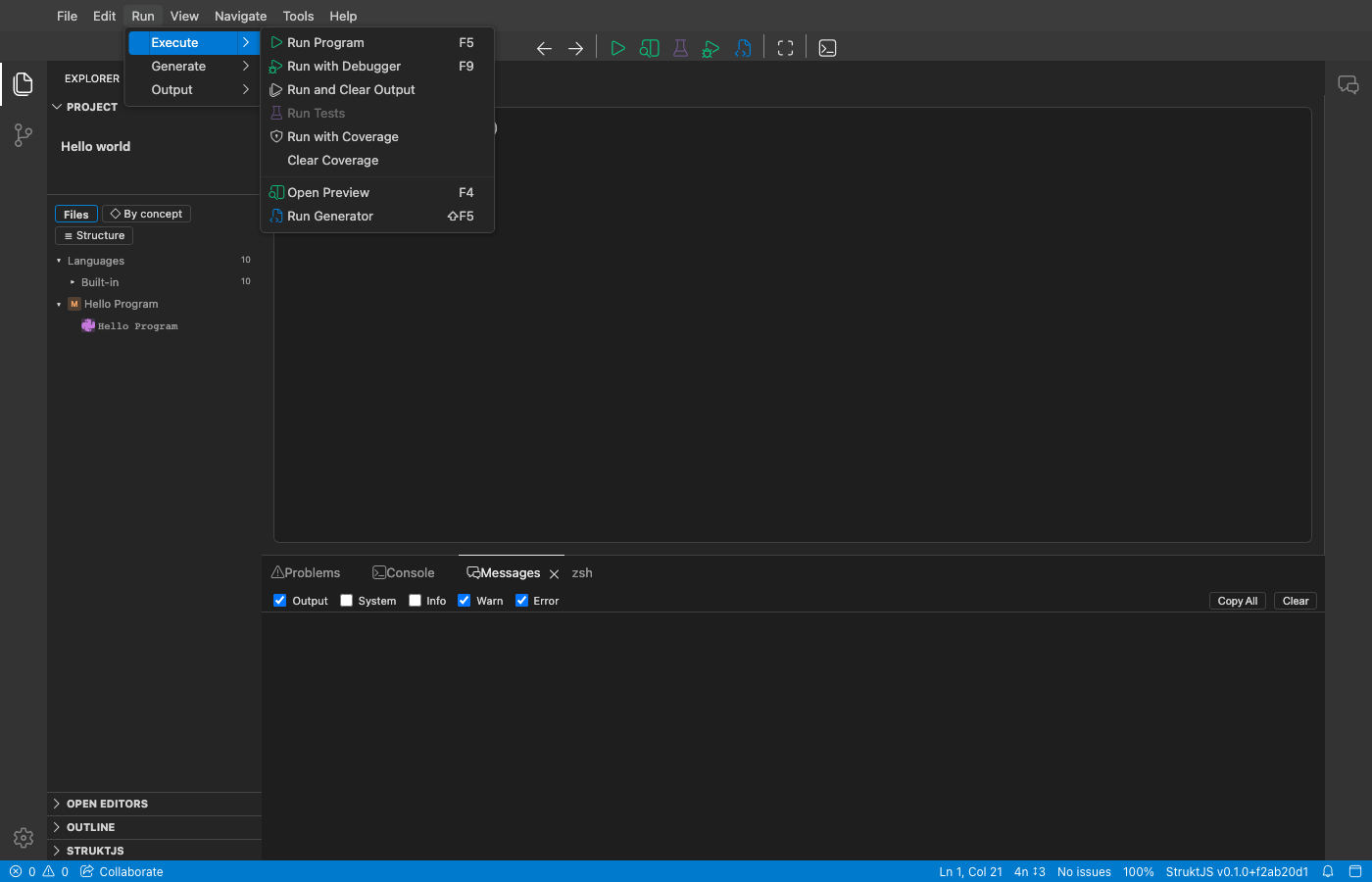
What it is
Run executes the open model and shows what it prints. How it executes depends on the language. A language that has a real runtime (Core, whose surface is Python) is turned into Python source by its generator and run by a real Python 3: the one installed on the machine that runs the IDE, or, when there is none (and always in the standalone web preview and the embedded editor), Pyodide, the same CPython compiled to WebAssembly, which runs in a background worker. Every other language, and the debugger, coverage and the Model Console, use struktJS's built-in evaluator, which walks the tree and applies each concept's own evaluation rule. You do not choose the language's runtime; the language does (see the glossary). Which Python runs a Core program is the Python runtime preference (below).
When you'd use it
- You want to see your program work.
- You want a quick check before generating code or sharing a model.
How to run
- Open a model tab. The Run menu in the menu bar appears only while a model tab is active (with only the Welcome tab open the bar shows File, Edit, View, Tools, Help).
- Choose Run > Execute > Run Program (F5), or click the green play icon in the top toolbar.
- The Messages view at the bottom opens by itself and shows the output, then
Done in N ms. If the program returns a value, it is printed as→ value. - The status bar shows how many runs you did this session and the duration of the last one.
Things that stop or change a run:
- Errors block Run. The Output view names the first error, for example "Not run: fix this error first: Division by zero", or "Not run: 3 errors must be fixed first. First: …" when there are several. The editor jumps to that error, and clicking the Output line jumps there again. Problems lists the rest. Warnings do not block.
- Breakpoints are ignored. F5 never opens the Debugger; use Run with Debugger (Shift+F9) to stop at breakpoints.
- Illustrative-only samples. Some samples are marked as not meant to run end to end; Run answers "Not run: this sample is illustrative only and isn't meant to run end to end."
- No Python on the machine. With the default Automatic setting nothing is lost: the built-in Pyodide Python
takes over. The first time, struktJS asks before it downloads the runtime (about 10 MB, once, from jsDelivr);
choosing Download and don't ask again remembers the answer. Offline with nothing downloaded yet, the run says it
cannot fetch the runtime. If you set Python on this computer and there is none, the message is
"No python interpreter found on this host's PATH"; install Python 3 so
python3orpythonresolves. - No Python runtime at all. A browser with no Web Workers or WebAssembly (and no IDE backend) answers "Not run: there is no Python runtime here".
- Evaluator-only conveniences are gone for Core.
print_html(...),js(...)(JavaScript interop) and the collapsible value tree that Open Preview drew forprint(obj)belong to the built-in evaluator. A Core program that runs on Python prints Python's own text (print({"a": 1})shows{'a': 1}), andjs(...)raises "only available in the browser evaluator". - Real Python's errors. An uncaught exception ends the run with Python's own traceback and nothing else (for
example
ZeroDivisionError: division by zero). Some samples are deliberately faulty to show the checker (the Python language tour'sconstraintsandtype-annotationsroots): their checks are unchanged, but running them raises the error the check warned about. - Generator errors. For a hosted run the model is generated first; a failing concept stops the run with
Generator error for "head": messageand "Not run: fix the generator error first: …" with the generator's message (click the line to jump to the concept).
Input, time limits and stopping
input()prompts through the IDE with a small dialog. Dismissing it (Escape) stops the run with "Input cancelled — run stopped". An empty answer is not a cancel.- A Python run has a 30 second limit for computing; it ends with "Timed out (30s)". Time spent
waiting for an
input()answer has a much longer limit (about 30 minutes).input()works inside functions too (on Pyodide it needs a Chromium-based browser or the desktop app; other browsers run programs withoutinput()). - The evaluator stops a runaway loop after 1,000,000 iterations with "Eval loop runaway", "Eval For runaway" or "Eval Foreach runaway".
- There is no Stop command for a plain Run. To be able to stop a program, use Run with Debugger (Shift+F9) and its Stop button. Closing the tab also ends a hosted run that is waiting for input. Test runs have their own Cancel button.
The run commands
| Command | Menu path | Shortcut | What it does |
|---|---|---|---|
| Verify Model | Run > Execute | Ctrl/⌘+K, R, V | Checks, tests and a generator dry run in one go, summed up in the status bar (Verify) |
| Verify Project | Run > Execute | — | The same for every model of the project |
| Explain Result | Run > Execute | — | Why the declaration at the caret has the value it has, written to Messages as the steps it was computed from, with the branch or decision-table row that decided each one (KernelF, Core in its Python and JavaScript grammars, and the other languages whose statements produce values; a language that only prints or renders says there is nothing to explain. The same as strukts explain on the command line) |
| Pin Current Behaviour as Test | Run > Execute | — | Adds a test case asserting what the model does today (its check results and generated text); it passes now and fails when the behaviour changes. Needs a language with a test language installed (Core and the languages built on it have one); it creates the tests root on first use. A test suite of your own is added by importing the test language and adding its root node, or from Add test suite in the model's Explorer context menu |
| Run Program | Run > Execute | F5 | Runs the open root as described above |
| Run with Debugger | Run > Execute | Shift+F9 | Runs under the Debugger; works with no breakpoints |
| Run and Clear Output | Run > Execute | Shift+F5 | Clears the output, then runs. In the command palette it is called Run and Clear |
| Run Tests | Run > Execute | Ctrl/⌘+K, R, T | Runs the model's test suites (Tests) |
| Run with Coverage | Run > Execute | — | Evaluator run that paints which statements ran (coverage) |
| Clear Coverage | Run > Execute | — | Removes the coverage marks |
| Open Preview | Run > Execute | F4 | See Generators and Open Preview |
| Run Generator | Run > Execute | F6 | See Generators and Open Preview |
The top toolbar has matching icons for Run Program, Open Preview, Run Tests, Run with Debugger and Run Generator.
Explain Result: why a value is what it is
Put the caret in a declaration such as val z = double(y) (KernelF) or z = double(y) (Core, in Python or JavaScript syntax) and
choose Run > Execute > Explain Result. The Messages panel then lists the declaration, its value,
and the steps it was computed from, each indented under the step that needed it:
val z = double(y)  =>  84
  double(y)  =>  84
    double  =>  <function>
    y  =>  42
    n * 2  =>  84
A conditional says which way it went and a decision table which row decided: [via else], [via row 2] after the value. A step
that failed shows !! and its message instead of a value. With the caret outside any declaration the whole model is explained, one
line per declaration; a statement a loop runs many times is one line, its last run ([last of 5 runs]), and a name that was
assigned more than once is explained as its last assignment. Values are written the way the language writes them (None,
'text', [1, 2] in Python syntax). The same explanation is available without the IDE as strukts explain,
for a build or an audit, and from a script as workbench.run.explain().
Two things to know about languages such as Core, which run on real Python when you press Run. Explain runs the program again on
struktJS's own evaluator (that is what yields a value for every step), so the first line of the explanation says so, and in rare
edge cases a value differs from what Python prints: 6 / 2 shows 3 where Python shows 3.0, a module the evaluator does not
implement (import re) stops the explanation at that line, and xs[1:] (a slice with an omitted bound) is not evaluated. The
run is also limited to 10 seconds and 500,000 steps: a program that waits for input() forever, or loops without end, is
stopped, and the steps recorded so far are shown. Anything the program prints is discarded. A language that only prints or
renders (a robot program, a markup document) has no value per statement, so Explain Result answers that there is nothing to explain.
Preferences that change running
| Preference | Effect |
|---|---|
| Clear output before each run (default on) | Start each run with an empty log. Toggle Clear Output Before Run flips it |
| Python runtime (default Automatic) | Which Python runs Core programs: Automatic (the Python on this computer, else the built-in one), Python on this computer, or Built-in Python (Pyodide), which runs sandboxed with no access to this computer's files. Setting struktJS.python.runtime |
| Show output panel on run (default on) | Brings the Messages view forward when you run. Toggle Show Output Panel on Run flips it |
| Jump to first error after run (default off) | After a run, selects the first remaining problem |
| Show timestamps, Max output lines, Confirm before clearing output | See Output, Terminal and error messages |
Built-in functions
With the Python runtime everything in Python's builtins and standard library is available (on Pyodide, the standard library that ships with it; third-party packages are not installed). The evaluator (other languages, debugger, coverage, Model Console) has a table of Python-style builtins, so common programs behave the same:
| Group | Names |
|---|---|
| Output and logging | print, print_html, log_info, log_warn, log_error, input |
| Strings | str, string_join, to_string, to_number, float, int, lower, upper, repeat, substring, slice, split, join, replace, trim, ord, chr, char_code, char, to_base |
| Numbers | abs, round, floor, ceil, sqrt, pow, min, max, sum, product, random, random_int |
| Lists | range, len, make_array, append, list_concat, reverse, sorted, sort, enumerate, zip, all, any, contains, index_of, keys |
| Higher-order | map, filter, reduce, sort_by |
| Types and conversion | bool, type |
| Exceptions | Exception, ValueError, TypeError, KeyError, IndexError, AttributeError, NameError, RuntimeError, StopIteration, ZeroDivisionError, ArithmeticError, NotImplementedError (any except clause catches any of them; there is no type hierarchy) |
| JavaScript interop | js("Math.sqrt", 9) calls a dotted JavaScript path |
list, tuple, set and dict are literal syntax. js(...) reaches only an allow-list of pure standard
globals (Math, JSON, Date, Number, String, Array, Map, Set, ...); the network, the DOM, storage and
eval are blocked. Python modules such as math are imported the usual way (import math). Stub files in the
project's python-stubs/ folder feed completion. Languages without a Python surface define their own functions as
concepts; see Evaluation and generation.
Every control
| # | Button/Option | What it does | Shortcut | Gotcha |
|---|---|---|---|---|
| 1 | Run > Execute > Run Program / toolbar play icon | Runs the open root | F5 | Ignores breakpoints; Shift+F9 debugs |
| 2 | Run > Execute > Run with Debugger | Debug run | Shift+F9 | |
| 3 | Run > Execute > Run and Clear Output | Clear, then run | Shift+F5 | Palette name is Run and Clear |
| 4 | Run > Execute > Run Tests | Run test suites | Ctrl/Cmd+K, R, T | Enabled only if there are tests |
| 5 | Run > Execute > Run with Coverage / Clear Coverage | Coverage marks on / off | — | Uses the evaluator, not Python |
| 6 | Run > Execute > Open Preview, Run Generator | Alternative outputs | F4, F6 | See Generators |
| 7 | Run > Output > Clear Output, Clear Messages, Save Output to File, Copy Errors to Clipboard | Output housekeeping | Ctrl/Cmd+K, R, O (Clear Output), Ctrl/Cmd+K, R, M (Clear Messages); Save Output and Copy Errors have no default shortcut | See Output, Terminal and error messages |
| 8 | Status-bar run count (▶N) and duration (N ms) |
Runs this session and the last run time | — | Appear after the first run |
| 9 | Report Run Info (palette) | Logs "Runs this session: N · last run M ms" | Ctrl/⌘+K, O, I | Logged as a System line, hidden by default in Messages |
| 10 | Append Output Separator (palette) | Adds a ──── line to the output |
Ctrl/⌘+K, O, S | |
| 11 | Clear output before each run, Show output panel on run, Jump to first error after run | Preferences above | — | Palette toggles listed above |