Tutorial
Audience: new users · ~30 min read and follow along · Prerequisites: Quick start
What it is
A hands-on walkthrough in three parts. In Part 1 you build a small program with the keyboard. In Part 2 you break programs on purpose to see the checker and the type system work. In Part 3 you run a program under the debugger and look at generated code. Each part ends with a checkpoint: something you can open to compare against, so you can pick up the next part even if you got stuck.
When you'd use it
After the Quick start, when you want to learn how editing a tree feels, and what the checks, types, debugger and generators give you. It uses the built-in Core language, which is the default for new projects. Words such as node, cell and slot are in the Glossary.
Part 1: Edit (about 10 minutes)
1.1 Hello, world
Create a project with File > New Project… (Ctrl/Cmd+K, F, N): keep the default language core, choose a folder, and
the project opens with one empty model. Click into the empty cell and type:
print("Hello, world!")
Because the editor is projectional, print(...) is really a call node with an argument slot, but typing it
feels like typing Python. Press F5 (Run > Execute > Run Program). The text appears in the Messages
panel at the bottom.
(If you would rather not make a project yet, load File > Samples > Load Sample… > Hello world. It is the same program.)
1.2 Build a function with the keyboard
Build this program, a factorial, entirely with structural editing:
def factorial(n):
  if n <= 1:
    return 1
  return n * factorial(n - 1)

print(factorial(5))
- Start with the last line. In the empty cell type
print,(,factorial,(,5. - Put the caret in
printand press Shift+Enter. A new empty line appears above it. (Plain Enter inside a function body would add another body statement, so building the call first and inserting the function above it is the easy way to get both at the top level.) - In the new line type
defand press Enter to accept thefunctionconcept. The completion list filters by name, alias and description; Ctrl+Space opens it by hand. - Type
factorialin the name slot, then Tab to the parameter list and typen. Press , to add a second parameter; press Backspace on an empty parameter to remove it. - Tab into the body and type the last body line first:
return, accept, thenn,*,factorial,(,n,-,1. Each operator key wraps the value before it, sonfollowed by*becomesn * _. - With the caret in
return, press Shift+Enter to insert a line above it, typeif, accept, thenn,<,=,1. The<wrapsninto a "less than" node and the following=upgrades it to<=. Tab into thethenbranch, typereturn, accept, then1.
Run it with F5. The output is 120.
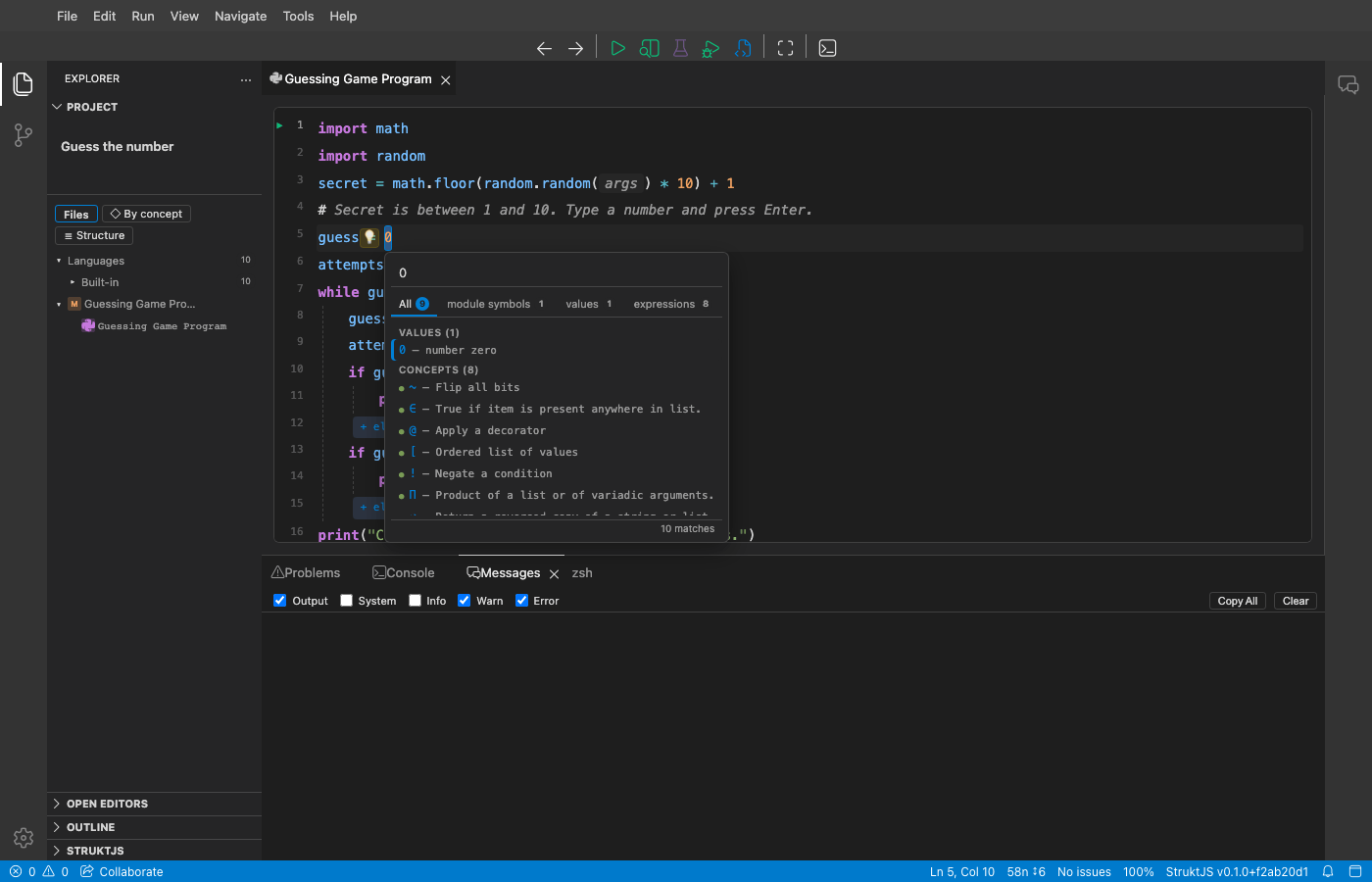
The popup in the screenshot is the completion list from step 3. It is a passive list: your caret stays in the cell, and the text before the caret is the filter. Editor basics explains every key used here.
Checkpoint 1. The program above is the finished state. The nearest bundled sample is File > Samples > Load Sample… > Console Cookbook, which has functions, loops and conditionals in the same style.
Part 2: Check and type (about 10 minutes)
2.1 Static checks
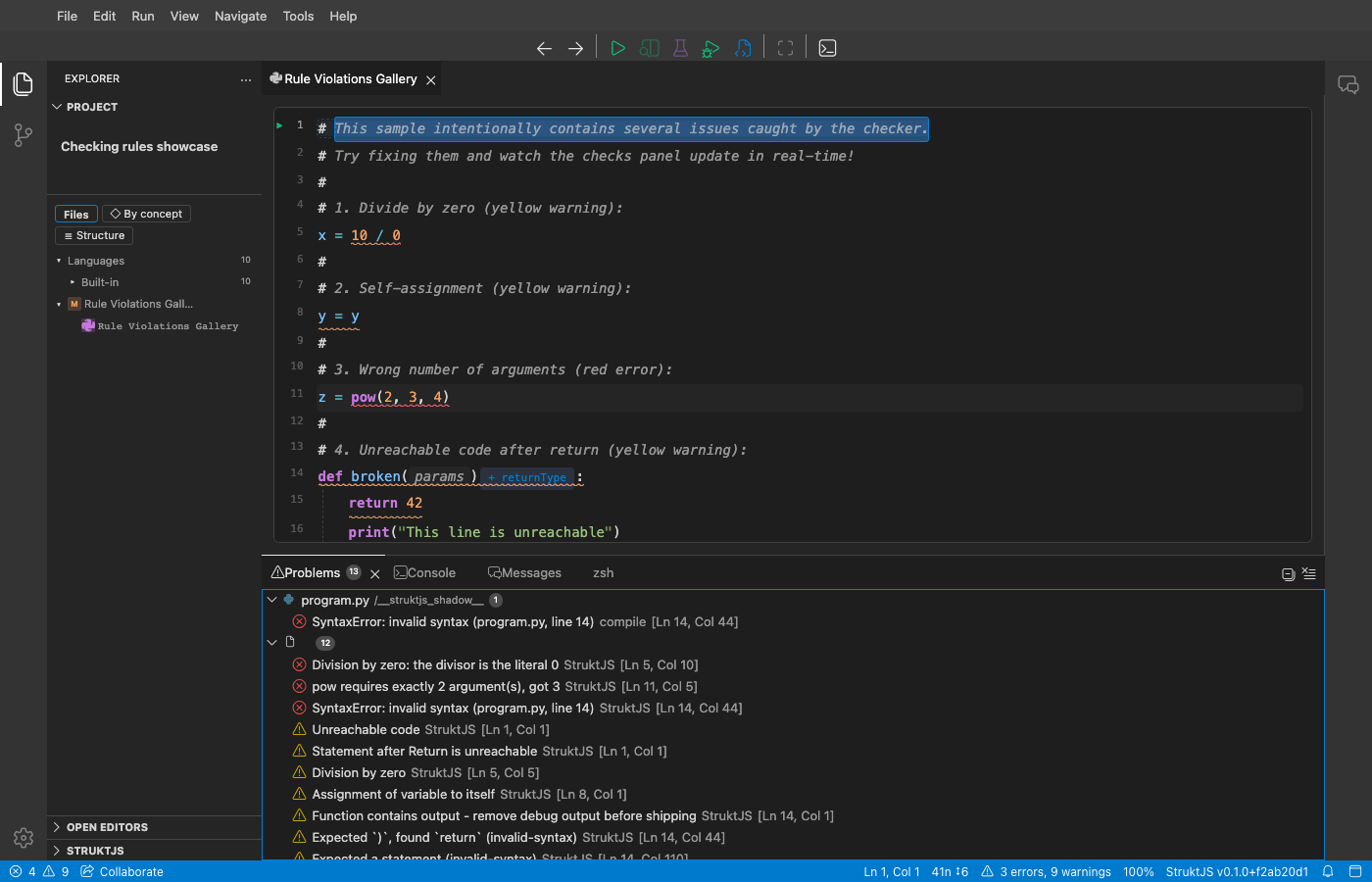
Open File > Samples > Load Sample… and pick Python language tour. It deliberately contains issues:
x = 10 / 0                 # division by zero (error)
y = y                      # self-assignment warning
z = pow(2, 3, 4)           # wrong number of arguments (error)

def broken():
  return 42
  print("This line is unreachable")   # unreachable-code warning
Problems appear as markers on the nodes and in Theia's Problems panel (View > Tool Windows > Problems). Click an entry to jump to its node. F8 and Shift+F8 (Next Issue and Previous Issue) step through them. Fix each line and watch its entry disappear. Run refuses to start while a blocking error exists; here that is the wrong-argument-count error.
2.2 Slot-level constraints
Load Python language tour and open its Constraint Violations Gallery root. Where checks reason about whole nodes, constraints fire on individual slot values:
x = 100 / 0                     # constraint error: literal-zero divisor
while "keep going":             # constraint warning: string used as a condition
  ...
for i in range("start", 5):     # constraint warning: string used as a numeric bound
  ...
They show up in the same Problems panel and clear as soon as the value is fixed.
2.3 The type system
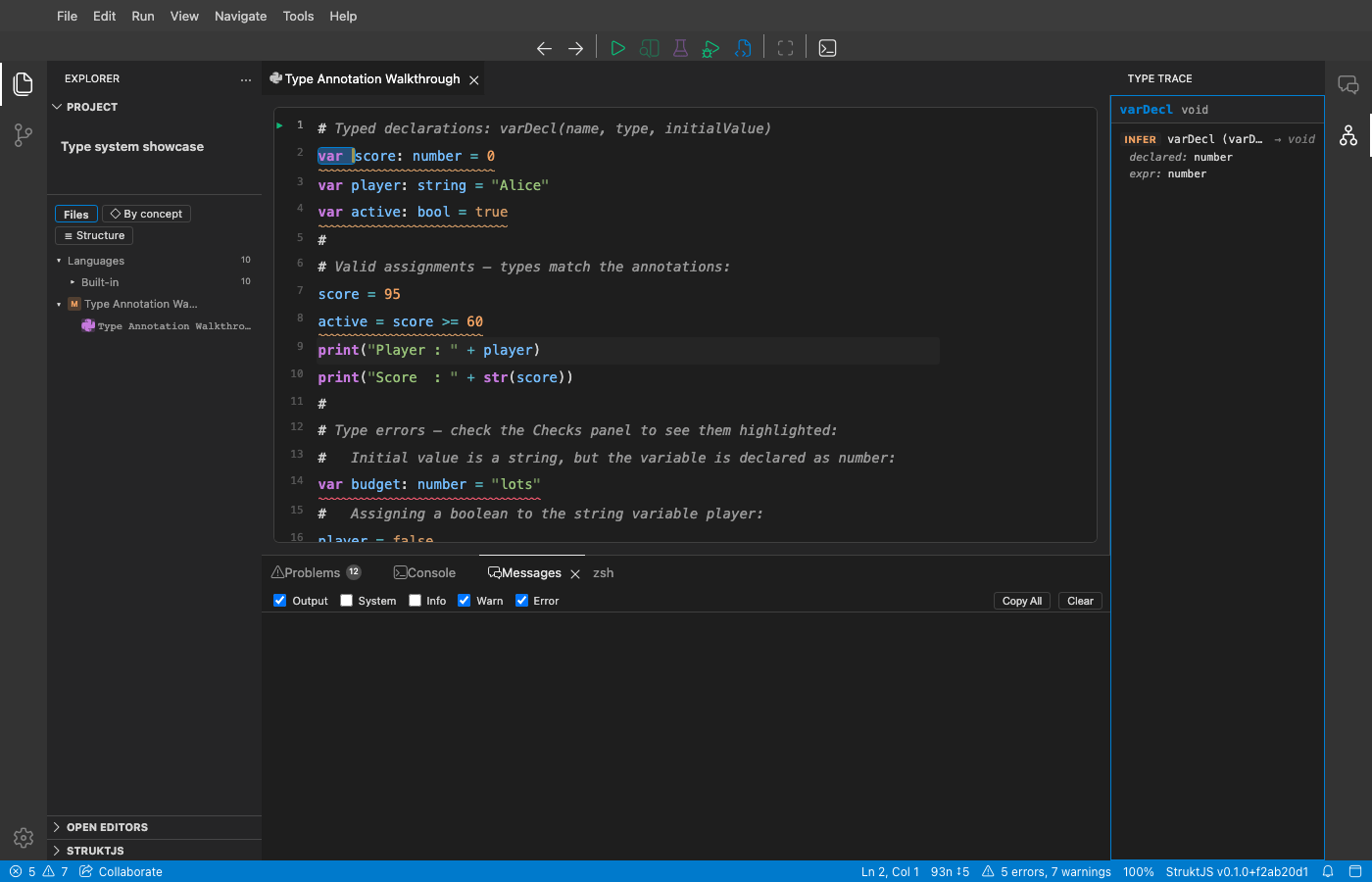
Load Python language tour and open its Type Annotation Walkthrough root. struktJS has an optional gradual type system. Declare a variable's type with
varDecl(name, type, initial) and the editor infers and checks types as you edit:
varDecl(score, "number", 0)
varDecl(player, "string", "Alice")
varDecl(active, "bool", True)

score = 95
active = score >= 60                  # ok: a comparison produces a bool

varDecl(budget, "number", "lots")     # type error: the initializer is a string
player = False                        # type error: assigning a bool to a string variable
score = "perfect"                     # type error: assigning a string to a number variable
Types are inferred even for variables declared without an annotation. Select a node and open View > Tool Windows > Type Trace (Ctrl/Cmd+K, V, T) to see how its type was inferred. More in Type checking and the Type Trace pane.
2.4 Data-flow analysis
Load Python language tour and open its Data-Flow Walkthrough root. A varDecl with no initial value that is read before it is definitely
assigned gets a "possibly uninitialized" warning, and any statement after return, break, continue or
raise in the same block is flagged unreachable. Both are described in
Problems panel and Checks pane.
Checkpoint 2. For each showcase, fix every flagged line until the Problems panel is empty and the status bar says No issues.
Part 3: Run, debug and generate (about 10 minutes)
3.1 Variables, loops and the debugger
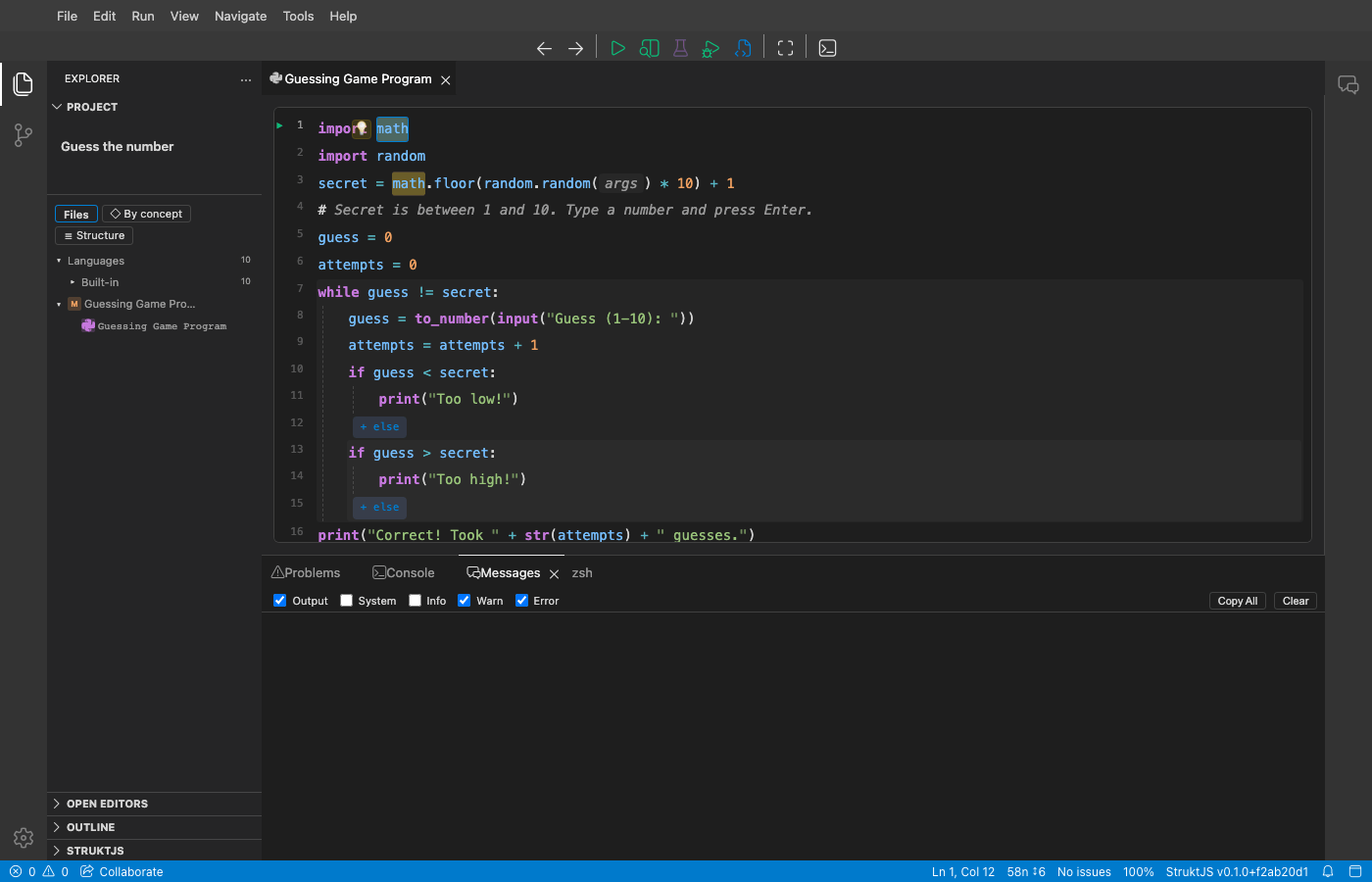
Load Guess the number. It holds a loop that reads a guess and compares it with a secret number:
secret = math.floor(random.random() * 10) + 1
guess = 0
attempts = 0
while guess != secret:
  guess = to_number(input("Guess (1-10): "))
  attempts = attempts + 1
  ...
- Right-click the
guessinguess = 0and choose Toggle Breakpoint. (You can also click the node's gutter dot.) A red dot appears on that line. - Open View > Tool Windows > Debugger (Ctrl/Cmd+K, V, B).
- Press Shift+F9 (Run with Debugger). It runs under the debugger and pauses at the breakpoint. (F5, Run Program, never opens the debugger and runs straight through breakpoints.)
- The pane says "Paused at guess =" and the Variables table lists
math,randomandsecret. Use Step to advance one evaluation node, Continue to run to the next breakpoint, and Stop to abort.
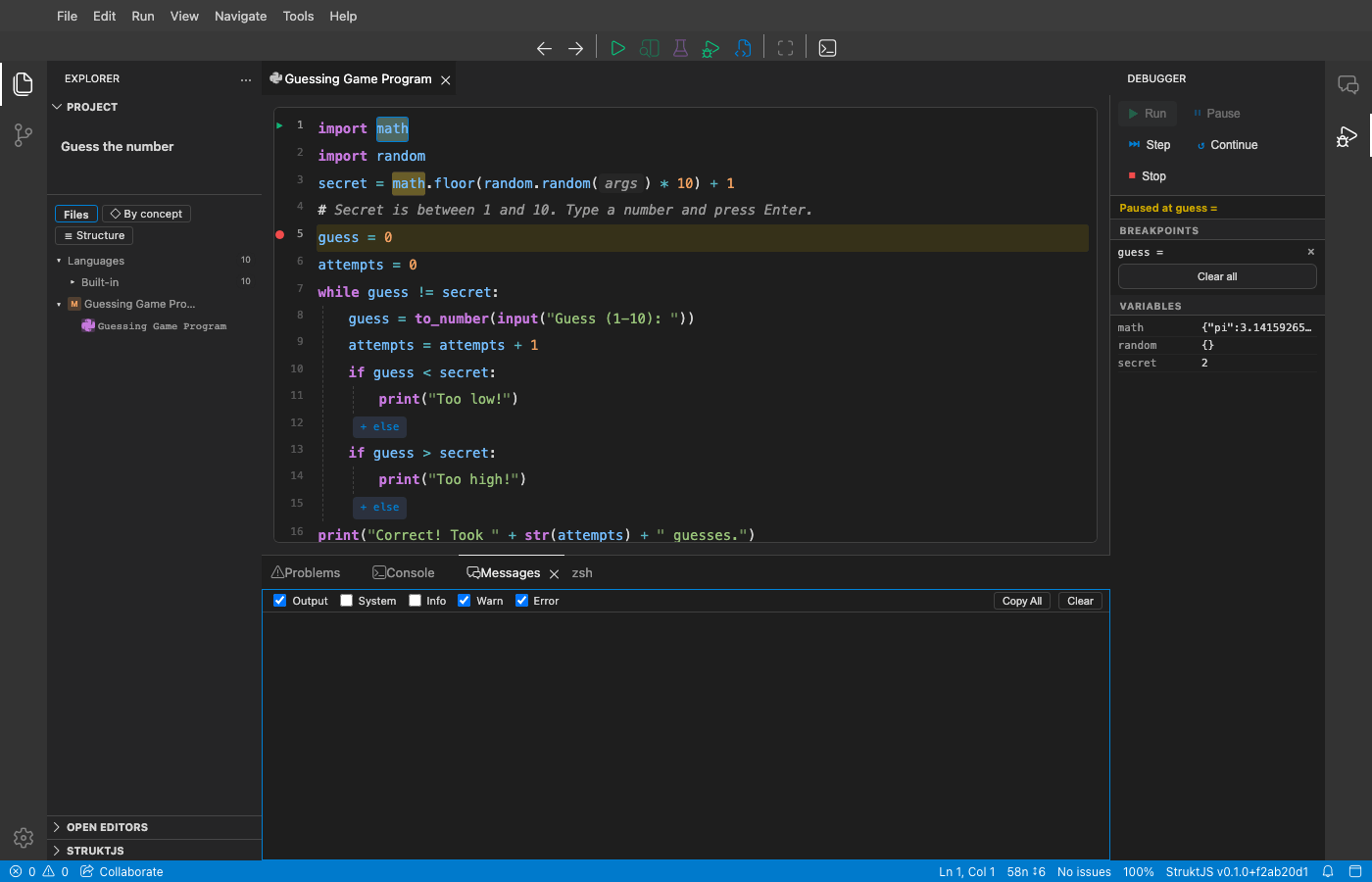
More in The Debugger.
3.2 Generators
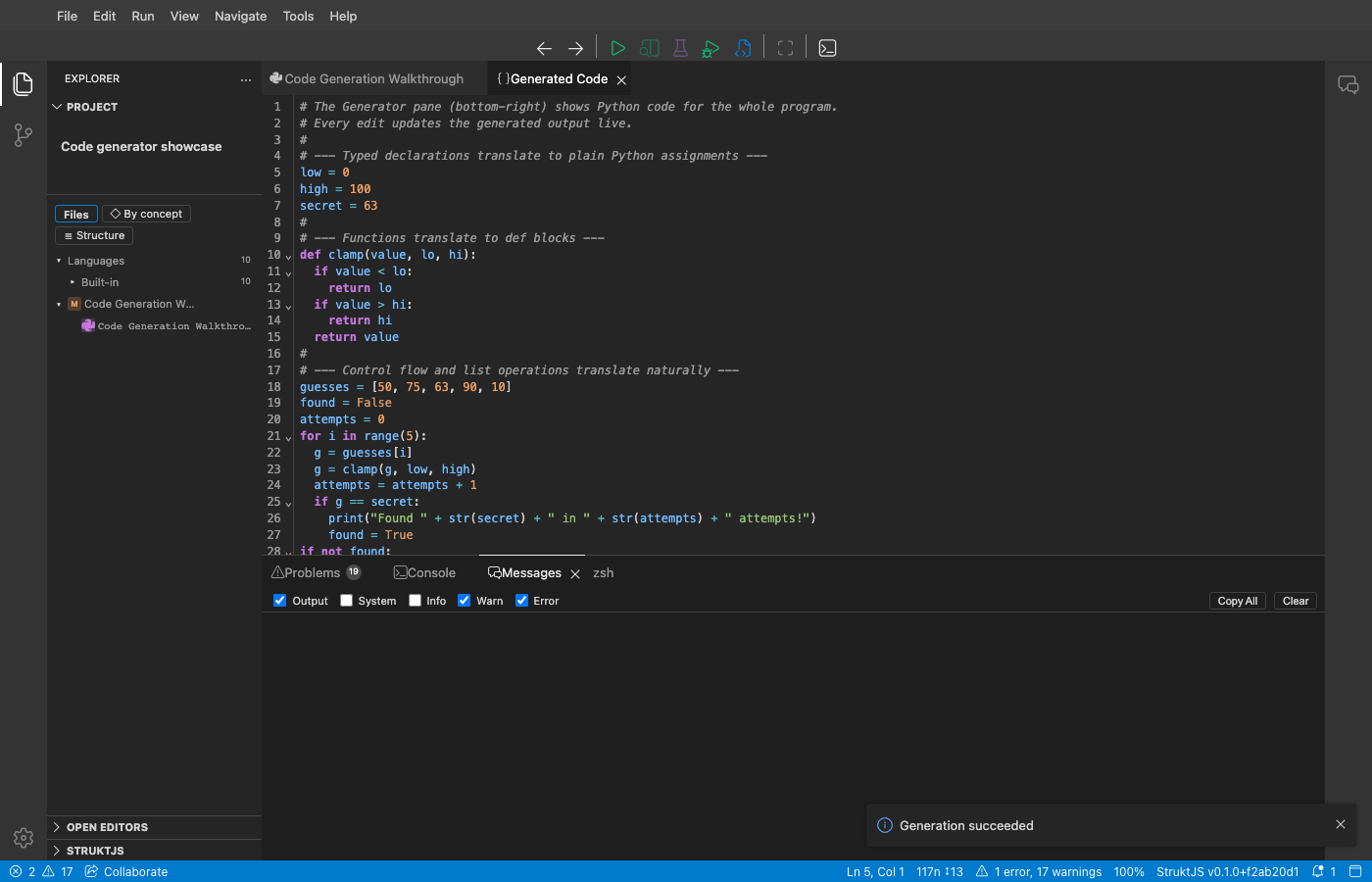
Load Code generator showcase, then choose Run > Execute > Run Generator (F6). The generated Python opens in a read-only tab beside the program: the program translated to idiomatic Python without type annotations or projectional markup. A language can define any generator it likes. See Generators and Open Preview.
3.3 Working with others
You can co-edit a model live with someone else through Tools > Collaboration > Share Model Session (Live)… and Join Model Session (Live)…. This needs a relay server; see Live Model Session and Running a collaboration relay.
Checkpoint 3. Press Continue until Guess the number asks for input, then press Stop; then generate Python for Code generator showcase and read it next to the model.
Every control
| # | Button/Option | What it does | Shortcut | Gotcha |
|---|---|---|---|---|
| 1 | Run > Execute > Run Program | Runs the program; output goes to Messages. | F5 | Never opens the debugger (use Shift+F9); refused while a blocking error exists. |
| 2 | Run > Execute > Run with Debugger | Runs and pauses at breakpoints. | Shift+F9 | The Debugger pane does not have to be open. |
| 3 | Run > Execute > Run Generator | Generates the language's output into a read-only tab. | F6 | A language with no generator has nothing to show. |
| 4 | Toggle Breakpoint (right-click a node) | Sets or removes a breakpoint on that node. | none | The menu text switches to Remove Breakpoint when one exists. |
| 5 | View > Tool Windows > Debugger | Opens the Debugger pane (Run, Pause, Step, Continue, Stop, a breakpoint list with Clear all, and Variables). | Ctrl/Cmd+K, V, B | Step and Continue are only enabled while paused. |
| 6 | View > Tool Windows > Problems | Opens Theia's Problems panel. | none | Also reached by clicking the issue count in the status bar. |
| 7 | Tools > Typechecker > Next Issue / Previous Issue | Jump to the next or previous problem in the editor. | F8 / Shift+F8 | Also in the command palette (F1). |
| 8 | View > Tool Windows > Type Trace | Shows how the selected node's type was inferred. | Ctrl/Cmd+K, V, T | Select a node first. |
| 9 | File > Samples > Load Sample… | Opens another sample for each exercise. | none | A sample is an ordinary project folder opened in place; undo an edit with Undo or git. |
| 10 | Tools > Collaboration > Share Model Session (Live)… | Starts a live co-editing session. | Ctrl/Cmd+K, C, S | Needs a relay. |
Shortcuts are the Windows/Linux ones; on macOS Alt is Option.
Related
- Previous: Quick start. Next: Editor basics.
- Screen map, Model Console, Bundled languages
- Language authoring guide to define your own language