Install and first launch
Audience: everyone · ~10 min read · Prerequisites: none
What it is
struktJS is an Eclipse Theia IDE that comes in two forms. The browser IDE is a small web server you start on your own machine and open in a browser tab. The desktop app is the same IDE inside its own native window (Windows, macOS, Linux). Both are built from the same source, so what you learn here applies to either. The Browser vs. desktop app page lists the few differences.
When you'd use it
Use the desktop app if you want a normal application window and double-click launching. Use the browser IDE if you already work from a checkout of the repository or you want the fastest path to a rebuild after changing code. Nothing here is a hosted service: both forms run on your computer.
Before you start
| Need | Why | Which route |
|---|---|---|
| Node.js 20.x to 22.x | Build and run from source (the engines range in package.json) |
Browser IDE, building the desktop app yourself |
| Yarn classic | The Theia app folders (theia-app/, theia-electron-app/) install with yarn |
Browser IDE, building the desktop app yourself |
git |
Clone the repository; the Source Control pane runs your git |
All |
Python 3 on your PATH (python3 or python) |
Core programs run by generating Python and executing it with your interpreter. Editing, checking and generating work without it. | All |
| A C/C++ build toolchain (Xcode command-line tools on macOS, build tools on Linux, Visual Studio Build Tools on Windows) | The desktop app has native modules (terminal, file watching) | Building the desktop app yourself |
Route 1: the browser IDE
You build it once from a checkout of the repository, then start it.
-
Install the dependencies:
npm install # root: editor core, tree-sitter WASM, generated tables (cd theia-extension && npm install) # the shared Theia extension (cd theia-app && yarn install) # the browser app shell -
Build everything. This takes a while the first time:
npm run build # webview + Theia extension + Theia bundle -
Start the server:
npm start -
Open the address it prints in a normal browser tab. It listens on
127.0.0.1, so only your own machine can reach it, and Theia's default port is 3000 (http://localhost:3000). To pick another port, pass it through:npm start -- --port 3001.
After you pull new changes, run npm run build again. If you are changing struktJS itself, the
setup and workflow page describes a much faster loop.
Warning
Do not expose the port to a network. Whoever can reach it can run commands as you. See Security and privacy.
Route 2: the desktop app
You can either install a prebuilt installer or build one yourself.
Installing a prebuilt installer
Installers are produced by the project's release workflow, which builds a macOS (Apple Silicon, arm64),
a Windows and a Linux build on tagged versions and attaches them to a draft GitHub Release that a maintainer
then publishes. If your team gives you installers, or a release is published, these are the files you will see:
| OS | Files | How to install |
|---|---|---|
| macOS | struktJS-<version>-arm64.dmg, struktJS-<version>-arm64-mac.zip |
Open the .dmg and drag struktJS into Applications (or unzip the .zip). |
| Windows | struktJS Setup <version>.exe (installer), struktJS <version>.exe (portable, no install) |
Run the installer. It lets you choose the install folder and installs for the current user only. The portable file runs without installing. |
| Linux | a .deb and an .AppImage |
.deb: install with your package manager. .AppImage: make it executable, then run it. |
Released macOS builds are Apple Silicon only. An Intel Mac needs a build you make yourself (Packaging your own build).
Unsigned builds: the warning on first launch
These builds are not code-signed and not notarized. Your operating system will warn you the first time, because it cannot tell who made the file. That is expected. Only continue if you got the file from a source you trust, or built it yourself.
macOS (Gatekeeper)
- Drag struktJS into Applications and try to open it. macOS says it cannot verify the app.
- Open System Settings > Privacy & Security, scroll to the message about struktJS and choose Open Anyway, then confirm.
- Alternative from a terminal:
xattr -dr com.apple.quarantine /Applications/struktJS.app, then open the app normally. This removes the "downloaded from the internet" mark.
Windows (SmartScreen)
- Run the installer. A blue "Windows protected your PC" window appears.
- Click More info, then Run anyway.
Linux
No signing warning, but an AppImage must be executable: chmod +x struktJS-*.AppImage. On some distributions an
AppImage also needs the FUSE 2 library installed. For the .deb, for example
sudo apt install ./<file>.deb on Debian or Ubuntu.
Updating is manual
There is no automatic update. To get a new version, download the new installer and install it over the old one. See Updating and uninstalling.
Building the desktop app yourself
npm install
(cd theia-extension && npm install)
(cd theia-electron-app && yarn install)
npm run build:electron               # webview + extension + Electron app bundle
npm run start:electron               # open the native window
The build also runs theia rebuild:electron, which recompiles native modules for Electron. Skipping it
gives an app that starts but crashes when you use the terminal or file watching. To make an installer, see
Packaging your own build.
First launch
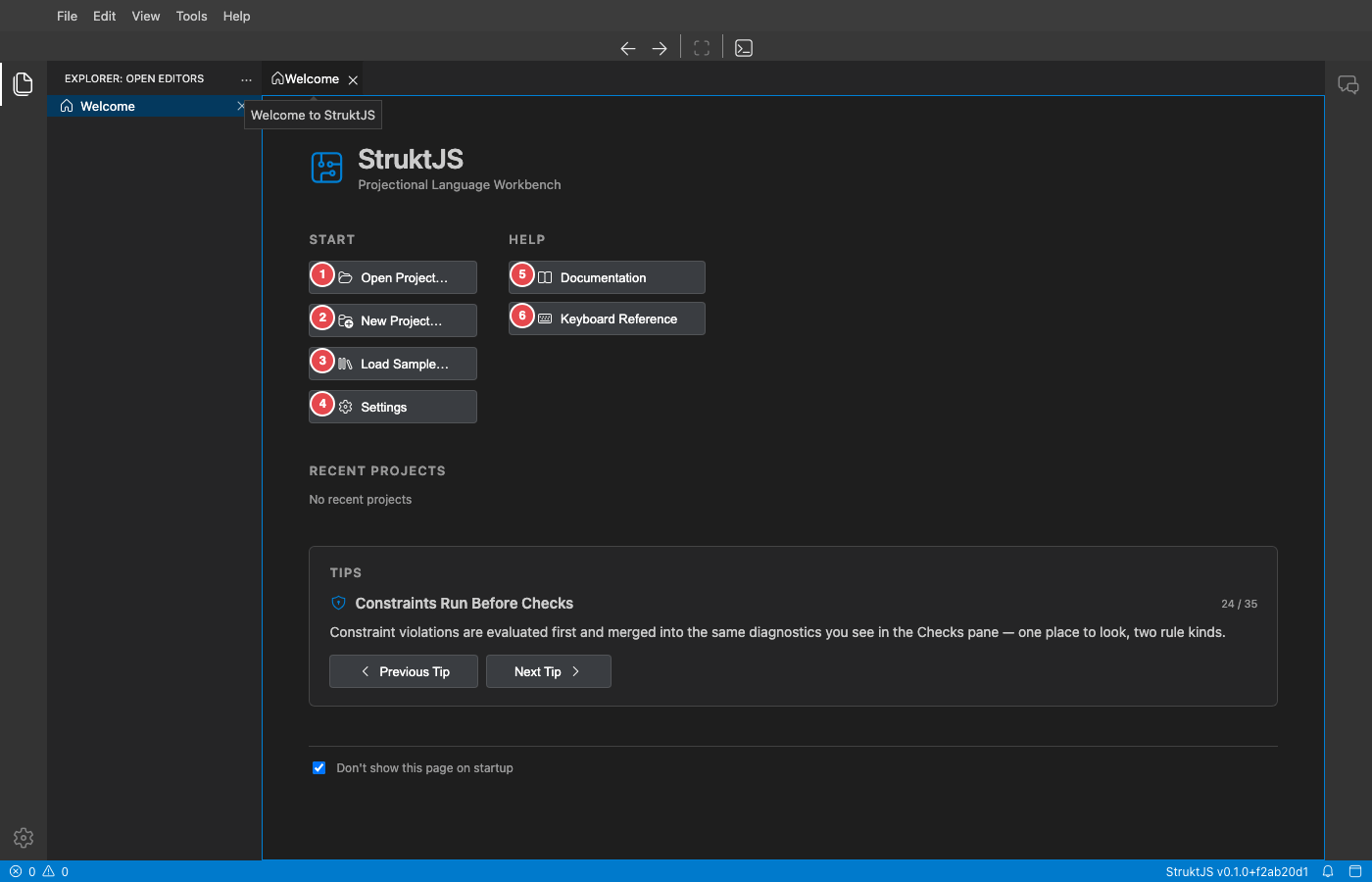
- Browser IDE: the page loads and shows the menu bar, the Explorer on the left and a Welcome tab.
- Desktop app: a small splash window appears for a moment, then the main window opens with the same layout.
- The Welcome tab is your starting point. Its buttons are described below. The checkbox Don't show this page on startup hides it next time, and Help > Welcome brings it back.
- Continue with the Quick start to open an example, change it and run it.
Every control
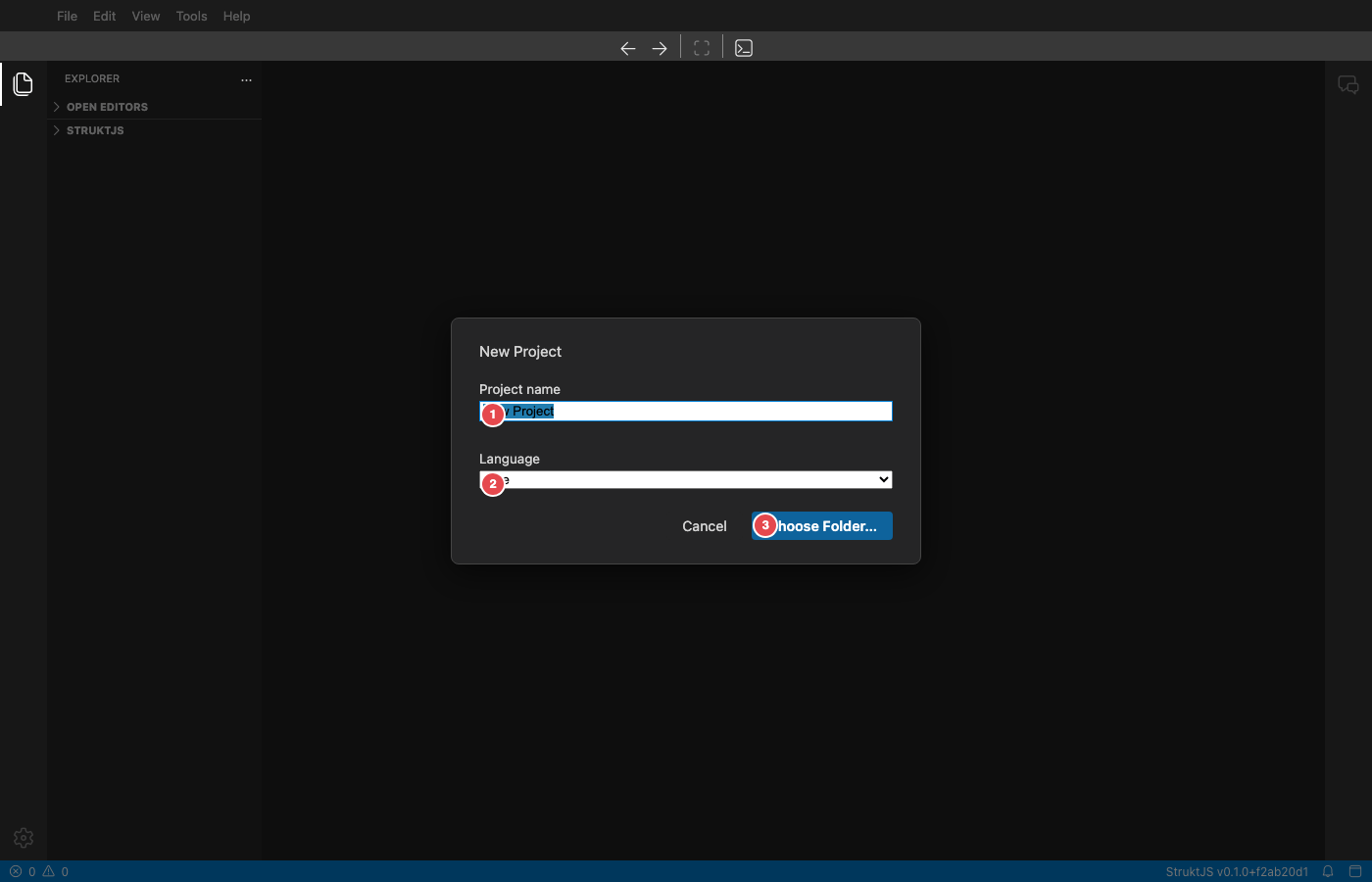
These are the controls you meet on first launch: the Welcome tab (numbers match the screenshot above) and the New Project dialog.
| # | Button/Option | What it does | Shortcut | Gotcha |
|---|---|---|---|---|
| 1 | Open Project… (Welcome) | Opens a project folder you already have. Same as File > Open Project…. | Ctrl/Cmd+K, F, O | The project is the folder, not a single file. |
| 2 | New Project… (Welcome) | Opens the New Project dialog. Same as File > New Project…. | Ctrl/Cmd+K, F, N | The dialog asks for a name and one or more languages first (search the list and tick as many as you want; the first is the model's primary language), then a folder. |
| 3 | Load Sample… (Welcome) | Opens the list of bundled example programs. Same as File > Samples > Load Sample…. | none | A sample opens in place as an ordinary project folder; your edits are saved there. |
| 4 | Settings (Welcome) | Opens Theia's settings. | Ctrl+, (Cmd+, on macOS) | struktJS-specific options are in the same settings editor, under the struktJS section (command struktJS Settings…, opens it already searched for them). Shortcuts: File > Preferences > Keyboard Shortcuts. |
| 5 | Documentation (Welcome) | Opens this documentation inside the IDE. Same as Help > Documentation. | Ctrl/Cmd+K, H, D | Works offline: the site is bundled with the app. |
| 6 | Keyboard Shortcuts (Welcome) | Opens the list of keyboard shortcuts. Same as Help > Keyboard Shortcuts…. | Ctrl/Cmd+K, Ctrl/Cmd+S | Press the two chords one after the other. |
| - | Recent Projects (Welcome) | Reopens a project you used before. | none | Empty on a fresh install ("No recent projects"). The command Open Recent Project… (Ctrl/Cmd+K, F, R, command palette) does the same. |
| - | Previous Tip / Next Tip (Welcome) | Cycle through short tips. | none | The tips are only on the Welcome tab. |
| - | Don't show this page on startup (Welcome) | Hides the Welcome tab at startup. | none | Reverse it with Help > Welcome. |
| 1 | Project name (New Project dialog) | The project's name. | Enter continues | Defaults to "New Project". An empty name is rejected. |
| 2 | Language (New Project dialog) | The first model's language. Defaults to core. |
none | "(none — choose later)" is allowed. |
| 3 | Choose Folder… (New Project dialog) | Closes the dialog and opens a folder picker titled "Choose Folder for New Project". | Enter | Cancel or Escape abandons the whole thing; nothing is created. |
Shortcuts on this page are the Windows/Linux ones. On macOS, Alt is the Option key and Ctrl is Cmd where a shortcut is written Ctrl/Cmd. The full list is in Commands & shortcuts.
Related
- Next: Quick start
- Screen map labels every part of the window.
- Browser vs. desktop app, Updating and uninstalling
- Troubleshooting if the build or the start fails