Themes and appearance
Audience: everyone · ~6 min read · Prerequisites: Preferences
What it is
The look of struktJS comes from three layers, and which one you change depends on what you want:
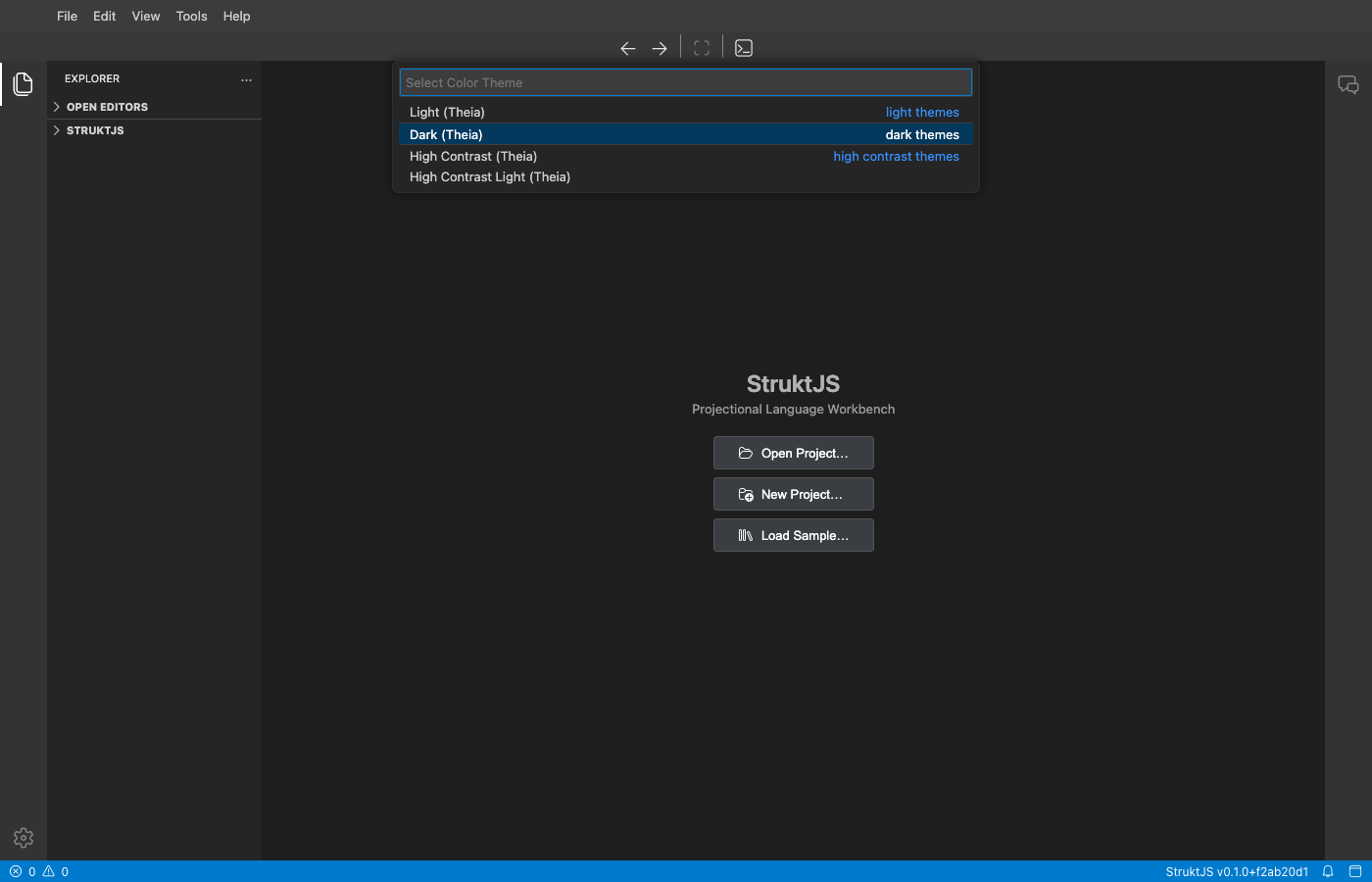
- Colour theme (dark, light, high contrast, the struktJS themes, or an installed theme). In the IDE this is chosen with Theia's Color Theme picker and colours everything: menus, panes, and the projectional editor. struktJS adds two themes of its own: Midnight, a navy dark theme, and Ember, a light theme in the look of the struktJS website (a cream page, white editor panels, near-black ink and an orange accent).
- struktJS appearance preferences such as editor font, font sizes, line height and bold keywords. These are on the struktJS Preferences page.
- Shape and motion settings: how round corners are and whether things animate. These are two settings in Theia's Settings editor.
When you'd use it
- You prefer a light theme, or you work in a bright room.
- Text is hard to read, or too dense.
- You find animations distracting.
- You want to recolour the syntax (keywords, numbers, strings) in the projectional editor.
Change the colour theme
- Choose File > Preferences > Color Theme (Ctrl/Cmd+K, then Ctrl/Cmd+T). Or press F1 and type
Preferences: Color Theme. - Use the arrow keys to preview themes live and press Enter to keep one, or Escape to go back.
This applies to the whole IDE, including the struktJS panes and editor. File > Preferences > File Icon Theme works the same way for file icons.
More file icon themes
A fresh install lists only one file icon theme. Themes are not built into struktJS: the IDE is Theia, which takes colour and icon themes from VS Code extensions, and any installed extension that contributes an icon theme adds an entry to the File Icon Theme list. To get more:
- Open View > Tool Windows > Extensions and search the Open VSX registry for an icon theme (for example
vscode-iconsormaterial-icon-theme), or press F1 and run Extensions: Install from VSIX... for a downloaded.vsix. - Installing is default-deny by publisher. If the publisher is not allowed you get a message naming the allowlist
file; add it to
~/.struktjs/extension-allowlist.jsonas described in Plugins and extensions (for example"vscode-icons-team.*"), then install again. - Choose File > Preferences > File Icon Theme and pick the new theme.
I did not install an icon-theme extension in the running app to confirm each step; the Extensions view, the Open VSX registry and the allowlist are as described in Plugins and extensions. On the standalone web preview (no IDE) there are no extensions and no icon themes. struktJS's own model and concept icons do not change with the icon theme.
The struktJS "Theme" setting
The Theme preference (Dark, Light or Match system) is separate. It controls struktJS's own light/dark styling and is what the standalone web preview uses. In the Theia IDE, the colours come from the Theia colour theme above, which is why the Theme row is not shown on the Preferences page inside the IDE at all. If you want a light IDE, pick a light colour theme. (Commands Cycle Theme (Dark/Light/System), Theme: Dark, Theme: Light and Theme: Match System exist only in the standalone web preview.)
The "Accent colour" setting
The same applies to Accent colour. In the IDE the accent (focus ring, selection highlight, buttons) is taken
from the colour theme's focus colour, so the swatch exists only on the standalone preview's Preferences page
(the IDE hides it). To change it in the IDE, add a colour customisation in Theia's settings.json, for example:
"workbench.colorCustomizations": { "focusBorder": "#e5484d" }
Open it with File > Preferences > Settings and search for workbench.colorCustomizations.
Recolour the editor's syntax
struktJS registers its own colours with Theia, so they show up in the same customisation setting. Add the ids
you want to workbench.colorCustomizations:
| Colour id | What it colours |
|---|---|
strukt.keyword |
Keywords such as if, def |
strukt.operator |
Operators |
strukt.number |
Number literals |
strukt.string |
String literals |
strukt.boolean |
Boolean literals |
strukt.type |
Type annotations |
strukt.violet |
The tint of module icons in the Explorer |
strukt.testsColor |
Accent of Run Tests |
strukt.diagramNodeBackground, strukt.diagramNodeForeground |
Node boxes in diagrams (fixed in every theme by default so they stay readable) |
Example: "workbench.colorCustomizations": { "strukt.keyword": "#ff79c6" }.
Fonts, sizes and spacing
These are in File > Preferences > Settings (search “struktJS”, section Appearance). A value you set in Theia's own Editor settings (editor.fontSize and so on) takes precedence for the typography rows.
- UI font size changes menus, panes, dialogs and pages (12 to 22 px).
- Editor font size changes program text (10 to 28 px). Zoom In, Zoom Out and Reset Zoom (Ctrl/Cmd+=, Ctrl/Cmd+-, Ctrl/Cmd+0) scale on top of it, and Set Editor Zoom… (no default shortcut) sets the editor zoom directly.
- Editor font, Line height and Letter spacing change the typography of program text.
- Bold keywords draws keywords in bold.
- Panel density makes Problems, Inspector, Outline and Output rows tighter.
- Indent width changes how far each nesting level is indented.
- Workbench text size (IDE only) is Standard by default: the explorer, tabs, panel headers, Messages and status bar sit exactly halfway between Theia's compact 13 px (Small) and the UI font size above (Large).
Until you move a font-size slider off its default, text size grows a little on wide screens and shrinks on narrow ones. Cycle commands let you step through the choices without opening the page: Cycle Editor Font, Cycle Line Height, Cycle Letter Spacing, Toggle Bold Keywords, and Increase Editor Font, Decrease Editor Font, Reset Editor Font Size. See the Preferences table for shortcuts.
If you have set Theia's own editor.fontSize, editor.fontFamily, editor.lineHeight, editor.letterSpacing
or editor.tabSize in the Settings editor, those take over the matching struktJS controls (which are then
greyed out). See Which setting wins.
Corner style and reduce motion
Two settings live only in Theia's Settings editor (File > Preferences > Settings, search struktJS):
struktJS.editor.cornerStyle:default,sharp(square corners) orround(softer corners). Switches and avatar dots stay round either way.struktJS.editor.reduceMotion: turns off the hover, selection and panel-resize animations.
Both apply as soon as you change them. They affect struktJS's own boxes, badges and popups, not Theia's.
Hosts and collaboration
- On the desktop app the same pickers and settings apply.
- During a Live Model Session, a guest can temporarily follow the host's dark/light mode with Toggle Sync Theme with Host. Your saved theme is restored afterwards.
- A customer build can ship a different default colour theme.
Every control
| # | Button / option | What it does | Shortcut | Gotcha |
|---|---|---|---|---|
| 1 | File > Preferences > Color Theme | Picks the IDE colour theme with live preview. | Ctrl/Cmd+K, Ctrl/Cmd+T | Escape restores the previous theme. |
| 2 | File > Preferences > File Icon Theme | Picks the file icon set. | none | Lists one theme until you install an icon-theme extension (see above). Affects file icons only. |
| 3 | Theme (Preferences page) | Dark, Light, Match system for struktJS's own styling. | none | Standalone web preview only; hidden in the Theia IDE. |
| 4 | Accent colour | Accent of buttons and selection in the standalone preview. | none | Hidden in the Theia IDE; there use focusBorder in workbench.colorCustomizations. |
| 5 | UI font size, Editor font size | Text sizes. | Zoom: Ctrl/Cmd+=, -, 0 | Auto-scale with window width until changed. |
| 6 | Editor font, Line height, Letter spacing, Bold keywords, Panel density | Typography and density. | none | Overridden by Theia's editor.* settings if you set them. |
| 7 | struktJS.editor.cornerStyle |
Corner roundness. | none | Theia Settings editor only. |
| 8 | struktJS.editor.reduceMotion |
Disables animations. | none | Theia Settings editor only. |
| 9 | strukt.* colour ids |
Recolour syntax and badges. | none | Edit workbench.colorCustomizations in settings.json. |