Operators and side-transformations
Audience: everyone who edits models · ~8 min read · Prerequisites: Editor basics, Entering code
What it is
A side-transformation is what happens when you type an operator key right next to a finished value: the value is wrapped in the operator, and the cursor lands on the new empty operand.
You write x, then +, and get x + _ (the _ is an empty placeholder). You never have to decide the shape of the whole expression first.
Which keys do this is declared by each concept (for example operator = { key: "+", kind: "variadic", precedence: 4 }), not hard-coded in the editor. So a language you load can add its own operators and they work the same way.
The terms concept, slot and alias are in the glossary.
When you'd use it
- You are writing an expression left to right in the order you think it:
count,+,1. - You already typed
aand decide it should bea < b, or a calla(...), ora[...]. - You want to change
a + bintoa * bwithout retyping the operands.
How to do it
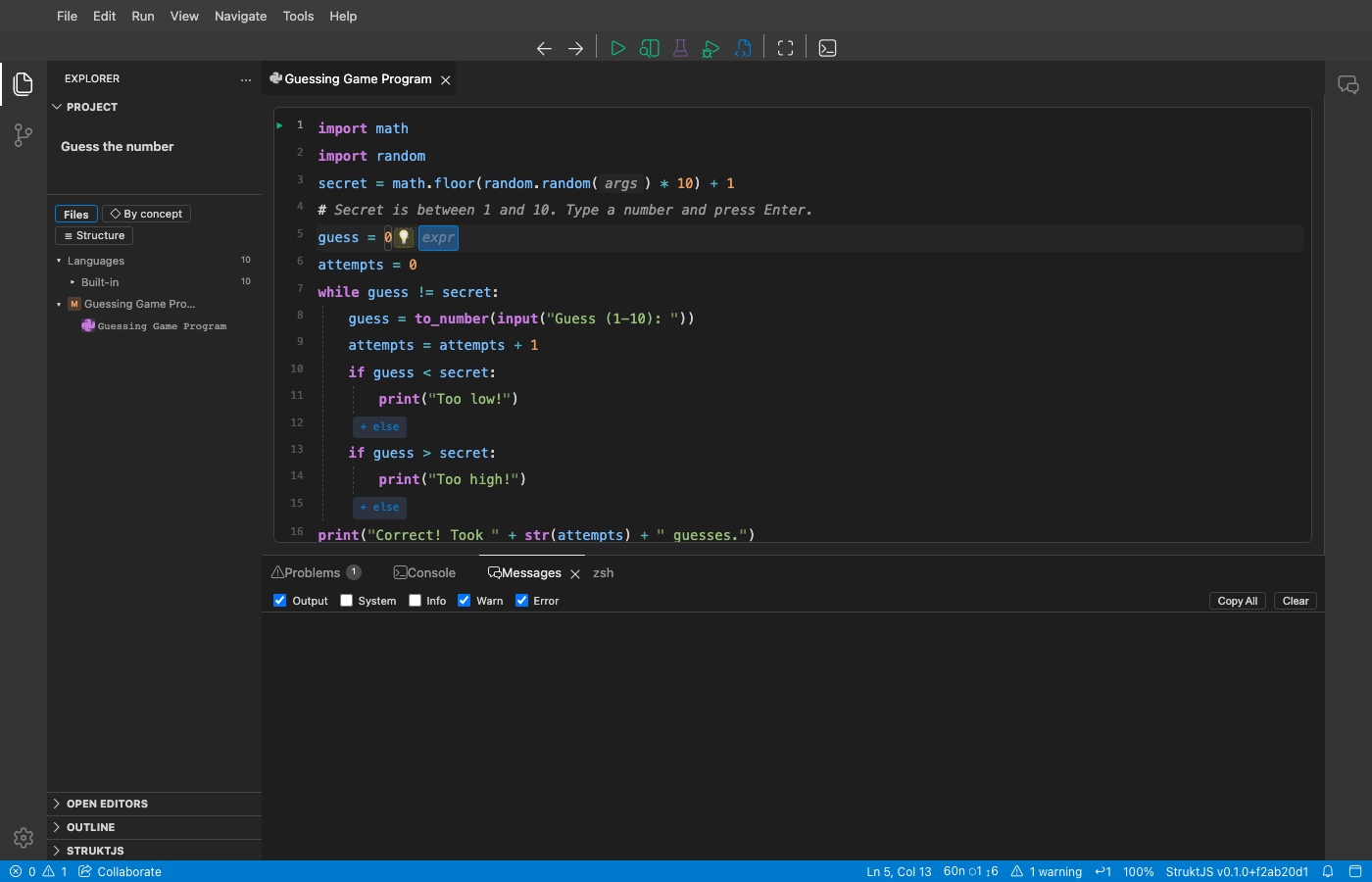
Use the Guess the number sample (File > Samples > Load Sample…).
- Click the
0inguess = 0, press End so the caret is after the digit. - Type
+. The line becomesguess = 0 + _, with the caret in the empty right-hand operand. - Type
1. You now haveguess = 0 + 1. - Press Tab until the
+itself is focused, then type*. The+becomes*and both operands stay:guess = 0 * 1. - Undo any of these steps with Ctrl+Z (Cmd+Z on a Mac). See Undo and redo.
Which key wraps what
The caret must be at the end of a finished cell (a number, a name, a closing quote or bracket). In a string's text, an operator key is just a character.
| Key | Result in Core | Notes |
|---|---|---|
+ |
x + _ |
Variadic: on an existing a + b it appends a + b + _ instead of nesting. |
* |
x * _ |
Variadic. A second * on the empty operand upgrades to ** (power). |
- |
x - _ |
Binary. At the start of an empty cell - starts a negative number instead. |
/ |
x / _ |
A second / on the empty operand upgrades to // (floor division). |
% |
x % _ |
|
< |
x < _ |
Then = on the empty operand gives <=; a second < gives <<. |
> |
x > _ |
Then = gives >=; a second > gives >>. |
& | ^ |
bitwise and, or, xor | |
~ ! |
Unary: bitwise not, and logical not (Core's ! key makes a not) |
Unary keys have no left-side form. ! then = on the same value reads a != _ (not equal). |
@ |
Matrix multiply x @ _ |
In a decorators slot @ starts a decorator instead. |
= |
In a statement: assignment x = _. In an expression: equality x == _ |
Then = again on the empty operand upgrades an assignment to ==. |
( |
A call: foo becomes foo(_). On obj.attr it becomes a method call |
|
[ |
Index x[_] |
|
. |
Member access x.<name> |
In a number cell it is the decimal point. |
? |
Conditional x if _ else _ |
|
: |
Inside a subscript, a slice a[i:_]. A second : reveals the step. On a bare parameter name, x: promotes it to a typed parameter |
|
, |
A tuple x, _ when the cell is a single expression. Otherwise adds the next item in the enclosing argument list |
and, or, in, is and the like have no key. Pick them from the completion menu, or retype an existing operator (below). A language may also declare a word operator: type the left name, a space, then the word.
Other languages
- JavaScript and TypeScript type the spellings of their own operators on top of Core's:
&&,||,==/===(one comparison; the extra=is absorbed),!=/!==, and??(a second?typed into a fresh conditional turns it into the nullish operator, only in a file that can hold one). - KernelF:
<=and>=(<or>then=),==(=),!=(!then=),&&/||(the key twice; KernelF has no bitwise&or|, so one reads as the logical operator) and?:(?, with the:accepted). - TypeScript concept source (
Ts*) also takes[for a subscript. - Compound assignment: at the end of a name that is a whole statement, an operator then
=(+=) buildsx += _; see the table below. - Formula:
/puts the value over a new denominator and^raises it; the new empty part takes the caret.=makes an equation,|wraps as an absolute value and(as parentheses. A word after a value wraps it:x sqrtthen Space is a root, andsum,productandintegralput the value in the body. - Languages without operators of their own list no operator keys. The structural keys (
.,(,?,,,=) are listed only where the language has the construct they build.
Precedence: where the wrap lands
The new operator climbs outward only as far as it has to, so * binds tighter than +.
| You have, caret at the end | You type | Result | Why |
|---|---|---|---|
a * b |
+ |
a * b + _ |
+ binds looser, so it wraps the whole product |
a + b |
* |
a + b * _ |
* binds tighter, so it wraps only b |
x = 5 rhs |
+ |
x = 5 + _ |
An assignment's value takes any operator |
Postfix keys ((, [, .) bind tightest and wrap just the value in front. ? and , wrap the whole expression.
Variations
Left side
With the caret at the start of a filled cell (Home), a binary operator key puts the cell on the right: 1 plus + gives _ + 1. Not available for unary keys or for (, [, =, ?, ., ,.
Seeing which keys work
You do not have to remember the keys. When the caret sits at the start or end of a filled cell, a small dashed + appears beside it, on the side where an operator would wrap the cell: after the 1 for the right side, before it for the left side. Click the + to open the completion menu on that cell (the same menu as Ctrl+Space).
Hold Alt for about a third of a second and both sides show the full list of keys that work on that cell, taken from the active language, so a language's own operators are listed too. Only keys that would really act on that cell are listed: a language without a conditional or a call lists no ? or (, and a key that would put an operator where the file format cannot hold it (?? in a Python file) is left out. Releasing Alt, switching window or pressing any other key hides it again; Alt shortcuts such as Alt+S never trigger it.
The marker is hidden from screen readers (use Ctrl+Space instead of clicking it). Turn it off with the preference Operator hints at cell edges (see Preferences); the guided tour ends with a step that practises both sides.
Splitting a literal
In a literal cell that supports it, an operator key typed in the middle of the text splits it in two: the text before the caret and the text after become the operands.
Operators first
In an empty expression cell an operator key seeds empty operands. The caret goes to the first one.
| Type in an empty cell | Result |
|---|---|
+ (or *, <, ...) |
_ + _ |
( |
_() |
? |
_ if _ else _, caret in the middle |
, |
_, _ |
= |
In a statement slot _ = _ |
{ |
An empty dictionary with one pair |
! |
a logical not with an empty operand |
- and . are the exceptions: they start a number.
On a whole node
Press Tab to focus a node's keyword or operator. The same keys work on the whole node: call plus + gives call + _. The wrap takes exactly that node; it does not climb.
When the focused node is an operator, the key retypes it in place and keeps both operands: a + b plus * gives a * b.
A binary operator is never retyped into a unary one, and a three-operand a and b and c is not collapsed into a two-operand head.
Retype from the menu
With the operator focused, press Ctrl+Space. The popup lists the other operators of the same shape and replaces the node you pick, keeping the operands. See Completion menu.
Undoing a half-typed operator
On the empty right operand, Backspace merges a freshly made operator back into its left operand: x + _ becomes x.
The Space menu
Press Space at the end of a finished value (a name, a number, a closing bracket) to open a menu of what can come next: the operators of the language, . member access, a call, an index, a conditional, and the word operators that have no key (and, or, in, comparisons). Pick one with the arrow keys and Enter, or type to filter (an shows and). The menu wraps the value exactly as the key would, so a then Space then + gives a + _. The structural entries say what they build at that cell: = reads "Assign to a variable" in a statement and "Test equality" in an expression.
After a number in a language that has units of measure (KernelF), the menu leads with the units: 5, then Space, then kg wraps the number as quantity<kg>(5). Type to filter (km), and the units declared in the file come after the built-in ones. To change the unit of an existing quantity, put the caret in its unit and press Alt+↓: the same list opens and picking one replaces the unit (typing the unit as text works too).
- Typing with spaces still works. While the menu is open and you have typed nothing, an operator key applies directly and closes the menu, and a second Space closes it, so
a + btyped with spaces gives the same result asa+b. - The
+chips beside the focused cell open the same menu: the right chip for what can follow, the left chip for putting the value on the right-hand side of an operator. They appear once the caret has rested on the cell for about a second, or at once while you hold Alt. - Not in text. In a comment or any free text, and in the middle of a cell, Space stays a space.
- Optional parts are listed too. When a part of the construct is not there yet and shows as a small
+ namechip right after the cell (a comprehension'sif, a function's->, a declaration's=), the menu lists it under the word the construct itself draws for it, as "Add ...", and picking it adds the part and puts the caret in it. - Typing the introducer works the same way. At the end of a cell whose construct offers such a chip, the symbol it draws adds the part:
=after a declaration's type adds its value,,after anassertcondition adds the message (instead of making a tuple). Only a key that is not an operator there is taken over, and=as before. - Turn it off with the preference Space opens the what-can-come-next menu (
spaceOpensContinuation).
Splitting and joining
Typing an operator key in the middle of a number or a name splits it: 1|0 then + gives 1 + 0, and sc|ore then + gives sc + ore (both halves must be valid: a name cannot start with a digit, and the name of a declaration does not split). Backspace at the start of the right operand takes the operator out again: two numbers or two names join back (1 + |0 gives 1|0), anything else keeps the left operand and drops the right one (undo restores it).
Parts that are not drawn at all
A few constructs draw nothing while an optional part is missing (a SQL select without where, a Surface template without reads), so there is no chip to reach it. Press Alt+Enter on the construct (or on anything inside it): the menu has an Add group with "Add where", "Add reads", and so on, and picking one adds the part and shows it.
Selecting first
Select a node (Alt+W, or Ctrl+Up, which grows the selection one level; Alt+Shift+W or Ctrl+Down shrinks it) and then type an operator key: the selected node becomes the left operand, so with gross * discount selected, + gives gross * discount + _. Holding Shift with the Right or Left arrow at the edge of a cell's text does the same growing step. Type a letter, digit, quote or bracket with a node selected and it replaces the node (Alt+Backspace restores it). F8 and the Problems panel land on a problem with its node selected, so you can retype it at once. In the Alt+Enter menu, an operator offers Replace with its operand (a - (b + c) on the +: b or c), and an operand offers Replace parent ... with this.
A stray Enter at the end of a body does not leave a blank line behind: if you move the caret away from the new, still empty last line without typing anything, the line is removed again (undo goes back to before the Enter). A blank line between two statements, or one you typed into, stays.
Every control
| # | Key | What it does | Shortcut | Gotcha |
|---|---|---|---|---|
| 1 | Operator key at end of a filled cell | Wraps the value; caret goes to the new empty operand | + * - / % < > & \| ^ ~ ! @ |
Not in string cells. Not on an empty cell (that is "operators first"). |
| 2 | Postfix key | Call, index, member access | ( [ . |
. in a number cell is a decimal point; in a comment it is text. |
| 3 | Assign / equals | Assignment in a statement slot, equality in an expression slot | = |
A second = upgrades to ==. |
| 4 | Conditional | x if _ else _ |
? |
|
| 5 | Tuple / next argument | Wraps a single expression into a tuple, or adds the next list item | , |
|
| 6 | Slice or typed parameter | a[i:_] in a subscript, name: type on a bare parameter |
: |
|
| 7 | Upgrade on equals | < then = gives <=, > then = gives >=; ! then = gives !=. A habitual == (or ===, !==) is read as one comparison: the extra = is absorbed |
= |
Only while the right operand is still empty. |
| 8 | Upgrade on repeat | * * gives **, / / gives //, < < gives <<, > > gives >>, & & gives and, | | gives or |
repeat the key | Only while the right operand is still empty. && and || take the whole comparison on their left: a == b && is (a == b) and _. |
| 8b | Compound assignment | At the end of a name that stands as a whole statement, an operator then = (+ =, - =, * * =, < < =, in JavaScript also & & =) builds x += _: in Python an augmented assignment (a name, obj.attr or seq[i] on the left), in JavaScript the compound operator |
operator, then = |
Only for a whole statement and a plain name on the left; inside an expression = keeps its meaning. |
| 9 | Left-side wrap | Operator at the start of a filled cell puts it on the right | Home, then the key | Not for unary keys or ( [ = ? . ,. |
| 10 | Seed in empty cell | Builds the operator top-down | key in an empty cell | - and . start numbers instead. |
| 11 | Node wrap | Wraps the focused node exactly | Tab to the node, then the key | |
| 12 | Retype | Swaps one operator for another, keeping operands | Tab to the operator, then the key | Never turns binary into unary. |
| 13 | Retype menu | Lists alternative operators | Ctrl+Space on the operator | The seed text is cleared; a single choice is not auto-applied. |
| 14 | Collapse | Removes a fresh operator whose right side is empty | Backspace on the empty right operand | If nothing can be removed the cell shakes. |
| 15 | Swap operands | Swaps the two operands of a two-child node | Alt+S | Also the Swap operands intention (Alt+Enter), shown on a binary operator. |
| 16 | Edge cue | A dashed + beside the focused cell, on the side where an operator key would wrap it; click it to open the completion menu |
Appears when the caret is at the start or end | Turn off with the preference Operator hints at cell edges. |
| 17 | Alt reveal | Lists every key that wraps the focused cell, on both sides | Hold Alt (about a third of a second) | Any Alt chord (Alt+S, Alt+I, ...) cancels it, so it never flashes during a shortcut. While Alt is held, a dashed outline also shows the expression a loose operator such as + would wrap (price * quantity for the quantity cell); a tighter operator wraps a part of it. |
Alt keys belong to the editor
Alt+S, Alt+I and the other Alt keys of the editor are not shared with IDE commands any more: the commands that used them (for example Center Focused Node and Move Statement to Top) are now Ctrl/Cmd+K chords or have no default shortcut. See the Editor keyboard reference.
For language authors
Each concept declares its operator with these fields: operatorKey, operatorType (binary, unary or variadic), operatorPrecedence, upgradeOnEquals, upgradeOnRepeat. A concept whose single head covers many operators uses operatorKeys instead. See Concepts.
Related
- Entering code and Completion menu: the other two ways to build an expression.
- Editing structure: wrap, unwrap and swap as explicit commands.
- Intentions: Toggle and/or, Negate comparison and similar changes.