The Explorer and Project pane
Audience: everyone · ~12 min read · Prerequisites: Project folder anatomy
What it is
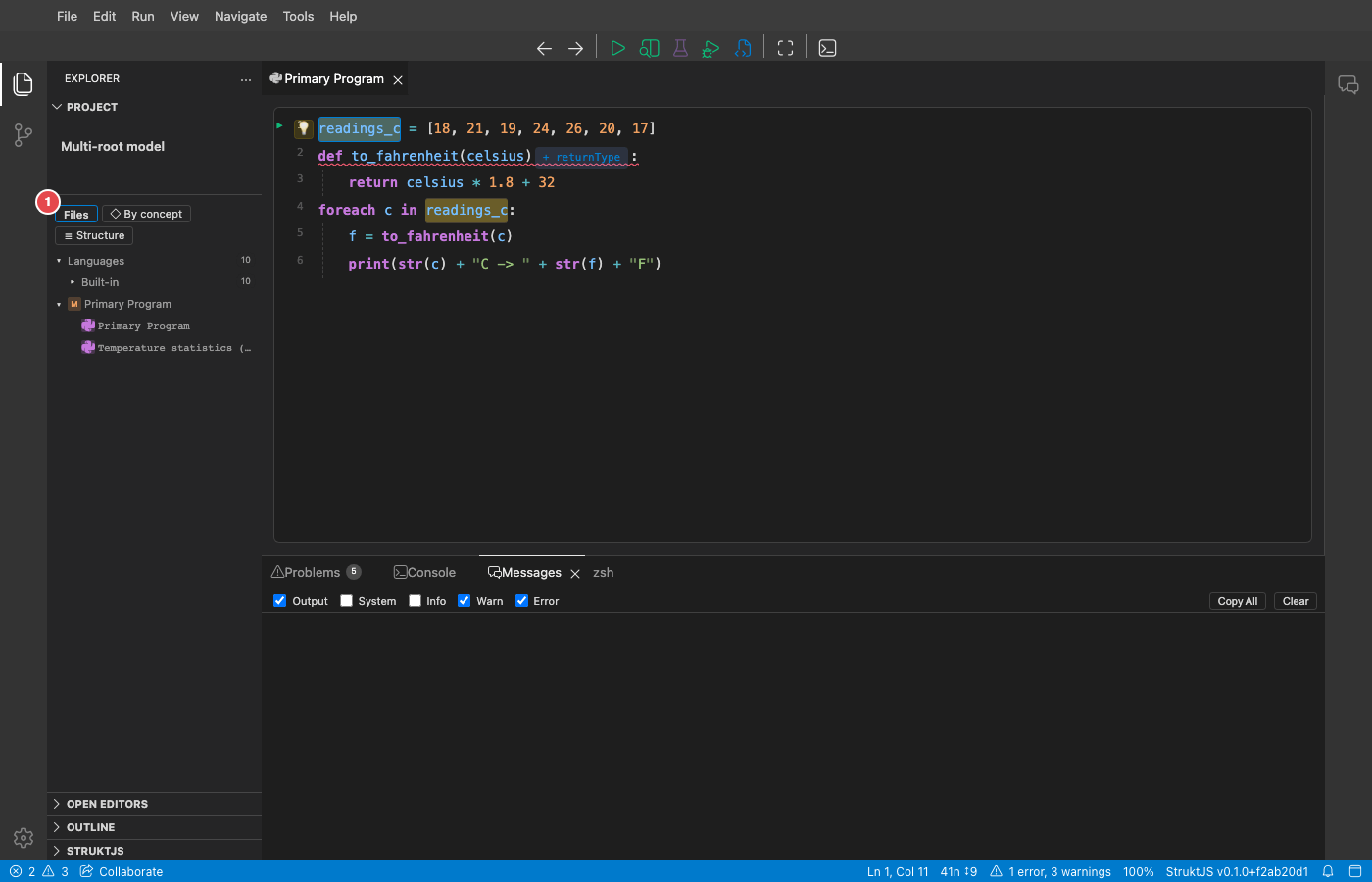
The Explorer on the left is a stack of sections: Project, Open Editors, Outline and STRUKTJS. The Project section (also called the Project pane, and opened separately by View > Tool Windows > Project) is where you manage the project: its name, its languages, its models and their roots. Every action is a right-click away. Nothing here edits program content; that happens in the editor.
When you'd use it
Create, rename, move, delete and generate models; add roots and imports; copy paths and qualified names; open a root; switch the way the tree is organised.
The parts of the Project section
- Header. The project name and an optional description, both editable in place, and a small "Saved" status that appears briefly after a change.
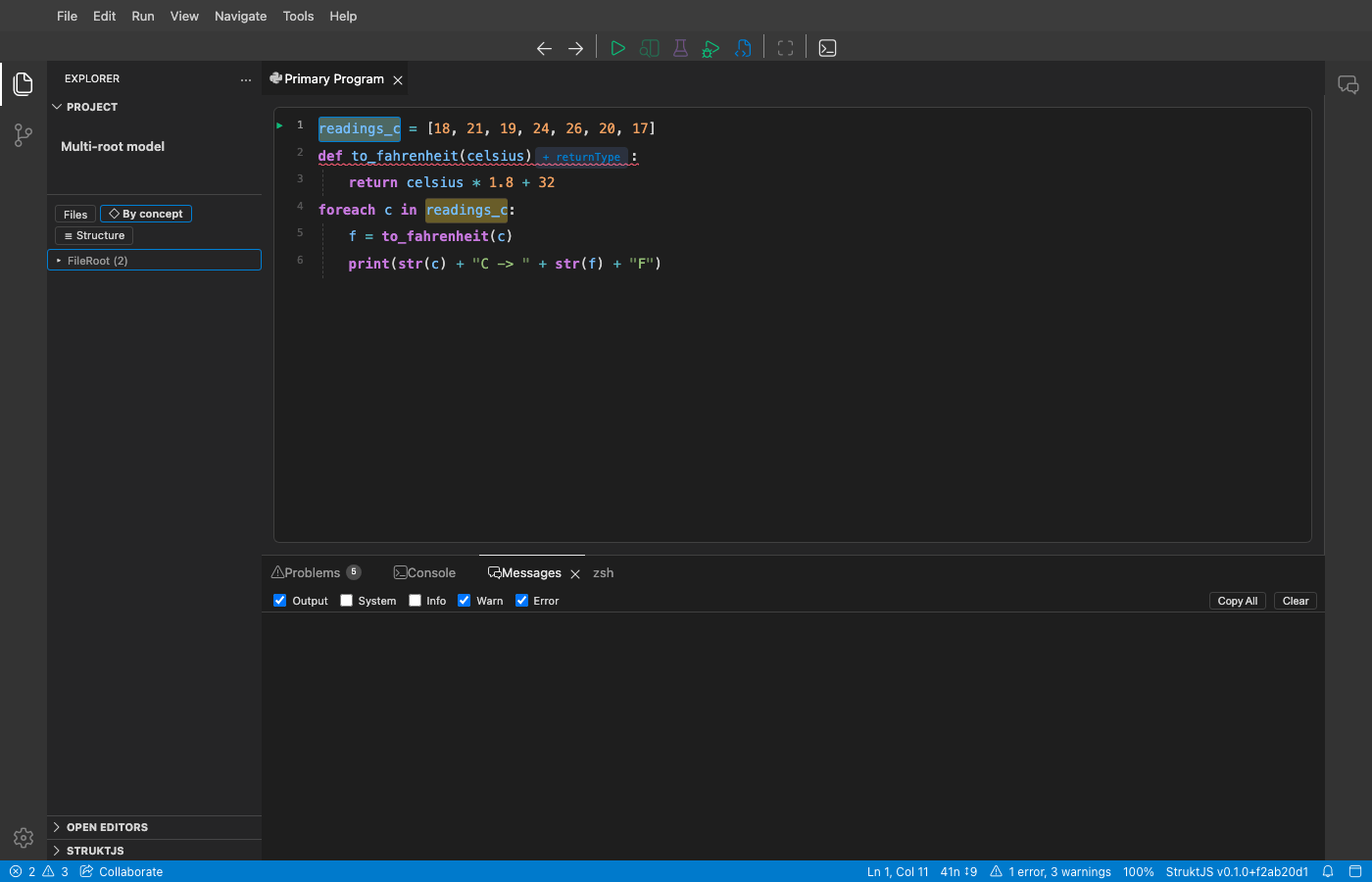
- Views. There are no view buttons; the command View > Next Explorer View switches between Files, By concept and Structure (below).
- Languages. A group with Built-in, User Languages and one group per project that defines languages. Each language lists its concepts. This is how you reach a concept to open it in the Language Editor (The Language Editor).
- Python stubs. (Shown when a project has stub files or the stub registry is available.) Collapsed groups
projectandstubslisting the Python type stubs used for completion. - Models. The tree of folders, models and roots, ending with an invisible drop area for moving a model back to the project root.
The three views
| View | What it shows | Where |
|---|---|---|
| Files | The folder tree: grouping folders, models, and the roots under each model | Next Explorer View |
| By concept | Every root in the project grouped by the concept of its top node, each group with a count (for example "Flow (3)"). Click a root to open it | Next Explorer View |
| Structure | The definitions inside each root (for Python models: classes and functions, nested as written). Click one to jump to it. Roots with nothing to list are left out | Next Explorer View |
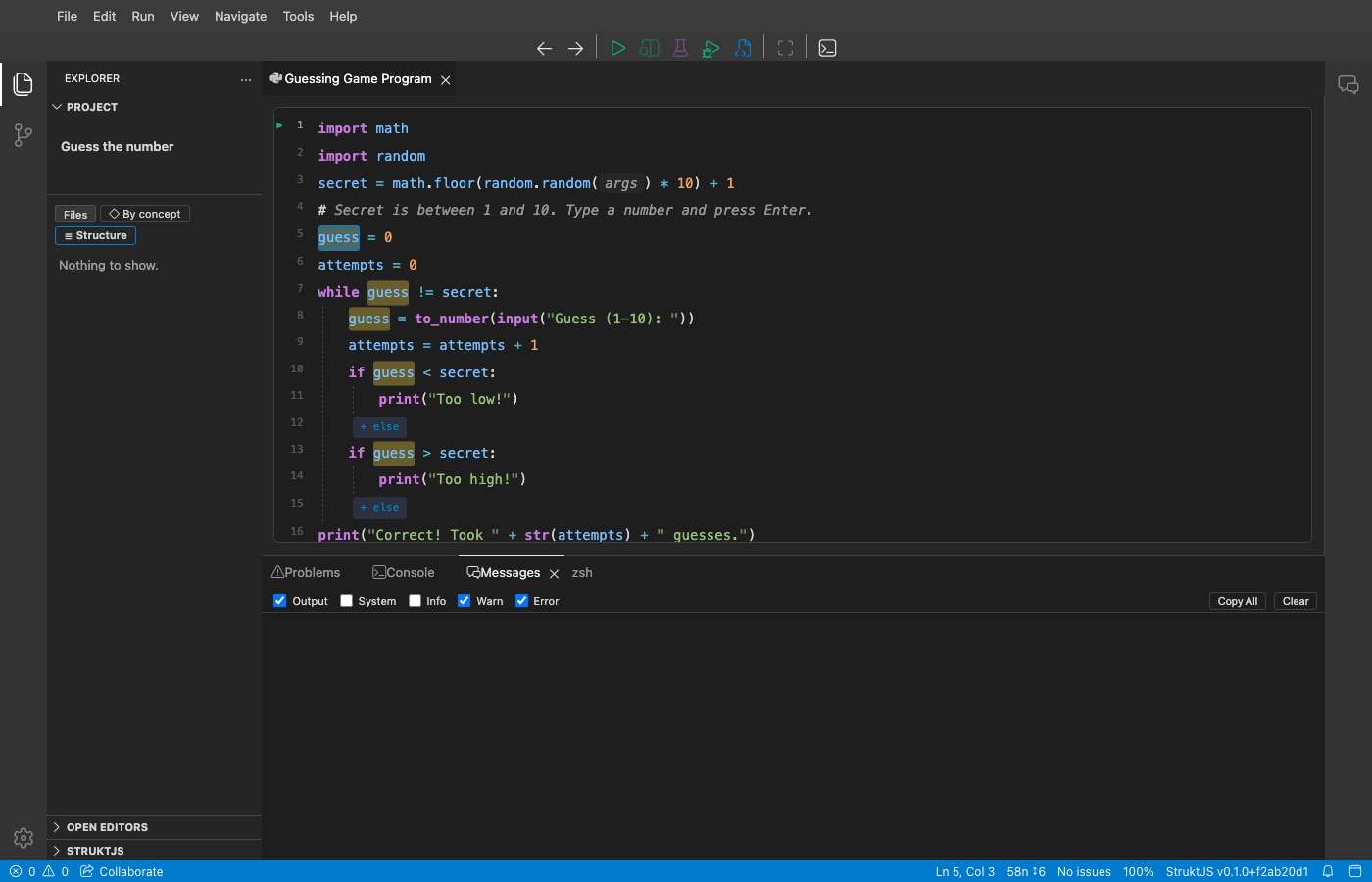
The command View > Next Explorer View cycles the views. Your choice is remembered. Plugins can add more views. A view that is no longer available falls back to Files.
Opening things
- Click a root row to open it. Click a model row: it is selected, and if the model has exactly one root that root also opens.
- Double-click a name, or press F2, to rename in place. Press Enter to confirm and Esc to cancel.
- Enter or Space on a focused row does what a click does.
Context menus
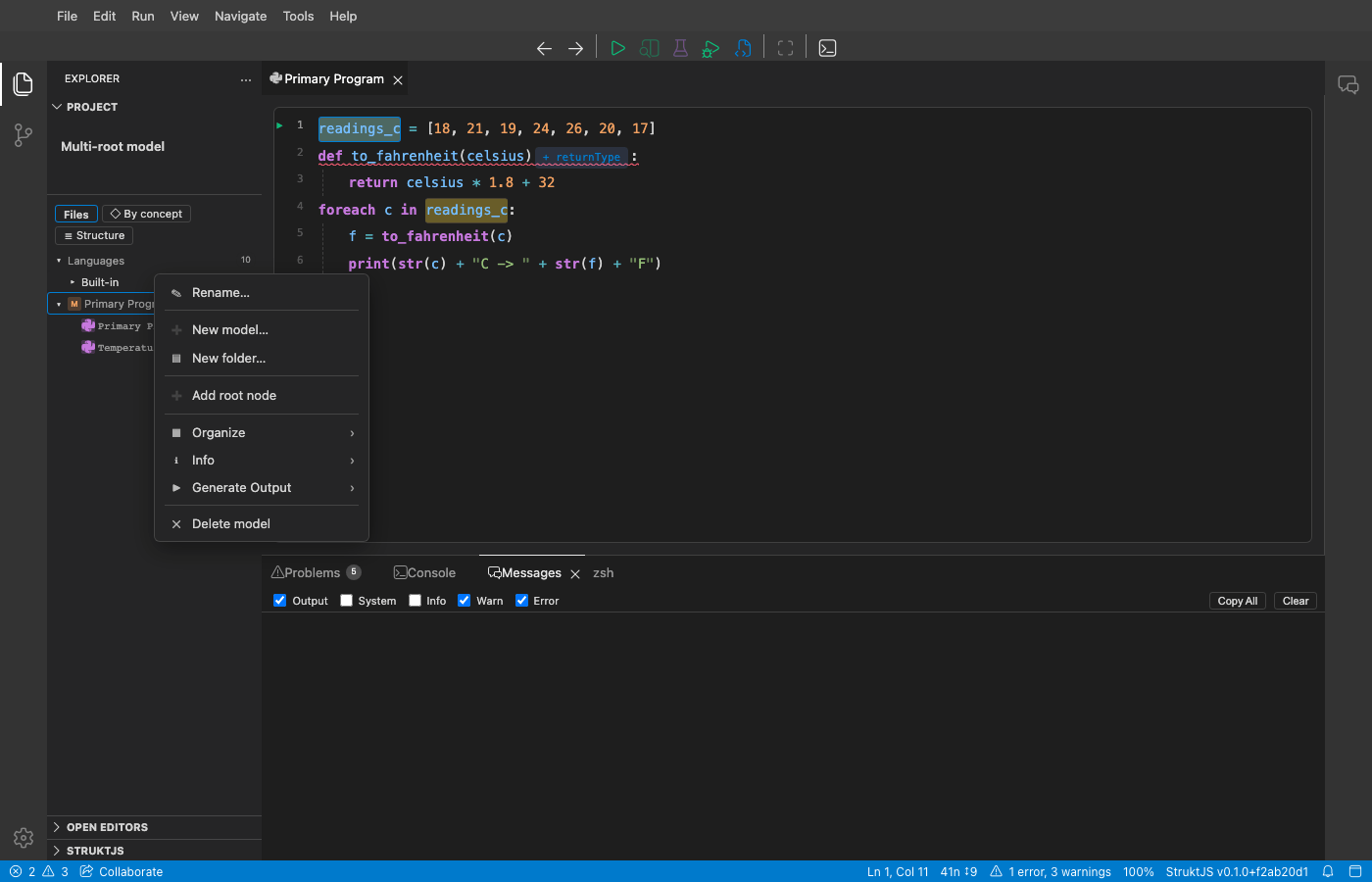
Right-click a row, or focus it and press Shift+F10 or the Menu key. Every menu ends with Help, which opens the documentation page for what you right-clicked (this page, or the Language Editor page for a language and its concepts).
Project header
| Item | What it does | Where |
|---|---|---|
| New model… | Creates a model in the selected folder or model (or at the project root if nothing is selected) | Explorer menu |
| New folder… | Creates a grouping folder. An empty folder is remembered until you put a model in it | Explorer menu |
| Open project.json | Opens the file in a text tab. Only shown when the project has a folder on disk | Explorer menu |
A grouping folder
New model…, New folder…, and Rename…. Rename is offered only while the folder holds no models, and it only changes the folder's name.
A model
| Item | What it does | Where |
|---|---|---|
| Rename… | Changes the model's display label (the model's identity stays its folder name) | Next Explorer View |
| New model…, New folder… | Creates one nested inside this model's folder | Next Explorer View |
| Add root node | Adds a root file to the model | Explorer menu |
| Organize > Set virtual package… | Gives the model a logical package prefix | Next Explorer View |
| Organize > Edit properties… | Opens Model Properties — in the IDE as its own editor tab (one per model, so the Explorer and your editors stay usable; closing the tab discards unsaved edits), in the plain web page as a dialog: Label, Description, Output directory, a name for each additional root, Language imports, Model imports, and a raw model.json box (Apply JSON to fields above). Save or Cancel |
Next Explorer View |
| Organize > Move to Folder… | Moves the model to another folder | Next Explorer View |
| Organize > Compare Model With… | Compares with another model. Only with 2+ models | Next Explorer View |
| Organize > Add model import… | Adds a model it may import from. Hidden when none is available | Next Explorer View |
| Organize > Remove model import…, Optimize Imports | Only when the model has model imports | Next Explorer View |
| Info > Copy Path | Copies the file path | Next Explorer View |
| Info > Copy Qualified Name | Copies the dotted name | Next Explorer View |
| Info > Reveal in File Manager | Shows the file in the operating system's file manager (desktop app, or a browser whose backend can) | Next Explorer View |
| Generate Output > Generate | Writes generated files that are not there yet | Next Explorer View |
| Generate Output > Regenerate | Clears the output folder and writes everything again | Next Explorer View |
| Generate Output > Clean | Clears the output folder and writes nothing | Next Explorer View |
| Generate Output > Open Output Location | Shows where the output goes | Next Explorer View |
| Delete model | Deletes after a confirmation that says it cannot be undone | Explorer menu |
Hover a model row to see quick buttons: a pencil to rename, ▶ to generate and ✕ to delete. They are the same actions as the menu.
A root
Rename root node…, Change Language… (when another imported language can hold the root), Copy Path, Copy Qualified Name, Reveal in File Manager, Move to Another Model… (2+ models only), Delete root node (with confirmation). A root written in a language other than its model's primary one carries a language badge. See Models, roots and imports.
A language
| Item | What it does | Where |
|---|---|---|
| New Language… | Creates a language, empty or from a template | Explorer menu |
| Rename… | Only for languages you own (not built-in ones) | Next Explorer View |
| Export…, Import… | Writes a language out or reads one in. See Importing and exporting languages | Next Explorer View |
| Add import… | Makes this language import another | Explorer menu |
| Duplicate as… | Copies it under a new name | Explorer menu |
| Migrate… | Upgrades it to the current format | Explorer menu |
| Open language.json | Opens its sidecar file. Not available for languages owned by a project | Explorer menu |
Right-click the Languages group for New Language… and Import…. Right-click a Concepts folder for Add new concept; the name prompt checks the name as you type (a name that is not an identifier, or that another concept already has, is flagged under the field with a Use Shape2? button, and OK waits until the name is acceptable). A concept that declares an icon (and a color) shows that glyph in its row, and a deprecated concept's name is struck through, with the reason in the tooltip. Right-click a concept for Rename…, Find usages, Add subconcept…, Open source file, Pin / Unpin, Duplicate, Copy Qualified Name and Delete. Pin puts the concept first in its list with a ★; with the concept row focused, Alt+Up / Alt+Down move it among the pinned concepts. Pins are remembered per language in this browser or app. Rename… asks for the new name and shows which other concepts name the old one before it changes anything (models that already use the old name are not rewritten). Find usages opens the concept in the Language Editor with its usages panel filled. Add subconcept… asks for a name and writes a new class file class X extends Concept(Parent) that inherits the parent's slots and draws its own keyword; when the parent is not a class of this project (a concept of an imported language) the new concept names it with extends = "<parent>" instead. Open source file opens the concept's .concept.js as plain text. For a concept written as a class file in the project, Delete removes that class from its .concept.js file (the file itself when it was the only class), so the concept stays gone when the project is reopened, and Duplicate writes a new class file named <head>Copy (then Copy2, and so on). Delete warns when other concepts refer to it and, if you confirm, removes their links to it: it is taken out of their interfaces and parent, and a slot of that type becomes any. A language that has concept files also lists them under Concept files; clicking one opens its first concept in the Language Editor. The concept list has a Filter concepts… box and an aspect drop-down ("any aspect" or concepts that have a given aspect).
Drag and drop
Drag with the left mouse button. A ghost label follows the pointer and a valid target is highlighted; an invalid one turns the ghost red.
- Drag a model onto a folder row to move it there, or onto the empty area under the tree to move it to the project root.
- Drag a root onto a different model row to move it into that model.
Keyboard
| Keys | Action |
|---|---|
| ↑ ↓ | Previous / next visible row |
| Home / End | First / last row |
| → / ← | Expand / collapse, or step into / out of a folder |
| Typing letters | Jump to the next row starting with those letters |
| Enter / Space | Open or select |
| F2 | Rename |
| Delete / Backspace | Delete (model or root, with a confirmation) |
| Shift+F10 / Menu key | Open the row's context menu |
Every control
| # | Button/Option | What it does | Where | Shortcut | Gotcha |
|---|---|---|---|---|---|
| 1 | Name and description boxes | Edit project.json |
Explorer header | none | Saved when you leave the box |
| 2 | Next Explorer View command | Cycle Files / By concept / Structure | Command palette | Command palette | Remembered; there are no view buttons |
| 3 | New model… / New folder… | Create | Next Explorer View | none | Target is the selected row |
| 4 | Open project.json | Opens it as text | Explorer menu | none | Needs a folder on disk |
| 5 | Rename… | Rename in place | Next Explorer View | F2 | Folder rename only when empty |
| 6 | Add root node | New root file | Explorer menu | none | Never nests |
| 7 | Set virtual package…, Edit properties…, Move to Folder… | Model settings | Next Explorer View | none | Package is logical, not a folder |
| 8 | Compare Model With… | Compare two models | Explorer menu | none | 2+ models |
| 9 | Add model import…, Remove model import…, Optimize Imports | Manage model imports | Next Explorer View | none | Gated |
| 10 | Copy Path, Copy Qualified Name, Reveal in File Manager | Info items | Next Explorer View | none | Reveal needs a folder on disk |
| 11 | Generate, Regenerate, Clean, Open Output Location | Multi-file generation for one model | Next Explorer View | none (Run menu has Generate Model Ctrl/Cmd+F9 for the open model) | Regenerate and Clean delete the output folder content |
| 12 | Delete model, Delete root node | Delete | Next Explorer View | Delete key | Cannot be undone |
| 13 | Move to Another Model… | Move a root | Explorer menu | drag | 2+ models |
| 14 | Language items (New, Rename, Export, Import, Add import, Duplicate as, Migrate, Open language.json) | Manage languages | Next Explorer View | none | Built-in languages cannot be renamed |
| 15 | Concept items (Add new concept, Rename, Find usages, Add subconcept, Open source file, Pin, Duplicate, Delete) | Manage concepts | Next Explorer View | none | Delete warns of dependents and removes their links |
| 16 | View > Next Explorer View | Cycles the views | Command palette | none | Also in the command palette |
| 17 | Toggle Project Panel | Shows or hides the Project pane | Command palette | Ctrl/⌘+K, V, P | See View > Tool Windows > Project |
| 18 | Change Language… | Write a root in another imported language | Explorer menu | none | Only where another import has the root's concept, or a customized copy of the root's language exists in the project |
Related
Copy the active model's path
The command palette (F1) entry Copy Active Model's Path copies the file path of the model in the active tab to the clipboard, without needing to find it in the Project pane first.