Live collaboration
Audience: anyone who edits models with other people · ~12 min read · Prerequisites: Getting started, a running relay server
What it is
Live Model Session lets several people edit the same model at the same time. It shares the live program
tree (the structure you see in the projectional editor), not a text buffer, so structural edits stay in sync
between everyone. The .model.py / .model.js file on disk is written only when somebody saves, like any
other edit. Everyone connects through a small relay server (see Running the collaboration
relay locally). The people in a session are called peers: the one who started it
is the host, the others are guests. See the glossary for other terms.
This page covers starting, joining, leaving and following a session. What you see of other people (cursors, avatars, comments, recordings) is on Presence, comments and recording.
When you'd use it
- Pair-editing a model or a language definition.
- Walking a colleague through a model while they follow your active file.
- Reviewing a model together and leaving comments on specific nodes.
Two collaboration features
Theia also ships its own Collaboration: Share Workspace… commands (Command Palette). That stock feature
only syncs plain text editors, so it does nothing useful for model files, and it defaults to a public
relay. It is separate from Live Model Session and is deliberately left out of the Tools >
Collaboration menu. The palette lists Live Model Session commands with a Collaboration: prefix too,
for example Collaboration: Share Model Session (Live)…. Use those, not the Workspace ones.
Share a session (host)
- Open the project and model you want to share.
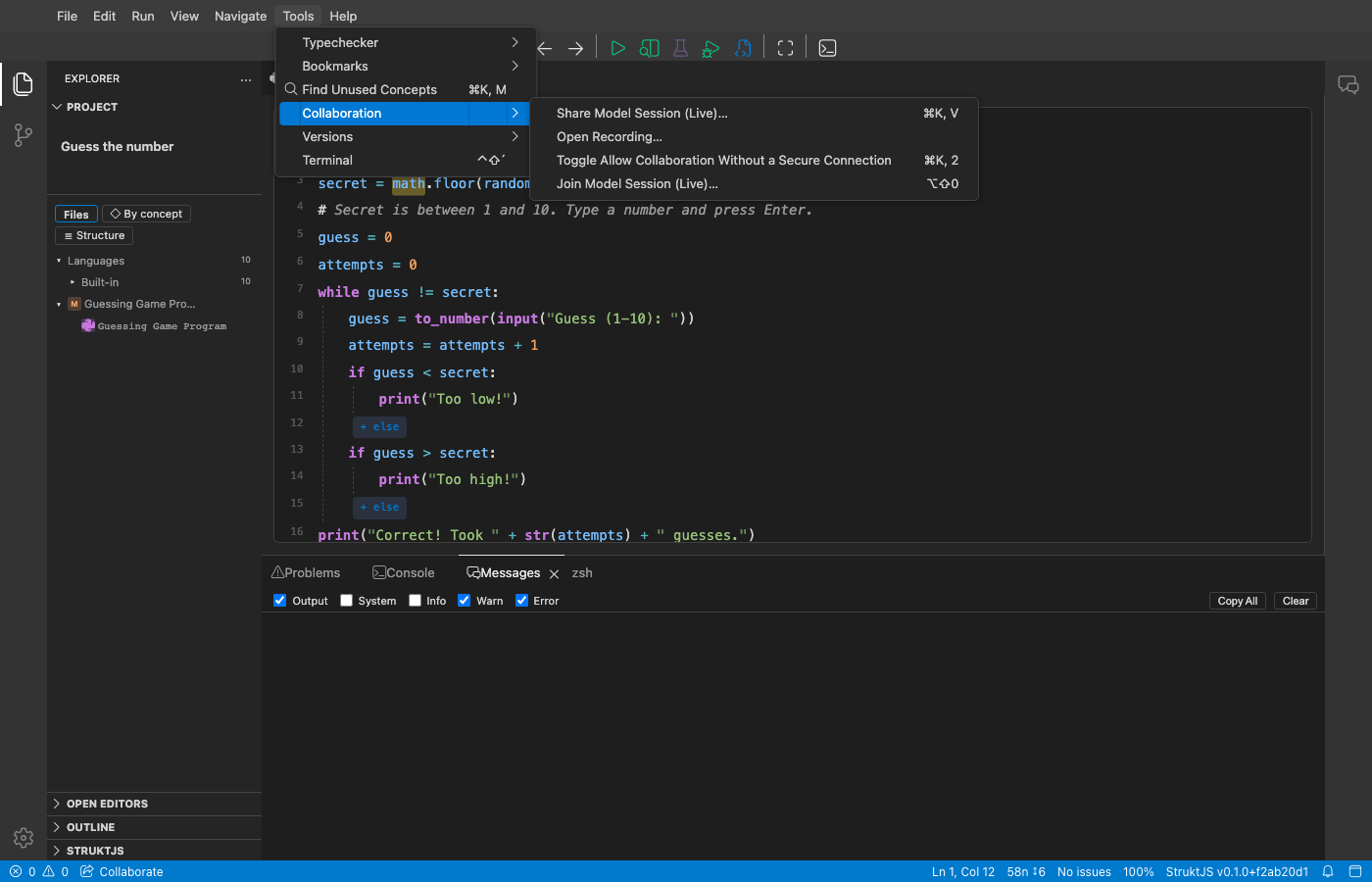
- Choose Tools > Collaboration > Share Model Session (Live)… (shortcut Ctrl/Cmd+K, then C, S).
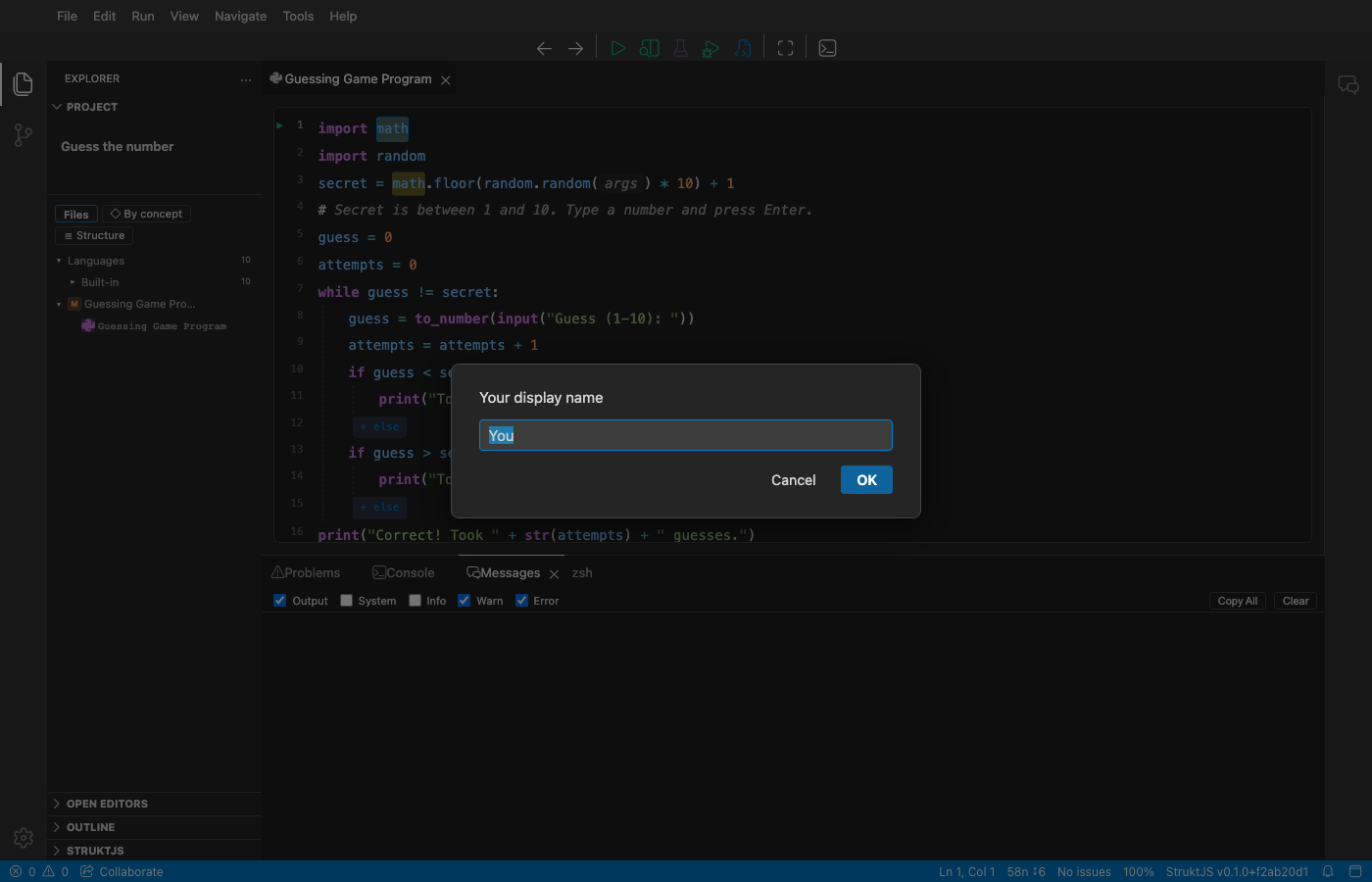
- The first prompt is Your display name. An empty answer becomes
You. - The second prompt is Collaboration server URL, pre-filled from the Relay server URL setting
(
collabServerUrl, defaulthttp://localhost:8100/). - You get a room code. It is copied to your clipboard for you. Send it to your collaborators, or use Copy Join Link to copy a link that contains the room and the relay.
Only one session can be active per window. Leave it first to start another. The share and join prompts can only run one at a time; if one is already open you get "A collaboration prompt is already in progress."
Join a session (guest)
- Choose Tools > Collaboration > Join Model Session (Live)… (Ctrl/Cmd+K, then C, J).
- Enter your display name, the room code, and the relay URL when asked, in that order.
Or open a join link: you are offered the join directly with the room and relay filled in.
The host then sees Allow "name" to join this collaboration session? with Allow and Deny. The dialog is closed only by Allow, Deny or Escape (clicking elsewhere does not dismiss it). A request nobody answers within about a minute is denied automatically. If several people ask at once, the host is asked about each in turn. In the Theia IDE the dialog brings an editor tab to the front if the host was on another tab.
A join link names a relay server. The confirmation always shows it, with a prominent warning when it differs from your own configured relay. Only join links from people you trust. See Security and privacy.
Leave a session
Choose Tools > Collaboration > Leave Model Session (Ctrl/Cmd+K, then C, L). If you are the host and others are still in the room, you are asked Leave session or Stay, because leaving ends the session for everyone. Leaving also stops a running recording and offers to save it.
The host, and handing it over
The host is whoever started the session. Guests follow the host's active file, and optionally the host's right/bottom panel selection (below). The host role can move:
- Manually. The current host runs Show Participants… (Ctrl/Cmd+K, then C, P) and picks someone to hand host duty to. Guests just see a summary of who is in the room.
- Automatically. If the host leaves, the next participant takes over.
If the original host disconnects
The relay closes a room when the person who created it has been gone for about 30 seconds. Nothing in struktJS can keep the room alive after that, so everyone is disconnected, even if the host role had moved to someone else.
Following the host
A guest can opt in or out of two follow behaviours. Neither does anything for the current host.
- Toggle Follow Host (Panes) (Ctrl/Cmd+K, then C, F) mirrors the host's selected right/bottom tool panel. It is
on by default for guests. The Follow host's tool-panel selection setting (
collabFollowHostPanes) takesauto,alwaysornever. Setneverif host-driven pane changes interrupt you. - Toggle Sync Theme with Host mirrors only the host's dark/light mode. It is off by default, only
lasts for the session, and never changes your saved theme: your own theme is restored when you turn it off
or leave. The setting is Sync theme with host (
collabSyncTheme). Neither toggle syncs other preferences such as font size.
If you run either one as the host you get a notice such as "You are the current host — Follow Host has no effect for you."
The status-bar item
At the bottom left of the Theia window there is a Collaborate item.
- With no session it reads
Collaborate. - During a session it reads
<room code> · <participant count> · Host(orGuest), plus a short note about what the host is doing if you are a guest ("Ran: ...", a dialog name, or a popup). - Click it to get a pick list titled Select a model collaboration option. It offers only the actions that are possible right now.
- It works from any tab, and stays visible during a session even if you close the project. With no project open and no session it is hidden.
Reloading the page
If you reload the page (or briefly navigate away), struktJS silently reattaches to the same room within about 20 seconds, with no new approval. It reports the session as back only after it has confirmed the relay connection is really open. If the relay is unreachable or the seat has expired, it says so and you can start or join again. A crash or a killed tab cannot resume, because the resume record is written only when the page closes normally. If someone joined while you were reloading, they may not receive your edits until they leave and rejoin.
Undo during a session
Undo and redo revert your own edits only. A collaborator's edits that landed in between are left alone.
What is and isn't synced
| Synced | Not synced |
|---|---|
| The model tree, including structure and values | Your preferences (font size, indentation, ...) |
| Active file (host to guests) | Which dialogs you have open (only a label such as "Settings" is shown) |
| Cursors, pointers, activity labels, idle state | Comment threads after the session ends |
| Comment threads (during the session) | Files on disk: each person saves their own copy |
| Host's panel selection and dark/light mode (opt-in, guests only) |
Read-only mode no longer exists. Earlier versions let a host lock a room or one model read-only for guests; that was removed, so every participant can edit. The host can only approve or deny joins. There is no way to remove someone who has already joined.
Relay server URL
Type the relay as a full URL (https://relay.example.com) or just host:port. A bare host:port gets
http:// for this machine and local-network hosts and https:// otherwise. Plain http:// / ws:// is
accepted for this machine (localhost, 127.x.x.x, ::1). To use a relay on your own network over plain
HTTP, turn on Allow plain-HTTP relay on a local network (collabAllowInsecureRelay) in Settings. It
permits private-network addresses (192.168.x.x, 10.x.x.x, 172.16-31.x.x, link-local, *.local) only,
never public hosts. A page loaded over https:// cannot talk to a plain-http:// relay (browser
mixed-content rule).
Secure connection requirement
Session content is end-to-end encrypted in the browser, which needs a secure context (HTTPS or
http://localhost). If you open the IDE over plain HTTP on a LAN address the browser cannot do this. For a
network you fully trust, turn on Allow collaboration without a secure connection
(collabAllowInsecureCryptoFallback), or run Toggle Allow Collaboration Without a Secure Connection
(no default shortcut). It still hides content from the relay, but not from someone who can tamper with the page
in transit, and a warning is shown whenever a session uses it. Prefer HTTPS or a tunnel to localhost.
Generating the keys without the browser's help takes a few seconds, and the page may briefly freeze.
Every control
Everything is under Tools > Collaboration and in the Command Palette (F1, prefixed Collaboration:).
In the Theia menu, entries that need a session are hidden until one is running: Leave, Copy Join Link, Show
Participants…, Add Comment, Start Recording Session, and the two toggles (Follow Host and Sync Theme are shown to
guests only). Stop Recording Session… appears only while you are recording, and Start Recording Session
disappears while you are. Idle, the menu shows Share, Join, Open Recording… and the secure-connection toggle.
| # | Button / option | What it does | Shortcut | Gotcha |
|---|---|---|---|---|
| 1 | Share Model Session (Live)… | Starts a session, asks for name and relay, copies the room code. | Ctrl/⌘+K, C, S | One session per window. Needs a reachable relay. |
| 2 | Join Model Session (Live)… | Asks for name, room code, relay, then asks the host for approval. | Ctrl/⌘+K, C, J | Denied automatically after about a minute with no answer. |
| 3 | Leave Model Session | Leaves; confirms first if you are the host and others remain. | Ctrl/⌘+K, C, L | Host leaving ends it for everyone. |
| 4 | Copy Join Link | Copies a link with page address, room and relay (never your local path). | Ctrl/⌘+K, C, C | Only share with people you trust. |
| 5 | Show Participants… | Lists everyone; a host can pick someone to become host. | Ctrl/⌘+K, C, P | Guests only get a summary message. |
| 6 | Toggle Follow Host (Panes) | Mirror the host's right/bottom panel selection. | Ctrl/⌘+K, C, F | No effect for the host. |
| 7 | Toggle Sync Theme with Host | Mirror the host's dark/light mode for this session. | none | Guest only. Never saved. |
| 8 | Add Comment | Opens a comment thread on the focused node. | none | Needs a focused node. See Presence, comments and recording. |
| 9 | Start Recording Session | Starts recording the session's edits. | none | Any participant can record. |
| 10 | Stop Recording Session… | Stops and asks where to save a .json. |
none | If the save fails, you are asked to save again or discard. |
| 11 | Open Recording… | Plays a saved recording in an overlay. | none | Needs no session. |
| 12 | Toggle Allow Collaboration Without a Secure Connection | Flips the insecure-crypto setting. | Only on trusted networks. | |
| 13 | Status-bar "Collaborate" item | Opens the pick list of collaboration actions. | none | Hidden with no project and no session. |
Related settings (File > Preferences > Settings, search “struktJS”, section Collaboration): Relay server URL, Follow host's tool-panel selection, Sync theme with host, Allow plain-HTTP relay on a local network, Allow collaboration without a secure connection. See Preferences.
Under the hood
Beneath the sync, every peer's edits are mirrored onto everyone's live model. Editing a node in place keeps its id on remote peers, so a collaborator's cursor on it is not lost. Concurrent edits to different nodes end up identical on both sides in any arrival order. Moving a node to a different parent resets its cross-peer identity, which is why cursors and comment threads pinned to it stop following it. For the implementation, see Collaboration internals.