Import and export languages
Audience: language designers and teams sharing languages · ~7 min read · Prerequisites: The Language Editor
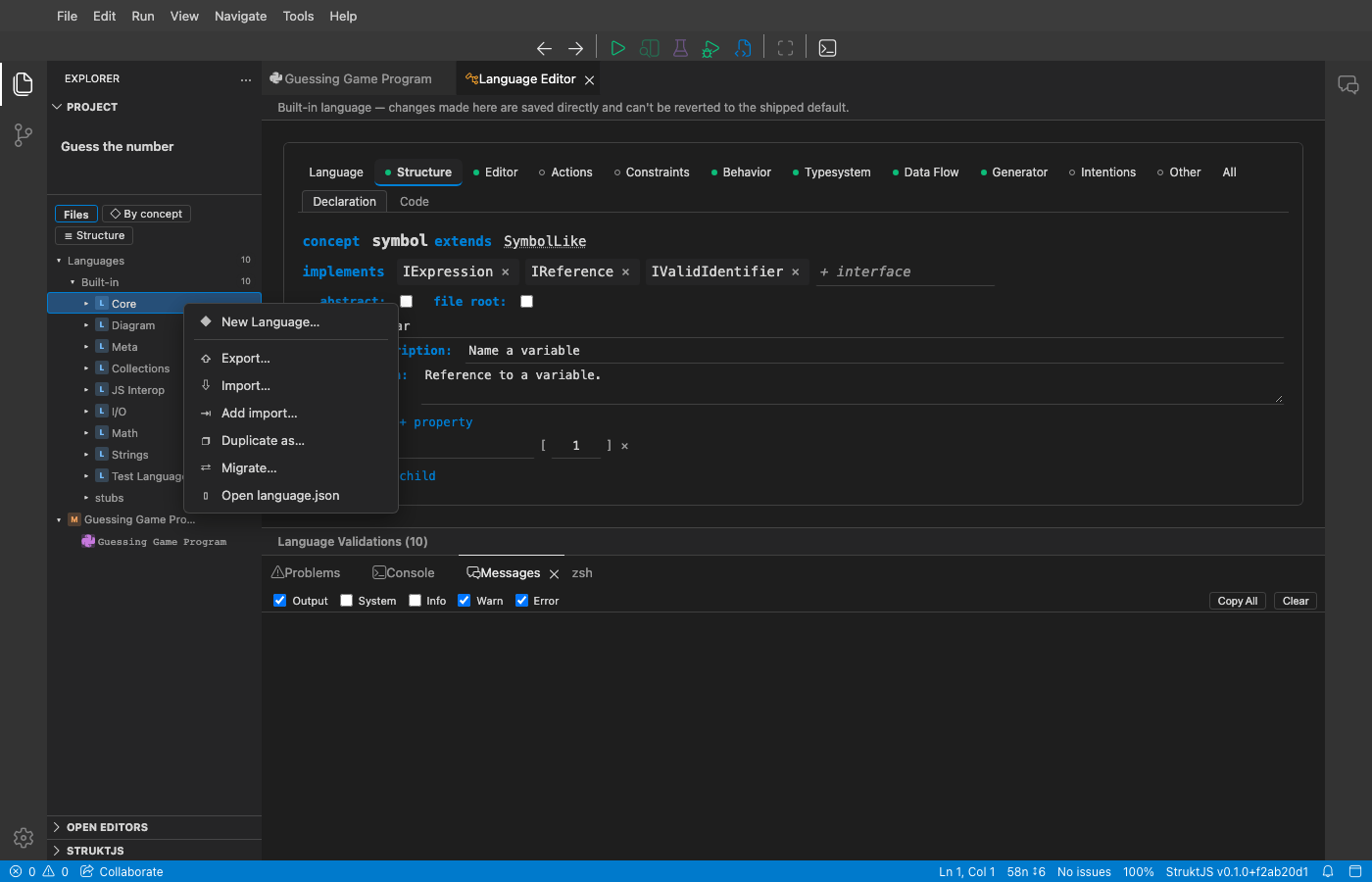
What it is
A language can be moved between machines as a single file named <language>.lang.js. You can also make one
language import another so it reuses its concepts, and make a copy of a language under a new name. All of
this is done from the right-click menu of a language in the Project tree (Explorer, under Languages).
When you'd use it
- Send a language you built to a colleague.
- Reuse another language's concepts (for example the Diagram or Decision Table concepts).
- Branch off a language to experiment.
- Change a language's structure and bring old models along (Migrate).
LionWeb is not available
LionWeb (an exchange format for languages and models) is a plan only. There is no LionWeb menu, command or file type in the product today. Do not look for it.
How to
Export a language
- Right-click the language and choose Export….
- Your browser or the desktop app downloads
<name>.lang.js.
The file is JavaScript. It contains everything the language defines, including its rules and generators.
Import a language file
- Right-click Languages or any language and choose Import….
- Pick a
.lang.jsfile. (.jsonand.lang.jsonappear in the file picker, but only.lang.jsis read.) - The language is registered and opens in the Language Editor. If the file is broken, a dialog says "Import failed: ...".
Only import files you trust: they contain code that runs inside the IDE (why).
Keep your .lang.js
A language imported this way is saved under ~/.struktjs/languages/ and is kept across restarts. At start-up
only stale saved copies of languages that ship with the app (the demo languages, which load on demand) are
removed; your own languages are never touched. A language created with New Language… while a project is open is stored in the project folder, which is
safe. Keep your exported .lang.js file.
Make a language import another
- Right-click your language and choose Add import….
- Choose a language from the list "Import into
:".
You can remove an import later with ✕ in the Imports section of the Language Editor. To import a language into a model (so you can use its concepts in that file), use Add Language Import… (Ctrl/⌘+K, E, M).
Duplicate
Right-click, Duplicate as…, type the new name (default <name>-copy). The copy gets the display name
"
Migrate
Use Migrate… when you change a language's structure and existing models must follow.
- Right-click the language and choose Migrate… (not available for bundled languages or loaded plugins; a message says so).
- Build the change list with Add a change: pick Rename a concept, Rename a slot, Add a slot or Remove a slot,
choose the concept (and slot) from the language's own lists, type the new name and click Add to the list.
Under the list the dialog says what each change would do to the models of the open project that are written in
this language, before anything is applied: Rename concept Price to Cost: 14 nodes in 3 models, and for a removed
slot ⚠ 4 with a value that is dropped. A model that is not open in the project is not counted.
For anything else you can still type the operations yourself, one JSON object per line, for example
{"op":"renameConcept","from":"OldHead","to":"NewHead"}. Operations:renameConcept,renameSlot,addSlot,removeSlot,renameLanguage,setCategory,setDescription, andtransform(a script that rewrites saved models; see the language guide). - Click Apply. Errors are shown in red and nothing is changed.
Applying raises the language's version and records the step, so a model saved with an older version is brought forward when it is next loaded. A model saved with a newer version of the language than the one installed is not opened: the project load reports it, so update the language first.
Open language.json
Open language.json opens the small hand-editable file next to a language with its display name, description and imports. It is not available for project-owned languages yet.
Every control
| # | Button/Option | What it does | Shortcut | Gotcha |
|---|---|---|---|---|
| 1 | New Language… | Creates a language from a card (Blank, Expression, Statement, Copy of a language) or a template (Calculator, Data model). | One dialog - name, card, and the file grammar under Advanced. | |
| 2 | Rename… | Changes the display name only. | Double-click | Not for built-in languages. Internal name and files do not change. |
| 3 | Export… | Downloads <name>.lang.js. |
||
| 4 | Import… | Reads a .lang.js file. |
Only .lang.js is read. |
|
| 5 | Add import… | Lets this language reuse another. | "No other languages available to import." if none. | |
| 6 | Duplicate as… | Copies under a new name. | ||
| 7 | Migrate… | A change form and a JSON list, an impact preview for the open project's models, then Apply and Cancel. | Refused for built-in and plugin languages. | |
| 8 | Open language.json | Opens the sidecar file. | Not for project-owned languages. | |
| 9 | Add Language Import… | Imports a language into the open model. | Ctrl/⌘+K, E, M | A different feature from #5. |